How to Update Your Huawei P9 Lite: A Simple Step‑by‑Step Guide
Keeping your smartphone fresh isn’t just about bragging rights; it’s the cheapest way to stay secure, enjoy smoother performance, and unlock new features when they become available. If you own a Huawei P9 Lite and wonder how to update Huawei P9 Lite without turning the process into a tech‑support nightmare, you’re in the right place. This guide walks you through the most reliable methods—over‑the‑air (OTA) updates, a PC‑based HiSuite sync, and a few troubleshooting tricks—so you can get your device back to its best in minutes.
Why Updating Matters for the P9 Lite
The P9 Lite launched with Android 6.0 Marshmallow and EMUI 5.0. While Huawei stopped major OS upgrades for this model a few years ago, security patches and minor EMUI tweaks still roll out from time to time. An up‑to‑date system means:
- Reduced exposure to known vulnerabilities.
- Improved battery‑life management and app compatibility.
- Access to refined UI tweaks that can make everyday tasks feel smoother.
If you’ve been ignoring the “System update available” banner, now’s a good moment to give it a look.
Preparing Your Phone Before the Update
Even a simple OTA flash can stumble if the device isn’t ready. Follow these quick prep steps:
- Back up your data. Use Huawei’s cloud service, Google Drive, or a local PC backup. A corrupted update is rare, but a backup gives you peace of mind.
- Charge to at least 50 %. The installer will refuse to run on a low battery, and a sudden shutdown could brick the phone.
- Free up storage. OTA packages for the P9 Lite typically range from 300 MB to 600 MB. Delete unused apps, large videos, or move media to an SD card.
- Connect to Wi‑Fi. Cellular data caps can bite you, and a stable connection prevents download corruption.
Updating via the Phone’s Settings (OTA)
The most straightforward method is the built‑in over‑the‑air update. Here’s how to do it:
- Open Settings from your home screen or app drawer.
- Scroll down and tap System > Software update.
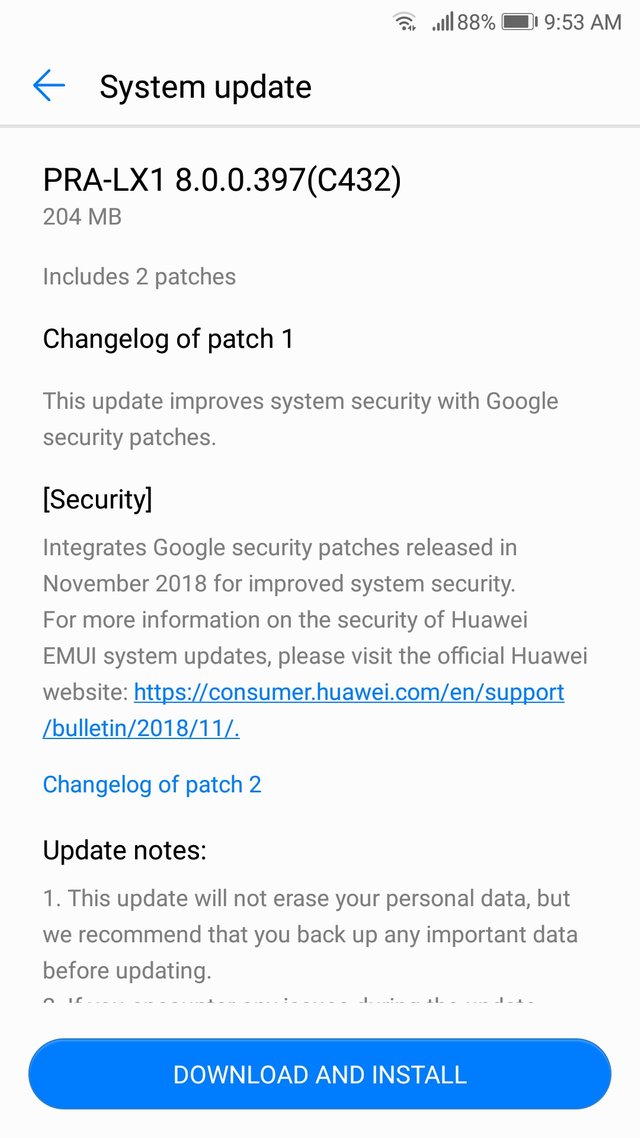
- Tap Check for updates. If Huawei’s servers have a newer EMUI build for your region, you’ll see a brief description and the file size.
- Press Download. The phone will fetch the package; you’ll see a progress bar and an estimate of remaining time.
- Once the download finishes, you’ll be prompted to Install now or Schedule for later. Choose “Install now” for immediate action.
- The device will reboot, apply the update, and finally boot into the refreshed system. You may notice a brief “Optimizing apps” screen—this is normal.
If the update check returns “Your system is up to date,” the P9 Lite has likely received its final official patch. In that case, consider the next section for a manual update using a PC.
Updating with HiSuite on a PC
Huawei’s HiSuite desktop client can push updates that the phone’s OTA service might miss, especially if you’re on a carrier‑locked version. Follow these steps:
- Download HiSuite from Huawei’s official site (available for Windows and macOS).
- Install the program, then launch it and sign in with your Huawei ID.
- Connect the P9 Lite via a USB cable. Accept any “Allow USB debugging” prompts that appear on the phone.
- In HiSuite’s main window, click System Update. The software will scan for the latest firmware compatible with your model.
- If an update is found, click Download & Install. HiSuite handles the download, verification, and flashing process automatically.
- Do not disconnect the phone until HiSuite reports “Update successful.” The phone will reboot once more.
This method is handy when OTA servers are temporarily down or when you prefer a wired connection for speed.
Troubleshooting Common Update Hiccups
Even a simple guide can’t anticipate every hiccup, but here are the most frequent issues and quick fixes:
- Update stuck on “Downloading.” Switch from Wi‑Fi to mobile data (or vice versa), then retry. A faulty router can also cause stalls.
- Insufficient storage error. Move apps to the SD card, clear the cache of large apps, or temporarily uninstall a game you don’t use.
- Boot loop after flashing. Boot into recovery mode (power + volume up), choose “Wipe cache partition,” and reboot.
- Device says “No compatible update.” Verify that you’re using the official firmware for your exact model number (e.g., ‘VOG‑AL00’). Custom ROMs are an option for enthusiasts, but they fall outside the scope of a “simple guide.”
When to Consider a Custom ROM
If you’ve exhausted official patches and still crave a newer Android version, the P9 Lite community has unofficial builds based on Android 7 or 8. Installing a custom ROM requires unlocking the bootloader, flashing a recovery, and accepting the risk of voiding warranties. This path is for advanced users; the steps above should satisfy the majority who simply want a stable, secure phone.
FAQ
How often does Huawei release updates for the P9 Lite?
Official OTA updates for the P9 Lite tapered off after the 2017 security patch cycle. Minor EMUI tweaks may still appear sporadically, but major Android upgrades are unlikely.
Can I update the P9 Lite without Wi‑Fi?
Yes, you can use mobile data for OTA downloads, though large files may exceed carrier limits. A PC‑based HiSuite update over a wired connection avoids data caps altogether.
Will updating erase my apps and data?
Standard OTA or HiSuite updates preserve user data. However, a backup is strongly recommended in case of an unexpected failure.
My phone says “System update failed” after a reboot. What now?
Enter recovery mode (power + volume up), select “Wipe cache partition,” then retry the update. If it fails again, reinstall the latest firmware via HiSuite.
![Install Latest Nougat Update For Huawei P9 and P9 Lite [All Variants]](https://www.androidsage.com/wp-content/uploads/2017/07/P9sHero2_w720.png)
