How to Use Android’s *#*#4636#*#* Code to Access Hidden Settings
What Is the *#*#4636#*#* Secret Code?
If you’ve ever stumbled upon a string of asterisks, numbers and hash symbols on your phone, you’ve probably wondered whether it’s just a prank or something more useful. In Android’s case, *#*#4636#*#* is a built‑in “testing” menu that reveals a trove of diagnostic information. It’s not a download or an app; it’s a hidden doorway baked into the operating system.
How to Open the Testing Menu
Getting there is surprisingly simple—just type the code into the dialer exactly as it appears, then hit the call button. If your device supports it, the menu pops up instantly. No need for root access or special permissions.
- Open the Phone app.
- Enter
*#*#4636#*#*using the numeric keypad. - The screen should switch automatically; you don’t even need to press “Call”.
Some manufacturers strip the feature out of their custom skins, so you might see a blank screen on a heavily modified device. In that case, the code simply isn’t there.
What You’ll See Inside
The testing menu is split into three main sections:
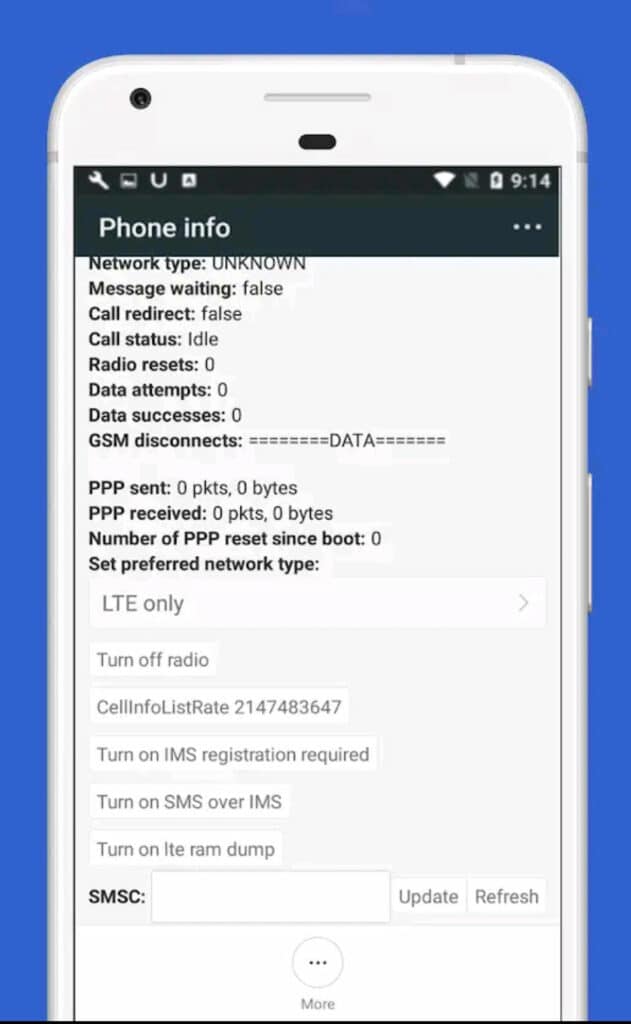
- Phone Information – Details about your SIM, network operator, and signal strength.
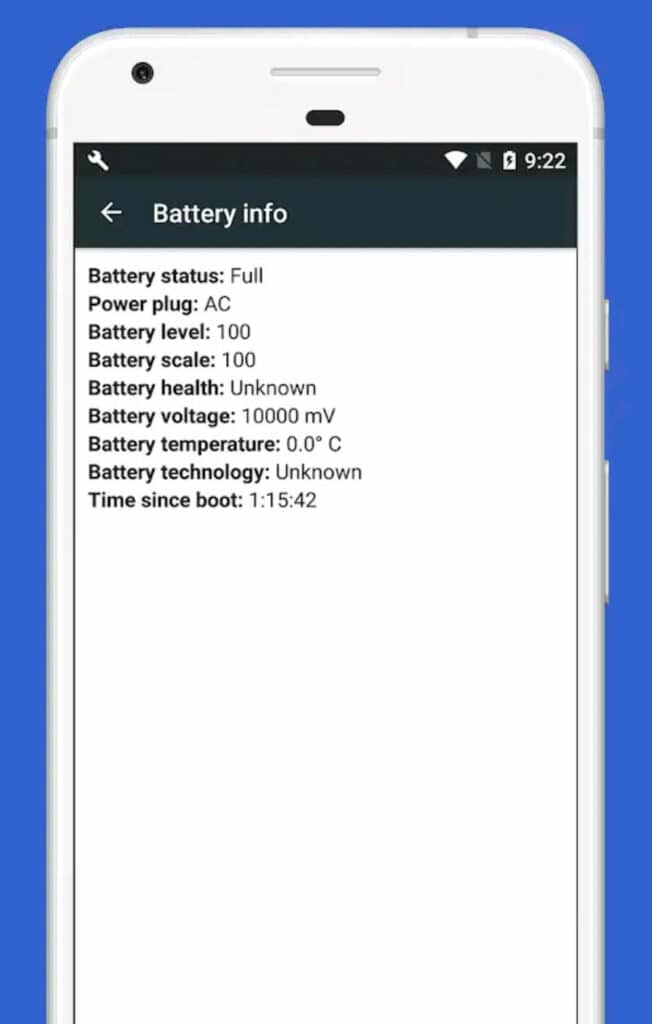
- Battery Information – Real‑time battery health, voltage, temperature, and charging statistics.
- Usage Statistics – App‑by‑app data usage, CPU activity, and runtime metrics.
Each tab offers sub‑menus that dig deeper, letting you toggle certain settings that are otherwise hidden from the standard Settings app.
Practical Settings You Can Adjust
While most of the menu is read‑only, a few toggles can actually change how your phone behaves. Here are the ones that tend to be most useful:
- Preferred Network Type – Switch between 2G, 3G, 4G, or auto‑select, handy for troubleshooting dropped calls.
- Enable/Disable Radio Power – Turns the cellular radio on or off without needing airplane mode.
- Set Day/Night Mode Manually – Forces the display to use a specific brightness profile.
These options are meant for developers and technicians, so use them sparingly. A misplaced toggle can temporarily disrupt connectivity.
Things to Keep in Mind
Even though the menu feels like a secret cheat code, it’s not a magic fix. Here are a couple of caveats:
- Potential Warranty Impact – Changing settings isn’t the same as rooting, but some manufacturers might view it as tampering.
- Risk of Misconfiguration – Accidentally disabling the radio or selecting an unsupported network type could leave you offline until you reboot.
If you’re unsure, note the original setting before you make a change. A quick reboot usually restores default values.
When Is It Really Worth Using?
Most casual users never need to dive into this menu. However, if you’re experiencing:
- Unexplained battery drain,
- Spotty signal strength despite good coverage,
- Unexpected data usage spikes,
the diagnostic info can point you toward the culprit. For instance, the battery section will show the exact voltage drop, which can hint at a failing cell.
Alternatives to the Secret Code
There are third‑party apps that replicate many of the same readings, such as Battery Historian or Network Cell Info Lite. Those tools often present the data in a more graphical way, but they usually require additional permissions.
If you prefer a no‑install approach, the *#*#426#*#* code (also known as the “Device Info” menu) can be another avenue, though it’s less detailed about battery health.
Final Thoughts
Mastering *#*#4636#*#* is like discovering a hidden control panel in a car—useful for the curious and the technically inclined, but not essential for everyday driving. By entering the code, you unlock a snapshot of your device’s inner workings and a few levers you can pull. Just remember to tread lightly, jot down original settings, and reboot if anything goes awry. With a bit of caution, the secret code becomes a handy troubleshooting ally rather than a mysterious gimmick.