How to Use CloudStream Repositories: Your Guide to TV Shows
Ever stumbled upon a TV series you loved, only to find the streaming options limited or pricey? CloudStream offers a surprising workaround: a collection of community‑curated repositories that pull content from dozens of sources in real time. It’s not magic, but it feels close enough when a favorite episode pops up instantly.
What Is CloudStream?
At its core, CloudStream is an Android‑based media player that acts as a front‑end for streaming links. Unlike traditional apps that lock you into a single catalog, CloudStream taps into repositories—essentially JSON feeds—each describing where and how to locate a show. The player parses those feeds, matches titles, and then streams the best available link.
Think of it as a universal remote for online video. The app itself stays lightweight; the heavy lifting lives in the repositories that contributors constantly update.
Why Use Repositories for TV Shows?
- Diversity of sources: One repository may pull from public domain archives, another from niche regional sites.
- Freshness: Active communities add new episodes within hours of release.
- Customizability: You can enable only the feeds that match your language or quality preferences.
Of course, the flip side is that not every feed is equally reliable. Some may return broken links, while others lag behind popular series. The trick is learning which repositories consistently deliver the shows you care about.
Setting Up CloudStream with Repositories
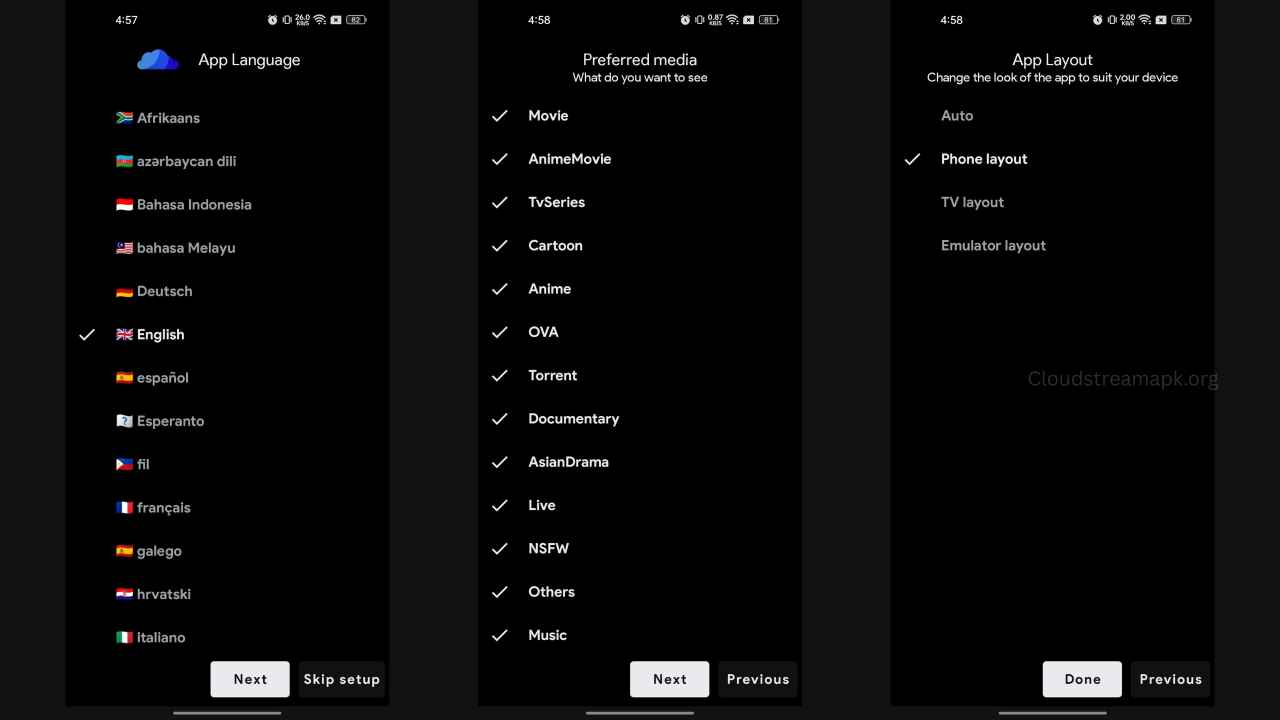
Getting started is easier than you might think. Follow these steps, and you’ll be watching in minutes:
- Install the app: Download the latest CloudStream APK from its official GitHub page. Enable “Install from unknown sources” on your device, then open the file.
- Open Settings: Tap the gear icon in the top‑right corner. Under “Sources,” you’ll find a button to “Add Repository.”
- Enter the URL: Paste the JSON link of a trusted repository (for example,
https://example.com/repo.json). Hit “Save.” - Refresh the catalog: Swipe down on the home screen to force a sync. The app will pull the latest titles from the new feed.
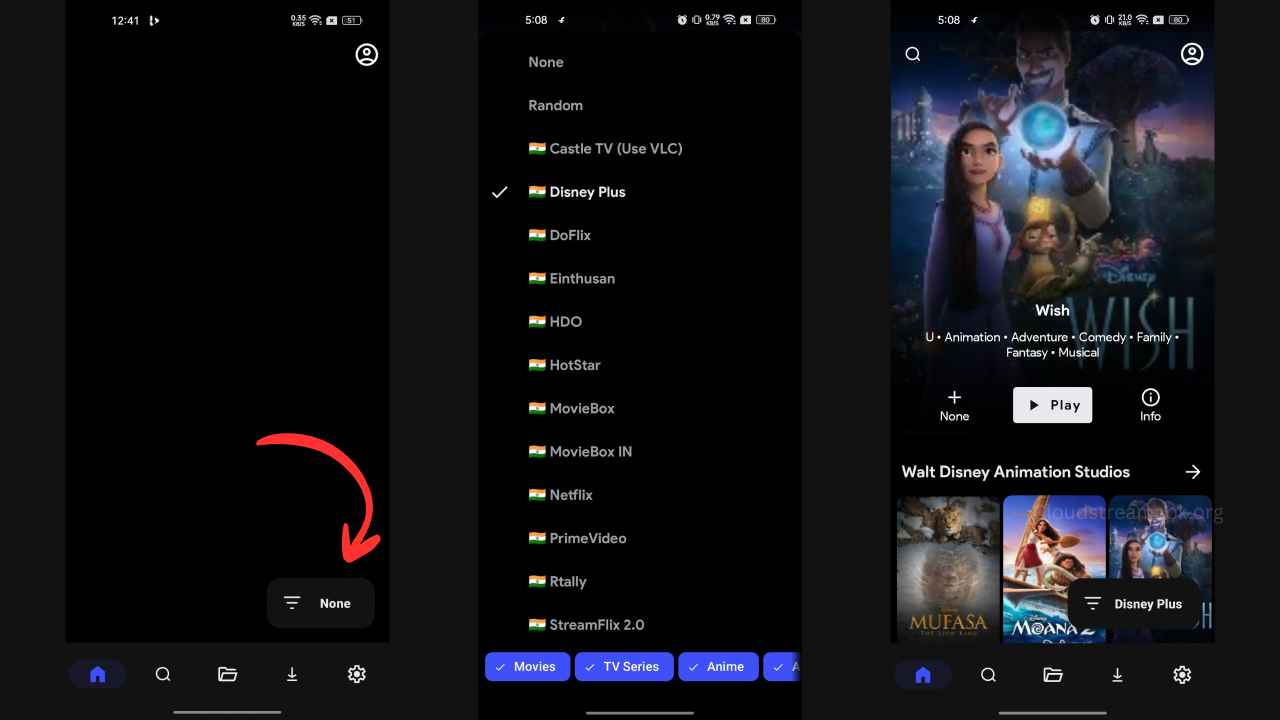
- Search and play: Type the name of a show in the search bar. If the repository has it, you’ll see streaming options appear instantly.
If a link fails, simply swipe left on it to hide the source. CloudStream will automatically try the next available mirror.
Finding the Right TV Show Repositories
Not all repositories are created equal. Here are a few criteria to help you decide which feeds are worth adding:
- Update frequency: Check the repository’s commit history on GitHub. Daily commits usually signal active maintenance.
- Source diversity: Repositories that aggregate from multiple domains tend to have fewer dead links.
- Regional relevance: If you prefer content with subtitles in a particular language, look for repos that tag those assets.
- Community rating: Some forums rank repos based on user feedback—use those as a shortcut.
Popular choices include “Universal TV,” “OpenSeries,” and “SubsHub.” While the names change over time, their underlying philosophy stays the same: open access to publicly available streams.
Common Pitfalls and How to Avoid Them
Even seasoned users hit snags now and then. Below are the most frequent issues and quick fixes:
- Broken links: Occasionally a source bans the app’s scraper. Refresh the repository or disable the offending feed.
- Duplicate entries: When two repos list the same episode, the player may show several identical links. Use the “Hide duplicates” toggle in Settings.
- Regional blocks: Some mirrors are geo‑restricted. A simple VPN can unblock them, but remember to abide by local laws.
- Low quality streams: Not every link is HD. Look for the “Resolution” label beside each source and pick the highest you can handle.
Whenever you add a new repository, give it a quick test run with a recent episode you know is available elsewhere. That small check saves hours of frustration later.
Tips for a Smoother Viewing Experience
Beyond the basics, a few tweaks can elevate your binge‑watching sessions:
- Enable “Auto‑select best source” so CloudStream picks the highest‑resolution link automatically.
- Set a default subtitle language under “Playback Settings” to avoid hunting for the right track.
- Use the “Data Saver” mode on mobile networks; the app will prioritize lower‑bitrate streams.
- Bookmark favorite series. The app remembers the last episode you watched, making it easy to resume later.
And if you discover a repository that consistently outperforms the rest, consider sharing it on the community forums. The whole ecosystem thrives on that kind of collaboration.