How to Use HCCast App for iOS for Easy Projector Setup
If you’ve ever tried to turn your iPhone into a portable presentation engine, you know the frustration of tangled cables and finicky settings. The HCCast app smooths that out, letting you beam photos, videos, and slides straight to most modern projectors. Below, we walk through everything you need to know to get the app up and running without a hitch.
What Is HCCast?
HCCast is a lightweight streaming solution designed specifically for iOS devices. It supports both wired HDMI adapters and wireless protocols such as Miracast and AirPlay, depending on the projector’s capabilities. The appeal lies in its simplicity: a few taps and your screen is mirrored.
Beyond basic mirroring, the app offers:
- Live playback control – pause, rewind, or fast‑forward directly from your phone.
- Screen orientation lock – keep landscape mode even if you rotate the device.
- Resolution auto‑adjustment – the app detects the optimal output for the connected projector.
Preparing Your iPhone and Projector
Before you dive in, verify a few basics. First, ensure your iPhone runs iOS 12 or later; older versions may lack the necessary background‑streaming support. Next, check the projector’s input options. Most newer models accept HDMI, USB‑C, or wireless casting via Wi‑Fi Direct.
If you’re using a wired connection, you’ll need a Lightning‑to‑HDMI adapter (Apple’s official one works best). For wireless setups, confirm that the projector’s firmware is up to date – a stale version can cause latency or drop‑outs.
Step‑by‑Step Setup
Follow this quick checklist to get HCCast broadcasting in under three minutes.
- Download and install the HCCast app from the App Store.
- Launch the app and grant the requested permissions (screen recording, local network).
- Choose your connection type:
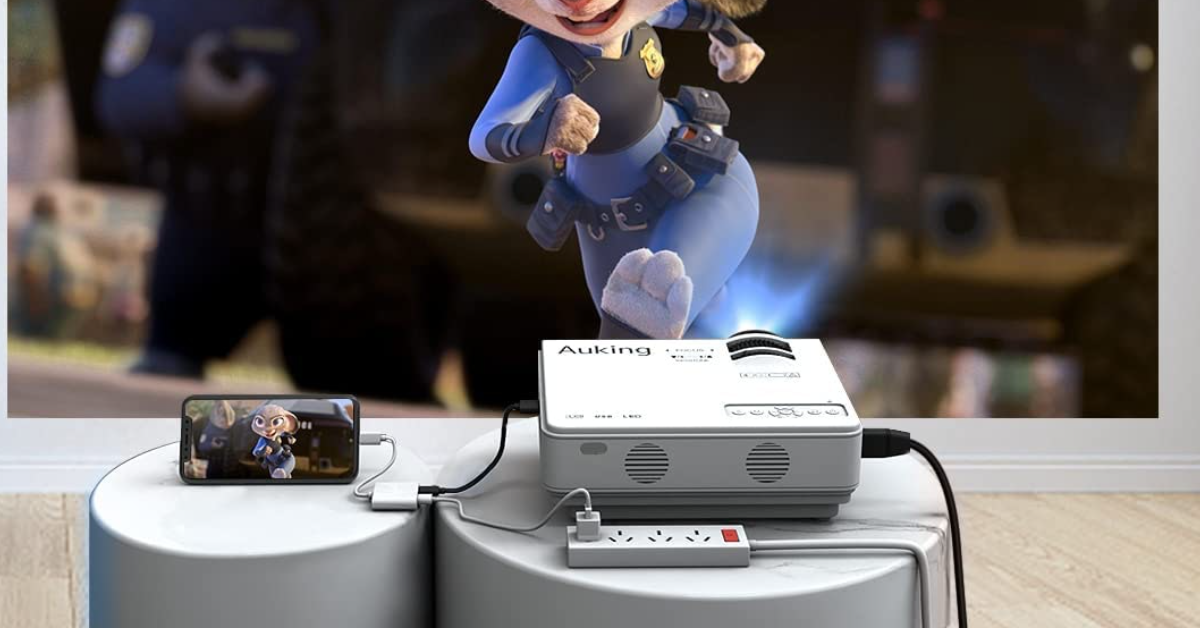
- For HDMI, plug the adapter into your iPhone, then connect the HDMI cable to the projector.
- For wireless, tap “Wi‑Fi Cast” and select the projector from the list of available devices.
- Confirm the preview appears on the projector screen. If you see a black image, try toggling the orientation lock or restarting the app.
- Start streaming your content. Open Photos, YouTube, or any media app; the output should now mirror in real time.
That’s it. Most users report a seamless transition after the initial handshake.
Troubleshooting Common Issues
Even the smoothest setups can hit a snag. Here are the typical hiccups and how to resolve them.
- No signal on the projector – Double‑check the cable’s seating; a loose HDMI connection is the usual suspect.
- Audio lag – Switch the audio output in the iPhone’s Control Center to “Projector” instead of “Phone”.
- Frequent disconnects (wireless) – Ensure both devices share the same Wi‑Fi band (2.4 GHz is more reliable for older projectors).
- Black screen after orientation change – Disable “Auto‑Rotate” in Settings while mirroring, then re‑enable after the connection stabilizes.
Tips for a Smooth Experience
While HCCast handles most of the heavy lifting, a few habits can make your presentations feel polished.
- Close background apps. Freeing up RAM reduces the chance of frame drops.
- Keep your iPhone plugged into a charger if you’re streaming for extended periods; the app can be power‑hungry.
- Use a dedicated Wi‑Fi network for the projector if you’re in a crowded venue – this isolates traffic and boosts stability.
- Test the setup with a short video before the actual event. It’s easier to troubleshoot in advance than mid‑presentation.
With HCCast installed and your device primed, turning an iPhone into a portable projector hub is practically effortless. Give it a try, and you’ll discover just how little gear you really need to share your screen with a room full of eyes.