How to Use ULaunchELF 4.42 – PS2’s Ultimate File Manager
What Is ULaunchELF?
ULaunchELF is a homebrew utility that turns a PlayStation 2 into a mini‑computer, letting you browse, copy, and launch files straight from the console’s memory card or an attached USB stick. The name sounds technical, but the concept is simple: it’s the PS2’s version of Windows Explorer, only lighter and built for gamers who love tinkering.
Key Features of Version 4.42
- Support for multiple storage devices (memory cards, USB, CD‑ROM).
- Integrated ELF launcher, so you can run homebrew games with a single click.
- File‑type preview – see a tiny thumbnail for images or a snippet for text files.
- Built‑in hex editor for quick tweaks to save files.
- Customizable themes that let you change background colors and fonts.
These upgrades make 4.42 feel like a genuine OS upgrade rather than a throw‑away file manager.
Installing the Manager on Your PS2
First things first – you need a way to load homebrew software. Most users rely on a modchip or a simple swap magic disc. Once that’s set up, follow these steps:
- Download the latest ULaunchELF 4.42 zip from a reputable source.
- Extract the
ULaunchELF.elffile onto a USB drive formatted to FAT32. - Insert the USB drive into the PS2’s USB port.
- Boot the console using your modchip or swap disc, then navigate to “USB → ULaunchELF.elf”.
At this point the interface should pop up, and you’ll know you’re ready to explore.
Navigating the Interface
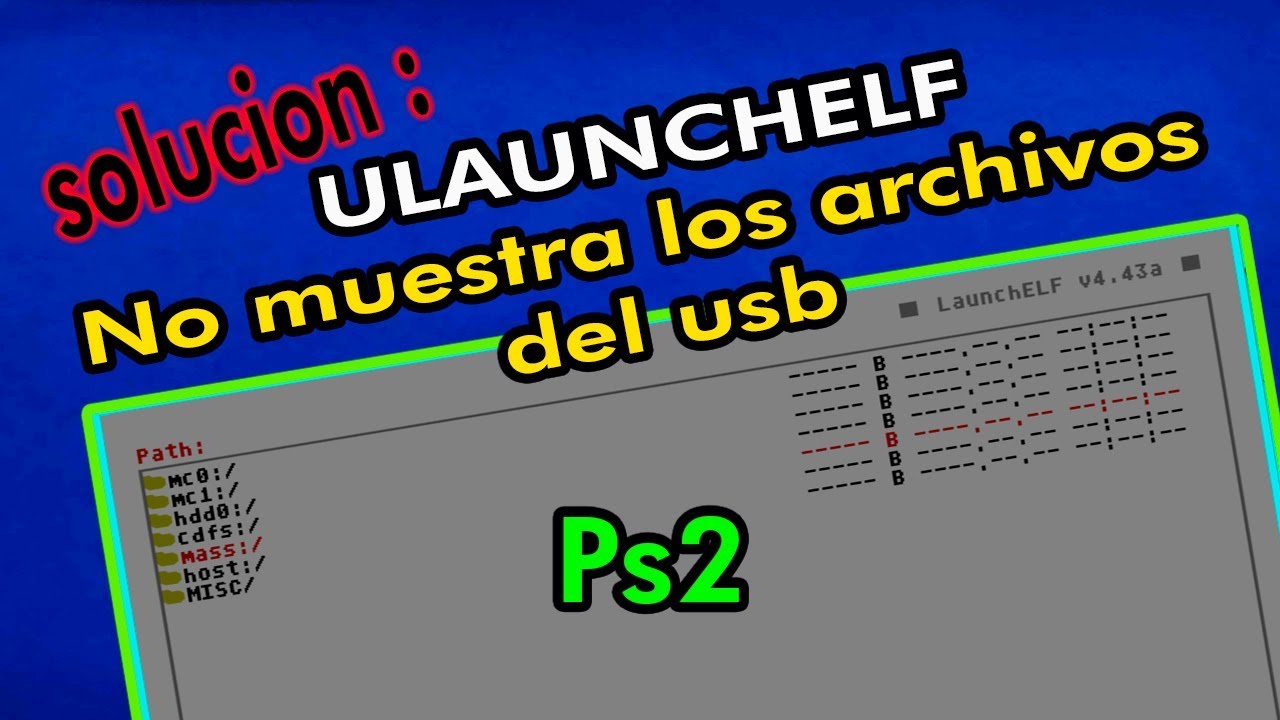
The layout is intentionally minimalist. On the left you’ll see a directory tree, while the right pane displays files in the current folder. Use the directional pad to move, X to select, and Square to go back.
One tip that trips newcomers: pressing Triangle toggles the hidden files view. It’s handy for spotting stray .elf files that you might have forgotten about.
Launching Games and Homebrew
To run a game, simply highlight its .elf file and press X. The program will hand off control to the game, and you’ll be back in the manager once you exit. For disc‑based titles, you can also select the .iso or .bin file, and ULaunchELF will load it through the DVD drive.
Tips and Tricks
Here are a few shortcuts that seasoned users swear by:
- Quick copy: Highlight a file, press L1 + R1, then choose the destination folder.
- Rename on the fly: With a file selected, press Circle, type the new name, and hit X.
- Batch delete: Use the “Select Multiple” mode (L2) to mark several files, then press Square.
- Save‑file hacking: Open the hex editor on a
.savfile, adjust values, and save – just be careful not to corrupt the file.
Don’t forget to back up your memory card before making big changes; a stray keystroke can wipe a favorite save.
Common Issues and Fixes
Even a polished tool like ULaunchELF can stumble. Below are the most frequent hiccups and what to do about them.
USB Not Recognized
Make sure the drive is formatted to FAT32 and that the PS2’s USB port isn’t dusty. Occasionally, the console’s power supply can be a bit finicky – a quick reset often restores communication.
File Corruption After Editing
If a save file refuses to load after you’ve used the hex editor, revert to a backup copy. In the future, consider editing only the bytes you understand; the rest of the file can act like a fragile puzzle.
Crash on Large Directories
When a folder contains hundreds of files, the manager may lag or freeze. The workaround is to break the folder into smaller subfolders, or use the “Refresh” command (R2) after navigating away and back.
Why Use ULaunchELF Over Other Managers?
There are a handful of alternatives, but 4.42 stands out for its stability and feature set. The hex editor alone saves users a separate utility, and the theme support makes the experience less sterile. In short, if you already have a modded PS2, ULaunchELF is the most convenient way to keep your files tidy and your games accessible.