How to Use Usenet with TorBox: A Complete Step‑by‑Step Guide
Usenet still powers a surprisingly large slice of the internet, but accessing it without a mask can feel a bit like shouting in a crowded room. TorBox offers a straightforward way to wrap that chatter in anonymity, letting you browse newsgroups without exposing your IP. If you’ve ever wondered how the two fit together, this guide walks you through the whole process — from the basics to the final tweak.
What You Need to Know Before You Start
Usenet isn’t a website; it’s a distributed network of servers that host discussion threads and binary files. Think of it as a massive forum that predates modern social media. While many providers require a subscription, the content itself is public as soon as it lands on a server.
TorBox, on the other hand, is a privacy‑focused gateway that routes your traffic through the Tor network before it reaches the destination. It’s designed to be simple: install, configure a few settings, and you’re ready to browse the web (or, in this case, Usenet) under a veil of encryption.
Prerequisites
- A working TorBox device or virtual instance.
- A Usenet provider account (e.g., Giganews, Astra, or a free pool).
- A news client such as SABnzbd, NZBGet, or a traditional reader like Thunderbird.
- Basic comfort with port forwarding and DNS configuration.
If any of those sound unfamiliar, you’ll find quick tutorials on each service’s site. The actual integration steps are where the rubber meets the road.
Step‑by‑Step Setup
1. Prepare TorBox for Outbound Connections
By default, TorBox limits outbound traffic to HTTP/S. Usenet runs over the NNTP protocol (port 119 or 563 for SSL). You’ll need to open those ports in the TorBox firewall.
- Log into TorBox’s admin panel.
- Navigate to Network > Firewall Rules.
- Add a new rule: Allow TCP on ports 119 and 563.
- Save and restart the service.
Note: Opening ports does not expose your IP; the traffic still tunnels through Tor.
2. Configure Your Usenet Provider
Most providers give you a server address (e.g., news.provider.com) and a pair of credentials. Some also support SSL on port 563.
- Copy the server hostname, username, and password.
- If SSL is available, note the secure port number.
Keep those details handy; they’ll go into your news client later.
3. Set Up the News Client to Use TorBox
Your client needs to know two things: the Usenet server and the local TorBox proxy. Most clients let you specify a proxy for NNTP traffic.
- Open the client’s Preferences or Settings panel.
- Find the Proxy section and select SOCKS5.
- Enter
127.0.0.1(or the TorBox LAN IP, e.g.,192.168.1.2) and port 9050 — the default Tor SOCKS port. - Enter the Usenet server address, the chosen port (119 or 563), and your credentials.
- Enable “Use SSL” if you opted for the secure port.
After saving, hit “Test Connection”. If everything lines up, you should get a brief “connection successful” message.
4. Verify Anonymity
To be sure your traffic is really going through Tor, use a site like check.torproject.org from a browser on the same device. If it reports you’re using Tor, your Usenet traffic should be similarly masked.
Why Combine Usenet and TorBox?
There are a few practical reasons to route Usenet through Tor:
- Privacy: Your ISP sees only Tor traffic, not the Usenet server you’re contacting.
- Circumvention: In regions where certain newsgroups are blocked, Tor can bypass those filters.
- Safety: If you download binaries, the extra layer of anonymity can deter casual tracking.
That said, Tor isn’t a speed booster. Expect slower download rates compared to a direct connection, especially for large NZB files.
Fine‑Tuning for Better Performance
If the default setup feels sluggish, try these tweaks:
- Switch to a high‑bandwidth Tor exit node by editing
torrc(addExitNodes {us}to prefer US exits, for example). - Enable compression in your news client — many support gzip for NNTP streams.
- Limit simultaneous connections to 2 or 3 to avoid overloading the Tor circuit.
Remember, each adjustment nudges the balance between speed and anonymity.
Troubleshooting Common Issues
Connection Timed Out
Often this points to a firewall rule still blocking port 119/563. Double‑check the rule’s direction (inbound vs. outbound) and confirm TorBox’s IP matches the one you entered in the client.
Authentication Failed
Usenet credentials are case‑sensitive. Copy them directly from your provider’s dashboard, and avoid accidental whitespace.
Slow Downloads
Tor’s inherent latency is the primary factor. If you need a burst of speed, consider switching temporarily to a direct connection, downloading, then reverting to Tor for further browsing.
Maintaining Your Setup
TorBox updates roughly every few weeks. After each update, revisit the firewall settings — a reset can silently close the NNTP ports you opened. Also, rotate your Usenet passwords every few months; while Tor hides your IP, the account itself can still be a target.
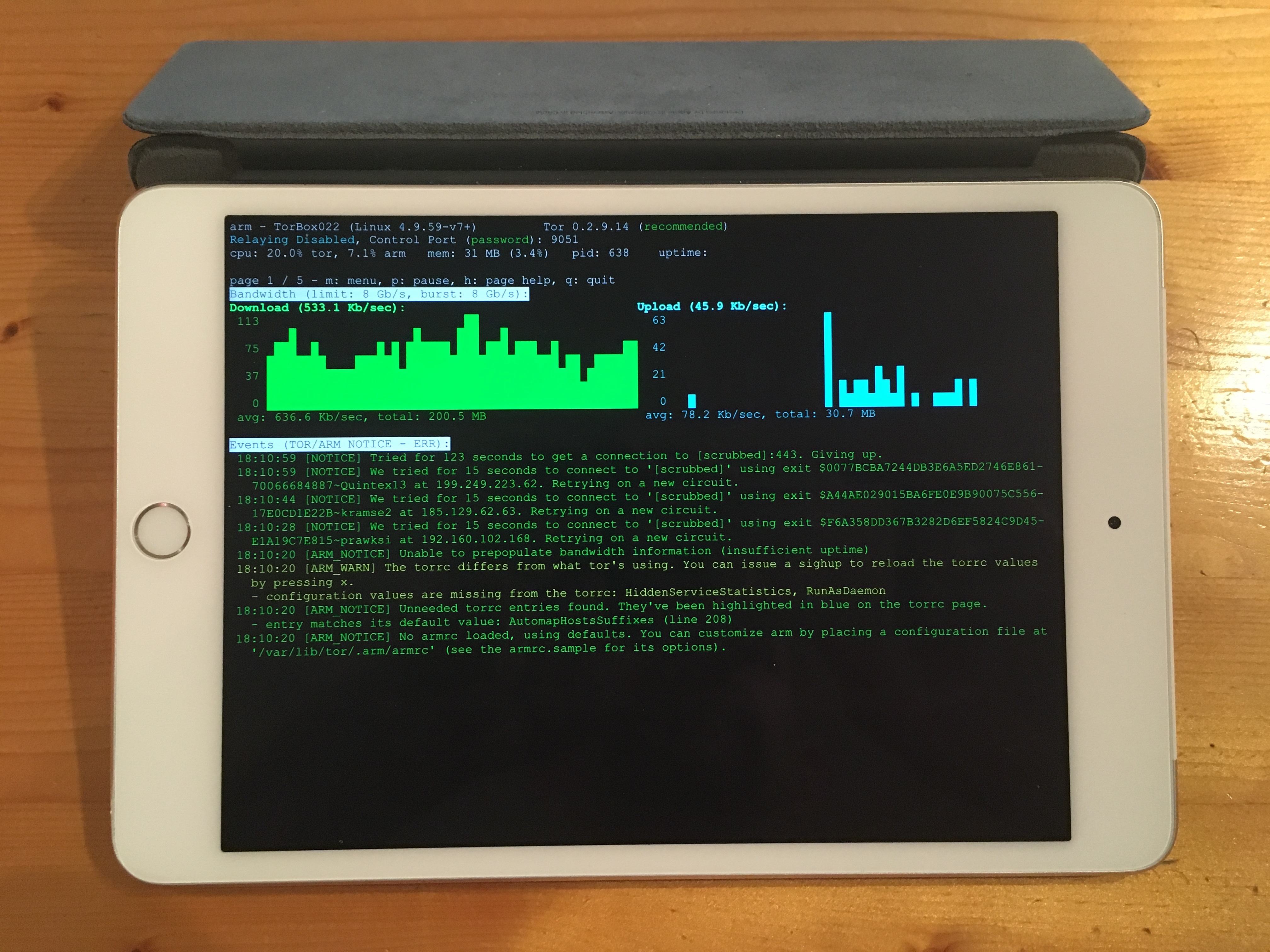
Lastly, keep an eye on the Tor logs (/var/log/tor/log) for any “circuit established” warnings. A sudden spike might indicate that the exit node you’re using is being throttled, which could explain a temporary dip in speed.
With the steps above, you’ve turned a modest TorBox box into a private Usenet gateway. Enjoy the freedom of anonymous browsing, but stay aware of the trade‑offs — slower speeds, occasional hiccups, and the need for periodic maintenance. Happy reading, and may your NZBs arrive untracked.