How to Verify If iCloud Is Down via Apple’s System Status
Ever tried opening a photo on your iPhone only to get a spinning wheel that never stops? It’s tempting to blame the device, but more often the culprit is a hiccup on Apple’s side. Knowing exactly where to look can save you a lot of frustration, especially when the whole family is waiting on a shared calendar or a document in iCloud Drive.
Why the System Status Page Matters
Apple maintains a live dashboard that lists the health of every core service, from iCloud Photos to iMessage. When something goes wrong, the page updates in real time, showing outages, maintenance windows, and any degraded performance. It’s the most reliable source because it’s fed directly from Apple’s operations team—not a rumor on a forum.
What You’ll See on the Dashboard
- Operational – Everything is running smoothly.
- Degraded Service – The service works, but you might notice delays.
- Service Outage – The feature is temporarily unavailable.
- Maintenance – Planned work; often announced ahead of time.
If iCloud is listed as “Operational,” the issue is likely on your end—maybe a weak Wi‑Fi signal or an outdated OS.
Step‑by‑Step: Checking the Status
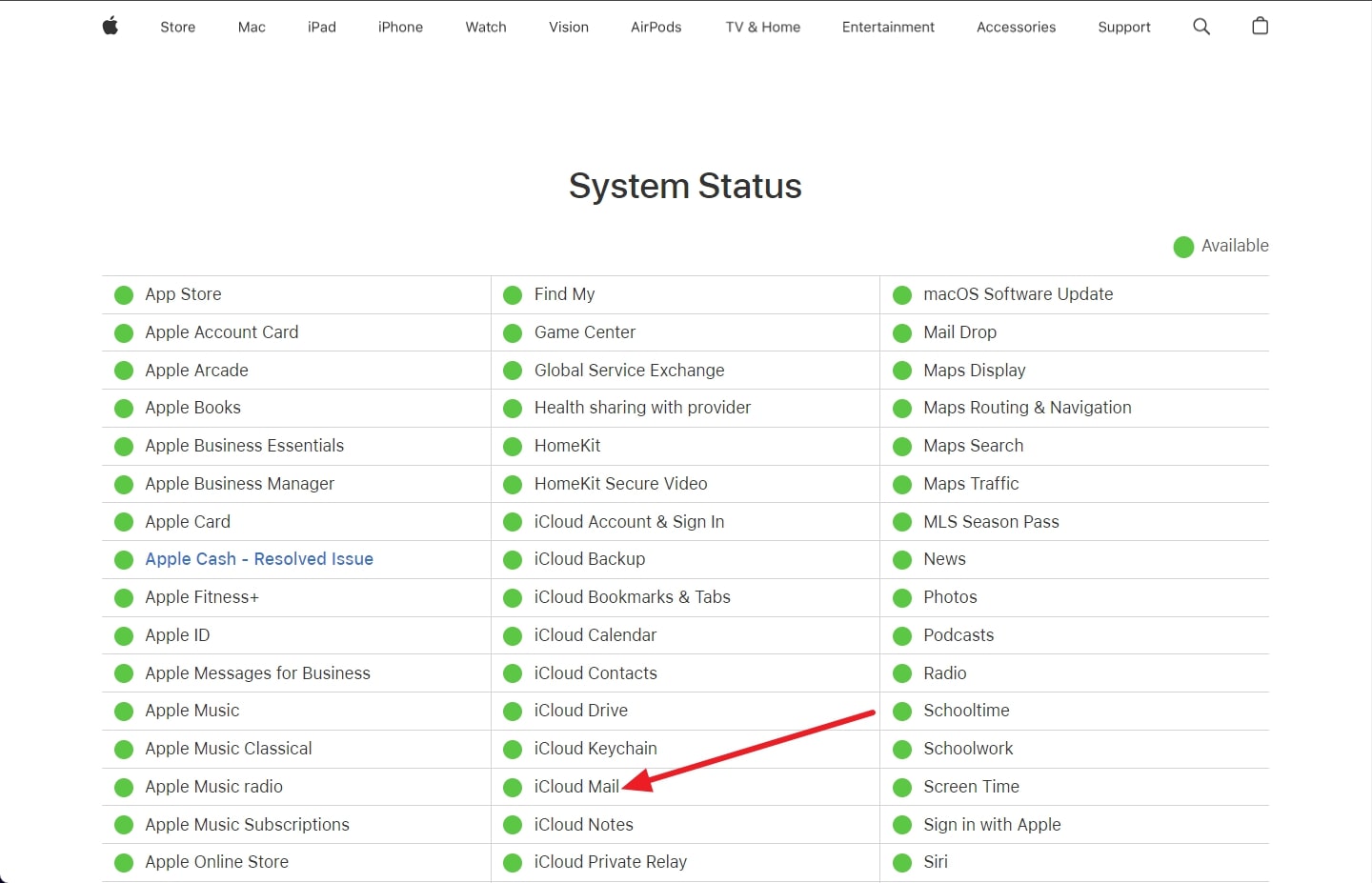
1. Open Safari (or any browser) and go to apple.com/support/systemstatus.
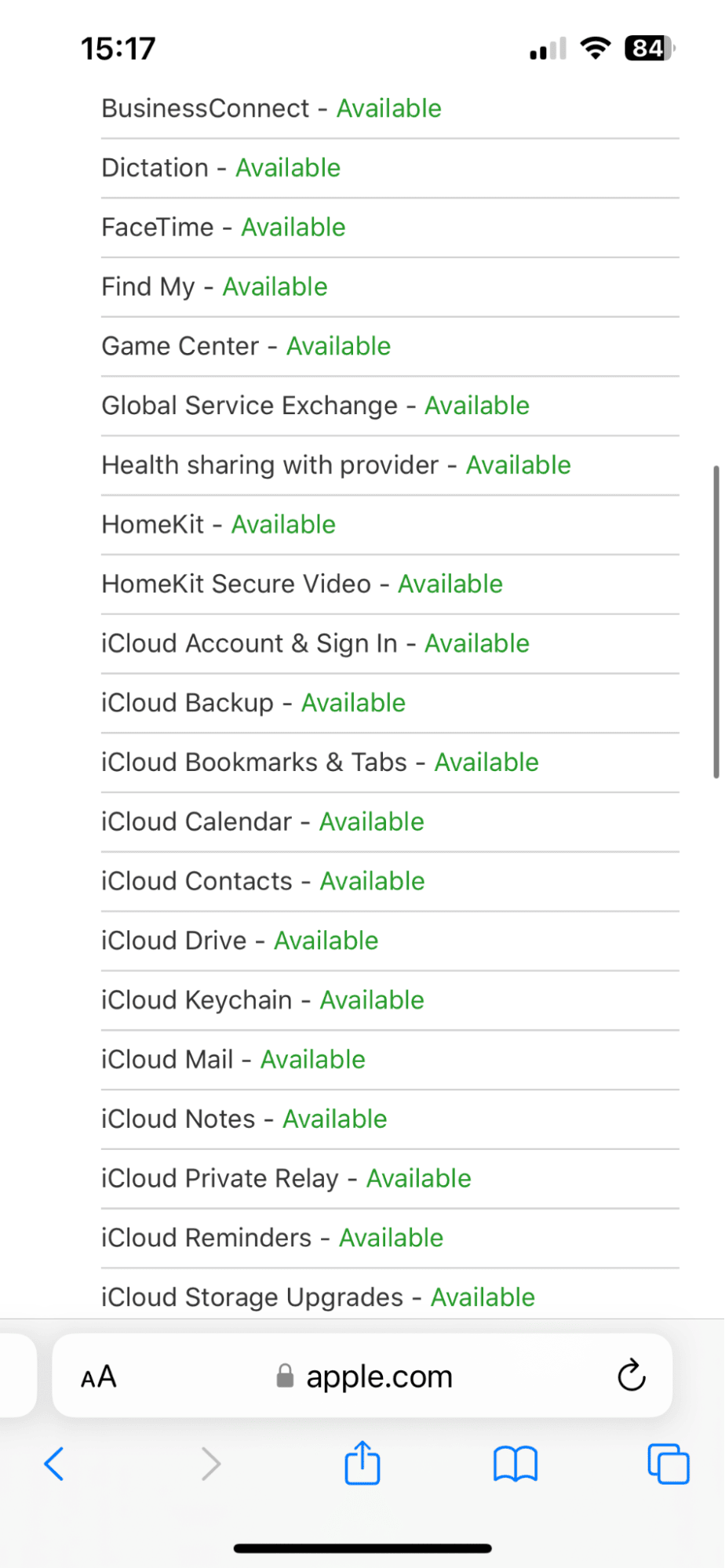
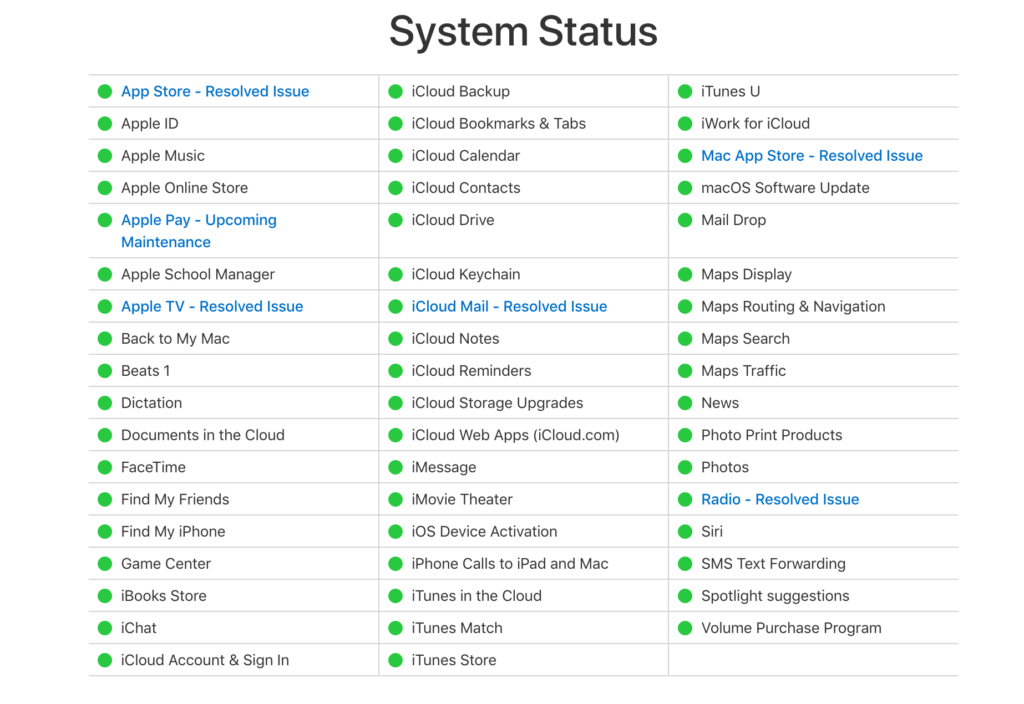
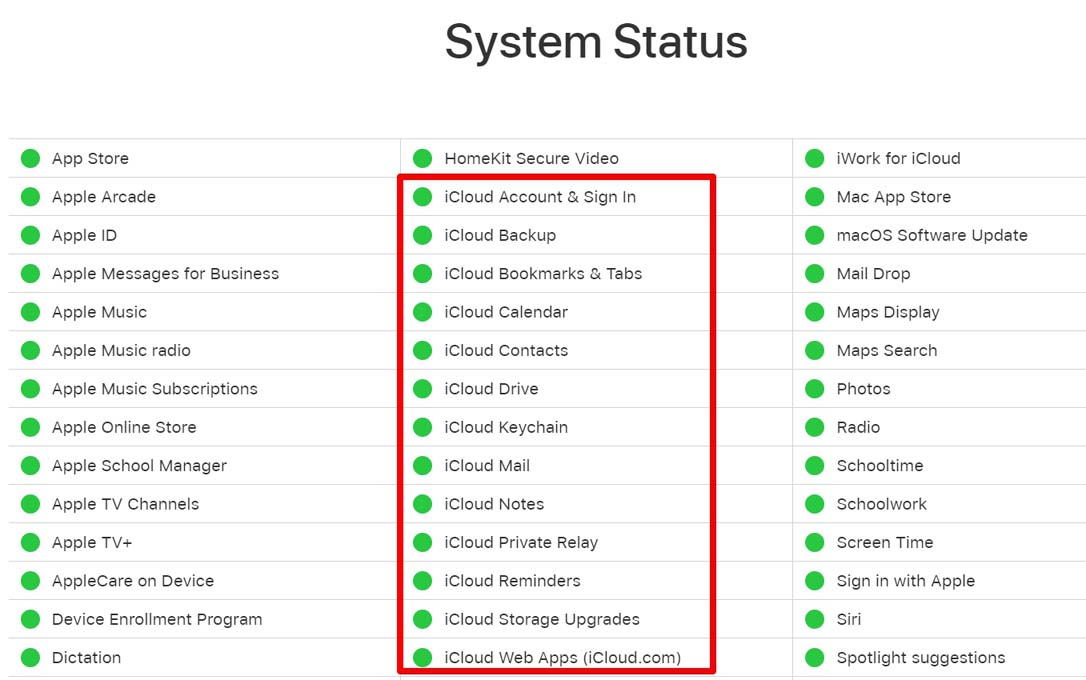
2. The page loads a grid of Apple services. Look for the iCloud icons—iCloud Drive, iCloud Photos, iCloud Backup, and so on.
Each icon has a color cue: green for OK, yellow for trouble, red for outage. Click an icon if you want a detailed note, such as “We’re currently investigating a slowdown affecting iCloud Drive uploads.”
That’s it. No login required, no hidden menus.
Interpreting the Information
When the status reads “Degraded Service,” expect occasional sync delays. A “Service Outage” means the feature is completely offline—nothing you do locally will fix it. “Maintenance” usually shows a start and end time, so you can plan around it.
Here’s a quick cheat sheet:
- Green: No action needed.
- Yellow: Give it a few minutes, then try again.
- Red: Wait for Apple to resolve the issue.
Common iCloud Glitches and Quick Fixes
Even when the dashboard shows everything is fine, you might still run into hiccups. Below are a few low‑effort tricks that often clear the fog.
- Toggle Airplane mode on and off to force a network reset.
- Restart the device—sometimes a fresh boot clears stuck sync processes.
- Check your iOS/macOS version; outdated software can clash with new iCloud protocols.
- Sign out of iCloud and sign back in; this refreshes authentication tokens.
If none of these work, the issue is likely on Apple’s side, and watching the System Status page remains your best bet.
Alternative Ways to Confirm an Outage
While Apple’s own page is authoritative, you might want a second opinion—especially if you’re in a hurry.
- Twitter: Search for “#iCloudDown” and see if other users are reporting the same problem.
- Downdetector: Aggregates user reports and shows a real‑time outage map.
- Apple Support App: The “System Status” section mirrors the web page.
These sources can give you a sense of how widespread the issue is, but remember they’re user‑generated and not official.
Staying Ahead of Future Outages
Apple rarely announces outages in advance, but scheduled maintenance is a different story. When a maintenance window is posted, you’ll see it on the System Status page, often with an estimated completion time. Mark those windows on your calendar if you rely on iCloud for work or school.
Another tip: enable email notifications for Apple System Status updates. In the page’s footer, there’s a “Subscribe” link that sends alerts when services change state.
When to Reach Out to Apple Support
If the status shows everything’s green, yet you’re still stuck, it might be a device‑specific problem. In that case, contact Apple Support via chat or phone. Have your device’s serial number handy, and be ready to describe the exact behavior—screenshots are especially helpful.
For persistent sync failures after an official outage is resolved, Apple can sometimes push a silent server‑side reset that fixes lingering glitches.
Bottom Line
Before you start troubleshooting your hardware, a quick glance at Apple’s System Status page tells you whether iCloud is the source of the problem. It’s free, instantly updated, and removes a lot of guesswork. Keep the link bookmarked; you’ll thank yourself the next time a cloud sync stalls.