Master Elementor with WordPress: The Ultimate Guide
Why Pair Elementor with WordPress?
WordPress powers a sizable slice of the web, and Elementor is the visual builder that lets you tap into that power without writing a single line of code. Together they offer a balance of flexibility and ease‑of‑use that appeals to beginners and seasoned designers alike. While WordPress provides the foundation—content management, SEO basics, and a massive plugin ecosystem—Elementor sits on top, turning bland themes into interactive, pixel‑perfect pages.
Getting Started: Installing Elementor on Your Site
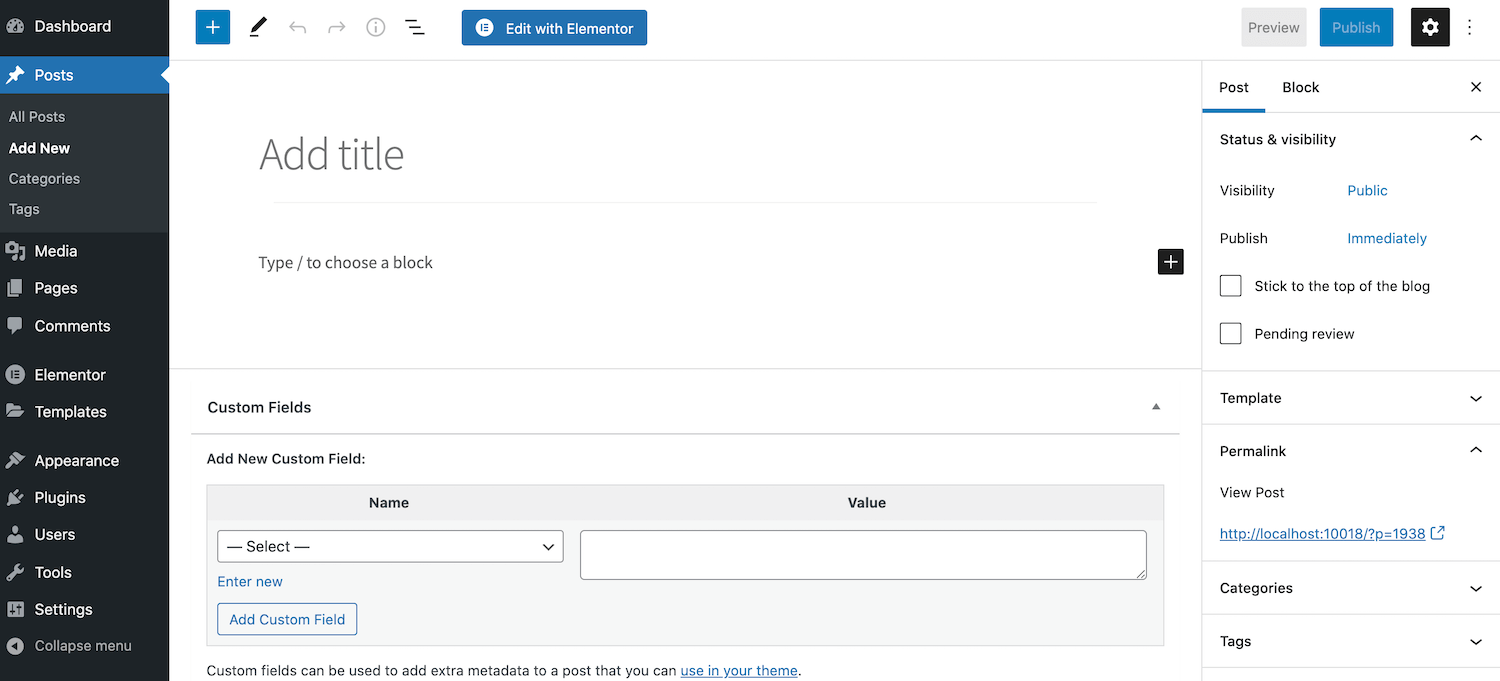
First, make sure you’re running a recent version of WordPress and have a theme that supports full‑width templates. From the dashboard, navigate to Plugins > Add New and search for “Elementor”. Click “Install” and then “Activate”. The free version gives you drag‑and‑drop basics; a Pro upgrade unlocks theme building, form widgets, and motion effects. After activation, a new “Edit with Elementor” button appears on every page and post edit screen.
Building Your First Page
Open a page, hit “Edit with Elementor”, and you’ll be greeted by a clean canvas. The left sidebar houses widgets—text, headings, images, videos, and more. Drag a widget onto the canvas, and you’ll see a live preview as you adjust settings. Use the intuitive style and advanced tabs to tweak colors, typography, margins, and responsive behavior. When you’re satisfied, click “Update” and your changes go live instantly.
Tips for a Faster Workflow
- Use global colors and fonts. Set them once under Site Settings to keep design consistent.
- Duplicate sections. Right‑click a section and choose “Duplicate” to reuse layouts.
- Save templates. Store headers, footers, or entire pages for reuse across the site.
Design Best Practices
Even though Elementor makes design feel effortless, good design still follows core principles. Aim for clear visual hierarchy: larger headings for primary messages, ample whitespace to let elements breathe, and a limited color palette that matches your brand. Test your layout on mobile and tablet modes—Elementor’s responsive controls let you hide or adjust elements per device.
Performance: Keeping Your Site Snappy
Adding a page builder can introduce extra CSS and JavaScript, so it’s wise to monitor load times. Enable “Improved Asset Loading” in Elementor’s settings to only load scripts used on the current page. Pair this with a caching plugin and an image optimization tool. If you notice lag, consider switching off unused widget panels or moving heavy sections to static HTML.
Advanced Features in Elementor Pro
Pro users gain access to the Theme Builder, which lets you design custom headers, footers, single post templates, and archive pages—all without touching the theme’s code. Dynamic content widgets pull data from custom fields, making it easy to create product listings or event calendars. Additionally, the Form widget integrates with email marketing services, so you can capture leads without third‑party plugins.
Integrating with Other Plugins
Elementor works well with popular plugins like Yoast SEO, WooCommerce, and Advanced Custom Fields. For instance, when you enable WooCommerce widgets, you can craft product grids that match your site’s aesthetic. If you need membership functionality, combine Elementor’s design freedom with a membership plugin, then use the “Conditional Display” feature to show content only to logged‑in users.
Troubleshooting Common Hurdles
Conflicts can arise when a theme or another plugin loads scripts that clash with Elementor’s. A quick way to diagnose is to switch to a default WordPress theme (like Twenty Twenty‑Three) and deactivate all other plugins. If the issue disappears, reactivate them one by one to pinpoint the culprit. Clearing the browser cache and regenerating CSS files from Elementor’s tools often resolves styling glitches.
Next Steps: Growing Your Skills
After mastering the basics, explore the Elementor Community. Free webinars, YouTube tutorials, and the official Facebook group share real‑world use cases and hidden tricks. Consider learning a bit of CSS to fine‑tune elements beyond the built‑in controls. As you grow more comfortable, you’ll find that Elementor isn’t just a page builder—it’s a launchpad for creative web experiences.
Frequently Asked Questions
Do I need a separate theme for Elementor?
No. Elementor works with most themes, but a lightweight, “blank” theme like Hello Elementor provides a clean slate and reduces extra CSS.
Is Elementor suitable for e‑commerce sites?
Absolutely. With WooCommerce widgets, you can design product pages, shopping carts, and checkout flows that match your brand, all within Elementor’s visual editor.
Can I use Elementor on a multisite network?
Yes, but you’ll need to install the plugin network‑wide and ensure each site’s theme is compatible. Performance considerations become even more critical on larger networks.
How often should I update Elementor?
Treat updates like any other plugin: apply them promptly to benefit from security patches and new features, but always back up your site first.