Mastering OBS Studio for VRChat: A Step-by-Step Guide
VRChat has become a phenomenal platform for socializing in virtual reality, allowing users to create their own avatars and environments. However, to fully immerse yourself and others in your VR experiences, high-quality streaming is essential. This is where OBS Studio comes into play, a powerful and free software for video recording and live streaming. In this guide, we'll walk you through the process of setting up OBS Studio specifically for VRChat, ensuring your streams are of the highest quality.
OBS Studio, short for Open Broadcasting Software, is renowned for its versatility and ease of use, making it a favorite among streamers across various platforms. When it comes to VRChat, OBS Studio offers the perfect balance of functionality and performance, allowing you to focus on what matters most—interacting with your community and enjoying the VR experience.
Setting Up OBS Studio for VRChat
To begin, you'll need to download and install OBS Studio from its official website. The installation process is straightforward and should only take a few minutes. Once installed, launch OBS Studio to start configuring it for VRChat streaming.
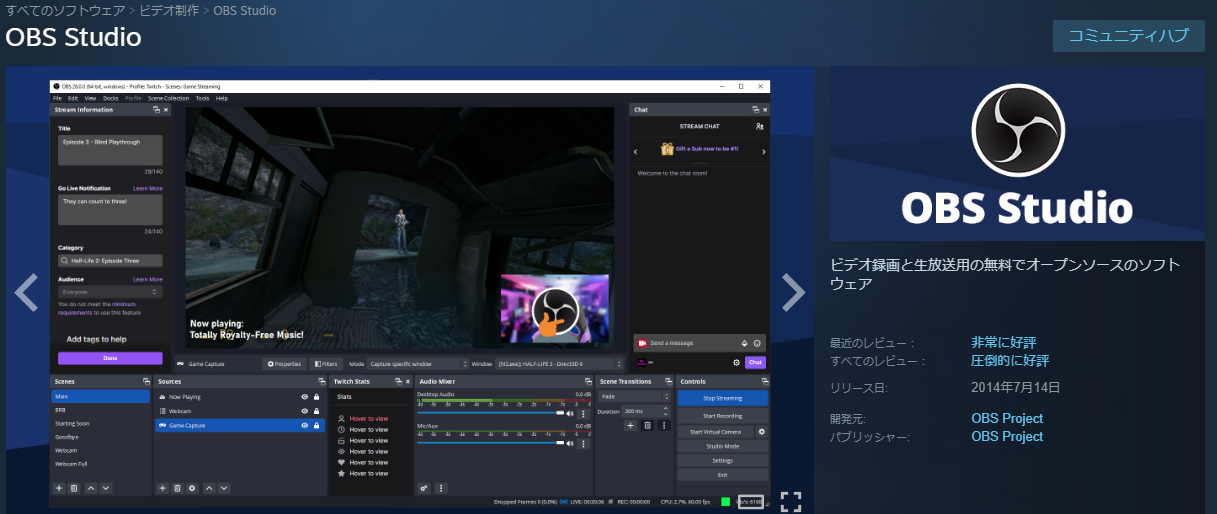
The first step in configuring OBS Studio is to set up your video capture device. For VRChat, you'll typically be using the "Game Capture" option, as VRChat is treated as a game by OBS. To do this, follow these steps:
- Click on the "+" button in the "Sources" panel at the bottom of the OBS window.
- Select "Game Capture" from the drop-down menu.
- Choose the VRChat window from the list of available windows. If VRChat is not running, start it and then try again.
- Configure any additional settings as needed, such as capturing a specific window or using a different capture method if necessary.
Configuring Audio Settings
A good audio setup is just as important as video quality for an immersive streaming experience. OBS Studio allows for detailed control over your audio settings, ensuring that your voice comes through clearly and any background noise is minimized.
To configure your audio settings in OBS Studio for VRChat:
- Go to the "Settings" menu by clicking on "Settings" in the bottom right corner of the OBS window.
- Navigate to the "Audio" tab.
- Select your preferred microphone as the "Mic/Auxiliary Audio Device".
- Adjust the "Mic Gain" to an appropriate level. You can test your audio by speaking into the microphone and observing the levels in real-time.
Optimizing Stream Settings for Performance
For a smooth and high-quality stream, it's crucial to optimize your stream settings according to your hardware capabilities and internet bandwidth. OBS Studio provides a range of options to fine-tune your stream settings for the best possible performance.
To optimize your stream settings:
- In the "Settings" menu, navigate to the "Stream" tab.
- Select your preferred stream type (e.g., Twitch, YouTube) and enter your stream key.
- In the "Output" tab, choose a bitrate and resolution that balances quality with your upload speed. A higher bitrate generally means higher quality but requires more bandwidth.
- Experiment with different settings to find the optimal balance for your specific setup.
Troubleshooting Common Issues
As with any software, you may encounter some issues while using OBS Studio for VRChat streaming. Common problems include poor video quality, audio delays, or the stream not connecting properly. Most of these issues can be resolved by adjusting your settings, updating your drivers, or ensuring a stable internet connection.
For specific troubleshooting steps, consider consulting the OBS Studio documentation or community forums, where you can find detailed guides and advice from experienced users.
Conclusion
With these steps, you should now be well on your way to streaming high-quality VRChat experiences using OBS Studio. Remember, the key to a great stream is not just the software, but also your internet connection, hardware, and how well you've optimized your settings. Don't be afraid to experiment and adjust your configurations as you go, and most importantly, have fun interacting with your community in VRChat.
As VR technology and platforms like VRChat continue to evolve, the importance of quality streaming will only grow. By mastering OBS Studio and continually updating your knowledge on the best practices for streaming, you'll be at the forefront of this exciting journey, sharing your VR experiences with the world in the highest quality possible.

![An Ultimate Guide on How to Record in VRChat [3 Ways]](https://images.minitool.com/videoconvert.minitool.com/images/uploads/2024/10/how-to-record-in-vrchat-3.jpg)
