Mastering OSDXML: The Complete Guide to On‑Screen Display XML
What Is OSDXML, Anyway?
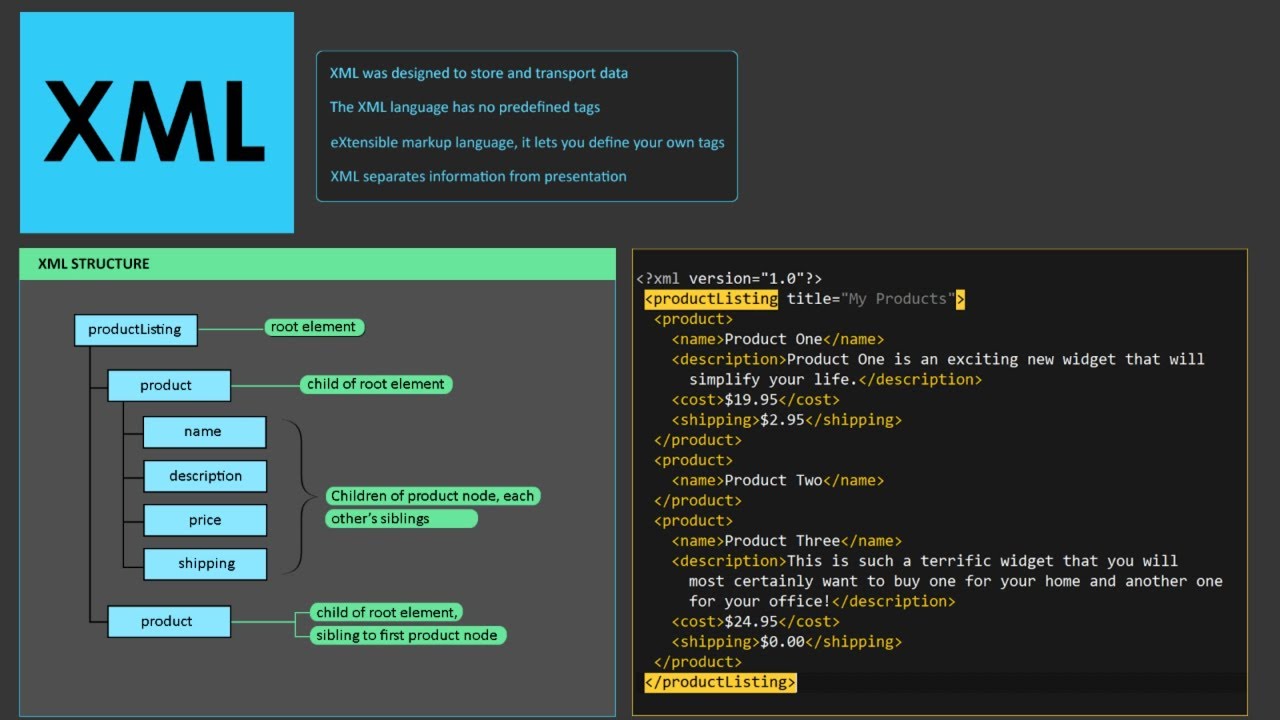
On‑Screen Display XML, or OSDXML, is a lightweight markup language that tells a device how to paint information directly onto its screen. Think of it as a recipe: the tags list ingredients (text, icons, colors) and the order in which they should appear, while the engine that runs the XML does the cooking. Because it’s pure XML, the format is both human‑readable and easy for software parsers to validate.
Why You’ll Want to Use OSDXML
Manufacturers love OSDXML because it separates layout logic from firmware code, making updates as simple as swapping a file. For integrators, the benefit is even clearer—no need to re‑flash hardware just to change a menu label or add a new status indicator. The result is faster time‑to‑market and less downtime for end users.
Key Advantages at a Glance
- Cross‑platform consistency: The same XML works on LCD panels, OLEDs, and even head‑up displays.
- Version control friendly: Text files play nicely with Git or SVN, letting teams track every tweak.
- Low overhead: Parsing a few kilobytes of XML is negligible compared to loading a bitmap.
Core Building Blocks of an OSDXML File
Every OSDXML document starts with the usual XML declaration, followed by a root <OSD> element. Inside, you’ll typically find three sections: <Resources>, <Layouts>, and <Bindings>. Each serves a distinct purpose.
Resources – The Asset Library
Here you declare reusable items like fonts, images, and color palettes. For example:
<Resources><Font id="fTitle" name="Roboto-Bold" size="18"/>
<Image id="iBattery" src="icons/batt.png"/>
<Color id="cAlert" hex="#FF4500"/>
</Resources>
By giving each asset an id, later sections can reference them without duplication.
Layouts – The Visual Blueprint
The <Layouts> block arranges those resources on screen. A layout is essentially a container that can hold <Text>, <Icon>, or <Bar> elements, each with positioning attributes.
<Layouts><Layout id="mainMenu" width="800" height="480">
<Text id="tTitle" font="fTitle" x="20" y="30" color="cAlert">System Status</Text>
<Icon id="iBattery" src="iBattery" x="750" y="20"/>
</Layout>
</Layouts>
Notice the mix of absolute coordinates and relative references; this flexibility lets designers fine‑tune placement without hard‑coding pixel values everywhere.
Bindings – Connecting Data to the Display
Finally, <Bindings> ties live data streams to the visual elements. A binding might pull a temperature reading from a sensor and push it into a <Text> field.
<Bindings><Bind target="tTitle" source="system.statusMessage"/>
<Bind target="iBattery" source="power.level"/>
</Bindings>
When the underlying value changes, the OSD engine refreshes the corresponding element automatically.
Best Practices for Clean, Maintainable OSDXML
Even though the syntax is simple, large projects can quickly become tangled. Below are habits that keep your files readable and error‑free.
- Modularize by feature. Keep each logical screen in its own XML file and include them via
<Import>statements. This mirrors how programmers split code into modules. - Name things descriptively. Instead of
t1ori2, usetBatteryLeveloriSignalStrength. Clear names save hours during debugging. - Validate early. Run the XML through an XSD schema (many vendors provide one) as part of your CI pipeline. Catching a missing attribute before flashing a device prevents costly rework.
- Comment liberally. XML supports
<!-- comment -->. Use them to note why a particular coordinate was chosen or to flag temporary workarounds.
Common Pitfalls and How to Dodge Them
When you first experiment with OSDXML, a few mistakes tend to surface.
Hard‑Coded Coordinates
Placing every element at a fixed pixel location looks fine on one screen size but breaks on a different resolution. The remedy? Leverage relative positioning (e.g., align="right", margin="10") whenever possible, or generate multiple layout files for distinct device families.
Oversized Images
Embedding a 500 KB PNG as an icon can stall the UI, especially on low‑power hardware. Resize assets to the exact display size and consider using monochrome bitmaps for simple symbols.
Missing Resource References
If a <Text> tag points to a font id that isn’t defined in <Resources>, most engines fall back to a default, which might look out of place. A quick schema validation will flag these mismatches.
Tooling: Editors, Validators, and Simulators
While you can hand‑craft OSDXML in any text editor, a few specialized tools make the process smoother.
- XMLSpy or VS Code with XML extensions – Offer syntax highlighting, auto‑completion for custom tags, and real‑time XSD validation.
- OSD Previewer (vendor‑specific) – Renders the layout on your PC, letting you tweak positions without loading the file onto hardware each time.
- Git hooks – Run
xmllint --schema osd.xsdon commit to enforce schema compliance automatically.
Real‑World Example: A Minimal Weather Widget
Below is a compact OSDXML snippet that displays temperature, humidity, and an icon for the current condition. It illustrates the flow from resources through bindings.
<?xml version="1.0" encoding="UTF-8"?><OSD>
<Resources>
<Font id="fTemp" name="Arial" size="24"/>
<Image id="iSun" src="icons/sun.png"/>
<Color id="cCold" hex="#00BFFF"/>
<Color id="cHot" hex="#FF4500"/>
</Resources>
<Layouts>
<Layout id="weatherWidget" width="320" height="120">
<Icon id="iconCond" src="iSun" x="10" y="20"/>
<Text id="tTemp" font="fTemp" x="80" y="30" color="cHot">--°C</Text>
<Text id="tHumid" font="fTemp" x="80" y="70" color="cCold">--%</Text>
</Layout>
</Layouts>
<Bindings>
<Bind target="tTemp" source="weather.temperature"/>
<Bind target="tHumid" source="weather.humidity"/>
<Bind target="iconCond" source="weather.icon"/>
</Bindings>
</OSD>
Swap the source paths for whatever data bus your platform exposes, and the widget will update in real time.
Taking Your OSDXML Skills to the Next Level
Once you’ve mastered static layouts, explore dynamic features such as conditional rendering (<If condition="..."/>) or animation tags that let elements fade in and out. Some vendors also support custom scripting inside OSDXML, enabling calculations (e.g., converting raw sensor voltage to a human‑readable value) without leaving the markup.
Finally, keep an eye on emerging standards. The industry is gradually converging on a unified schema that merges OSDXML with SVG‑like vector capabilities. Early adoption positions you as a go‑to developer when those extensions become mainstream.