Minecraft Java LAN Game Not Showing Up? Troubleshooting Guide
If you're trying to play Minecraft Java with friends over a local area network (LAN), but the game isn't showing up, don't worry – we've got you covered. In this article, we'll walk you through a step-by-step troubleshooting guide to help you resolve the issue and get back to building and exploring together.
Minecraft Java is a popular version of the game that allows players to join and host LAN games, making it a great way to play with friends and family in the same physical location. However, sometimes the game may not show up in the LAN game list, preventing you from joining or hosting a game. Let's dive into the possible causes and solutions.
Check the Basics
Before we dive into more complex troubleshooting steps, let's make sure the basics are covered. Ensure that:
- Both you and your friends have the same version of Minecraft Java installed.
- You're all connected to the same network (either through Wi-Fi or Ethernet).
- Minecraft Java is updated to the latest version.
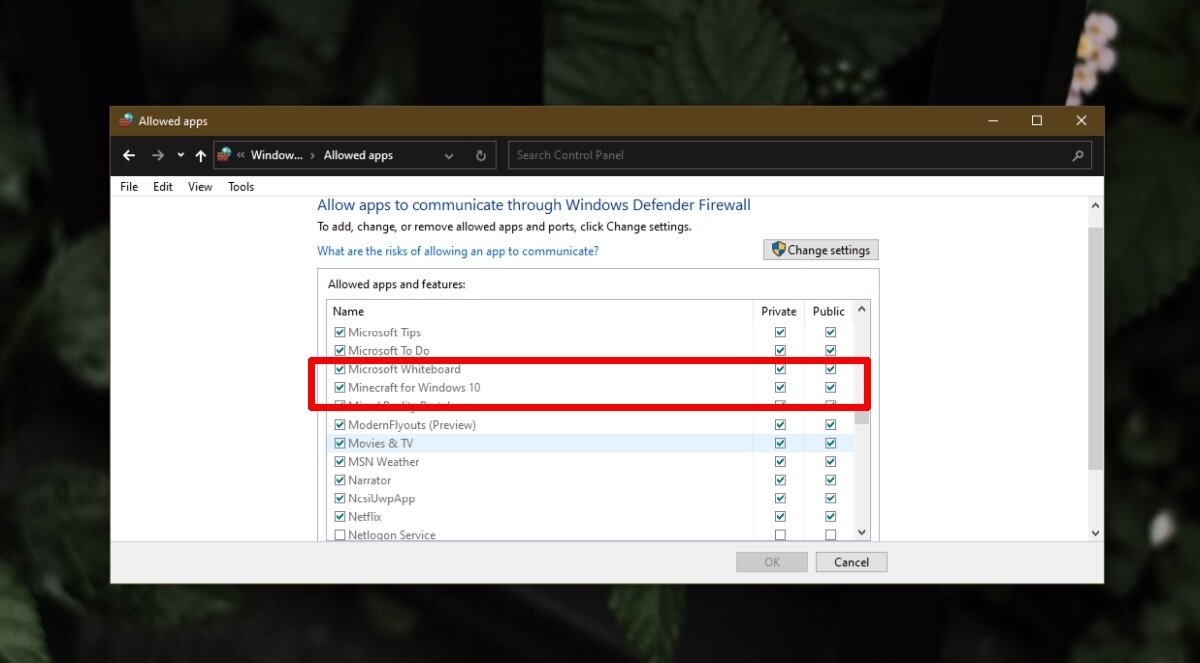
- Firewalls and antivirus software are not blocking the game.
If any of these basic requirements are not met, it could be the reason why the game isn't showing up in the LAN game list.
Network Configuration
Network configuration can play a significant role in LAN game visibility. Try the following:
- Make sure your router is configured to allow LAN traffic. Check your router's settings to ensure that it's not blocking Minecraft Java traffic.
- Use a static IP address instead of DHCP. This can help ensure that your device's IP address doesn't change, making it easier for others to connect.
- Check your network's subnet mask and ensure that all devices are on the same subnet.
If you're not familiar with network configuration, it may be helpful to consult your router's manual or contact your internet service provider for assistance.
Firewall and Antivirus Settings
Firewalls and antivirus software can sometimes block Minecraft Java traffic, preventing the game from showing up in the LAN game list. Try the following:
- Temporarily disable your firewall and antivirus software to see if it resolves the issue.
- Add an exception for Minecraft Java in your firewall and antivirus settings. This will allow the game to communicate with other devices on the network.
Remember to re-enable your firewall and antivirus software after testing to ensure your device remains protected.
Game Settings and Workarounds
In some cases, game settings or workarounds may be necessary to resolve the issue. Try the following:
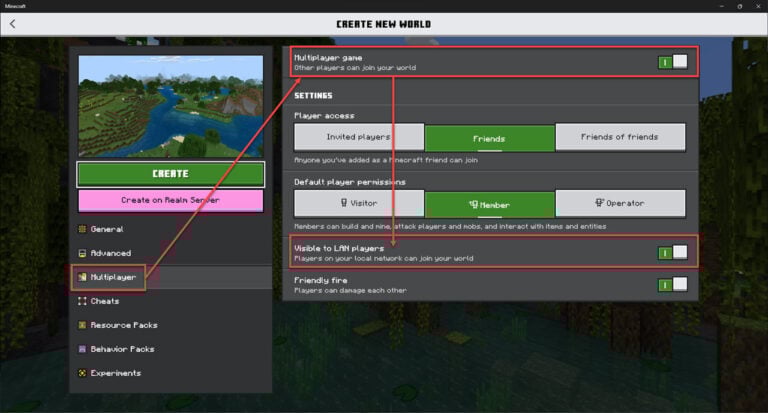
- Check the game's LAN settings to ensure that it's set to "Visible to LAN" or "Allow LAN connections."
- Try using a different port number for the LAN game. This can help resolve issues with firewalls or other network devices.
- Use the "/reload" command in the Minecraft Java console to reload the game's configuration and refresh the LAN game list.
If none of these workarounds resolve the issue, it may be helpful to try a different version of Minecraft Java or seek assistance from a gaming community or online forum.
Conclusion
Resolving the issue of a Minecraft Java LAN game not showing up can be frustrating, but by following these troubleshooting steps, you should be able to identify and resolve the problem. Remember to check the basics, network configuration, firewall and antivirus settings, and game settings to ensure that everything is set up correctly. If you're still having trouble, don't hesitate to seek help from online communities or gaming forums.
Frequently Asked Questions
- Q: Why can't I see my friend's Minecraft Java LAN game?
A: There could be several reasons, including different versions of the game, incorrect network configuration, or firewalls/antivirus software blocking the game.
- Q: How do I add an exception for Minecraft Java in my firewall settings?
A: The process varies depending on your firewall software, but generally, you'll need to add the game's executable file to the exceptions list.
- Q: Can I play Minecraft Java LAN games over the internet?
A: No, Minecraft Java LAN games are designed for local area networks only. If you want to play with friends online, you'll need to use a different version of the game or a third-party server.