Unlocking Flawless Combat: How To Enhance Your Fighting Animations In GTA 5
If you've spent any time cruising the streets of Los Santos or engaging in fiery shootouts with the local police, you've likely noticed a specific rhythm to combat. Grand Theft Auto V handles themselves with a fluidity that stands out, especially when comparing it to other action titles. However, many players feel their characters move a bit stiffly or lack that cinematic flair they see in the trailers. You might be wondering if there's a way to adjust your fighting animations to feel smoother or more realistic. The short answer is that while Rockstar doesn't offer in-game sliders for animation speed, you can drastically enhance how those fights look and feel by mastering your input timing, your loadout, and certain graphical settings.
Mastering The Input Timing
The biggest misconception among new players is that the game is entirely reactive. In reality, your input timing plays a massive role in how your animations appear. GTA 5 uses a system called input buffering for certain attacks, which means pressing the attack button slightly before your character initiates a move can sometimes result in a smoother transition. This is particularly noticeable during hand-to-hand combat where you try to chain a punch into a follow-up move.
When you mash the attack button, your character will flail wildly, leading to a messy, disjointed set of animations. By pausing briefly between strikes, you allow the game engine to register the full animation frame. This not only looks better but often lands hits more reliably due to the way the hitboxes are timed. Think of it like a dance rather than a brawl. You want the movement to flow, not stutter.
Weapon Choice And Animation Sets
Not all weapons have the same animation weight in GTA 5. If you are looking to enhance your visual combat experience, your weapon choice dictates your animation set. Using a baseball bat or a crowbar triggers a specific set of heavy, swinging animations that carry a lot of visual weight. These animations are generally longer and feel more impactful than a series of rapid knife stabs.
- Melee Weapons: Melee combat has the most varied animations. A crowbar swing follows a wide arc, while a knife attack is quick and twitchy. Choose based on the "feel" you want. For a cinematic look, longer melee weapons often animate better because they have more screen presence.
- Firearms: Switching from shooting to melee can disrupt your flow. If you want to enhance the fighting experience, try sticking to one combat style during a single engagement. Mixing shooting and melee rapidly can lead to awkward cancellation frames where your character freezes mid-action.
The Role Of Graphics Settings
It might seem counterintuitive, but your graphics settings directly impact your perception of fighting animations. Higher frame rates lead to smoother motion. If you are playing on a console with performance mode enabled, you get a smoother experience than on a high-fidelity mode that caps you at 30 frames per second. The difference between 30fps and 60fps is night and day for animation clarity.
Additionally, motion blur can sometimes make fast animations look muddy. If you find your combat footage looks blurry or confusing when you are moving quickly, try turning off motion blur in the graphics options. This sharpens the image and allows you to see the individual limbs and movements of your character clearly. It gives the combat a cleaner, more deliberate look that enhances the overall quality of the fight.
Clothing And Physics
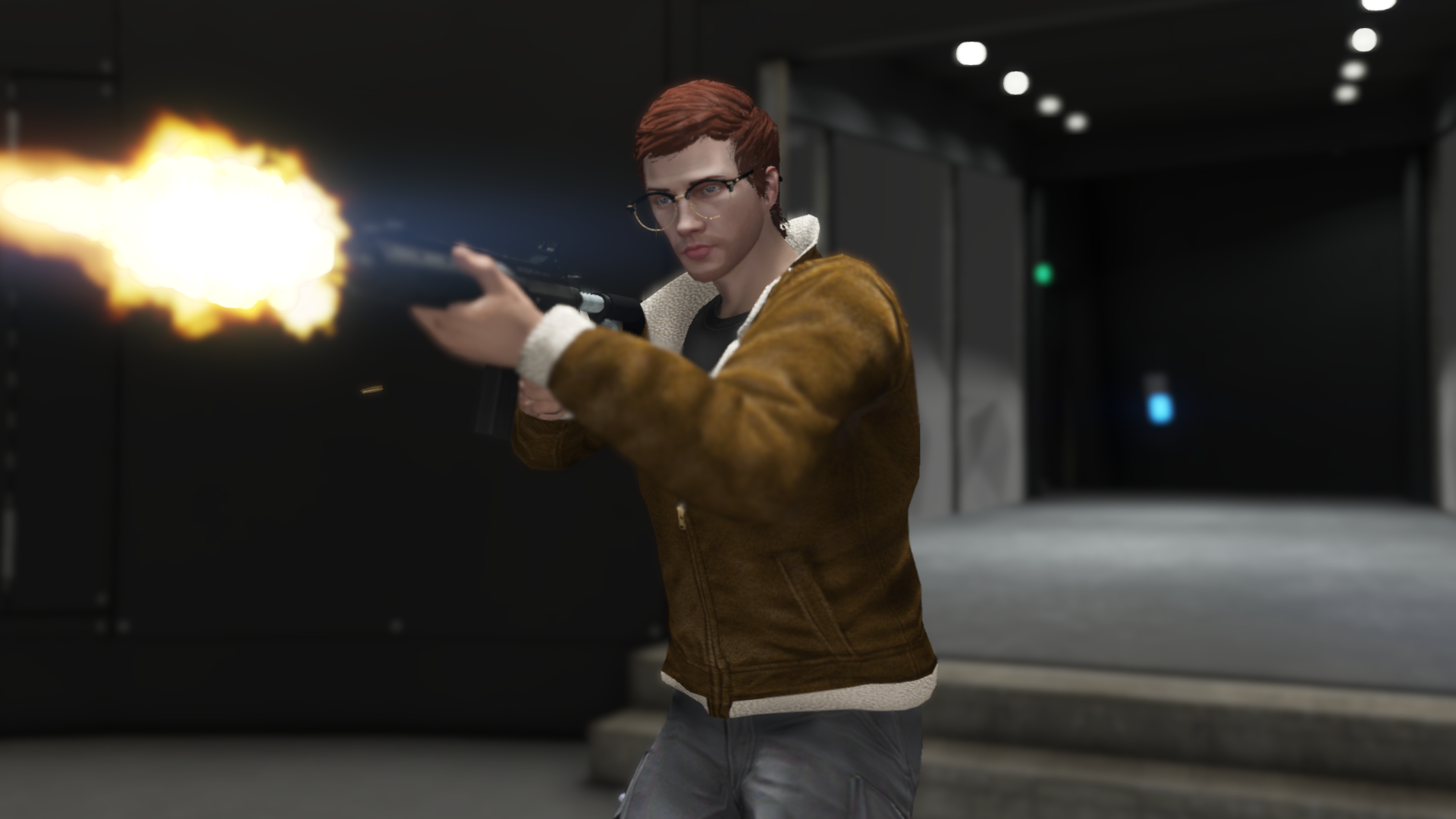
Rockstar paid attention to the physics of clothing in GTA 5, but the heavy clothes can sometimes obscure the finer details of your animations. Wearing lighter clothing, such as a shirt and shorts, allows you to see the full range of motion of your character's limbs. Heavy jackets and baggy pants can make a punch look less defined because the fabric absorbs some of the visual impact.
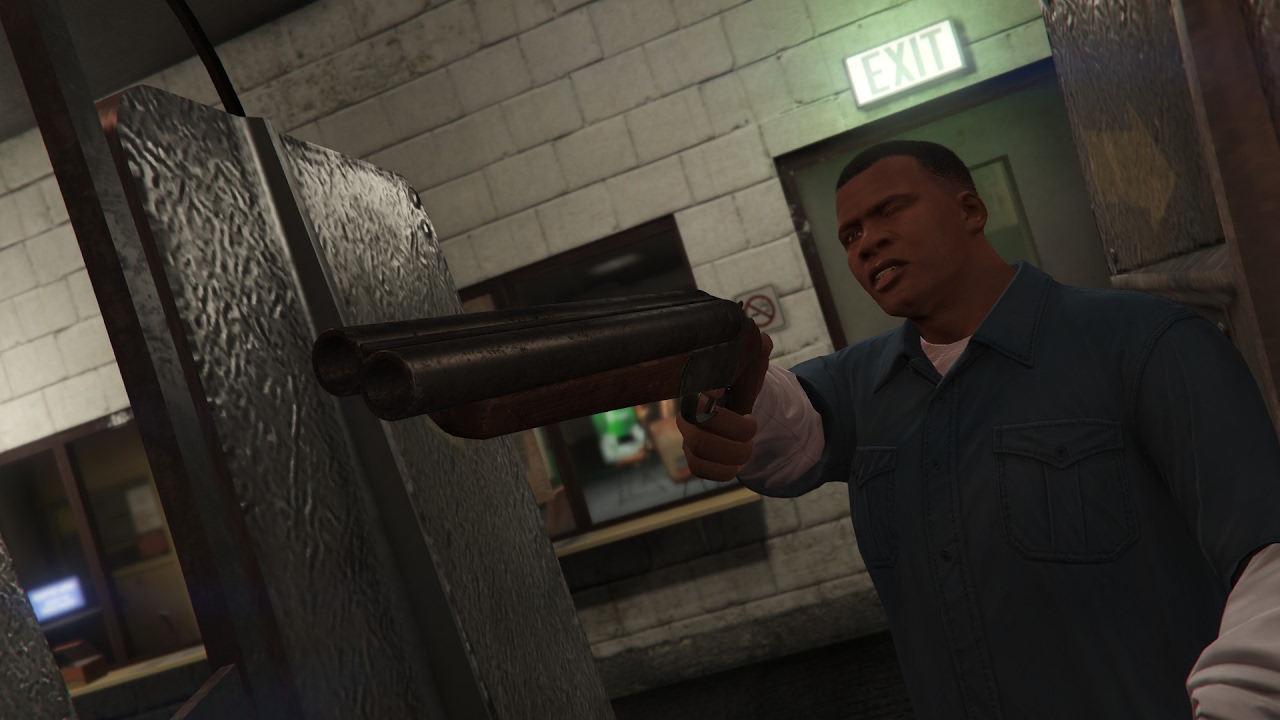
There is also the element of character selection. The three protagonists—Michael, Franklin, and Trevor—have slightly different body shapes and muscle masses. Michael has a bulkier build which can make his punches look heavier, while Franklin is more agile with quicker, darting movements. Experimenting with different characters can help you find the animation style that suits your playthrough best. Trevor, being slightly shorter and stockier, often has a very aggressive, brawler-style animation set that feels distinct from the others.
Using The Director Mode
If you are looking to truly customize and enhance your fighting animations for fun or content creation, the Director Mode is your best friend. This sandbox mode allows you to control the camera freely, letting you capture your combat from any angle. You can slow down time, change the weather, and even adjust the difficulty. This is the only way to get a true cinematic feel out of your fights. You can choreograph a simple punch using the camera angles to make it look incredibly professional and stylized, bypassing the standard gameplay camera restrictions.
Common Mistakes To Avoid
One common error is constantly switching weapons during a fight. This resets your animation state and can lead to lagging or stuttering. Another mistake is ignoring your environment. Fighting in open space allows for full animation plays, whereas fighting in tight corridors may cause your character to clip through walls, breaking the immersion. Always try to create some breathing room if you want to see your fighting animations execute cleanly. Keeping your aim steady and your inputs deliberate will always yield better results than frantic mashing.
Frequently Asked Questions
Can I change the speed of my fighting animations?
Unfortunately, there is no in-game setting to adjust the speed of your character's animations. The game engine locks these speeds to maintain consistency and prevent glitches. However, increasing your frame rate or playing in Director Mode with time manipulation offers the closest alternatives.
Do mods help enhance fighting animations?
Yes, on PC, many mods exist that alter combat mechanics and animations. These can add new moves, extend combos, or smooth out transitions. However, using mods disables online play and can cause stability issues on the console versions. Proceed with caution and always back up your save files.
Is there a specific control scheme for smoother fights?
Using an Xbox or PlayStation controller generally provides a smoother feel for melee combat due to the analog stick's precision. While keyboard and mouse offer accuracy for aiming, the dual-stick movement on a controller allows for a more fluid, 360-degree combat style that matches the game's intended design.