Unlocking the Full Potential of PCSX2: A Comprehensive 0.9.8 Settings Guide
For gamers seeking to relive the nostalgia of PlayStation 2 (PS2) games on their PC, PCSX2 is the go-to emulator. With its latest version, 0.9.8, offering significant improvements and enhancements, understanding how to optimize its settings is crucial for a seamless gaming experience. This guide is designed to walk you through the ultimate settings for PCSX2 0.9.8, ensuring that you can play your favorite PS2 games with the best possible performance and graphics quality.
Before diving into the settings, it's essential to have a PC that meets the minimum system requirements for PCSX2. This includes a decent CPU, sufficient RAM, and a compatible graphics card. The official PCSX2 website provides detailed specifications and recommendations for optimal performance.
Configuring the Basics
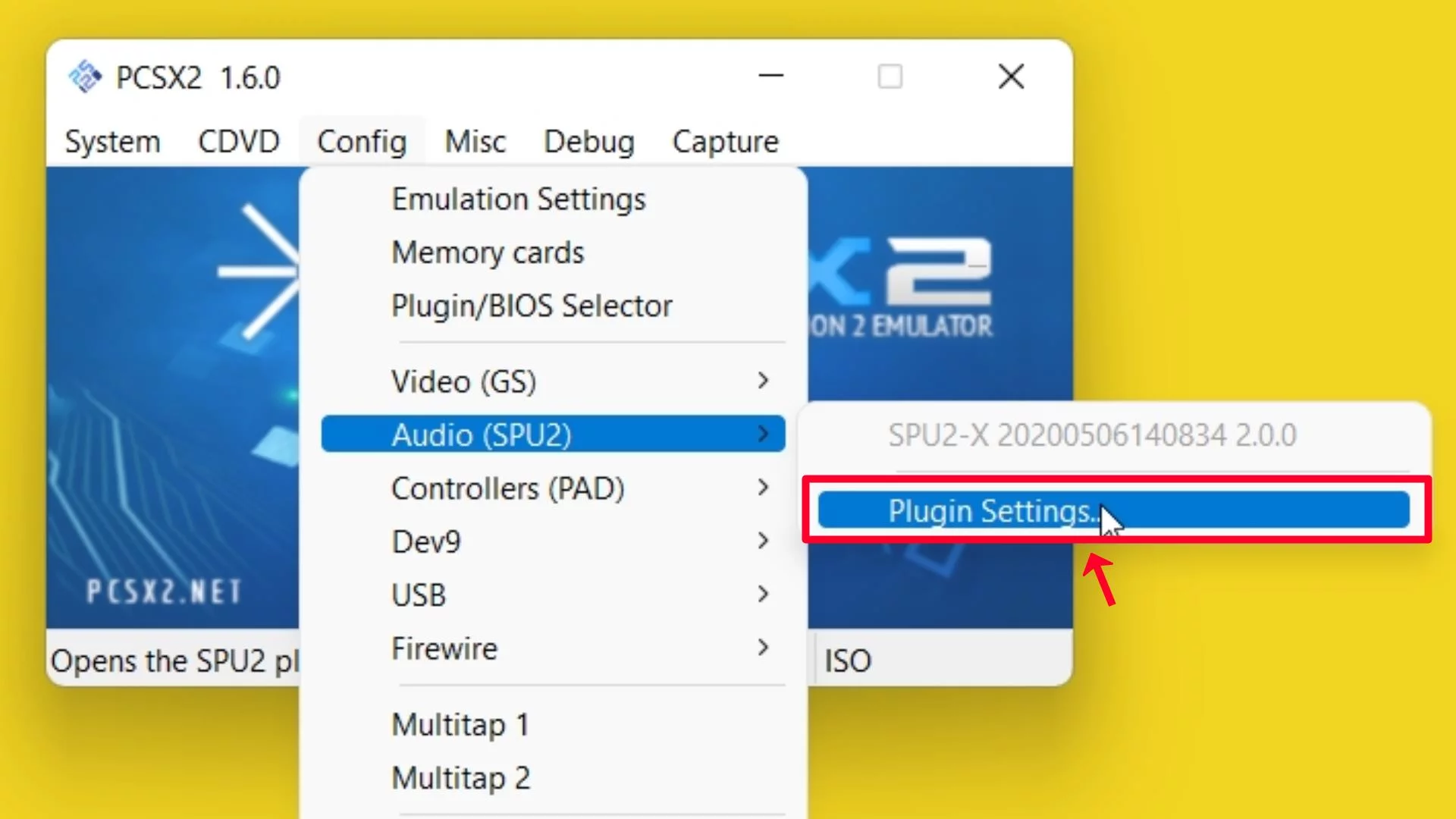
The first step in setting up PCSX2 0.9.8 is configuring the basic settings. Upon launching the emulator, you'll be prompted to configure the plugins. For most users, the default settings will suffice, but you can adjust them according to your system specifications and preferences. The plugins include the graphics, sound, and controller plugins, each of which plays a critical role in your gaming experience.
- Graphics Plugin: The default is usually the DirectX or OpenGL plugin, depending on your system. For most modern systems, the DirectX plugin is recommended for better compatibility and performance.
- Sound Plugin: The default sound plugin is usually the SPU2-X plugin, which provides high-quality sound emulation and is compatible with most systems.
- Controller Plugin: If you're using a gamepad, you'll need to configure the lilypad or multitap plugin to recognize your controller inputs.
Optimizing Performance
For optimal performance, it's crucial to tweak the settings according to your system's capabilities. The PCSX2 0.9.8 version offers several options to enhance gameplay speed and reduce lag.
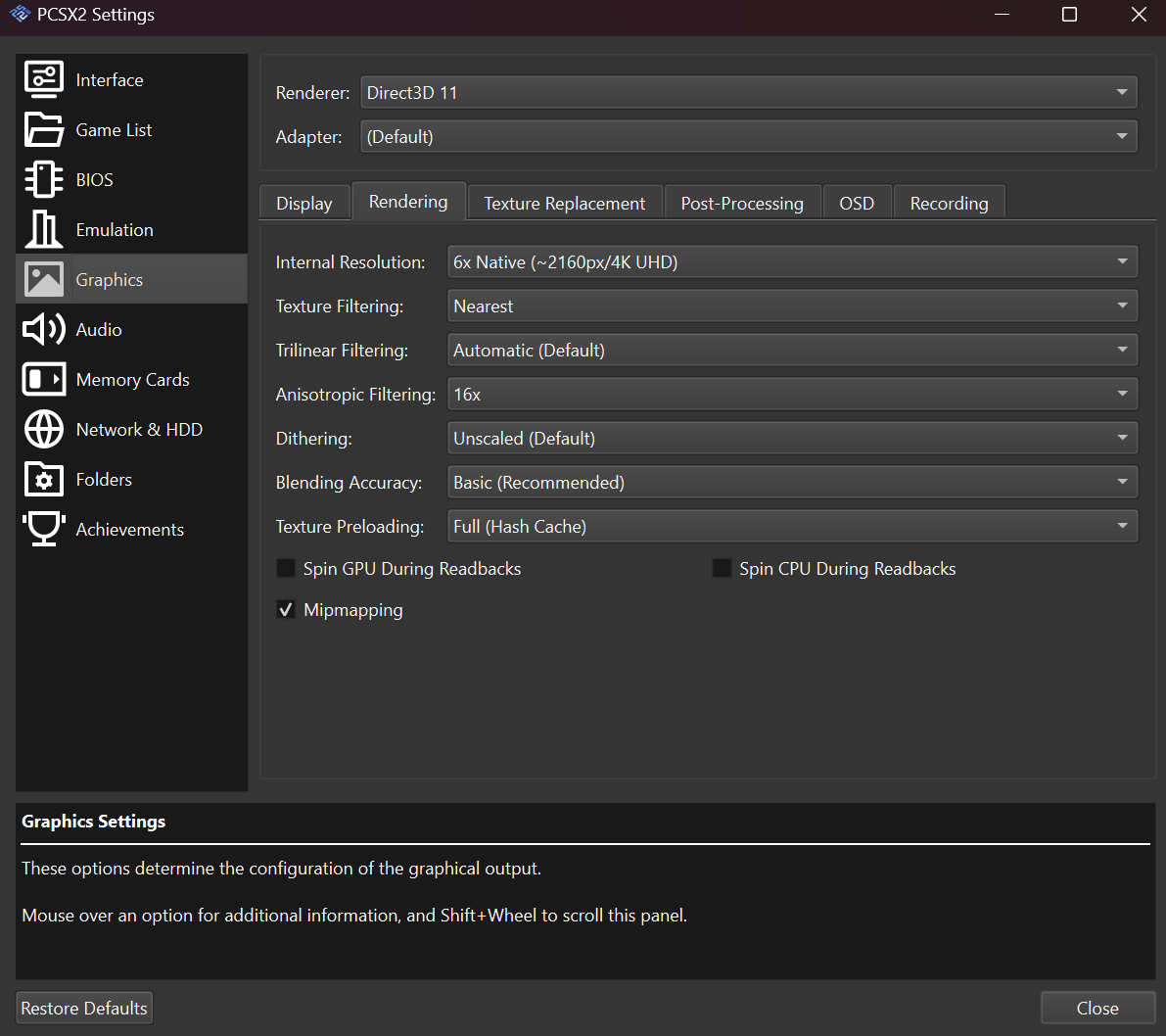
1. **Renderer**: Choosing the right renderer can significantly impact performance. The DirectX 11 (DX11) and OpenGL renderers are more compatible with modern systems, offering better performance and graphics quality compared to the DirectX 9 (DX9) renderer.
2. **Interlacing**: Disable interlacing for most games, as it can introduce artifacts and affect performance. However, some games may require it to run correctly, so it's worth testing both options.
3. **Texture Filtering**: Enable texture filtering for improved graphics quality. However, this may come at the cost of slightly reduced performance, depending on your system's specifications.
Enhancing Graphics Quality
PCSX2 0.9.8 offers several options to enhance the graphics quality of your PS2 games, making them look more vivid and lifelike on modern screens.
1. **Upscaling**: Enable upscaling to improve the resolution of your games. PCSX2 supports up to 8x scaling, but be aware that higher scaling factors can significantly impact performance.
2. **Anti-Aliasing**: Enable anti-aliasing to reduce the appearance of jagged edges in games. The available options include FXAA, SSAA, and MSAA, each with its own performance and quality trade-offs.
Controller and Input Settings
A good gaming experience also depends on how well your controller is configured. PCSX2 allows for extensive customization of controller settings, including button mappings and sensitivity adjustments.
1. **Button Mapping**: Configure your controller buttons according to your preferences. You can customize the layout to mimic the original PS2 controller or create a setup that suits your gaming style.
2. **Sensitivity**: Adjust the sensitivity of your controller to achieve the perfect balance between responsiveness and precision. This is particularly important for first-person shooter and racing games.
Frequently Asked Questions
Below are answers to some frequently asked questions about configuring PCSX2 0.9.8 for optimal performance and graphics quality.
- Q: What are the minimum system requirements for PCSX2 0.9.8? A: The minimum requirements include a CPU with at least 2 GHz, 2 GB of RAM, and a compatible graphics card. However, for a smooth gaming experience, it's recommended to have a more powerful system.
- Q: Can I play all PS2 games on PCSX2? A: While PCSX2 supports a wide range of PS2 games, compatibility can vary. Some games may require specific plugin configurations or patches to run correctly.
- Q: How do I update PCSX2 to the latest version? A: You can download the latest version from the official PCSX2 website. Ensure you follow the installation instructions carefully to avoid any compatibility issues.
In conclusion, optimizing PCSX2 0.9.8 settings is key to enjoying your favorite PS2 games with the best possible performance and graphics quality. By following this comprehensive guide, you'll be able to unlock the full potential of the emulator and relive the nostalgia of PS2 gaming on your PC.
.gif)
