7 Hidden Address Bar Settings Every Browser User Should Know
Ever stare at that slim strip at the top of your screen and wonder if it’s doing more than just showing URLs? Most of us treat the address bar as a simple navigation tool, but it’s actually a backstage pass to a host of productivity‑boosting features. From quick password management tricks to hidden commands that speed up tab juggling, the bar can become a personal command center if you know where to look.
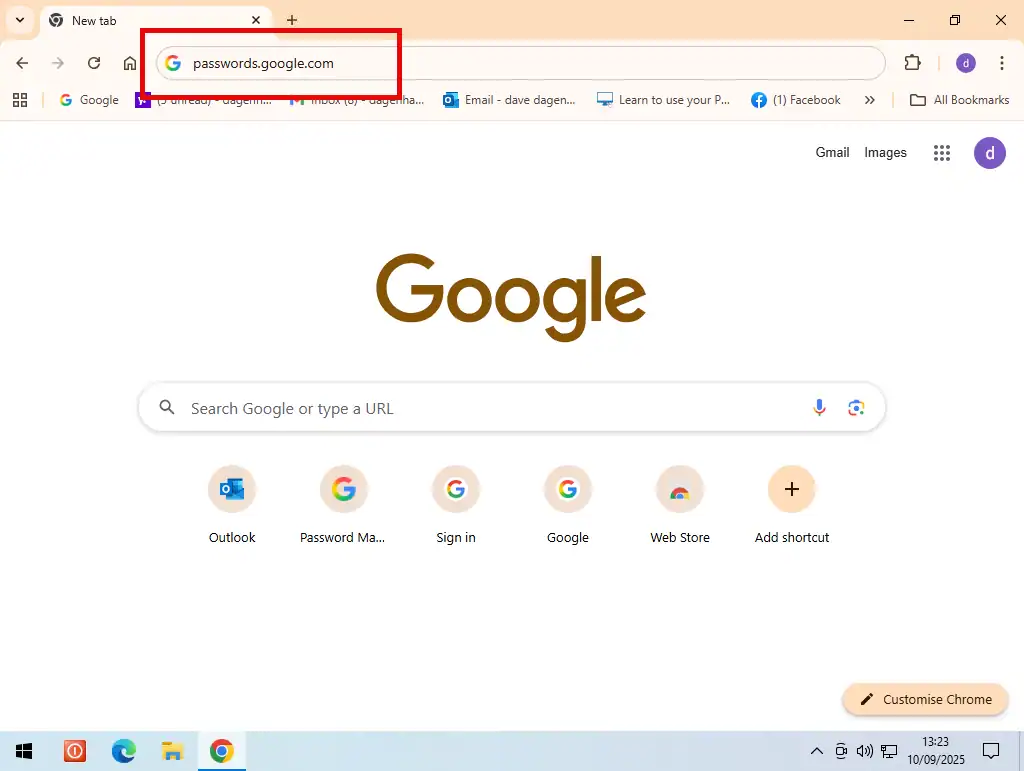
1. Directly Access Built‑in Password Managers
Many modern browsers store passwords behind the scenes, but the easiest way to retrieve or edit them is right from the bar.
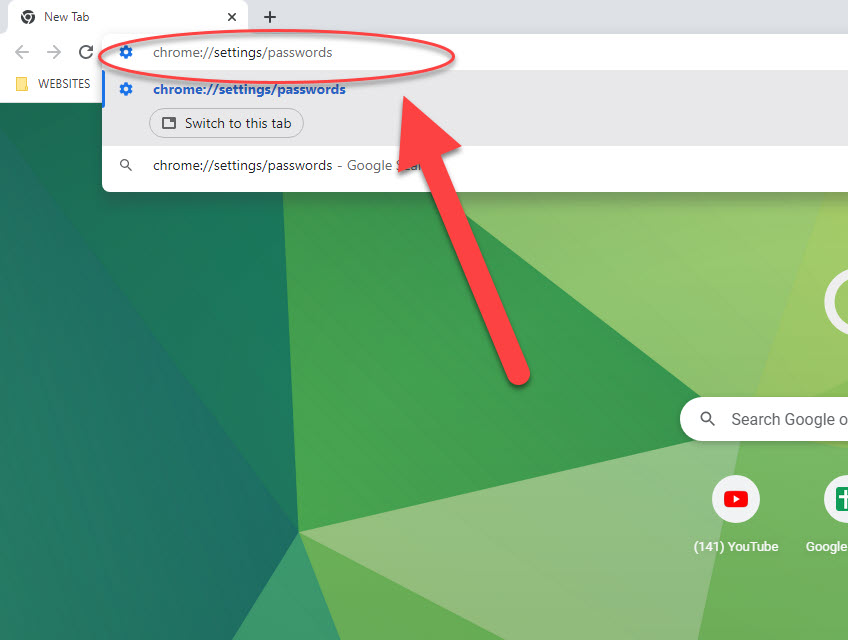
- Type chrome://settings/passwords (or edge://settings/passwords for Edge) and hit Enter.
- On Firefox, about:logins pulls up the same list.
- This shortcut bypasses several clicks, letting you edit, delete, or copy credentials in seconds.
Tip: Pin the page to your bookmarks bar for one‑click access whenever you’re in a hurry.
2. Enable or Disable Autocomplete on the Fly
Autocomplete can be a double‑edged sword. If you’re on a shared computer, you might want to turn it off temporarily.
Enter chrome://settings/syncSetup and scroll to “Autocomplete.” A single toggle disables suggestions for the current session, keeping your searches private without digging into the full settings menu.
3. Use Search Engine Shortcuts for Instant Results
Most browsers let you set custom keywords for search engines. Imagine typing g cats and getting a Google search for “cats” without leaving the bar.
- In Chrome, go to chrome://settings/searchEngines.
- Add a new engine with a shortcut like “w” for Wikipedia (
https://en.wikipedia.org/wiki/%s). - Now
w quantum mechanicsdrops you straight onto the article you need.
4. Activate “Reader Mode” Without Opening the Menu
If you love distraction‑free reading, most browsers support a reader view that strips away ads and sidebars.
Just type view-source: before the URL and replace it with reader: (e.g., reader:https://example.com/article). The page reloads in a clean layout, saving you a click.
5. Tweak Security Flags for Enhanced Protection
Advanced users can toggle experimental security features directly from the bar.
- Enter chrome://flags (or edge://flags).
- Search for “SameSite” or “TLS 1.3” to enforce stricter cookie handling or newer encryption standards.
- These tweaks can ward off tracker cookies without needing third‑party extensions.
6. Quick Tab Management with “chrome://tabs”
Feeling overwhelmed by a sea of open tabs? The hidden chrome://tabs page lists every tab, its title, and the memory it’s using.
From here you can close tabs in bulk, move them to new windows, or even pin the most important ones with a single click. Firefox offers a similar view under about:performance, which also shows which sites are hogging CPU cycles.
7. Launch Private or Incognito Sessions Instantly
Instead of right‑clicking the browser icon, just type chrome://incognito (or about:privatebrowsing for Firefox) and press Enter. The new window opens in private mode, keeping your browsing history and cookies out of the main profile.
For frequent use, add the shortcut to your desktop or pin it to the taskbar for one‑click privacy.
Putting It All Together
These seven tricks turn an ordinary address bar into a Swiss army knife for everyday browsing. The next time you fire up your browser, give one of these shortcuts a try—you’ll probably wonder how you ever lived without them.