Change Language On Xiaomi Home: A Simple Guide
Setting up a smart home ecosystem is usually seamless. You scan a code, connect to Wi-Fi, and your lights blink on. But what happens when the app interface is in a language you don’t read? For many users migrating to the Xiaomi ecosystem, this is a common first hurdle. The Xiaomi Home app (also known as Mi Home in older versions) defaults to the system language of your phone. If that language isn’t supported, or if you simply want a different interface, you need to change it manually.
Unlike some apps that have a built-in language selector in their settings, Xiaomi Home ties its display language directly to your device’s operating system. This can be slightly confusing if you aren’t aware of the connection. This guide breaks down exactly how to switch languages on both Android and iOS devices, ensuring your smart home dashboard is readable and intuitive.
Understanding the Language Limitation
Before diving into the steps, it is important to understand why there isn’t a simple "Language" button inside the app itself. Xiaomi Home follows the system-wide language setting of your smartphone. This means if your phone is set to English, the app attempts to display in English. If your phone is in Spanish, the app switches to Spanish automatically.
However, there is a catch. The Xiaomi Home app only supports a specific list of languages. If your phone is set to a language not supported by the app—such as certain regional dialects or less common languages—the app will default to Chinese or the closest available supported language. This is often the primary reason users ask how to change it. You aren’t changing the app’s setting; you are changing your phone’s setting, and then verifying the app recognizes it.
How to Change Language on Android Devices
Android devices vary by manufacturer (Samsung, Pixel, Sony, etc.), but the general path to language settings remains consistent across most versions of the OS. Here is how to ensure your device is set to a supported language for Xiaomi Home.
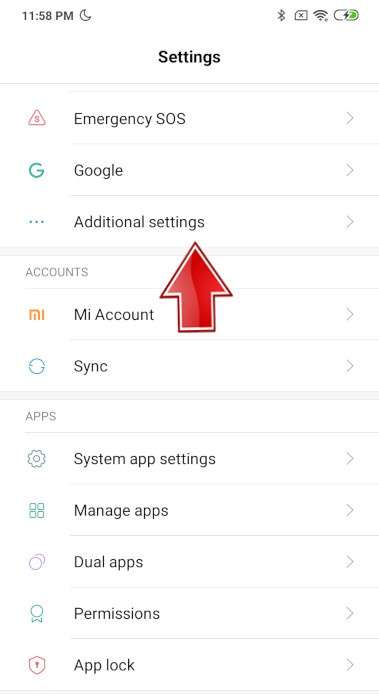
- Open Settings: Navigate to the main settings menu on your Android phone.
- Find System or General Management: Look for a section labeled "System," "General Management," or simply "System Settings." On Samsung devices, this is often under "General Management."
- Select Language & Input: Tap on "Language," "Languages & Input," or "Language and Region."
- Add or Change Priority: If your desired language is already listed, drag it to the top of the priority list. If it is not there, tap "Add a Language" and search for the language version of Xiaomi Home you need (e.g., English, Spanish, French, German).
Once you have set your preferred language at the system level, close the Xiaomi Home app completely. Do not just minimize it. Swipe it away from your recent apps menu to force a full quit. Then, reopen the app. It should now reflect the new system language.
How to Change Language on iOS (iPhone)
Apple’s approach to app languages is slightly different and more flexible. While it still defaults to the system language, iOS gives you the option to override the language for specific apps. This is often the cleaner solution for Xiaomi Home users who want their phone in one language but their smart home app in another.
To do this, go to your iPhone’s Settings and scroll down until you find the Xiaomi Home app in the list of applications. Tap on it. Look for a toggle or dropdown menu labeled App Language. If you see this option, you can select a specific language for Xiaomi Home without changing your entire iPhone’s language. Select your preference and exit the settings.
If you do not see the "App Language" option, it means your iOS version or the app version does not support per-app language overrides. In this case, you must change the iPhone’s overall system language. Go to Settings > General > Language & Region. Tap on "iPhone Language" and select your desired language. This will restart your settings interface. After the reboot, open Xiaomi Home, and it will adapt to the new device language.
What Languages Are Supported?
Xiaomi continues to expand its global ecosystem, and the list of supported languages grows with each update. Currently, the most reliable and fully translated languages include:
- English (US/UK)
- Chinese (Simplified and Traditional)
- Spanish
- French
- German
- Italian
- Portuguese
- Japanese
- Korean
- Russian
- Indonesian
- Thai
If you select a language not on this list, the app may revert to Chinese or display broken text characters. It is always best to stick to the major global languages for the smoothest experience and most accurate translations of device names and automation rules.
Troubleshooting: The Language Still Won’t Change
If you have changed your phone’s language and restarted the app, but Xiaomi Home remains stubborn in the old language, try these troubleshooting steps:
Clear the Cache (Android only): Go to Settings > Apps > Xiaomi Home > Storage. Tap "Clear Cache." This forces the app to reload its interface resources without deleting your account data. Avoid tapping "Clear Data" unless you are prepared to log in again, as this can sometimes reset local automations.
Update the App: An outdated version of Xiaomi Home may not include the language packs for newer languages. Open your Play Store or App Store, search for Xiaomi Home, and ensure you have the latest version installed.
Check for Regional Versions: In rare cases, enterprise or regional carriers may deploy a specific version of the app. If you are on an iPhone, you can try deleting the app and reinstalling it from a different App Store region (if you have an account elsewhere) to pick up the global version, though this is an advanced step.
FAQs
Why does Xiaomi Home keep switching language randomly?
This usually happens if you have multiple languages enabled on your Android device and the "Auto-detect language" feature is turned on. Your phone switches based on the region or network, and the app follows suit. Disable auto-detect in your phone’s language settings to lock in a single preference.
Can I use Xiaomi Home in languages other than the supported list?
No. The app does not have text resources for unsupported languages. While third-party translation tools on your screen might translate text for you, the underlying app structure and buttons will remain in the default language, leading to a confusing user experience.
Does changing the language affect my smart devices?
No. Your smart bulbs, plugs, and vacuum cleaners operate independently of the app’s display language. The language setting only changes the text you see on your smartphone. Your devices will continue to function exactly as configured.
Switching the language on Xiaomi Home is less about the app itself and more about managing your phone’s system preferences. Once you align your device settings with the app’s supported languages, the interface becomes much more navigable, allowing you to focus on automating your home rather than deciphering the menu.