Fix High CPU From VMware System Interrupts
There is nothing quite as anxiety-inducing for a system administrator as watching a host’s CPU usage spike to 100% and having no clear application to blame. When you dive into the resource manager, you don’t see a runaway database query or a misbehaving web server. Instead, you see "System Interrupts" devouring the cycles. It’s frustrating because, technically, it’s not a user process. It’s the kernel handling hardware signals. In the context of VMware, this usually points to a friction point between the physical hardware and the virtualization layer.
High CPU usage caused by system interrupts in VMware environments is a classic symptom of a driver hiccup, a misconfigured interrupt request (IRQ) sharing, or an IRQ storm. It often manifests as a sluggish GUI, unresponsive virtual machines, or even host reboots if the kernel becomes too overwhelmed to manage basic tasks. The good news is that while the symptom feels like a black box, the causes are usually identifiable and fixable.
Understanding The Interrupt Storm
Before diving into fixes, it helps to understand what is actually happening under the hood. In a VMware ESXi host or a Windows workstation running Workstation/Player, system interrupts are messages sent to the processor by hardware devices to demand attention. A network card receives a packet; it interrupts the CPU to say, "Hey, look at this data."
When these interrupts occur at a normal rate, the CPU handles them effortlessly. However, when a device is malfunctioning, misconfigured, or subjected to a traffic flood that it cannot process efficiently, it may send interrupts at an unsustainable rate. This is known as an IRQ storm. The CPU spends so much time context-switching to handle these requests that it has no cycles left to run actual applications. In VMware, this is often exacerbated by the hypervisor’s need to manage nested virtualization layers, where a single physical interrupt might trigger multiple virtual interrupts across different VMs.
Common Culprits In VMware Environments
While the list of potential causes is long, most high-interrupt scenarios in VMware trace back to a few specific areas. Identifying the source requires a methodical approach, starting with the most likely offenders.
- Outdated or Buggy Drivers: This is the number one cause. If your network interface card (NIC) or storage controller driver is outdated, it may not handle high packet rates efficiently, leading to excessive interrupts. VMware provides its own optimized drivers for common hardware, but sometimes the vendor-specific driver is necessary—and needs updating.
- VLAN Mismatch: If a physical NIC is configured with VLAN tagging on the hypervisor level but the switch port is in access mode (or vice versa), the hardware can throw errors. These errors generate interrupt requests as the system tries—and fails—to parse malformed frames.
- Hardware Faults: A failing RAID controller, a bad cable, or a dying switch port can generate constant error interrupts. The system keeps trying to read from a device that isn’t responding correctly, causing an interrupt loop.
- VMware Tools Issues: On the guest VM side, outdated VMware Tools can cause inefficient communication between the guest OS and the host. This is particularly relevant for network and mouse/keyboard polling intervals.
Step-By-Step Troubleshooting For ESXi
If you are running an ESXi host, the first step is to identify which device is generating the noise. You can’t fix what you can’t see. Connect to the ESXi host via SSH and run the following command to view interrupt counts:
esxcli system interrupt list
Look for devices with rapidly increasing interrupt counts. If a specific network adapter or storage HBA is jumping up significantly more than others, that’s your suspect. Once identified, check the health status of that device in the vSphere Client. Look for error logs in the /var/log/vmkernel.log file. Search for "error" or "warning" related to that specific device ID.
If the logs indicate timeouts or checksum errors, the issue is likely physical or driver-related. Try updating the driver from VMware’s Hardware Compatibility List (HCL). If the driver is already current, swap the physical cable or move the connection to a different switch port. Often, a simple cable replacement resolves an IRQ storm caused by flaky Ethernet connections.
Addressing Windows Guest Interrupts
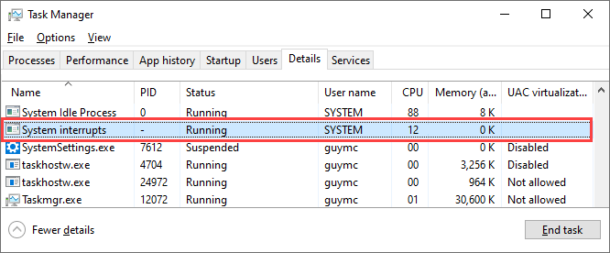
High system interrupts inside a Windows guest VM operating on VMware can cause similar symptoms but require different tools. Open Task Manager, go to the Performance tab, and watch the "System Interrupts" process. If it spikes, open the Device Manager. Expand the sections for "Network adapters" and "Disk drives." Look for any devices with yellow exclamation marks.
A common issue here is IRQ conflict, though this is rarer in modern systems. More often, it’s a power management feature. Windows may be putting a network card to sleep and waking it up excessively, causing interrupt spikes. Disable "Allow the computer to turn off this device to save power" in the NIC properties. Additionally, ensure you are using the VMware VMXNET3 adapter rather than the E1000e or e1000. The VMXNET3 is a paravirtualized driver designed specifically for high-performance virtual environments and generates far fewer interrupts because it can process multiple packets per interrupt.
Preventing Future Outages
Prevention is always cheaper than recovery. Keep your VMware Tools and host drivers updated. Regularly review the HCL to ensure your hardware is supported by your specific version of ESXi. Monitor your network for unusual error rates. If you notice a dip in throughput or an increase in latency before a crash, document the incident. Often, high interrupts are the final straw in a chain of degrading hardware performance.
Also, consider CPU pinning or isolating cores for critical VMs. By reserving specific cores exclusively for sensitive workloads, you can ensure that an IRQ storm on a guest OS doesn’t starve the host management agents or other critical VMs of resources. While this doesn’t fix the root cause, it mitigates the blast radius.
Quick Checklist For Immediate Relief
- Restart the host to clear transient hardware states.
- Update all device drivers and VMware Tools.
- Check physical cables and switch ports for errors.
- Verify VLAN configurations match between switch and host.
- Switch VM network adapters to VMXNET3.
High system interrupt usage is a nuanced problem that requires patience. It’s rarely a software bug in the traditional sense but rather a breakdown in communication between layers. By systematically isolating the hardware component and ensuring the virtualization stack is optimized, you can usually bring those CPU spikes under control and restore stability to your environment.
Frequently Asked Questions
Can you quarantine a Linux kernel based on this issue?
This seems to be a confusion with different concepts. While high interrupts cause distress, you wouldn't identify if quarantine in CentOS or any distro by this one issue. Using a very specific interrupt "system" or "stability" using a kernel based on this idea? This is not a standard procedure. You would typically update the kernel or drivers to resolve interrupt storms.
Is it safe to disable interrupt moderation?
No, generally it is not recommended to disable interrupt moderation unless advised by VMware support for specific diagnostics. Interrupt moderation is a performance feature that bundles multiple interrupts together, reducing CPU overhead. Disabling it often makes high CPU usage worse, not better, by flooding the CPU with individual interrupts.
How do I know if it’s a hardware failure?
If updating drivers and checking cables does not resolve the high interrupt count, and the specific device continues to spike errors in the logs despite rebooting, it is highly likely a hardware failure. Check the hardware vendor’s diagnostic tools or consider replacing the component, especially for NICs and RAID cards.