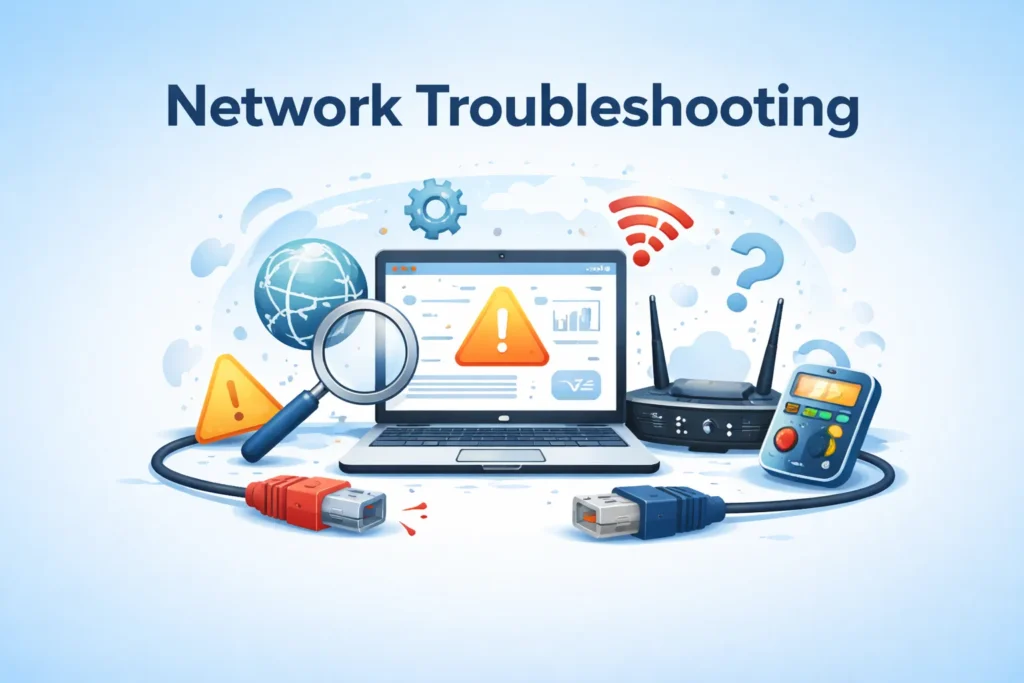
Fixing Hikvision Offline: A Simple Troubleshooting Guide
Having your Hikvision camera or NVR go offline can be frustrating, especially if you're relying on it for security purposes. Fortunately, most issues can be resolved with some basic troubleshooting. In this article, we'll walk you through a step-by-step guide to help you identify and fix common problems that might be causing your Hikvision device to go offline.
Before we dive into the troubleshooting process, it's essential to understand that Hikvision devices, like any other electronic equipment, can malfunction due to various reasons. These might include power outages, internet connectivity issues, firmware problems, or even physical damage to the device itself. By following the steps outlined below, you should be able to identify and potentially resolve the issue causing your Hikvision device to be offline.
Initial Checks
The first step in troubleshooting your Hikvision device is to perform some basic checks. Ensure that the device is properly powered on and that all cables are securely connected. Sometimes, a loose Ethernet cable or a power cord can be the culprit behind an offline device. Also, verify that your internet connection is stable and functioning correctly, as a poor internet connection can prevent your Hikvision device from connecting to the server.
Additionally, check the device's LED indicators. Most Hikvision devices have LEDs that indicate their status, such as power, network connectivity, and alarm status. If the power LED is off or not lighting up as expected, it could indicate a power issue. Similarly, if the network LED is not lit or blinking erratically, it might suggest a problem with your network connection.
Network Configuration and Connectivity
A significant number of offline issues with Hikvision devices can be attributed to network configuration and connectivity problems. Ensure that your device is configured to use the correct network settings, including the IP address, subnet mask, gateway, and DNS server addresses. You can usually find these settings in your device's web interface or through the Hikvision software or app you're using.
It's also crucial to check for any firewall or router settings that might be blocking the device's connection. Some routers have a feature called "IP reservation" or "DHCP reservation," which can help ensure that your Hikvision device always gets the same IP address, reducing the likelihood of connection issues.
Firmware and Software Updates
Outdated firmware or software can sometimes cause compatibility issues or bugs that result in your Hikvision device going offline. Regularly updating your device's firmware and the software or app you use to access it can help resolve these problems. Hikvision periodically releases updates to fix bugs, improve performance, and enhance security.
To update your device's firmware, you typically need to download the latest firmware version from Hikvision's official website, then follow the instructions provided to upload it to your device. Be cautious and ensure you're downloading firmware from a trusted source to avoid any potential security risks.
Physical Inspection and Environmental Factors
In some cases, physical damage or environmental factors can cause your Hikvision device to malfunction. Conduct a visual inspection of the device and its surroundings. Look for signs of physical damage, water ingress, or excessive dust. Ensure that the device is installed in a well-ventilated area, away from direct sunlight or extreme temperatures, as these conditions can affect its performance and reliability.
Moreover, check the device's connectors and cables for any signs of wear or damage. Over time, connectors can corrode, or cables can deteriorate, leading to intermittent or complete loss of connectivity. Cleaning or replacing these components might be necessary to restore your device's functionality.
Reboot and Reset
Sometimes, a simple reboot can resolve issues with your Hikvision device. If your device has a reboot option in its web interface or through the Hikvision software/app, use it to restart the device. If not, you can physically unplug the power cord, wait for about 30 seconds, and then plug it back in. This forces the device to restart and can often resolve minor software glitches.
As a last resort, if none of the above steps resolve the issue, you might need to perform a factory reset on your device. This action will erase all settings and return the device to its original state, so use it with caution. The process for resetting varies between models, so it's advisable to consult your device's user manual or contact Hikvision support for specific instructions.
Conclusion and Further Assistance
Troubleshooting a Hikvision device that's gone offline can be a straightforward process if you follow the right steps. By checking the power and network connections, ensuring the device has the latest firmware and software, inspecting for physical damage, and potentially rebooting or resetting the device, you should be able to identify and fix most common issues. If, after trying these steps, your device remains offline, it might be necessary to contact Hikvision's technical support or a professional installer for further assistance.
Frequently Asked Questions
- Q: Why does my Hikvision camera keep going offline? A: There could be several reasons, including power issues, network connectivity problems, outdated firmware, or physical damage to the device.
- Q: How do I update the firmware on my Hikvision device? A: You can update the firmware by downloading the latest version from Hikvision's official website and following the provided instructions to upload it to your device.
- Q: Can I reset my Hikvision device to its factory settings? A: Yes, but this should be done as a last resort. The process varies between models, so it's recommended to consult your device's user manual or contact Hikvision support for instructions.
- Q: What if none of the troubleshooting steps work? A: If none of the steps resolve the issue, it's advisable to contact Hikvision's technical support or a professional installer for further assistance.

![[UPDATE] How to Solve Hikvision DVR Offline Problem | Hik Connect ...](https://i.ytimg.com/vi/7bjkxqOByDE/maxresdefault.jpg)