How to Boost WhatsApp Privacy Using Mozilla Firefox
WhatsApp is great for instant chats, but its web client can expose more data than you’d like—especially when you browse with a default‑configured browser. Fortunately, Mozilla Firefox offers a suite of built‑in tools and add‑ons that let you tighten the privacy envelope around WhatsApp Web. Below is a straightforward guide that walks you through the most effective tweaks, from cookie handling to container tabs, so you can keep your messages and presence under tighter control.
Why Firefox Is a Good Fit for WhatsApp Web
Firefox has long championed privacy‑by‑design, giving users granular control over tracking scripts, fingerprinting, and data leakage. When you log into web.whatsapp.com, the site stores session cookies, caches media files, and may even leak your IP address to third‑party services embedded in the page. By leveraging Firefox’s strict tracking protection and its robust extension ecosystem, you can limit those exposures without sacrificing functionality.
Essential Browser Settings to Adjust
Before installing any add‑on, make sure the core settings are tuned for privacy.
- Enable Enhanced Tracking Protection (ETP): Go to Settings → Privacy & Security → Enhanced Tracking Protection and choose “Strict.” This blocks known trackers and third‑party cookies that WhatsApp might otherwise accept.
- Turn off WebRTC leaks: In the about:config page, set
media.peerconnection.enabledtofalse. This prevents your real IP address from being exposed through peer‑to‑peer connections. - Restrict site data: Under Cookies and Site Data, click “Manage Exceptions” and add
https://web.whatsapp.comwith “Block” for third‑party cookies while allowing first‑party storage. - Use Private Browsing for each session: Opening WhatsApp Web in a private window automatically clears cookies and cache when you close it, ensuring no lingering traces.
Leverage Firefox Containers for Isolation
Firefox Containers let you compartmentalize web activities into separate “sandboxes.” By opening WhatsApp Web in its own container, you prevent the site from accessing data stored by other tabs, like social‑media logins or shopping sites.
To set it up:
- Install the official Firefox Multi‑Account Containers add‑on.
- Create a new container named “WhatsApp” and assign it a distinct color.
- Right‑click the WhatsApp Web bookmark and select “Open in New Container → WhatsApp.”
Now any cookies or local storage used by WhatsApp stay confined to that container, making it harder for cross‑site trackers to correlate your activity.
Privacy‑Focused Extensions Worth Adding
While Firefox’s built‑in tools cover most bases, a few extensions can add an extra layer of security.
- uBlock Origin: A lightweight ad‑blocker that also blocks many tracking scripts embedded in WhatsApp’s web UI.
- Cookie AutoDelete: Automatically removes cookies from a site once you close its tab, ensuring session data doesn’t linger.
- HTTPS Everywhere (or the built‑in “HTTPS‑Only Mode”): Guarantees that all connections to WhatsApp use encrypted HTTPS, eliminating downgrade attacks.
- Privacy Badger: Learns to block invisible trackers as you browse, offering a safety net for any new scripts WhatsApp might introduce.
Best Practices While Using WhatsApp Web
Technical tweaks are only part of the picture. Your habits play a major role in maintaining privacy.
- Log out after each use: Even with container isolation, an active session can be hijacked if someone gains physical access to your machine.
- Avoid saving passwords in the browser: Use a dedicated password manager instead of Firefox’s built‑in manager for the WhatsApp login QR code.
- Keep Firefox up to date: Security patches are released frequently; staying current reduces the risk of known exploits.
- Consider a reputable VPN: If you frequently connect on public Wi‑Fi, a VPN masks your IP address from WhatsApp’s servers and any passive eavesdroppers.
What About Mobile Users?
Firefox on Android also supports container‑like profiles through its “Firefox Focus” privacy browser, which automatically clears history and cookies after each session. While you can’t run WhatsApp Web directly on most phones without a desktop‑class browser, using Focus for any web‑based WhatsApp interactions (like links to group chats) adds the same “no‑trace” benefit.
FAQ
Can I hide my “last seen” status on WhatsApp Web?
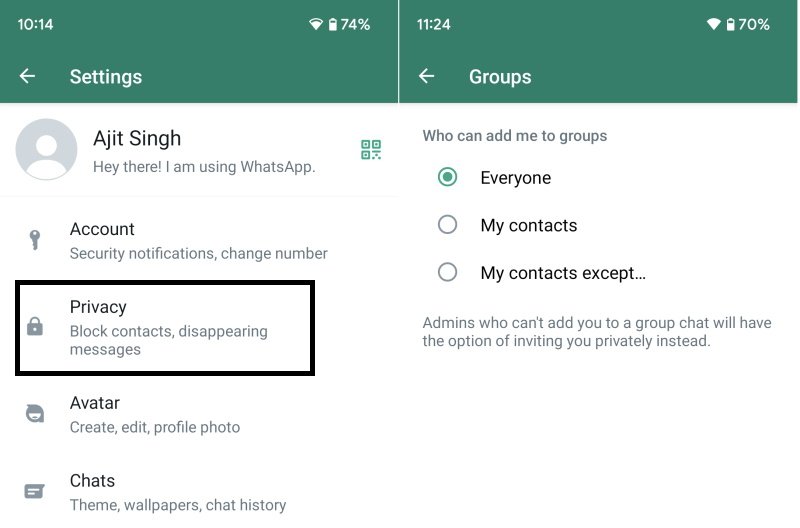
Yes. Open WhatsApp on your phone, go to Settings → Account → Privacy, and set “Last Seen” to “Nobody.” The change syncs instantly to the web client, preventing anyone from viewing it.
Will using a VPN affect the QR‑code login?
Generally not. The QR code simply establishes an encrypted link between your phone and the browser. A VPN only masks your outward IP, which WhatsApp treats as a normal connection.
Do container tabs stop WhatsApp from seeing my IP address?
No. Containers isolate cookies and local storage, but they don’t conceal your IP. For IP privacy, combine containers with a VPN or a reliable proxy.
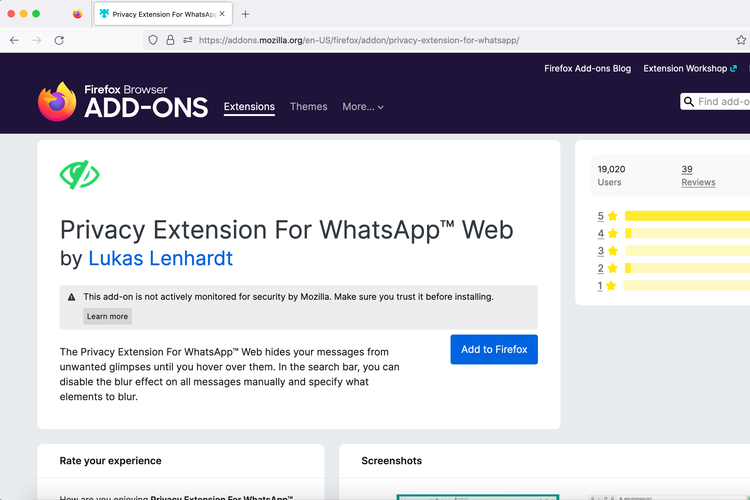
Is it safe to use third‑party extensions for WhatsApp Web?
Stick to well‑reviewed, open‑source add‑ons like uBlock Origin or Cookie AutoDelete. Extensions that claim to “hide your online status” often violate WhatsApp’s terms and can lead to account restrictions.