How to Cancel Disney+ Subscription in a Few Easy Steps
Deciding to part ways with Disney+ isn’t a huge drama—though the thought of saying goodbye to Mickey and the Marvel universe can feel a little bittersweet. Whether you’re cutting costs, switching to another streaming service, or just taking a break, the process is simpler than many assume. Below is a straightforward walkthrough that respects your time and clears up the common hiccups that pop up along the way.
Where to Start: Understanding Your Account Type
First, take a quick glance at how you originally signed up. Disney+ can be purchased directly through the Disney website, via the app on a mobile device, or through third‑party platforms such as Apple iTunes, Google Play, or a cable provider. Knowing the source determines where you’ll actually click “Cancel.”
Direct Disney Subscriptions
- Logged in through a browser (desktop or mobile)
- Signed up using an email and password, not tied to an app store
App‑Store Subscriptions
- Apple ID (iPhone, iPad, Mac)
- Google Account (Android phone, tablet, Chrome OS)
- Amazon or other partnered services
Once you know which lane you’re in, the cancellation steps become a matter of navigating the right menu.
Step‑by‑Step: Cancel Directly on Disney’s Website
- Log in. Head to DisneyPlus.com and enter your credentials.
- Open Account Settings. Click your profile picture in the upper right corner, then choose “Account” from the dropdown.
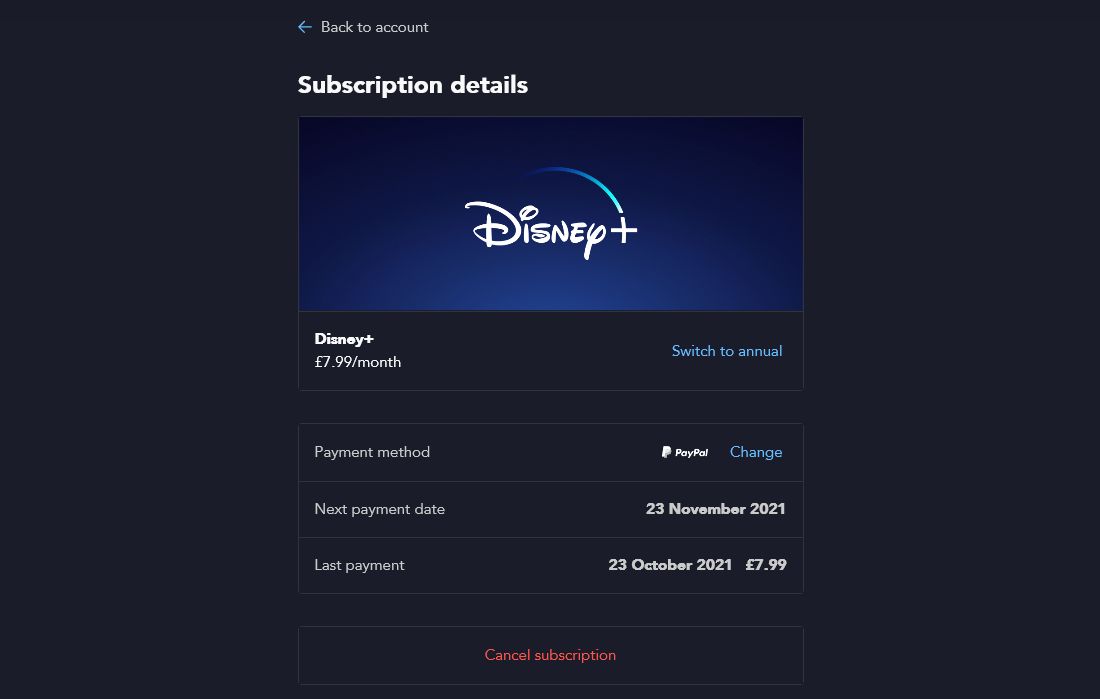
- Find the Subscription Section. Scroll until you see “Subscription” and hit “Manage Subscription.”
- Cancel. A button labeled “Cancel Subscription” will appear. Follow the prompts—Disney often asks why you’re leaving, which you can skip if you prefer.
- Confirm. You’ll receive an email confirming the cancellation and stating the date your access will end (usually the end of the current billing cycle).
That’s it. Your account remains active until the paid period expires, giving you a final window to enjoy any unfinished shows.
Canceling Via Mobile App Stores
If you signed up through an app store, the Disney+ portal won’t show the cancel option. Instead, you’ll need to manage the subscription where you originally paid.
Apple (iOS/macOS)
- Open Settings on your iPhone or iPad.
- Tap your name at the top, then select “Subscriptions.”
- Locate Disney+ in the list and tap it.
- Choose “Cancel Subscription” and confirm.
Google Play (Android)
- Launch the Google Play Store app.
- Tap the three‑line menu, then “Payments & Subscriptions.”
- Select “Subscriptions,” find Disney+, and hit “Cancel.”
- Follow any final confirmation steps.
The cancellation takes effect at the end of the current billing period, just like the direct method.
What Happens After You Cancel?
Most users wonder whether anything mysterious happens to their saved watchlist, profiles, or downloaded content. The short answer: your data stays put.
- Watchlist & Profiles: All your personalized lists and multiple profiles are retained for future re‑activation.
- Downloads: Any movies or shows saved for offline viewing will disappear once the subscription ends.
- Re‑subscription: If you decide to return, simply sign back in and the service will restore your settings.
Keep in mind that you won’t receive a prorated refund for the remaining days; Disney+ operates on a “use‑it‑or‑lose‑it” basis until the cycle concludes.
Common Pitfalls and How to Avoid Them
Even a simple process can trip up a few users. Here are the most frequent snags and quick fixes.
- Wrong Platform: Trying to cancel on the website when your subscription lives in the App Store will lead to a dead‑end page. Double‑check your sign‑up source first.
- Missing Confirmation Email: Sometimes the email lands in the spam folder. If you don’t see it within an hour, log back into your account and verify the status under “Subscription.”
- Accidental Renewal: After canceling, a brief window may still show “Active” until the billing cycle ends. Don’t panic—access will cease on the listed end date.
Alternative: Pause Instead of Cancel
If you’re not ready to fully say goodbye, Disney+ also offers a “pause” feature for certain regions. Pausing temporarily suspends billing while preserving all your settings. The option appears in the same “Subscription” menu on the website, but note that it’s limited to a maximum of three months.
Final Thoughts
Turning off a streaming service doesn’t have to feel like a tech‑support ordeal. By pinpointing where you originally paid and following the right set of clicks, you can end your Disney+ membership cleanly and confidently. And if you ever miss the magic, the door is always open for a quick re‑signup—your watchlist will be waiting.