How To Change Your Airtel WiFi Password Quickly And Securely
Ever noticed a stranger's device lurking on your home network? It’s unsettling, but fixing it is simpler than you think. Tweaking your Airtel Wi‑Fi password doesn’t require a tech degree—just a few minutes and a bit of curiosity.
Why Update Your Airtel WiFi Password?
Beyond the obvious security boost, a fresh password can:
- Prevent bandwidth hogs from slowing streaming.
- Give you peace of mind after a guest stays over.
- Stay ahead of automated hacking tools that target default credentials.
And let’s be honest—changing it occasionally feels like a small, satisfying win against digital chaos.
Preparing To Change The Password
Before diving in, gather the basics:
- The Airtel router model (usually printed on the back).
- Your admin login – most users stick with “admin/admin” or “admin/password”. If you’ve never altered it, check the sticker.
- An Android/iOS device or a computer connected to the network.
If you’ve misplaced the admin details, a quick reset of the router (press the tiny pinhole for 10 seconds) restores factory defaults – but you’ll lose current Wi‑Fi settings, so be ready to set them up again.
Step‑by‑Step Guide Using the Airtel App
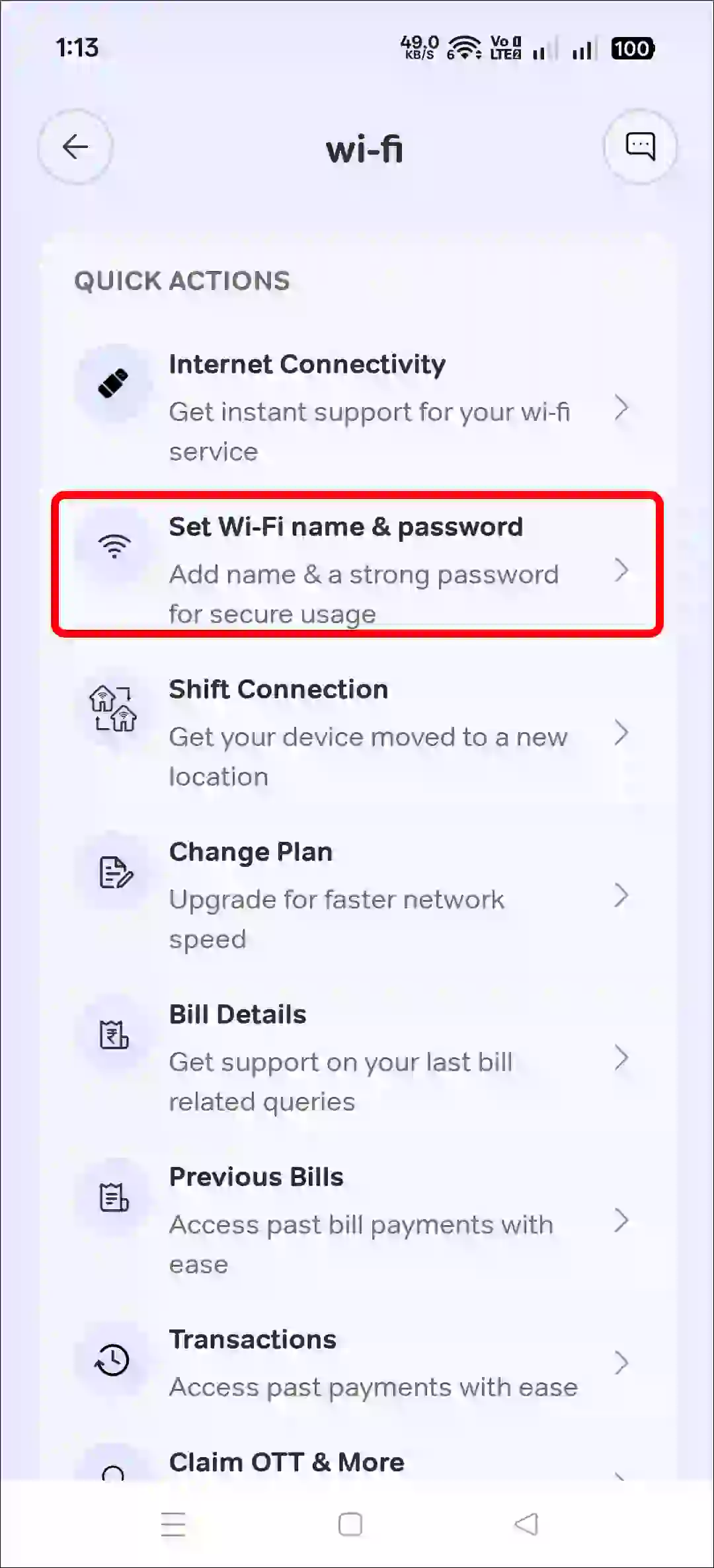
The Airtel My Airtel app makes the process almost painless. Here’s how:
- Launch the app and sign in with your Airtel mobile number.
- Tap the “Wi‑Fi” icon on the home screen – the app automatically detects your router.
- Select “Manage Network”, then choose “Change Password”.
- Enter your new password (at least 8 characters, mixing letters, numbers, and a symbol). The app will warn you if the strength is weak.
- Confirm the new password and hit “Save”. Your router reboots in a few seconds.
- Reconnect all devices using the updated credentials.
That’s it. The app even offers an option to generate a random, strong password if you’re indecisive.
Changing The Password Via The Router Interface
Prefer the classic web portal? No problem. Follow these steps:
- Open a browser and type the router’s IP address (usually
192.168.1.1or192.168.0.1). - Log in with your admin username and password.
- Navigate to “Wireless Settings” or “Wi‑Fi Security”, depending on the firmware.
- Locate the field labeled “Password”, “Passphrase”, or “Network Key”.
- Enter your new password, confirm it, and click “Apply” or “Save”.
- The router may flash a brief restart; afterwards, reconnect your devices.
Pro tip: While you’re in the settings, rename your SSID (network name) to something non‑obvious. “Airtel_2.4G” is easy to spot for snoopers.
Tips For A Strong, Memorable Password
Balancing strength with memorability is an art. Try these tricks:
- Passphrase method: Combine three unrelated words and a number, e.g.,
Solar!Piano42. - Keyboard pattern: Use a diagonal shape on the keyboard, like
qAz!2WsX, then add a symbol. - Song lyric snippet: Pick a short, obscure line and replace letters with numbers or symbols.
Whatever you pick, avoid personal data—birthdates, addresses, or pet names are the first guesses of automated attacks.
Common Issues And How To Fix Them
Device won’t reconnect. Double‑check you entered the new password correctly. If unsure, forget the network on the device and reconnect from scratch.
Router isn’t reachable via IP. Your computer might have switched to a static IP. Reset the network adapter to obtain an address automatically, or restart the router.
Forgot the admin login after a reset. Use the default credentials on the sticker. If they were changed and you can’t recall them, contact Airtel support—they’ll verify your identity and guide you through a factory reset.
Lastly, if you changed the password but still see unknown devices, run a quick network scan through the app or a third‑party tool. Kick out any that don’t belong, then consider enabling “MAC address filtering” for an extra layer of control.
Changing your Airtel Wi‑Fi password is a small chore with a big payoff. Now you’ve got a sharper, more private network—and the know‑how to keep it that way.