How to Change Your Grab Pickup Location in Seconds
Ever hit “Book” on Grab only to realize the pin is off by a few blocks? It happens to the best of us, and the good news is that the app lets you correct the mistake without canceling the whole ride. Below is a straightforward walk‑through that covers everything from tweaking the initial pin to updating the address once a driver is already on the way.
Why a Quick Location Switch Matters
Getting the pickup spot right the first time saves time, avoids extra charges, and keeps the driver from wandering around confused. A misplaced pin can lead to missed connections, especially during rush hour or in crowded city centers. Moreover, the sooner you correct the address, the higher the chance the driver will still be within a comfortable distance to reach you without rerouting.
Step‑by‑Step: Editing the Pin Before You Confirm
- Open the app and set your ride. Tap “Ride” on the home screen, then enter your destination as usual.
- Check the pickup map. A small map appears with a blue dot (your current location) and a red pin (the default pickup point).
- Drag the pin. Press and hold the red pin, then slide it to the exact spot where you’ll be waiting. The app updates the address automatically.
- Verify the new address. Look at the text field below the map; it should reflect the street name and number you just selected.
- Confirm the ride. Once you’re satisfied, hit “Book” to lock in the new location.
What If the Driver Is Already Assigned?
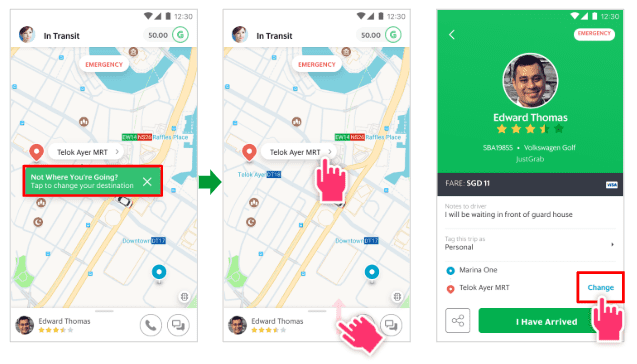
Sometimes you notice the error after the driver has accepted the request. Don’t panic—Grab lets you send an updated location right from the “On the Way” screen. Tap the “Change Pickup” button, move the pin as described above, and a short notification will pop up for the driver. Most drivers will adjust their route instantly, but it’s courteous to send a quick message confirming the change, especially if you’re moving a significant distance.
Using the “Change Destination” Feature Mid‑Ride
Changing the drop‑off point is a separate but equally handy tool. While the driver is en route, tap the “Change Destination” icon, type the new address, and confirm. Grab will recalculate the fare and display the updated ETA. This works for both short errands and longer trips, but be aware that large detours may increase the fare substantially.
Tips to Prevent Future Mistakes
- Save frequent locations. Adding “Home,” “Work,” or favorite cafés to your favorites list eliminates the need to search each time.
- Enable high‑accuracy GPS. In Settings → Location, choose “High accuracy” for Android or “Precise Location” for iOS to let the app pinpoint you more reliably.
- Zoom in on the map. A closer view reduces the chance of dragging the pin onto a neighboring street by accident.
- Double‑check the address line. Even after moving the pin, glance at the written address to catch any auto‑corrections that might slip in.
Quick FAQ
- Can I change the pickup location after the driver has arrived? Yes—open the ride screen, tap “Change Pickup,” and adjust the pin. The driver will receive a push notification.
- Will I be charged extra for moving the pickup point? Generally no, unless the new spot forces a longer route that affects the fare calculation.
- What if the driver doesn’t see my update? Send a brief message via the in‑app chat to confirm the new location.
- Is there a time limit for editing the pickup? The option disappears once the driver marks the status as “Arrived.” At that point, only a direct message can convey a last‑minute change.