How to Fix NordVPN Kill Switch When It Blocks Internet
Ever connected to NordVPN, turned on the kill switch, and then noticed that nothing—no browser, no streaming app, not even a simple ping—seems to work? You’re not alone. The kill switch is meant to protect you by cutting off traffic the moment the VPN drops, but sometimes it gets a little over‑zealous and leaves you stranded. Below is a down‑to‑earth guide that walks you through the most common culprits and shows you how to restore a normal connection without wiping your whole setup.
What the Kill Switch Actually Does
The kill switch is a safety net. When NordVPN loses its tunnel, the switch forces all inbound and outbound traffic to stop, preventing your real IP address from leaking. It works by manipulating your device’s network routing tables or firewall rules, depending on the platform.
Because it touches low‑level settings, a misconfiguration—or a sudden change in your network—can make the switch think the VPN is still active, thus keeping the block in place even though the VPN client shows “connected.”
Typical Scenarios That Trigger a “No Internet” State
- Conflicting firewall or antivirus software: Some security suites add their own network filters that clash with NordVPN’s rules.
- Recent OS update: A Windows 11 patch or macOS Monterey upgrade can reset network permissions.
- Router-level VPN pass‑through disabled: If the router blocks the ports NordVPN uses, the client thinks the tunnel died.
- Incorrect DNS settings: The kill switch often forces DNS through the VPN; a stray DNS entry can break resolution.
Quick Checks Before Diving Deeper
These three steps take less than a minute but can save you a lot of hassle.
- Toggle the kill switch off, wait a few seconds, then turn it back on.
- Restart the NordVPN app—sometimes the client simply needs to re‑initialize its rules.
- Disconnect from the VPN, then reconnect to a different server; a change of endpoint often refreshes routing tables.
If the problem persists, move on to the more thorough fixes below.
Step‑by‑Step Fixes
Windows 10 / 11
- Open Settings → Network & Internet → VPN. Delete any lingering NordVPN entries.
- Run
netsh advfirewall resetfrom an elevated Command Prompt to clear conflicting firewall rules. - Navigate to Control Panel → Network and Sharing Center → Change adapter settings. Right‑click the NordVPN TAP adapter, select Disable, then Enable it.
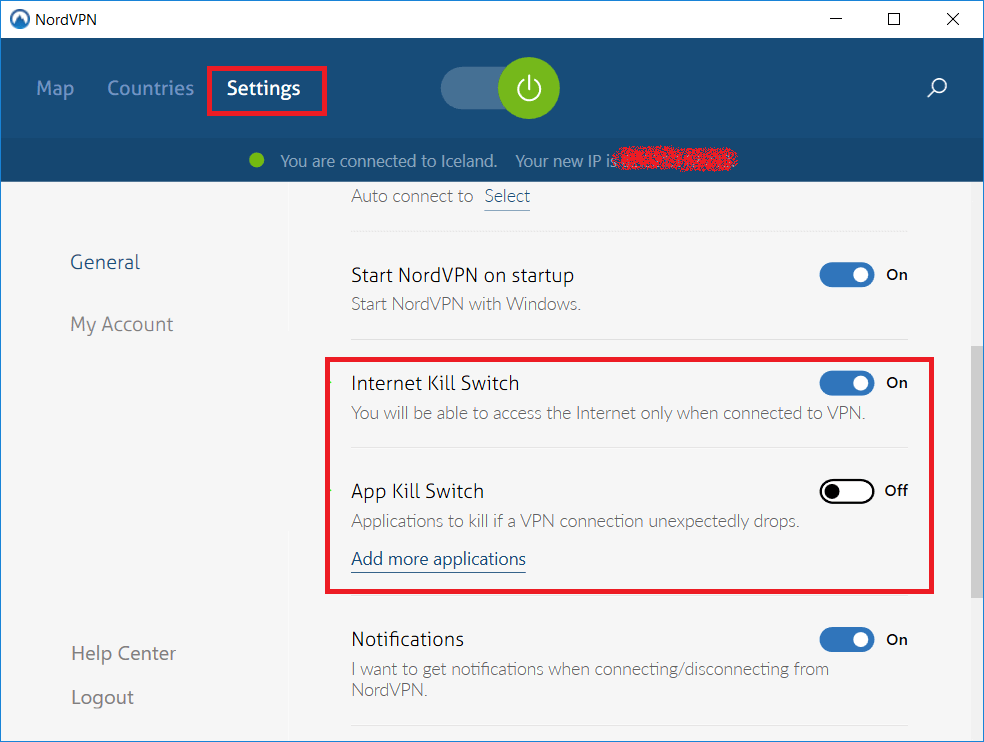
- Open the NordVPN app, go to Settings → Kill Switch, and make sure “Internet Kill Switch” is enabled, not the older “Network Lock” option (or vice‑versa, depending on what you were using).
macOS (Catalina and later)
- Open System Preferences → Network. Remove any extra NordVPN virtual interfaces that may have duplicated.
- In Terminal, execute
sudo /usr/libexec/ApplicationFirewall/socketfilterfw --setglobalstate offto temporarily disable the built‑in firewall, then re‑enable it after testing. - Launch NordVPN, switch the kill switch off, quit the app, then restart it with “Open at Login” disabled for a clean start.
- If you use a third‑party security suite, temporarily suspend it and see whether the internet returns.
Android (9+)
- Go to Settings → Apps → NordVPN → Force Stop, then clear the cache.
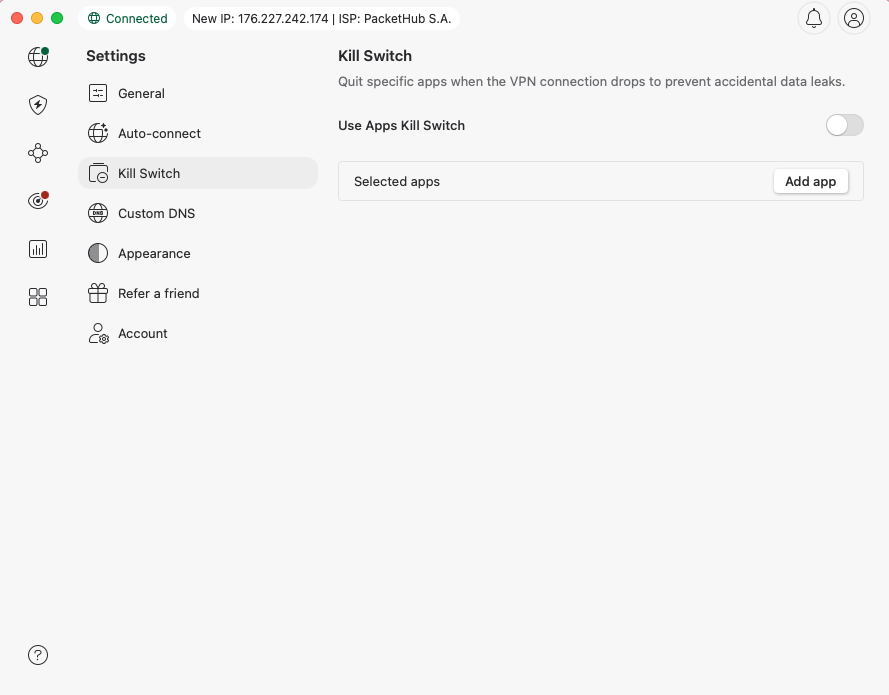
- Open the NordVPN app, tap the three‑dot menu, choose Settings → Kill Switch, and toggle it off.
- Restart the device; Android will rebuild the VPN interface automatically.
iOS (iPhone & iPad)
- Open Settings → General → VPN & Device Management. Delete any old NordVPN profiles.
- In the NordVPN app, go to Settings → Kill Switch and switch it off, then back on.
- If the issue remains, reset network settings (Settings → General → Reset → Reset Network Settings). This clears DNS caches that sometimes get stuck.
When to Reach Out to NordVPN Support
If none of the platform‑specific steps revive your connection, gather the following before contacting support:
- Exact OS version and recent updates.
- Screenshot of the NordVPN client showing the kill switch status.
- Output of
ipconfig /all(Windows) orifconfig(macOS/Linux) showing the VPN adapter.
With this info, the support team can pinpoint whether the problem lies in a deeper routing conflict or a bug that needs a patch.
Tips to Prevent Future Outages
- Keep the app updated—each release usually includes fixes for known kill‑switch glitches.
- Whitelist trusted local network services (e.g., your router’s admin panel) in the kill‑switch settings if you need constant LAN access.
- Avoid running multiple VPN clients simultaneously; they compete for the same virtual adapters.
- Consider using NordVPN’s “Auto‑Connect” feature on trusted Wi‑Fi networks to ensure the kill switch activates only when the VPN is truly online.
By understanding what the kill switch does, checking for common conflicts, and following the platform‑specific steps above, you can usually get your internet back without sacrificing the security NordVPN provides.
![How to Fix NordVPN Kill Switch Not Working [6 Quick Methods]](https://windowsreport.com/wp-content/uploads/2022/10/Resolve-NordVPN-Kill-Switch-Not-Working-930x620.jpg)