How to Claim a Free Autodesk Fusion 360 Education License
Why the Education License Matters
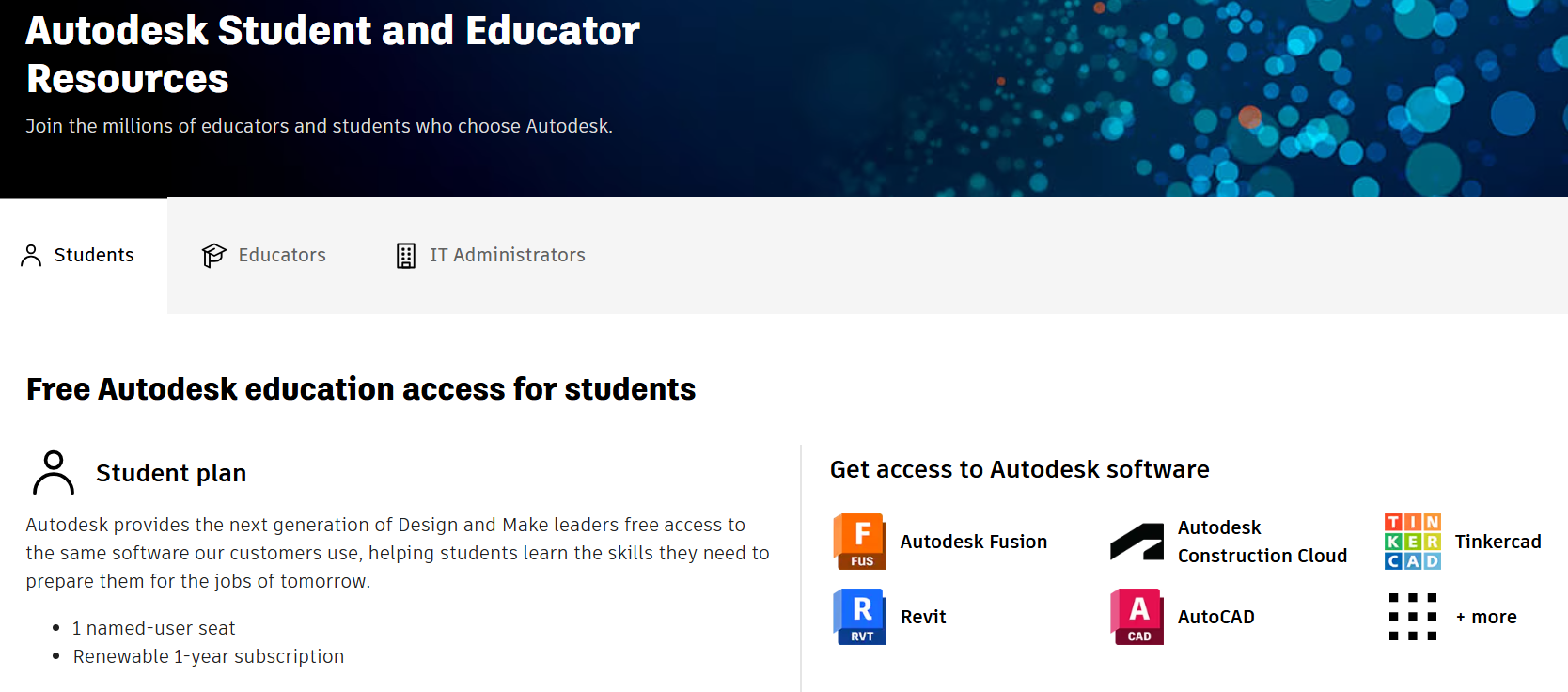
If you’re studying engineering, product design, or any field that touches 3‑D modeling, having access to Autodesk Fusion 360 can feel like a secret weapon. The good news is that Autodesk provides a free education license for Fusion 360, giving students and educators the same full‑feature suite that professionals pay for. This isn’t a stripped‑down trial; it’s the complete toolset, from parametric modeling to simulation, cloud rendering, and collaborative workspaces. The catch? You must verify your academic status and follow a few straightforward steps to unlock it.
Who’s Eligible?
Eligibility revolves around two main groups:
- Students: Currently enrolled in a secondary school, college, or university. This includes undergraduate, graduate, and even high‑school students in many regions.
- Educators and Institutions: Faculty members, instructors, or administrators who can prove affiliation with an accredited educational organization.
In most cases, you’ll need a valid school‑issued email address (e.g., .edu, .ac.uk) or a document that confirms enrollment—like a tuition receipt or a student ID scan. The license is strictly non‑commercial, so it’s meant for learning, coursework, or research projects, not for selling products or services.
Step‑by‑Step: Getting Your License
1. Create an Autodesk Account
Visit Autodesk’s official site and click “Sign In.” If you don’t already have an account, choose “Create Account.” Use your academic email whenever possible; it speeds up verification later. Fill in your name, set a strong password, and confirm the account via the verification email you’ll receive.
2. Access the Education Community
Once logged in, navigate to the Education Community page. Look for the “Fusion 360 for Education” card and hit the “Get Started” button. Autodesk will ask a few quick questions about your role (student, teacher, etc.) and the institution you’re linked to.
3. Verify Your Academic Status
The verification process can differ by region:
- Automatic verification: If your email domain matches an approved institution, Autodesk may approve you instantly.
- Document upload: Otherwise, you’ll be prompted to upload a recent transcript, enrollment letter, or faculty ID. Files should be clear and legible; PDFs and high‑resolution JPGs work best.
After submission, expect an email within 24‑48 hours confirming approval or requesting additional information.
4. Install Fusion 360
With approval in hand, return to the Education page and click “Download.” Choose the installer for your operating system (Windows or macOS). The installer automatically configures the software to recognize your educational license, so you won’t see a nagging “Trial Expired” banner.
5. Keep the License Active
The free education license lasts for one year. Autodesk will send renewal reminders a few weeks before expiration. Renewing simply involves re‑verifying your student or educator status—usually a repeat of the document upload step. As long as you remain enrolled, the process is painless.
Tips for Making the Most of Your Free License
Having the software is only half the story. Here are a few practical ways to get real value:
- Join the Fusion 360 Community: Autodesk hosts forums, webinars, and a vibrant Discord channel where you can ask questions, share projects, and discover shortcuts.
- Leverage Cloud Collaboration: Use the built‑in cloud workspace to store designs, track version history, and invite classmates to co‑edit in real time. This mirrors professional workflows and helps you build a portfolio that’s instantly shareable.
- Explore Free Learning Resources: Autodesk offers a library of self‑paced tutorials, from basic sketching to advanced generative design. Pair these with YouTube creators who specialize in Fusion 360 to reinforce concepts.
- Export for Fabrication: Take advantage of the CAM module to generate CNC toolpaths, or export STL files for 3‑D printing. Many schools have makerspaces that accept Fusion 360 files directly.
Common Pitfalls to Avoid
Even with clear instructions, newcomers sometimes hit snags. Here are the most frequent issues and how to sidestep them:
- Using a personal email: A generic Gmail or Outlook address often triggers a manual review that can delay approval. Switch to your school‑issued email whenever possible.
- Expired verification documents: A transcript older than six months may be rejected. Keep a recent copy handy.
- Attempting commercial use: Autodesk’s terms are strict about non‑commercial usage. If you need Fusion 360 for a startup or freelance job, you’ll have to purchase a professional subscription.
- Neglecting renewal notices: The license auto‑expires if you miss the renewal email, which could interrupt a semester‑long project. Mark the reminder in your calendar.
FAQ
Can I use the free education license after graduation?
No. The license is tied to active academic affiliation. Once you’re no longer a student or educator, you’ll need to transition to a paid plan or explore Autodesk’s hobbyist options, which are more limited.
Is the free license truly the full version?
Yes. Autodesk provides the same feature set as the commercial version—including simulation, rendering, and generative design—under the educational agreement.
What if my school isn’t listed as an approved institution?
Even unlisted schools can qualify. You’ll just go through the document‑upload verification path. As long as the paperwork proves legitimate enrollment, Autodesk typically grants access.