How to Contact Roblox Support: A Simple Step‑by‑Step Guide
Running into a snag on Roblox—whether it’s a mysterious account lock, a billing hiccup, or a glitch that won’t budge—can feel like hitting a wall. The good news? Roblox’s support team is just a few clicks away, and you don’t need a tech degree to reach them. Below is a down‑to‑earth walkthrough that covers the most common routes, plus a few tips that keep the process smooth.
Why You Might Need Roblox Support
Before diving into the contact methods, it helps to know what problem categories actually land in the support queue. Typically, users reach out for:
- Account security: hacked accounts, two‑step verification issues, or suspicious login activity.
- Payment & billing: accidental purchases, refunds, or missing virtual currency.
- Technical glitches: games freezing, avatar items not loading, or error codes.
- Content concerns: inappropriate user‑generated content or violations of community standards.
Having a clear idea of the problem type lets you pick the right form or channel, cutting down on back‑and‑forth.
Step 1: Gather the Essentials
Roblox will ask for specific details to verify your identity and understand the issue. Keep these items handy:
- Your username and the email linked to the account.
- Any relevant order numbers or transaction IDs (found in your purchase receipt email).
- Exact error messages or screenshots that illustrate the problem.
- A brief, factual description—think “When I try to join game X, I get error code 277.”
Skipping this prep step often results in a longer response time, as the support staff will need to ask you for the missing info.
Step 2: Use the Official Help Center
The most reliable starting point is the Roblox Help Center. Here’s how to navigate it:
- Visit support.roblox.com and click “Contact Us” at the bottom of the page.
- Select the category that matches your issue (e.g., “Account & Security” or “Payments”).
- Answer the guided questions—these often narrow down the problem before you even see the form.
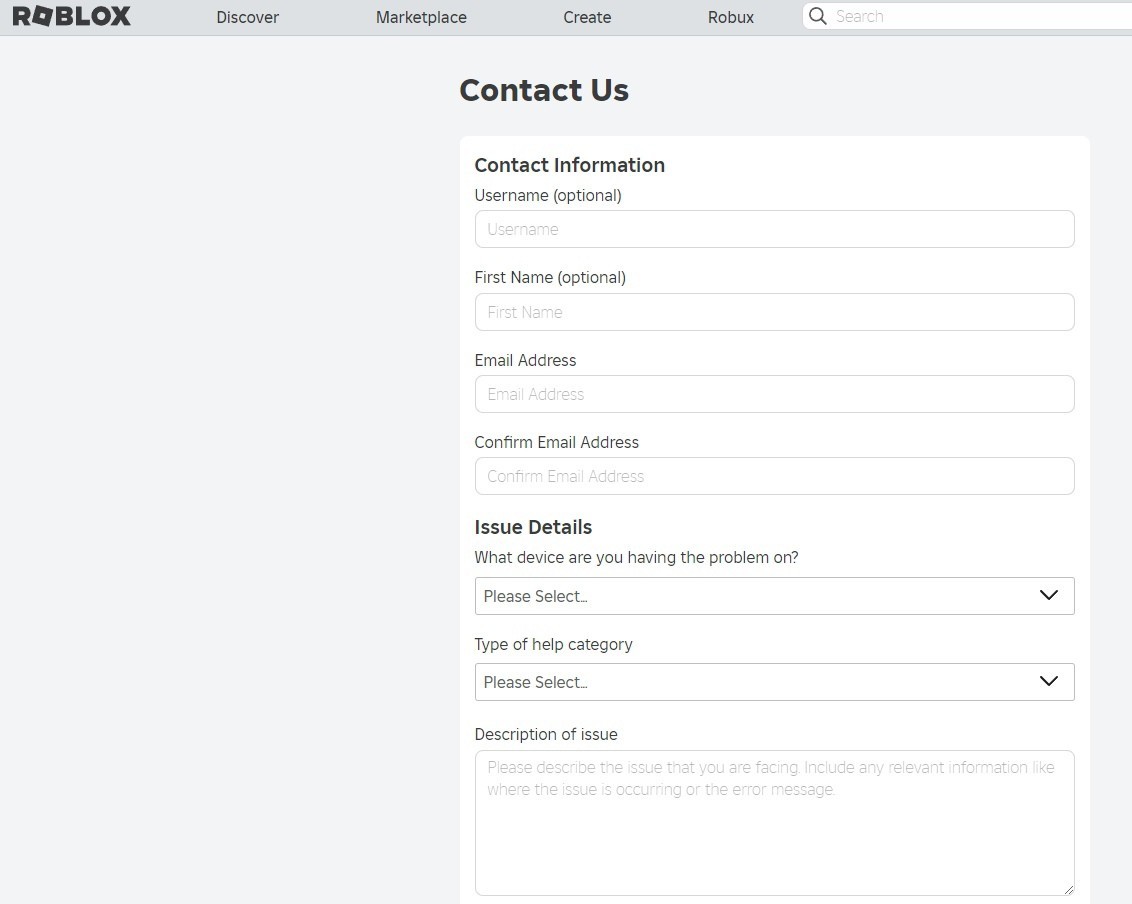
- When the final “Contact Us” button appears, you’ll be taken to a submission form where you can paste your prepared details.
What’s neat about this flow is that Roblox’s automated system can sometimes resolve simple problems instantly, serving you a knowledge‑base article instead of a ticket.
Step 3: Submitting a Ticket Directly
If the guided prompts don’t solve the issue, you’ll land on the ticket form. A few pointers to keep the ticket crisp:
- Subject line: Use a clear phrase like “Refund Request for Order #123456” rather than vague “Help!”
- Describe the problem in two to three short sentences. Over‑elaborating can bury the core issue.
- Attach screenshots if the platform allows it. A picture of an error code is worth a thousand words.
Once submitted, Roblox typically sends an automated acknowledgment with a ticket number. Keep that number—you’ll need it if you follow up via email.
Step 4: When Email Is Faster
Some users prefer a direct email, especially for urgent matters like compromised accounts. The official address is support@roblox.com. When you email:
- Put the ticket number (if you already have one) in the subject line.
- Re‑attach any files you previously sent through the form.
- Stay polite. A courteous tone often speeds up escalation.
Roblox’s email response times vary, but most users hear back within 24‑48 hours.
Step 5: Exploring the Community Forums
Before you file a ticket, it’s worth checking the Roblox DevForum and the Support subforum. Veteran developers and seasoned players often share workarounds that aren’t documented in the official Help Center.
That said, never share personal account details in public threads. Use the forums only for general advice, and move to the private support channel for anything sensitive.
Step 6: Using Social Media as a Backup
Roblox maintains an active presence on Twitter (@RobloxSupport). While the account primarily pushes updates, they do respond to direct messages about urgent concerns. If your ticket is languishing, a polite DM referencing the ticket number can sometimes nudge a quicker reply.
Common Pitfalls and How to Avoid Them
Even with a clear guide, a few missteps can stall the process:
- Multiple tickets for the same issue: Submitting several tickets can split the information and confuse agents. Stick to one ticket and update it if needed.
- Using the wrong category: Picking “Technical Issue” for a billing dispute often routes you to a team that can’t help. Double‑check the dropdown before hitting submit.
- Ignoring the automated answers: The Help Center’s suggested articles are generated for a reason; skipping them might mean you miss a quick fix.
What to Expect After You’ve Contacted Support
Roblox’s support workflow typically follows these stages:
- Ticket receipt: You get an automated email confirming the ticket number.
- Initial review: An agent reads your submission and may ask for more info.
- Resolution: Depending on the issue, they might reverse a charge, restore access, or guide you through a fix.
- Closure: You’ll receive a final email summarizing the outcome. If you’re unsatisfied, the email often contains a link to appeal or reopen the ticket.
Most users report resolution within three to five business days, though complex account security cases can stretch longer.
Quick Reference Checklist
- Gather username, email, order ID, screenshots.
- Start at support.roblox.com → “Contact Us”.
- Select the precise category; answer guided prompts.
- Submit a concise ticket with a clear subject.
- Save the ticket number; use email or Twitter for follow‑up.
- Check forums for possible self‑help before waiting.
In the end, contacting Roblox support isn’t a maze—it’s a series of logical steps that, when followed, usually land you a solution without too much hassle. Keep the checklist nearby, stay patient, and let the Roblox team do the heavy lifting.