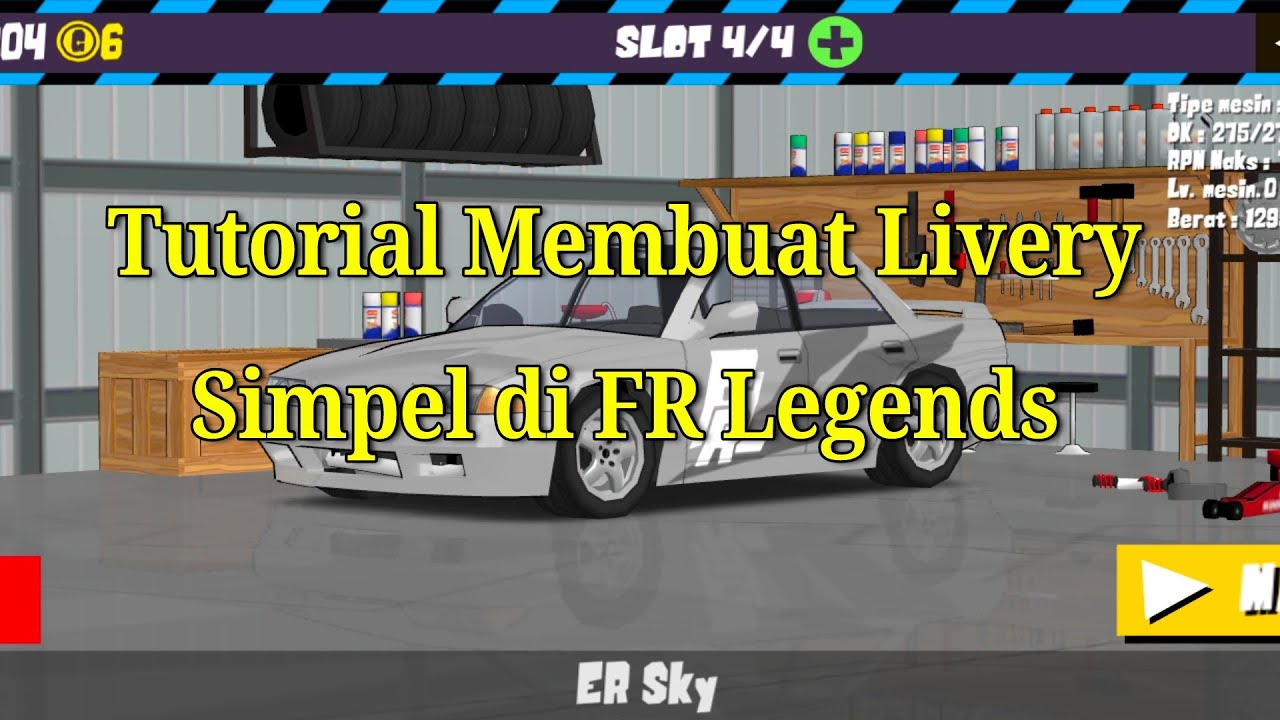
How to Design Your First FR Legends Livery – Beginner Guide
Jumping into the livery editor of FR Legends can feel a bit like stepping onto a blank canvas with a whole garage of paint. You’ve got the car, the tools, and a vague idea of what you want it to look like—now it’s time to make that vision stick, literally.
Why Even Bother With a Custom Livery?
Beyond bragging rights, a well‑crafted livery can help you stand out in the pack, signal a personal brand, or simply give you that extra boost of confidence when you line up on the grid. It’s not about winning every race; it’s about making the car feel yours.
First Steps: Setting Up the Editor
When you launch the livery editor, you’ll be greeted by a split screen: a 3‑D view on the right and a palette of tools on the left. Before you dive into the colors, take a few seconds to:
- Choose the exact car model you intend to race.
- Load any base template you like—most community creators share starter files.
- Familiarize yourself with the navigation controls (mouse‑drag for rotation, scroll to zoom).
These small actions save you from accidentally repainting the wrong section later on.
Understanding Layers and Masks
The editor works on a layer system, much like Photoshop. The default “Base Color” sits at the bottom, then you can add layers for decals, numbers, sponsors, and effects. Each layer can be toggled on or off, allowing you to experiment without committing.
Mask Basics
Masking lets you restrict a color or decal to a specific region—think “only the hood” or “just the side skirts.” To create a mask, select the part, click the mask icon, and paint over the area you want to isolate. It’s a simple trick that prevents the dreaded “full‑car rainbow” mishap.
Choosing a Color Palette
Most beginners reach for the brightest neon shades straight away. While eye‑catching, they can also clash with track lighting or look dated after a few updates. A more sustainable approach is to start with a base hue that reflects the mood you want—racing orange for aggression, midnight blue for sleekness, or matte gray for a stealth vibe.
- Contrast is key: Pair a dark base with light accent lines.
- Limited palette: Stick to 2–3 main colors to keep the design cohesive.
- Complementary tones: Use a color wheel app to find hues that naturally complement each other.
Adding Decals and Logos
The community has uploaded thousands of free decals—sponsors, stripes, tribal patterns. When you import one, pay attention to its resolution: a blurry logo will look worse than a simple painted stripe.
Positioning decals can be tricky; they’re anchored to the car’s UV map, not the visual shape. A quick tip: rotate the car so the target surface faces directly toward you, then drop the decal. You’ll get a more predictable placement.
Numbers, Driver Names, and Other Details
Most races require a visible number. The editor offers several fonts, each with a slight personality. If you’re after authenticity, mimic the style of classic GT4 cars—blocky, bold, and centered on the doors. For a personal touch, experiment with slanted italics on the roof.
Remember to set the opacity of these layers—sometimes a slightly transparent number blends better with glossy paint jobs.
Testing Your Livery in‑Game
Once you’re satisfied, hit “Apply” and load the car in a quick test session. Pay attention to:
- How the paint looks under different lighting: sunrise, sunset, night.
- Whether any decals stretch oddly around curves.
- If the number remains legible from a distance.
If something feels off, return to the editor and tweak the mask or layer opacity. This back‑and‑forth is normal; even seasoned designers iterate several times before finalizing.
Tips From the FR Legends Community
Forums and Discord channels are treasure troves of insights. A few recurring pearls of wisdom include:
- Save often: The editor can crash if you try loading an excessively large file.
- Use reference images: Load a screenshot of a real‑world car you admire and match colors manually.
- Don’t overdo details: Small, intricate patterns may get lost at race speeds.
- Export a backup: Keep a copy of your .livery file in case an update resets the editor.
Final Thought (Or Not)
Designing a livery is part art, part trial‑and‑error. The satisfaction of seeing your custom paint ray across the track for the first time? Hard to beat. So fire up the editor, trust your instincts, and let the car wear your signature.