How to Download and Install i7 Driver for Windows 10 Pro 64-Bit
There is a common misconception among PC builders and upgraders that Intel Core i7 processors require a specific "driver" to function. If you are searching for an "i7 driver download" for your Windows 10 Pro 64-bit system, you might be slightly off track. Technically, the CPU is hardware that the operating system communicates with through the kernel. However, to ensure your processor delivers peak performance, manages power efficiently, and utilizes features like turbo boost or integrated graphics, you must install the correct chipset and management engine drivers.
Missing these underlying drivers can lead to system instability, high temperatures, and poor battery life on laptops. This guide will walk you through identifying exactly what you need and where to get it, ensuring your hardware and software speak the same language.
Understanding the "i7 Driver" Myth
First, it is crucial to clarify that there is no standalone software package called "Intel Core i7 Driver." The processor itself does not run software. Instead, the motherboard—the board that holds your CPU—contains a chipset that manages data flow between the processor, memory, and peripherals.
Therefore, when people ask for a CPU driver, they are usually looking for the Intel Chipset Device Software. For systems with integrated graphics (most non-Extreme i7 models), you also need the Intel Graphics Driver. Without the chipset driver, Windows 10 might struggle to manage power states, causing your i7 to run hotter or slower than necessary.
Method 1: Using Windows Update (The Easiest Way)
Before diving into website downloads, check your current system state. Windows 10 Pro 64-bit is quite sophisticated and often auto-installs generic drivers that work well enough for daily tasks. However, these generic versions may lack advanced power management features.
- Click the Start button and select the Settings gear icon.
- Navigate to Update & Security.
- Click on Windows Update and then Check for updates.
- Look for "Optional updates." This section often houses critical chipset and management engine drivers that aren't prioritized by default.
If you see an update related to "Intel Chipset" or "Intel Management Engine," install it. Restart your computer. If no updates are found, proceed to the manual method for the most optimized performance.
Method 2: Manual Installation via Manufacturer Support
This is the most reliable method for ensuring stability and proper feature support. The key rule here is simple: Never download drivers from third-party "driver updater" sites. These are often bundled with malware. Always go to the source.
Step 1: Identify Your Board or Laptop Model
If you built a custom desktop PC, you need the exact model of your motherboard (e.g., ASUS ROG Strix Z490-E). If you are using a pre-built desktop or a laptop, you need the model of the entire system (e.g., Dell XPS 9520 or HP Pavilion 15).
To find this information quickly:
- For Desktops: Open Command Prompt and type
msinfo32. Look for "BaseBoard Manufacturer" and "BaseBoard Product." - For Laptops: Check the sticker on the bottom of the chassis or use the same
msinfo32command, looking for "System Model."
Step 2: Download the Correct Package
Head to the support page of your hardware manufacturer. Let’s use Intel’s reference boards or a major OEM like Dell as an example logic flow:
- Visit the official support site (e.g., intel.com, dell.com, hp.com).
- Enter your product model.
- Ensure the operating system filter is set to Windows 10 (64-bit).
- Look for the Chipset category.
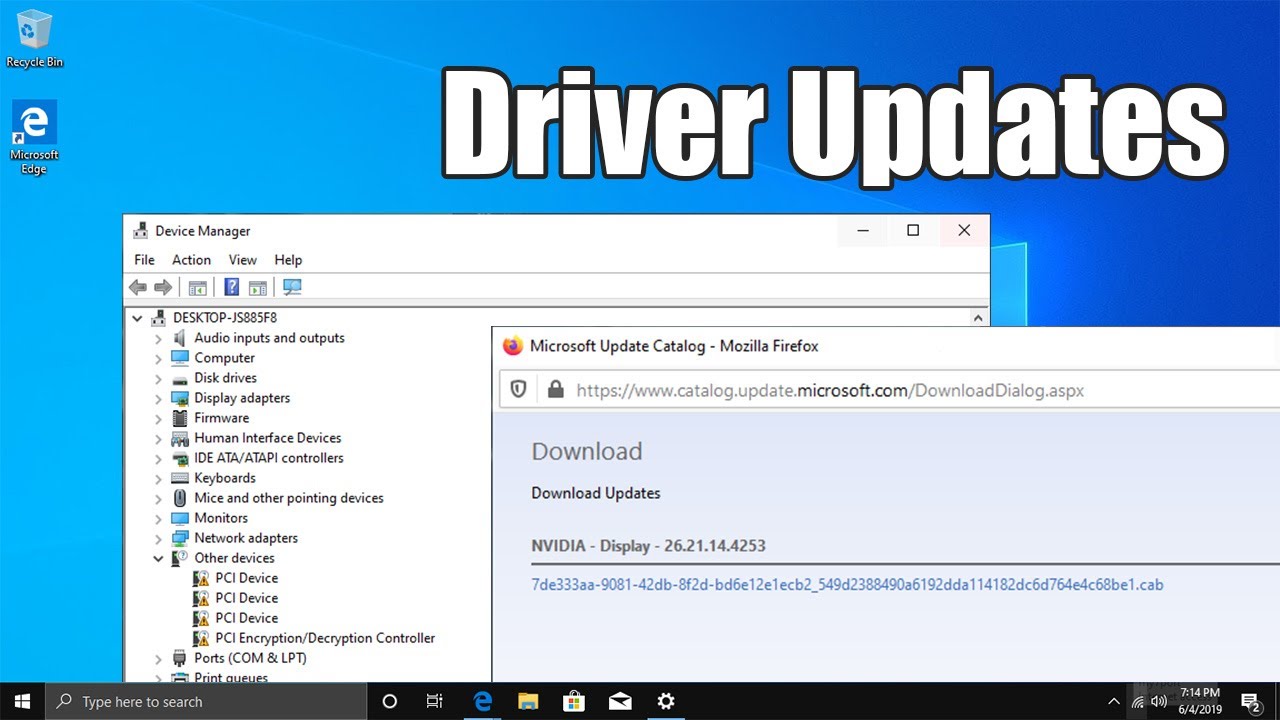
- Download the Intel Chipset Device Software and the Intel Serial IO Driver.
- If your i7 has integrated graphics (most do), also download the latest Intel Graphics Driver.
Step 3: Install and Verify
Run the downloaded installers one by one. Follow the on-screen prompts. You will likely be asked to restart your computer after each installation. This is normal and necessary for the kernel to recognize the new driver structures.
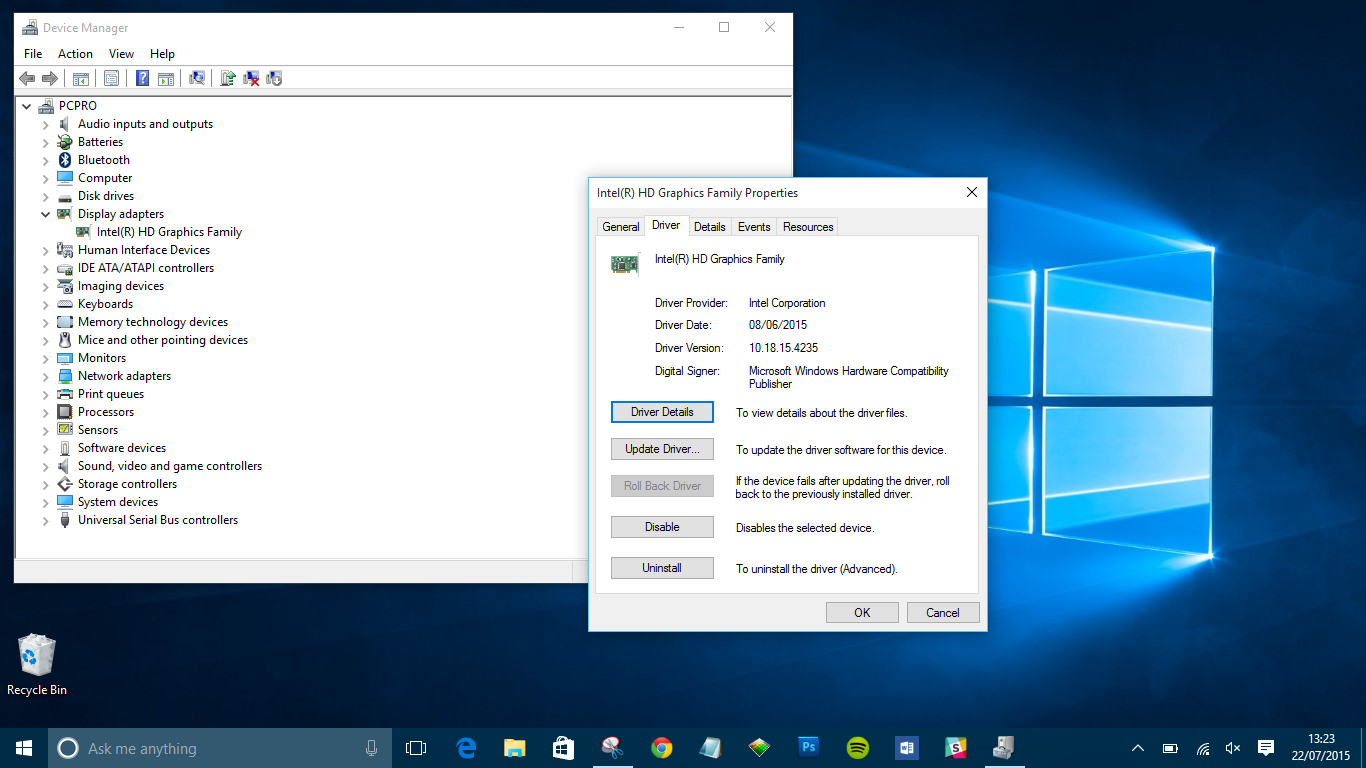
After restarting, you can verify installation by right-clicking the Start button, selecting Device Manager, and expanding System devices. You should see entries for "Intel(R) Management Engine Interface" and "Intel(R) RAM Disk Interface" without any yellow exclamation marks.
Why the Chipset Driver Matters for i7 Users
You might wonder why this step is so specific for i7 users. The Core i7 series is designed with advanced multi-threading and dynamic frequency scaling. The chipset driver provides the bridge between the Windows power management system and the CPU’s internal controls.
Without it, your processor might not drop to low-power states when idle, leading to wasted electricity and unnecessary heat in laptops. Conversely, it might fail to boost clock speeds when gaming, resulting in lower frame rates. In short, the driver unlocks the full potential of the silicon.
FAQ
Do I need to reinstall drivers after a Windows 10 update?
Generally, no. Windows updates rarely overwrite proprietary chipset drivers unless there is a critical security patch available from Intel. Your existing drivers usually remain intact and functional.
Can I use a driver for a different i7 generation?
No. Chipset drivers are tied to the motherboard chipset (e.g., Z690, B560), not just the CPU generation. A driver for a 12th Gen chipset will not work on a 9th Gen board. Always match the driver to your motherboard model.
Is it safe to download drivers from third-party websites?
It is strongly discouraged. Third-party sites often bundle adware, spyware, or outdated code. Always download directly from the PC manufacturer or Intel’s official website to ensure security and stability.
By following this guide, you ensure that your Windows 10 Pro 64-bit system communicates perfectly with your hardware. It’s a simple step that pays off in system longevity and performance.