How to Enable AirDrop on a Jailbroken iOS Device
AirDrop is a handy way to share photos, documents, or a quick link without pulling out a cable or opening a messaging app. Once you’ve jailbroken your iPhone or iPad, you gain access to tweaks that can restore or even enhance AirDrop functionality that Apple may have limited in newer iOS versions. Below is a step‑by‑step walk‑through, plus a few tips for keeping things smooth.
Why AirDrop Might Be Disabled After Jailbreak
When you jailbreak, the system’s default security layers are altered. Some popular jailbreak tools remove or modify the AirDrop service to prevent conflicts with other tweaks. In addition, certain iOS updates inadvertently disable the feature on older hardware. Understanding the cause helps you pick the right solution.
What You’ll Need
- A jailbroken iPhone or iPad running a compatible iOS version (typically iOS 10‑13 for the most stable tweaks).
- Cydia or an alternative package manager (Sileo, Zebra, etc.).
- Internet connection for downloading tweaks.
- A brief window of patience; some tweaks require a reboot.
Step‑By‑Step Guide
1. Open Your Package Manager
Launch Cydia (or your chosen manager). If you’re still on the default iOS app store, you’ll need to install a package manager first—most jailbreak guides cover that part.
2. Add the Right Repository
While many AirDrop tweaks live in the default repositories, some of the more up‑to‑date ones sit in third‑party sources. Add one of the following sources if it isn’t already present:
- https://repo.packix.com/
- https://cydia.iphonecake.com/
Just tap “Sources,” then the “+” button, and paste the URL.
3. Search for an AirDrop Enabler
In the search bar type “AirDrop” and look for a tweak named AirDropEnabler or AirDrop Fix. Both are lightweight and don’t require additional configuration.
4. Install the Tweak
Tap “Install,” then confirm. The package manager will download the tweak and its dependencies. Once it finishes, you’ll see a prompt to restart your device—do it.
5. Verify the Feature
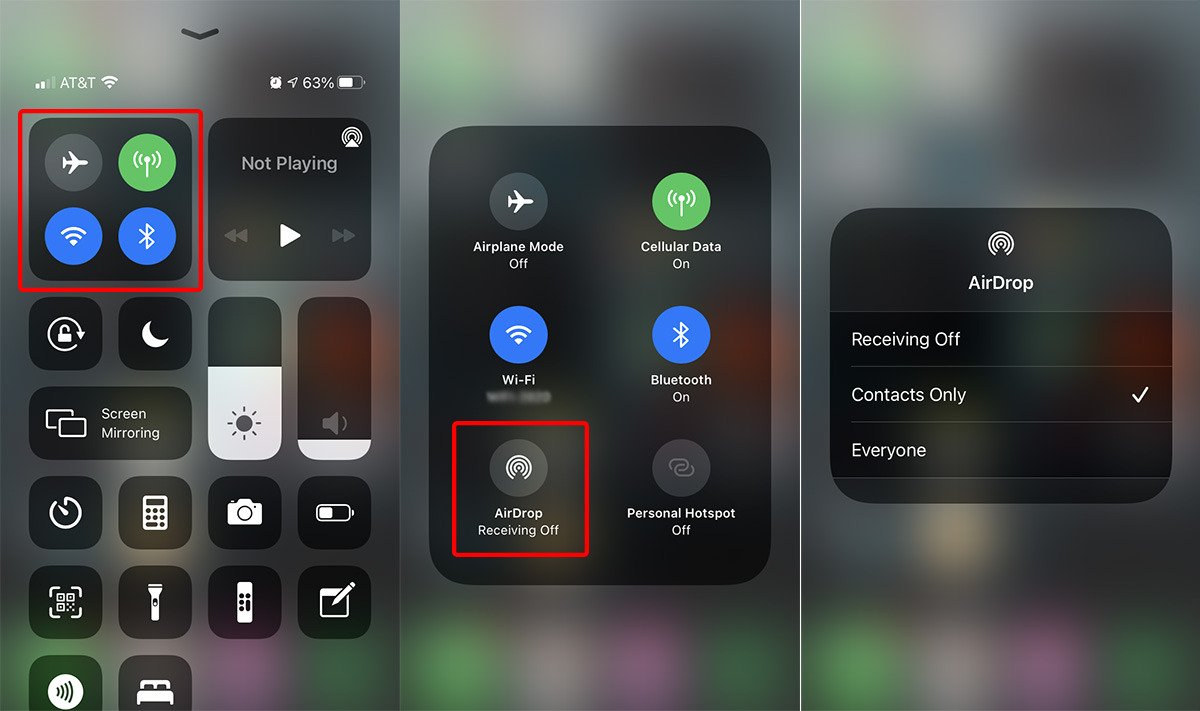
After reboot, pull down the Control Center and look for the AirDrop icon. If it’s missing, go to Settings → General → AirDrop and ensure it’s set to “Everyone” or “Contacts Only,” depending on your preference.
Optional Enhancements
If you want more control, consider these add‑ons:
- AirDrop+ – adds a customizable timeout and the ability to send files to non‑Apple devices via Wi‑Fi Direct.
- BetterHide – lets you hide the AirDrop icon when you’re not using it, keeping your Control Center tidy.
Common Hurdles and How to Fix Them
AirDrop still not appearing? Try resetting network settings (Settings → General → Reset → Reset Network Settings). This clears any lingering Bluetooth or Wi‑Fi glitches that can block the service.
Receiving “Unable to connect” messages. Some users report that disabling “Wi‑Fi Assist” helps, as the feature can interfere with the peer‑to‑peer connection AirDrop relies on.
Battery drain. AirDrop runs a continuous Bluetooth scan, which can slightly increase power usage. If you’re not sharing often, toggle the feature off in Control Center when you’re done.
Safety Tips for Jailbroken Devices
Jailbreaking opens your device to powerful customizations, but it also removes some of Apple’s built‑in safeguards. Keep these practices in mind:
- Only install tweaks from trusted repositories.
- Back up your device with iTunes or iCloud before making major changes.
- Stay on the latest stable jailbreak for your iOS version; newer patches often fix security holes.
When to Consider Restoring iOS
If AirDrop refuses to work despite reinstalling the tweak, a clean restore might be the best route. Restoring won’t erase your data if you have a recent backup, and it gives you a fresh slate to reinstall the jailbreak and the AirDrop tweak.
Wrapping It Up
Enabling AirDrop on a jailbroken iOS device is generally a quick process: add the right repo, install a tweak, and reboot. With a few extra tweaks you can even expand the feature’s capabilities. Just remember to stay cautious, keep backups, and enjoy the newfound freedom of swapping files between Apple devices without a hitch.
:max_bytes(150000):strip_icc()/002_use-airdrop-on-iphone-1999205-85748289caf547698bdb42f7f92dba41.jpg)

![[Guide] Puis-je effectuer un AirDrop vers un PC depuis mon iPhone](https://mobiletrans.wondershare.com/images/images2024/can-i-airdrop-to-a-pc-from-my-iphone-17.jpg)