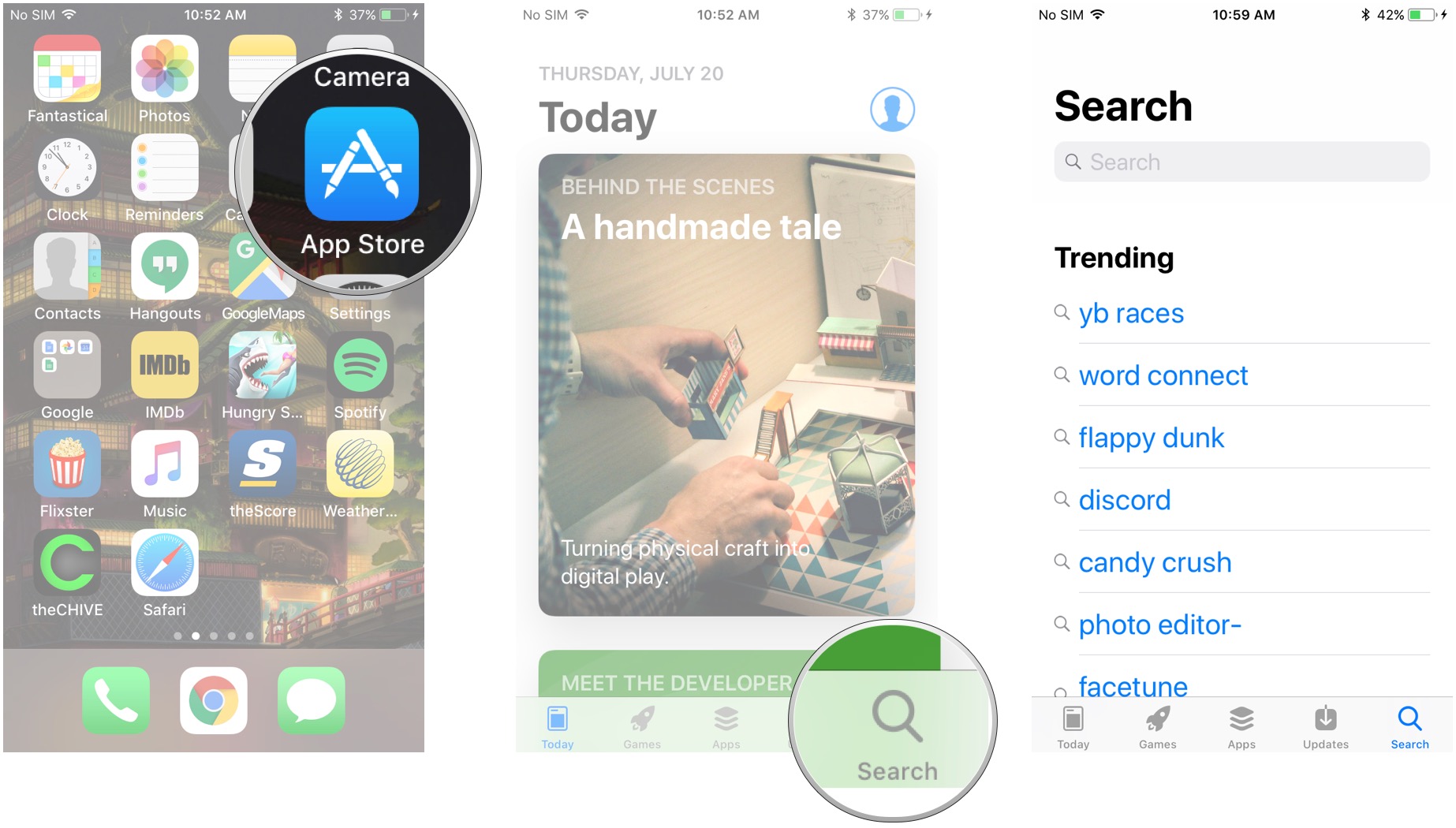
How to Enable the App Store on a School‑Issued iPad
When a school iPad comes pre‑loaded with restrictions, the App Store often feels like a locked door. Whether you’re a teacher needing a specific educational app or a student looking for a study tool, a few simple steps can usually lift that barrier—provided the device isn’t under a strict Mobile Device Management (MDM) policy.
Check the iPad’s Current Restrictions
Before diving into settings, glance at what’s already blocked. Open Settings → Screen Time. If a passcode is required, you’ll need to ask the IT department for the code or for permission to adjust the limits.
Step‑by‑Step: Turning On the App Store
- 1. Open Settings – tap the gray gear icon on the home screen.
- 2. Navigate to General – scroll down a bit; you’ll see “General” near the top.
- 3. Find Restrictions (or Content & Privacy) – on newer iOS versions it’s labeled “Content & Privacy Restrictions.”
- 4. Enter the passcode – this is often the same as the Screen Time passcode.
- 5. Allow iTunes & App Store – toggle the switch to green. If you see “Installing Apps,” make sure that’s also enabled.
- 6. Confirm changes – exit Settings; the App Store icon should reappear on the home screen.
If the Installing Apps toggle is greyed out, the iPad is likely managed by the school’s MDM solution. In that case, you’ll need to contact the administrator and explain why you need access.
When MDM Blocks the App Store
Some schools enforce a strict profile that removes the App Store entirely. Here’s what you can do:
- Ask the IT staff to add the specific app you need to the “approved apps” list.
- Request a temporary lift of the restriction for a class project.
- Use the school’s web portal (if available) to download web‑based versions of the app.
Remember, bypassing MDM without permission can violate school policy, so it’s best to work through official channels.
Alternative Ways to Get Apps
If the App Store remains inaccessible, consider these workarounds that do not require jailbreaking:
- TestFlight – some educational developers distribute beta versions via TestFlight; you’ll need an invitation link.
- Web Apps – modern browsers on iPadOS can run many tools directly, eliminating the need for a native app.
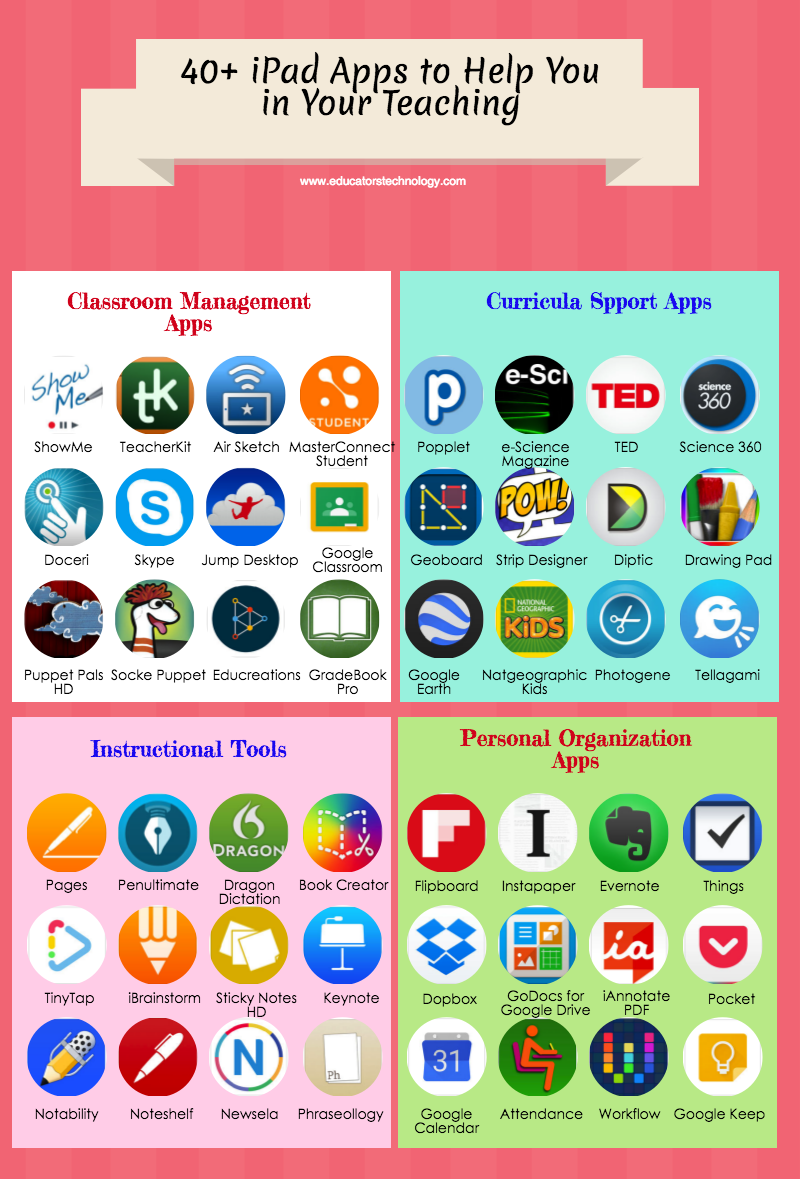
- School‑Provided Catalogs – some districts maintain a curated list of approved apps that can be installed with a single click.
Tips for Smooth App Management
- Keep iOS updated – newer versions often resolve compatibility glitches.
- Regularly check Settings → General → Device Management for any new profiles that might affect app installation.
- Document any changes you make; it helps when you need to revert settings later.
In practice, most school iPads allow the App Store to be toggled on as long as you have the right passcode. If not, a quick chat with the tech team usually clears the roadblock.

:max_bytes(150000):strip_icc()/001_download-apps-to-ipad-1999821-de2ae63d27a743ee8900fc60a327eedb.jpg)