How to Free Up Space: Laptop Storage Cleanup Guide
Why You Need to Clean Up Your Laptop Storage
Every time you open a program and the progress bar crawls, the culprit is often insufficient free space. Modern operating systems need a buffer of empty megabytes to manage virtual memory, cache files, and background tasks efficiently. When that buffer shrinks, you’ll notice slower launches, stuttering video playback, and even unexpected crashes. A regular “clean up your laptop storage” routine keeps performance snappy and prolongs the life of the SSD or HDD.
Assessing What’s Eating Up Space
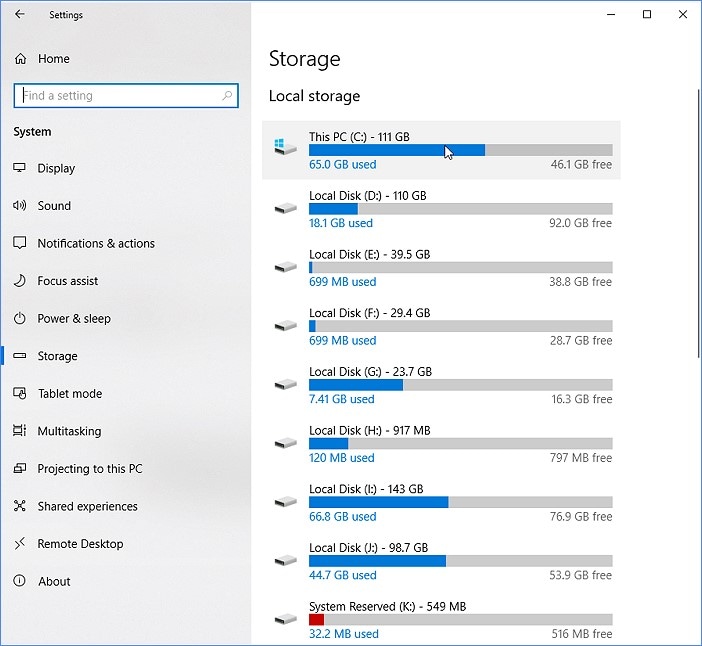
Before you start deleting, get a clear picture of where the gigabytes are hiding. Built‑in tools like Windows Storage Sense, macOS Storage Management, or third‑party utilities can generate visual breakdowns. Look for these common hogs:
- Large media files – movies, raw photos, and high‑resolution audio.
- Old backups – iTunes, Android, or Time Machine snapshots that linger.
- Application caches – browsers, Adobe apps, and development environments.
- Unused programs – software you installed once and never opened again.
Identifying the top three categories usually reveals 30‑50 % of the wasted space.
Quick Wins: Simple Steps to Reclaim Gigabytes
These actions take under ten minutes each and require no technical expertise.
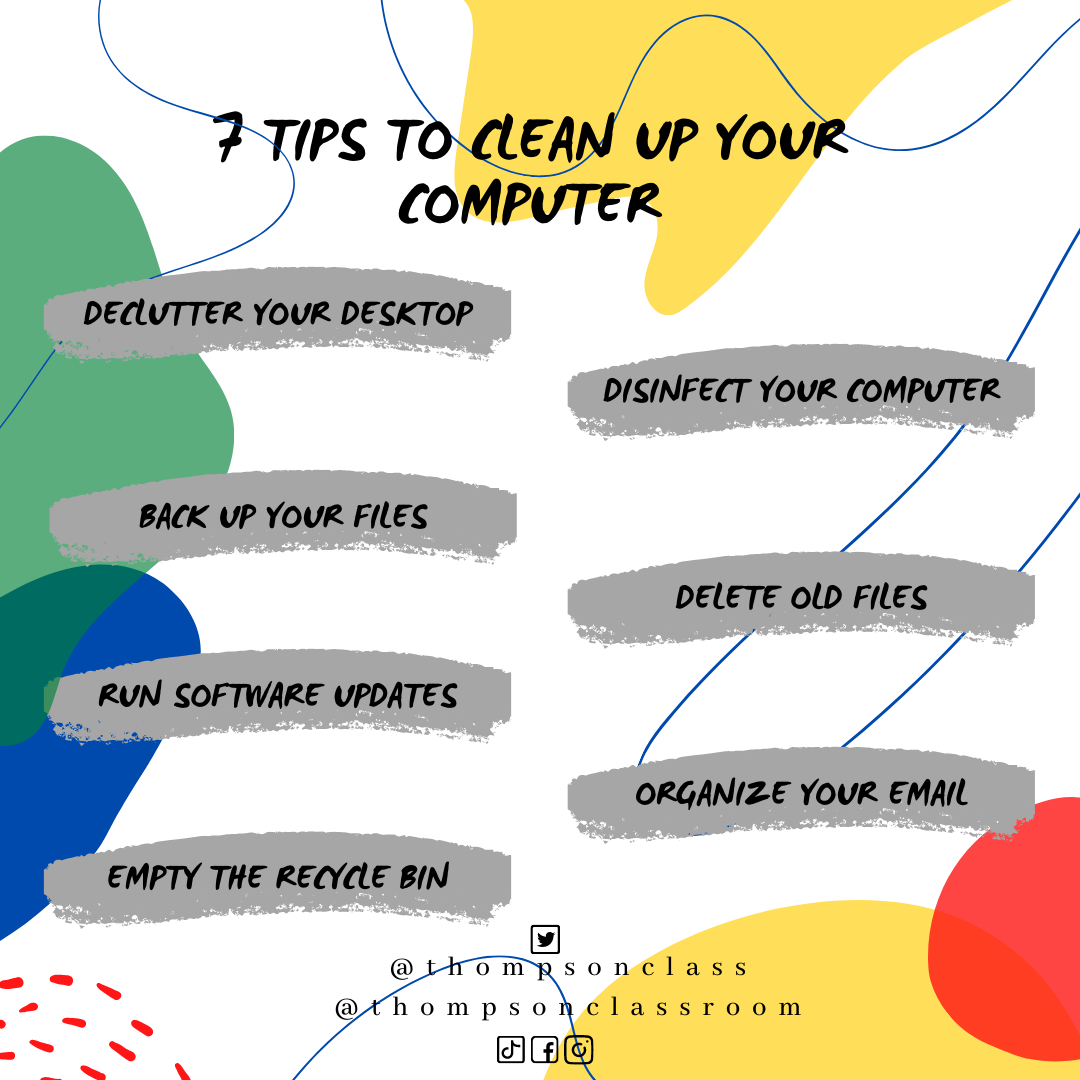
- Empty the Recycle Bin (or Trash) and clear the Downloads folder of installers you’ve already run.
- Run the built‑in disk cleanup utility: Windows “Disk Cleanup” or macOS “Reduce Clutter”.
- Delete duplicate files with a free duplicate‑finder app – they often multiply unnoticed.
- Turn off hibernation if you never use it; the hiberfile.sys can be several gigabytes.
Even a single pass through these steps can free 5‑10 GB instantly.
Deeper Clean: Managing Large Files and System Bloat
If the quick wins aren’t enough, it’s time to tackle the big offenders.
- Move media to external storage. A 2‑TB external SSD costs less than a cup of coffee per month and frees your internal drive for the OS and apps.
- Archive old projects. Compress folders you need but rarely access into ZIP files; they stay searchable while shrinking dramatically.
- Uninstall unused applications. Use “Add or Remove Programs” on Windows or drag apps to the Trash on macOS, then run a leftover‑file cleaner to purge remnants.
- Clear browser caches selectively. Extensions like “Clear Cache” let you keep cookies while wiping out megabytes of stale data.
For SSD owners, avoid defragmentation – modern SSDs handle wear leveling automatically, and excessive writes can shorten their lifespan.
Automating Future Maintenance
Prevention beats cure, especially when you have a busy schedule. Set up these habits:
- Enable “Storage Sense” (Windows) or “Optimize Storage” (macOS) to run automatically every week.
- Schedule a monthly reminder to review the “Large Files” view in your OS.
- Install a lightweight monitoring app that alerts you when free space falls below 15 %.
- Adopt a “one‑in‑one‑out” rule: whenever you add a new program or download a big file, delete something of equal size.
With these safeguards, you’ll rarely find yourself scrambling for space again.
When to Consider Upgrading Your Drive
If you consistently run out of room despite diligent cleaning, the laptop’s storage capacity may simply be too small for your workflow. Upgrading from a 256 GB SSD to a 512 GB or 1 TB model can be a cost‑effective solution, especially for creators who work with 4K video or large datasets. Just ensure the new drive is compatible with your machine’s form factor and that you back up data before cloning.
FAQ
How often should I clean my laptop storage?
A monthly sweep is ideal for most users. Heavy media creators might benefit from a bi‑weekly check, while occasional users can get away with a quarterly review.
Can I delete system files safely?
Generally, avoid touching anything inside the Windows System32 or macOS /System folders unless a trusted guide explicitly says it’s safe. Deleting the wrong file can render the OS unbootable.
What tools help clean up space without risking data loss?
Built‑in utilities (Disk Cleanup, Storage Management) are safe first choices. Third‑party options like CCleaner (Windows) or CleanMyMac X (macOS) are reputable when kept up‑to‑date, but always review what they propose to delete.
Will moving files to the cloud free up space?
Yes, as long as you use “optimise storage” settings that keep only placeholders locally. Remember that cloud storage often incurs subscription fees, so weigh cost against convenience.