How to Get Early Access to iOS 16 Beta and Download It Today
Apple fans love the thrill of testing new features before anyone else. The iOS 16 beta program offers a sneak peek at the next‑generation experience, and signing up is simpler than you might think. Below you’ll find a step‑by‑step guide, some tips for a smooth installation, and a quick look at what the beta brings.
Why Join the iOS 16 Beta?
Running a beta isn’t just for developers. Regular users gain:
- First‑hand access to redesigned widgets and lock‑screen customisation.
- The chance to spot bugs and influence the final polish.
- Early compatibility with upcoming apps that require iOS 16.
That said, betas can be a bit unstable, so it’s wise to keep a backup and reserve a secondary device if possible.
Preparing Your Device
Back Up Your Data
Before you even think about installing the profile, create a fresh backup. You can use iCloud or iTunes/Finder; the key is to have a restore point should something go awry.
Free Up Space
The beta download is roughly 5 GB. If your iPhone is already near capacity, delete a few apps or offload old media. A clean install often avoids performance hiccups.
Downloading the iOS 16 Beta Profile
The profile is a configuration file that tells your iPhone to look for the beta software. Follow these steps:
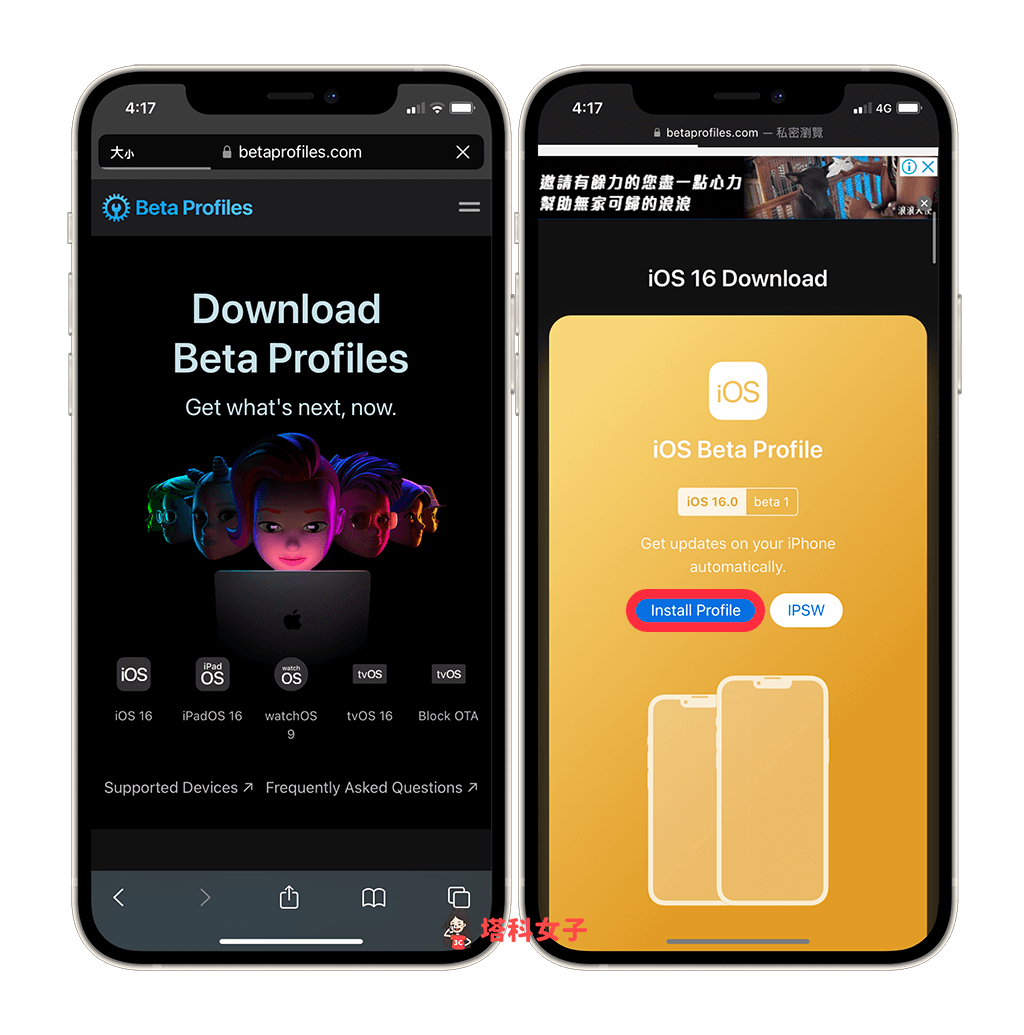
- Open Safari on your iPhone and navigate to Apple’s beta page.
- Sign in with your Apple ID – the same one you use for iCloud.
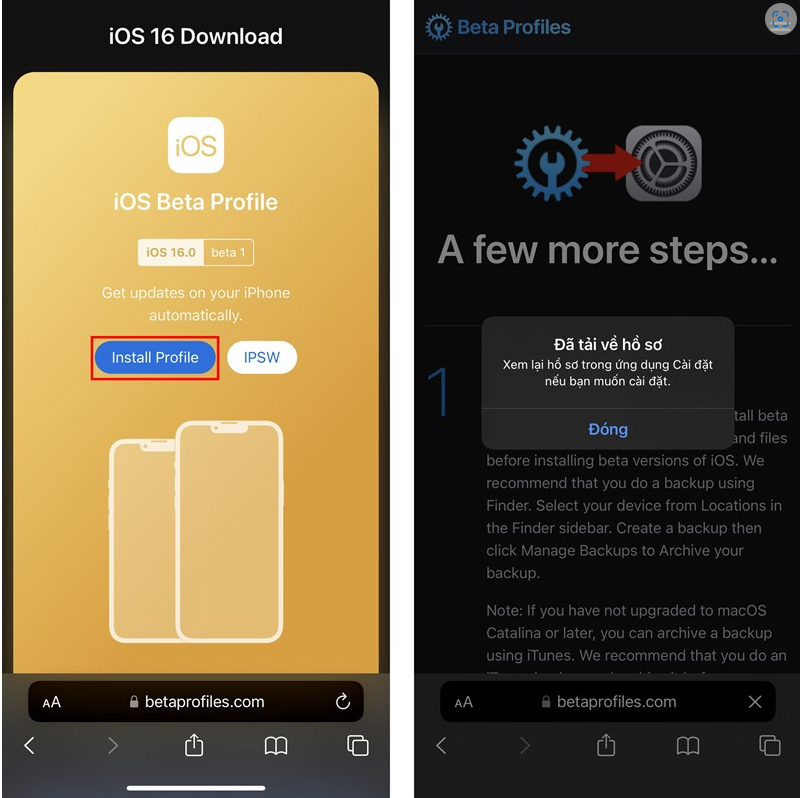
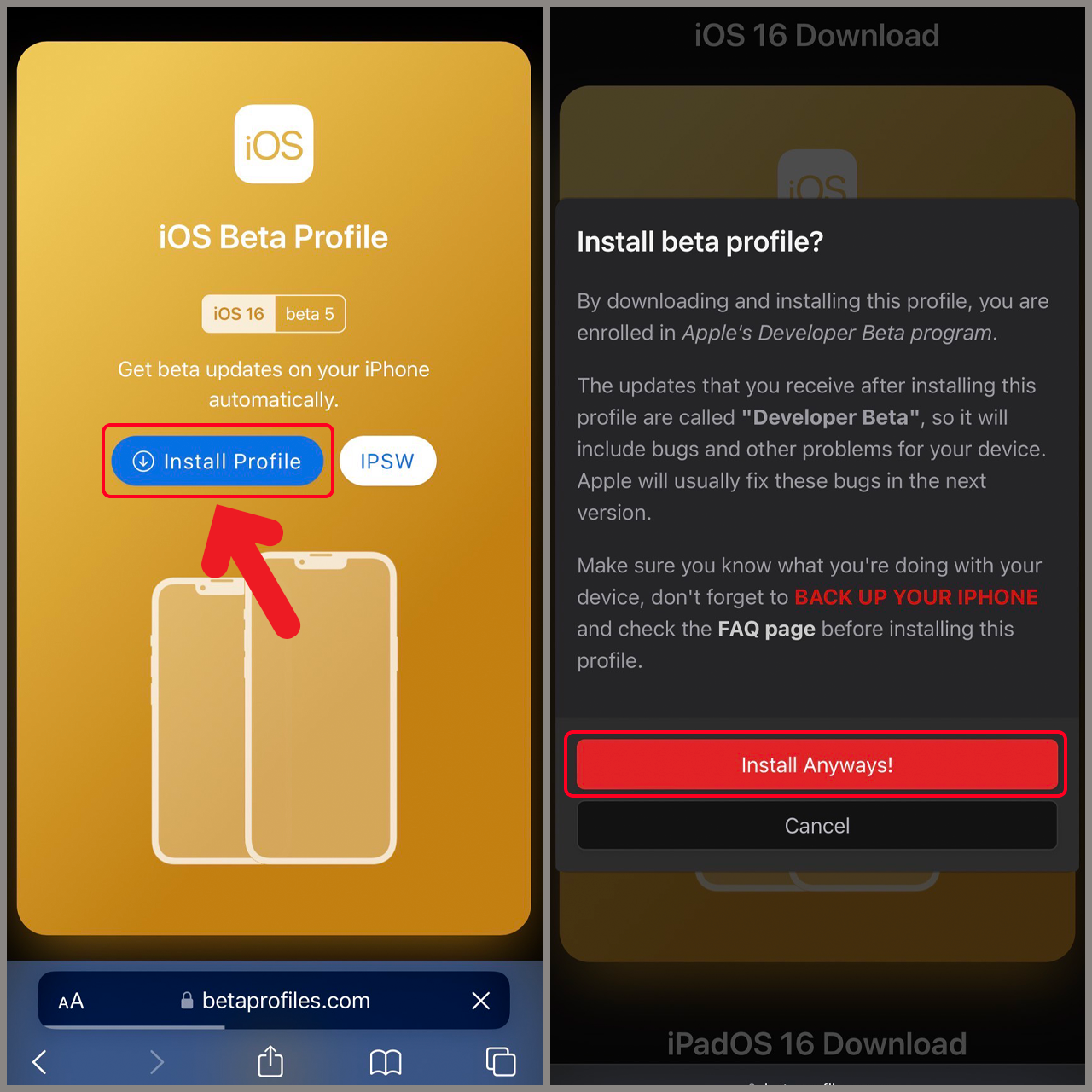
- Scroll to “iOS Beta Software Program” and tap Download profile.
- When prompted, allow the download and then go to Settings → Profile Downloaded to install.
- Enter your passcode, confirm the installation, and restart your device.
After the restart, Settings will show a new “Software Update” option that includes the iOS 16 beta.
Installing the Beta Release
With the profile in place, you’re ready for the download. Here’s what to expect:
- Open Settings → General → Software Update.
- The iOS 16 beta should appear as an available update. Tap Download and Install.
- Your iPhone will verify the download, then begin the installation. It may take 20‑30 minutes, depending on your connection.
- When the process finishes, the device will reboot into the new OS.
If the update doesn’t show up immediately, give it a few minutes or toggle Wi‑Fi off and on. Patience can be part of the beta journey.
What’s New in iOS 16 Beta?
Even the early builds showcase several headline features:
- Lock‑Screen Customisation – Choose fonts, colors, and add widgets directly on the lock screen.
- Live Text in Video – Pause a video and copy text from the frame.
- Updated Focus Modes – More granular controls for work, fitness, and sleep.
- Safety Check – A privacy tool for users dealing with abusive relationships.
Remember, features may change before the final release, so treat them as “in‑progress” rather than final.
Tips for a Smooth Beta Experience
Running a beta can be rewarding, but a few practical habits keep frustrations at bay:
- Use a secondary device. If you have an older iPhone, install the beta there first.
- Report bugs. Apple’s Feedback Assistant app makes it easy to share crashes or UI glitches.
- Avoid critical apps. Banking, health, or any software you rely on for work should stay on a stable release.
- Stay on Wi‑Fi. The download and subsequent updates consume a lot of data.
Rolling Back to the Public Release
If the beta proves too unstable, you can revert:
- Connect your iPhone to a Mac or PC with iTunes/Finder.
- Choose “Restore iPhone” and select the latest iOS 15 (or whichever version you were on).
- After the restore, delete the beta profile in Settings → General → Profile to prevent automatic re‑enrollment.
Just be sure you have that fresh backup from before the beta install; otherwise you’ll lose data.
Final Thoughts
Getting early access to iOS 16 isn’t reserved for developers alone. With a simple profile download, a reliable backup, and a dash of curiosity, you can explore Apple’s newest features months before the official launch. Sure, you might run into a glitch here and there, but the chance to shape the final product makes it worth the effort.