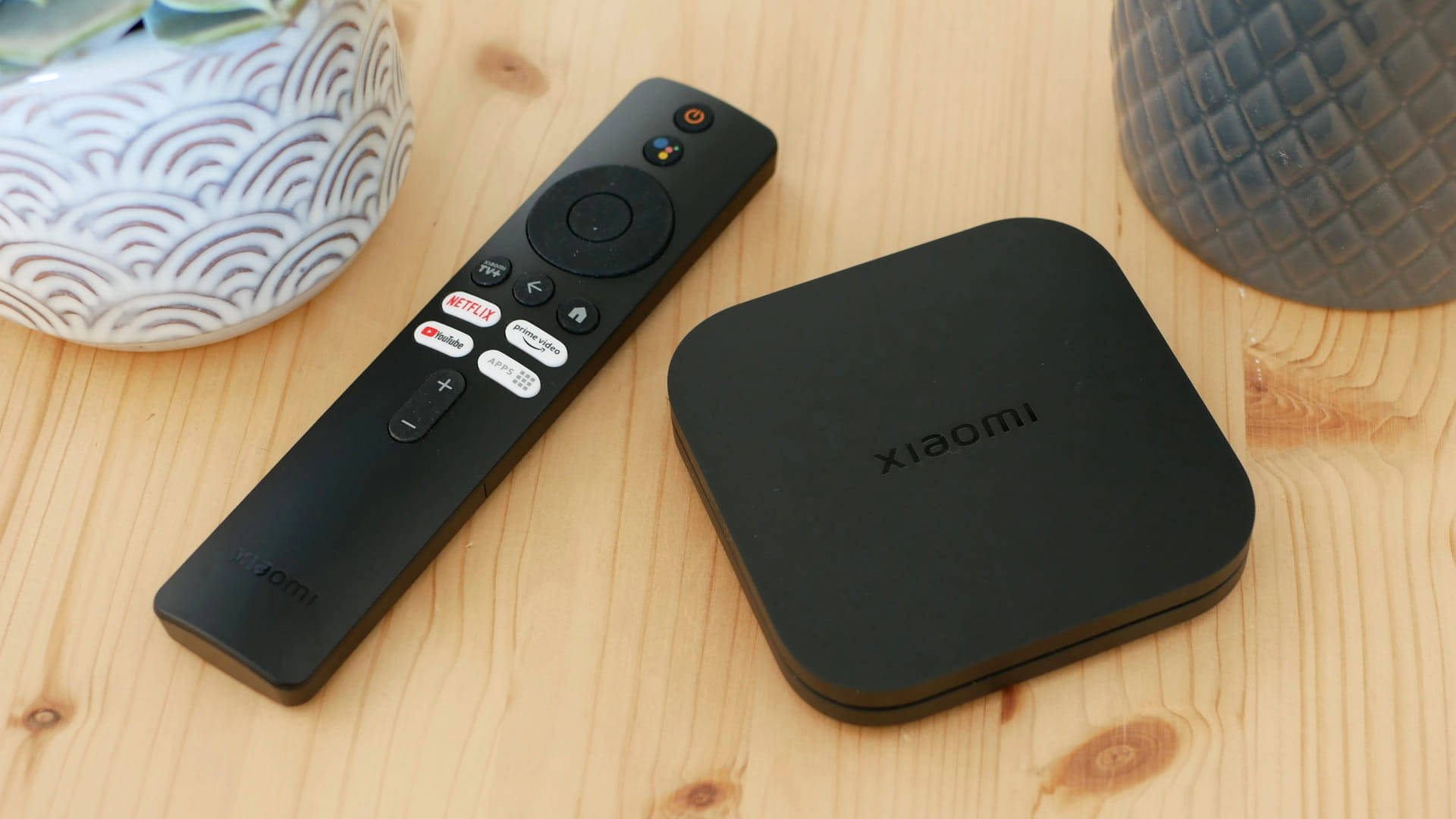
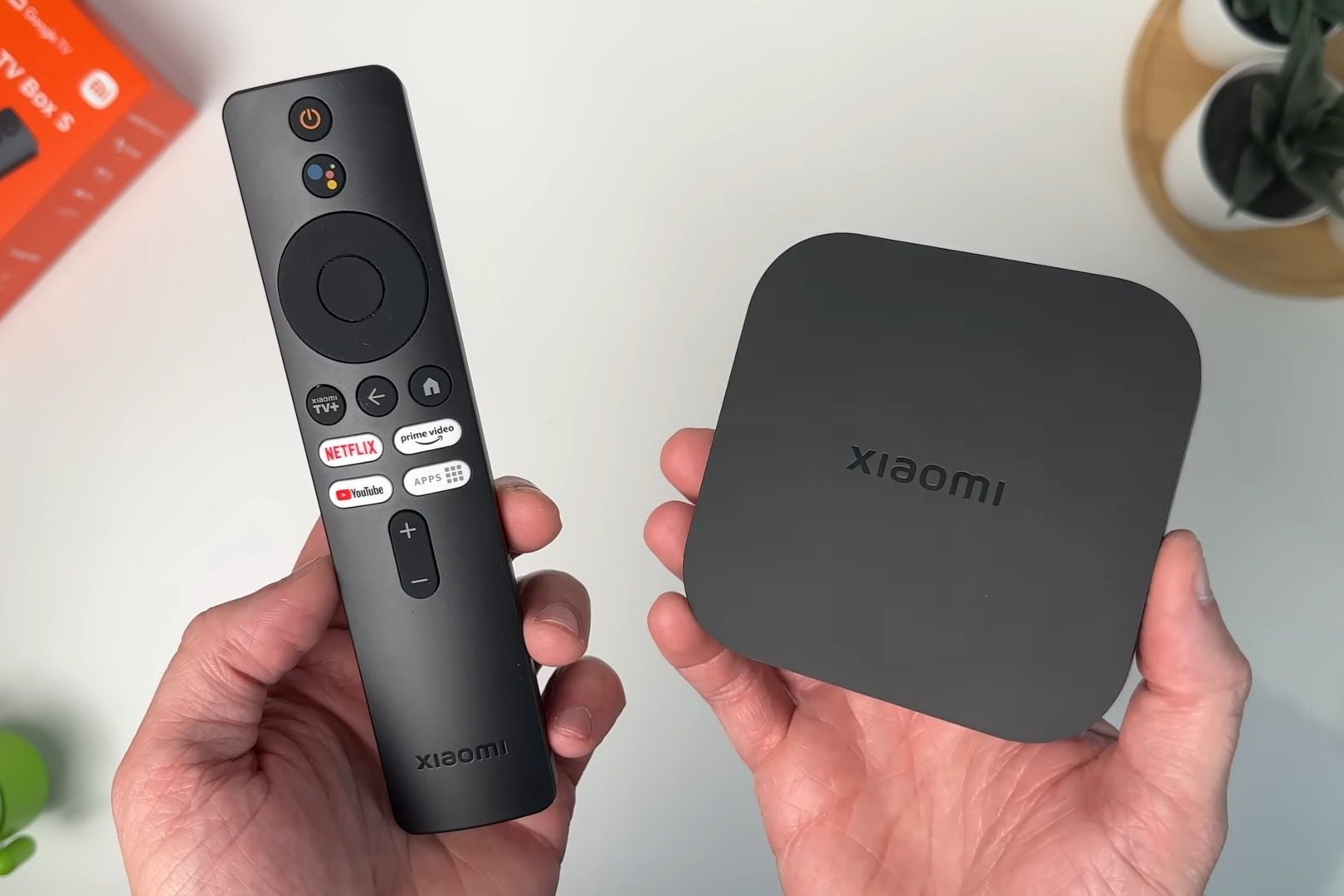
How to Install APK on Xiaomi TV Box: A Simple Guide
Got a Xiaomi TV Box and a handy APK you want to try out? You’re not alone. Many users reach for that extra app to fill a gap—maybe a niche streaming client, a game, or a utility that isn’t in the official store. The good news? Installing an APK on your Xiaomi TV Box isn’t as cryptic as it sounds. In a few straightforward steps, you can broaden your TV’s capabilities without breaking a sweat.
Why Install APKs on Your Xiaomi TV Box?
Even though the Mi Store offers a decent selection, it doesn’t cover everything. Third‑party apps can:
- Unlock regional content that isn’t otherwise available.
- Provide specialized features like screen mirroring or voice control.
- Offer games and tools that are optimized for Android TV.
Just remember: with great freedom comes the responsibility to choose reputable sources.
Preparation Before You Start
Before diving in, make sure your box is ready. A few minutes of prep will save you headaches later.
Enable Unknown Sources
Android TV, by default, blocks installations from outside the Play Store. To lift this restriction:
- Navigate to Settings → Security & Restrictions.
- Find the toggle for Unknown Sources and turn it on.
- Confirm any warning prompts—yes, it’s a bit scary, but you’ve got this.
Once enabled, the box will accept APK files from USB drives, network shares, or ADB.
Methods to Install APK
There isn’t a one‑size‑fits‑all approach, but three common routes cover most scenarios.
Method 1: Using a USB Drive
This is the most “plug‑and‑play” method—perfect if you have the file already downloaded on a computer.
- Copy the
.apkfile onto a formatted USB stick (FAT32 works best). - Insert the stick into the TV Box’s USB port.
- Open the built‑in File Manager app (or install one from the Play Store if missing).
- Locate the APK, select it, and hit Install.
The installation typically finishes within seconds. Eject the USB once done.
Method 2: Using a File Manager App
If you prefer a wireless approach, a file manager like Solid Explorer or FX File Explorer does the trick.
- Download the APK file directly onto the TV Box using the browser, or transfer it via a network share (SMB, FTP, etc.).
- Launch the file manager, navigate to the download folder, and tap the APK.
- Follow the on‑screen prompts to complete the installation.
This method shines when you’re hopping between devices on the same home network.
Method 3: Side‑Loading via ADB
Advanced users often reach for Android Debug Bridge (ADB) because it’s quick and script‑friendly.
- Enable Developer Options (Settings → About → click Build number seven times).
- Turn on USB debugging inside Developer Options.
- On your PC, open a terminal and run
adb connect [IP_of_TV_Box](make sure both devices share the same Wi‑Fi). - Finally, push the APK:
adb install /path/to/app.apk.
If the connection hangs, double‑check your firewall settings or try a wired Ethernet link.
Troubleshooting Common Issues
Even with the steps above, hiccups happen. Here’s a quick cheat‑sheet.
- Installation blocked: Verify the APK isn’t corrupted; re‑download if necessary.
- App won’t open: Check that the APK is built for Android TV (ARM architecture). Non‑compatible builds often crash.
- Storage full: Clear cache or uninstall unused apps; the TV Box’s internal storage can be surprisingly limited.
- “App not supported” message: Some apps need Google Play Services. Installing the microG framework can bridge that gap, though it adds a layer of complexity.
Tips for a Smooth Experience
These nuggets aren’t mandatory, but they make life easier.
- Stick to reputable sources—APKMirror, APKPure, or the developer’s official site.
- Keep your TV Box firmware up to date; security patches often resolve hidden bugs.
- Consider a small external SSD if you regularly install large apps; it frees up internal space.
- Use a VPN if you’re accessing region‑locked content—just remember it may affect streaming quality.
With the right preparation and a dash of curiosity, your Xiaomi TV Box can become a versatile hub far beyond its out‑of‑the‑box offerings. Happy side‑loading!