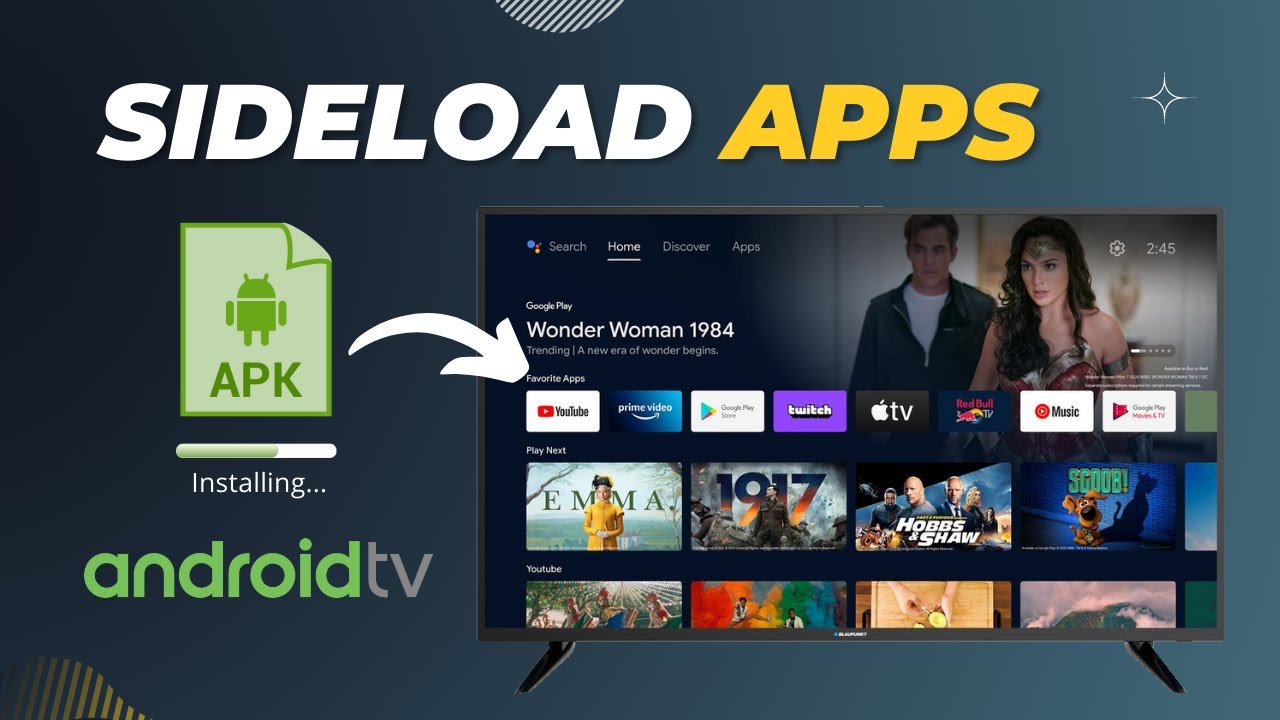
How To Install APKs On Android TV Using A Simple USB Guide
Android TV is a great platform for streaming, but sometimes the official store just doesn’t have the app you’re after. Luckily, a USB stick can be your gateway to side‑loading those missing pieces. It’s not rocket science—just a handful of steps and a bit of patience.
Why Use USB For APK Installation?
Downloading an APK directly on the TV is often a hassle. The built‑in browser is limited, and entering URLs with a remote can feel like solving a puzzle. A USB drive sidesteps those quirks, letting you prepare everything on a computer where typing feels natural.
Plus, using a USB keeps the process offline. No need to worry about network interruptions or data caps while the file copies over.
What You’ll Need
- A USB flash drive (minimum 2 GB, formatted as FAT32 or exFAT)
- The APK file you want to install – make sure it’s from a trusted source
- A computer with a USB port
- Remote control or a paired Bluetooth mouse for your TV
Step‑By‑Step: From Computer To TV
1. Prepare the USB Stick
Insert the drive into your computer. If it’s not already in FAT32 or exFAT, reformat it—Windows and macOS both have built‑in tools for that. Remember, formatting erases everything, so double‑check you’ve backed up any important files.
2. Transfer the APK
Simply drag the APK onto the USB root folder. No need for subfolders unless you’re dealing with multiple files; keeping it flat makes navigation on the TV easier.
3. Enable “Unknown Sources” on Android TV
On the TV, head to Settings → Security & Privacy. Toggle the option that lets you install apps from “unknown sources.” If you don’t see it right away, look under “Device Preferences” – the menu layout can vary a bit between TV models.
4. Plug the USB Into The TV
Most Android TVs have a USB‑A port on the back or side. Pop the stick in, and the TV should pop up a notification. If not, open the File Explorer app from the home screen.
5. Locate and Open the APK
Navigate to the USB drive, find the file, and press Enter on the remote. A prompt will ask if you want to install the app—confirm, and let the TV do its thing.
6. Launch The New App
After installation, the app appears in your TV’s app drawer. Some side‑loaded apps might need extra permissions, so be ready to grant those when prompted.
Troubleshooting Common Hiccups
Even with a clear path, something can go sideways. Here are a few quick fixes:
- APK Won’t Install: Verify the file isn’t corrupted. Re‑download from the source and replace it on the USB.
- “Unsupported File” Message: The TV may only accept APKs built for its architecture (usually arm64). Check the app’s compatibility notes.
- Remote Can’t Navigate: Connect a Bluetooth mouse or keyboard; they often make file browsing smoother.
- Permission Errors: Some apps need additional rights like “Display over other apps.” Tweak those in Settings → Apps → [Your App] → Permissions.
Keeping Your TV Secure
Side‑loading is handy, but it does bypass the Play Store’s vetting. A couple of habits can keep things safe:
- Only download APKs from reputable sites.
- Periodically review installed side‑loaded apps and uninstall anything you no longer need.
- Keep your Android TV firmware updated—it often patches security holes that could be exploited.
With a USB stick in hand and a few clicks, you’ve turned your Android TV into a more flexible entertainment hub. Happy side‑loading!