How to Install Commando Strike on Android Devices – Step by Step
If you’ve been scrolling through the Play Store looking for a fast‑paced shooter that actually feels like a tactical mission, you’ve probably stumbled upon Commando Strike. The game blends classic run‑and‑gun action with modern graphics, and it runs surprisingly smooth on most Android phones. Below, we’ll walk through the whole process—from checking device compatibility to troubleshooting common install hiccups—so you can dive straight into the battlefield.
What You Need Before You Press “Download”
First things first: make sure your phone meets the basic specs. Commando Strike isn’t a heavyweight, but it does expect a modest amount of power.
- Android 5.0 (Lollipop) or newer
- At least 1.5 GB of RAM
- Around 150 MB of free storage for the app and updates
- Stable Wi‑Fi or a generous data plan (the first download can be a few hundred megabytes)
If you’re unsure about any of these points, head to Settings → About Phone and check the “Android version” and “Memory” sections. A quick glance at your storage space will let you know if you need to free up a few apps or photos.
Downloading from the Official Google Play Store
The safest route is always the Play Store. Here’s how to get there in three easy steps:
- Open the Play Store app and type “Commando Strike” into the search bar.
- Look for the listing that shows the developer’s name (usually GameForge Studios) and a high rating.
- Tap “Install” and wait for the progress bar to finish.
During the download, you’ll see a notification that the app is “Preparing” and then “Installing.” Once the icon appears on your home screen, you’re ready to launch.
Alternative Sources: When the Play Store Isn’t an Option
Sometimes a device isn’t Google‑certified or the Play Store is unavailable (for example, on certain Chinese‑market phones). In those cases, you can use reputable third‑party app stores such as Aptoide or the official APKMirror site.
When you go this route, keep a few precautions in mind:
- Only download the latest version that matches your Android version.
- Verify the file’s checksum (MD5 or SHA‑256) when it’s provided.
- After downloading the
.apkfile, enable “Install unknown apps” for the source app in the Settings → Security menu.
These steps add a layer of protection against modified or malicious versions, which have been known to creep into unofficial repositories.
First Launch: Setting Up Your Profile
When you open Commando Strike for the first time, you’ll be greeted by a brief tutorial. It’s worth paying attention, even if you’ve played similar shooters before. The tutorial covers:
- Movement controls (swipe vs. virtual joystick)
- Aim and fire mechanics
- How to use cover and special abilities
After the tutorial, you’ll create a simple profile—choose a call sign, pick an avatar, and decide whether you want to link the game to a Google Play Games account for cloud saves. Linking is optional but can save you from losing progress if you ever change devices.
Optimizing Performance on Older Phones
If you notice stuttering or dropped frames, try these tweaks before assuming the game is too demanding:
- Lower the graphics quality in Settings → Display.
- Turn off “Dynamic Shadows” and “Particle Effects.”
- Close background apps to free up RAM.
- Enable “Battery Saver” mode only if you’re willing to sacrifice a bit of performance for longer playtime.
Most players find a sweet spot with “Medium” graphics, which keeps the visual flair while maintaining a steady 30 fps on mid‑range phones.
Troubleshooting Common Install Issues
Even with a smooth download, you might run into a few hiccups. Here’s a quick FAQ to get you back on track:
Why does the Play Store say “Insufficient Storage”?
Android sometimes counts cached data towards your total usage. Clear the cache in Settings → Storage → Cached data, or move some media files to an SD card.
The game won’t open after installation.
First, reboot your device. If that doesn’t help, try uninstalling and reinstalling the app. Persistent problems could point to an incompatibility with your OS version; check the developer’s support page for any known issues.
“App not installed” error when using an APK.
Make sure you’ve enabled “Install unknown apps” for the source. Also, verify that the APK matches your device’s architecture (ARM vs. x86).
What to Expect From the Gameplay
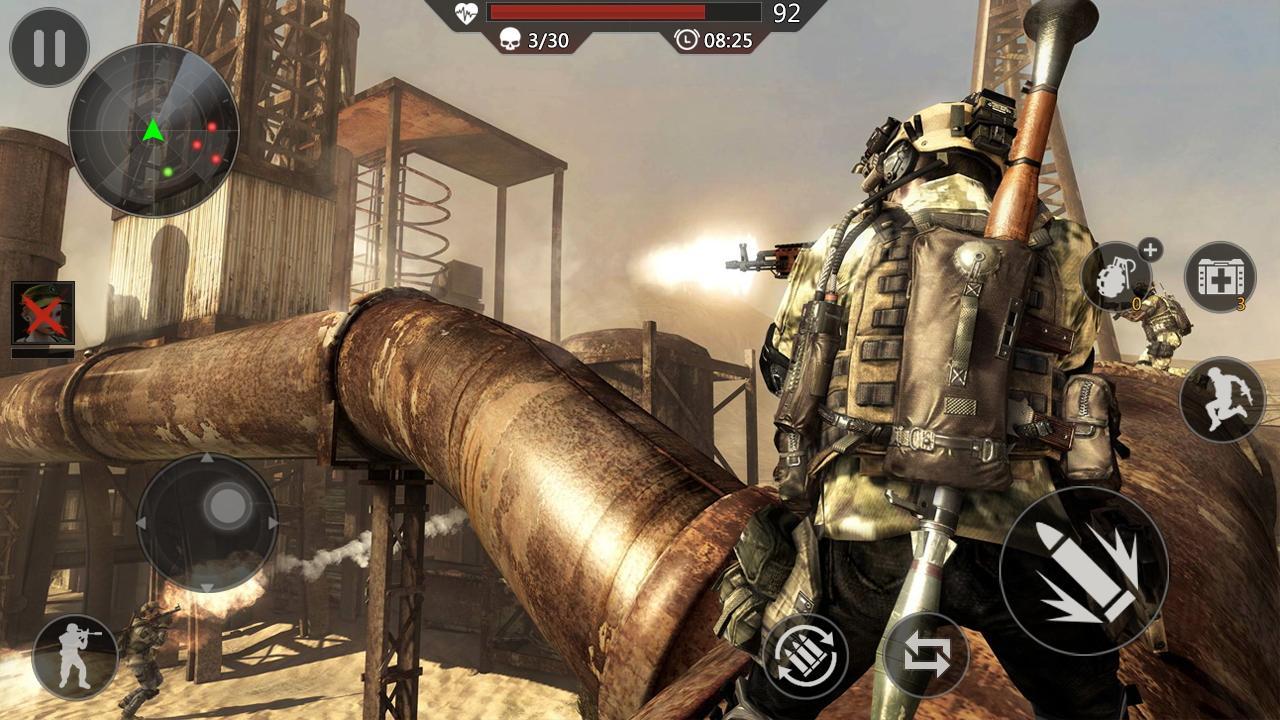
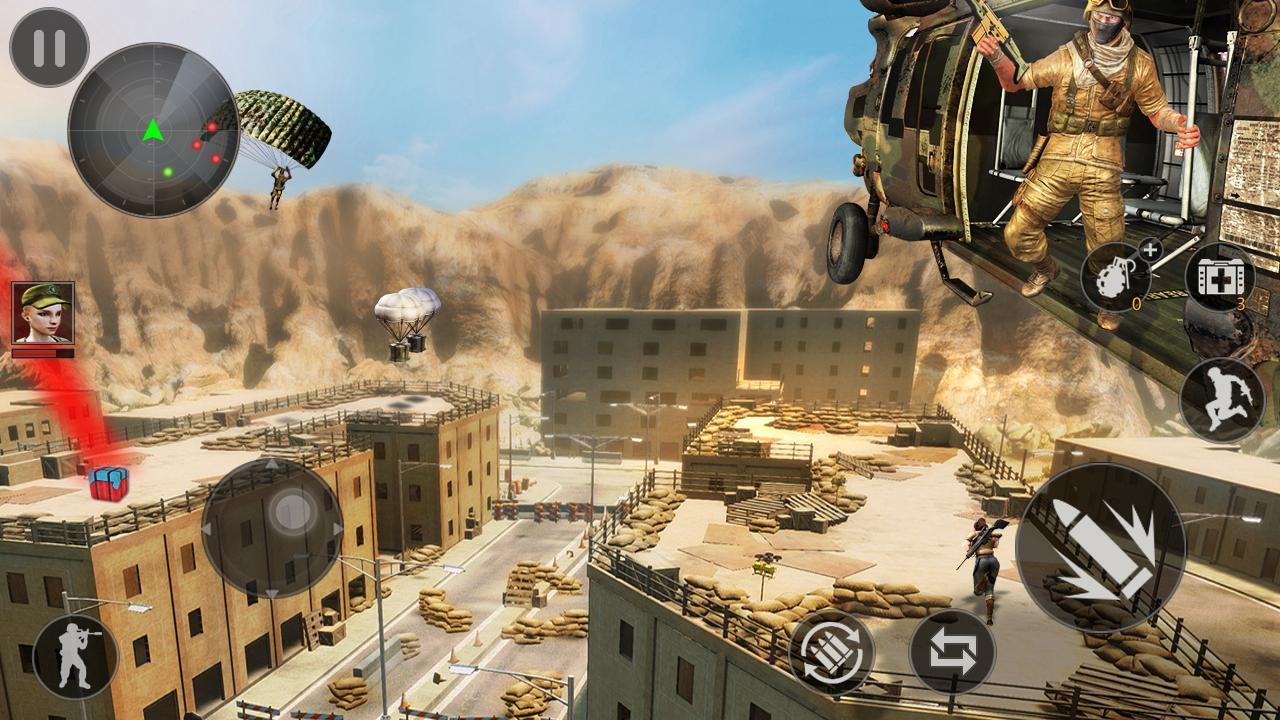
Commando Strike isn’t just another endless runner. It offers a series of missions that blend stealth, strategy, and raw firepower. Each level presents:
- Multiple objectives (e.g., rescue hostages, destroy enemy intel)
- A dynamic AI that adapts to repeated tactics
- Upgradeable weapons and gear that carry over between missions
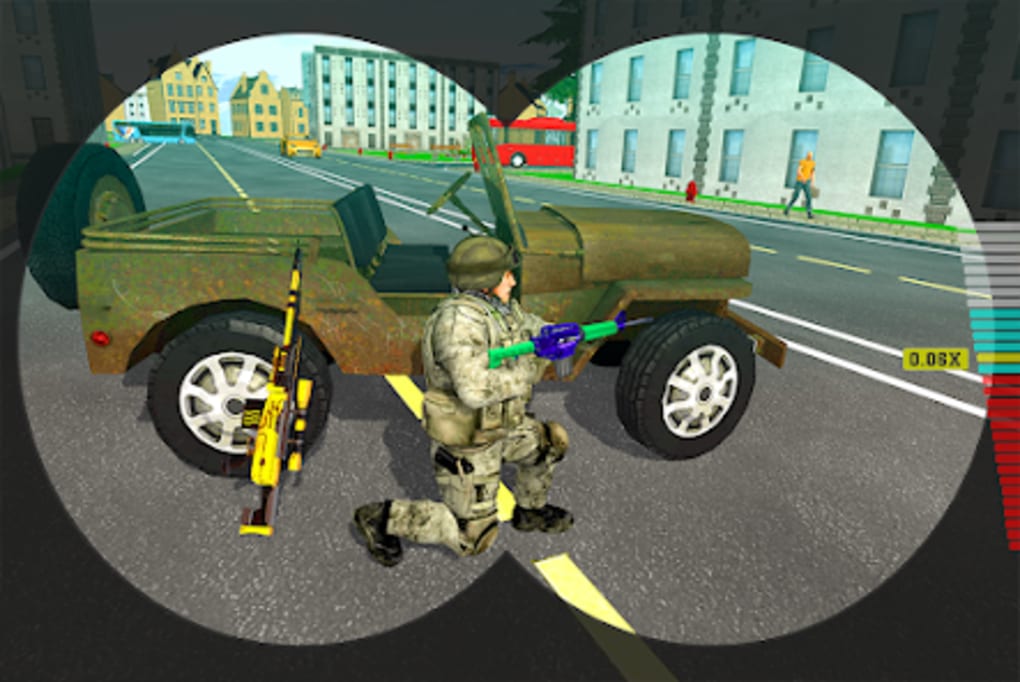
The game’s pacing is quick, but you’ll still need to pause and plan your approach—rush blindly, and you’ll find yourself outgunned. The reward system encourages experimentation: try a sniper rifle in one round, then switch to close‑quarters combat in the next.
Staying Safe While Playing Online
Commando Strike features online leaderboards and occasional co‑op missions. If you decide to jump into multiplayer, remember these basic safety tips:
- Use a strong, unique password for any linked accounts.
- Avoid sharing personal information in chat.
- Report any suspicious behavior through the in‑game reporting tool.
These habits keep your gaming experience fun without compromising your privacy.
Wrapping Up the Installation Journey
With the steps above, you should be able to get Commando Strike running on virtually any Android handset. Whether you download directly from the Play Store or opt for a trusted APK, the key is ensuring your device meets the basic requirements and taking a moment to fine‑tune settings for optimal performance. Once you’re in the game, the blend of tactical choices and fast‑action combat makes it easy to see why the title has gathered a loyal following.