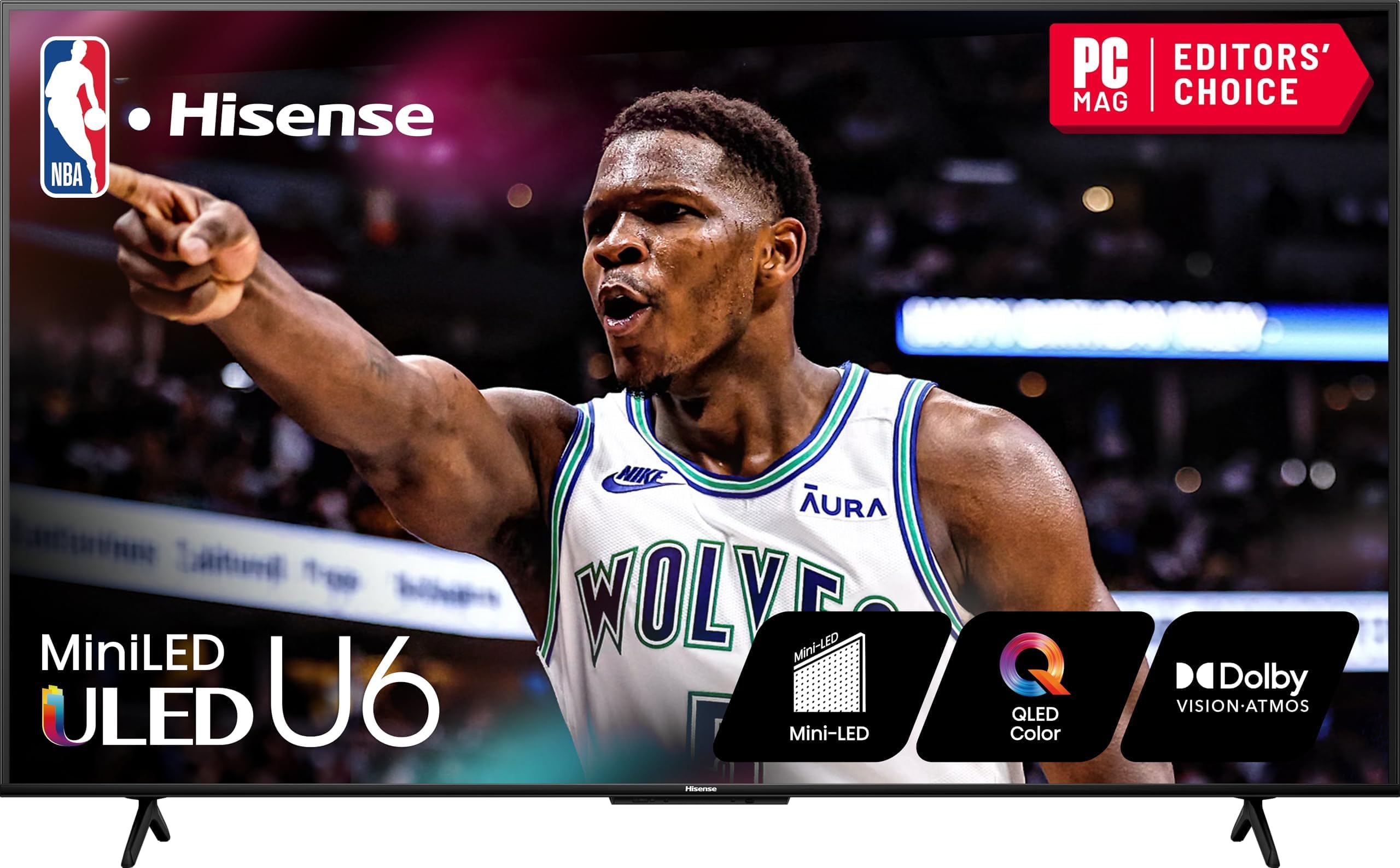
How to Install Google Play Store on Hisense Smart TV Quickly
Imagine being able to stream that new Android game or an obscure app right from your living‑room couch. Many Hisense owners hit a snag: the native operating system doesn’t ship with the Google Play Store. Fortunately, a few tweaks can open the door to the Android ecosystem without replacing the whole TV.
Why Add the Play Store?
Even though Hisense’s own app marketplace offers the basics, it often lacks the depth you find on Android. From niche streaming services to productivity tools, the Play Store is a treasure trove that can turn a standard TV into a versatile hub.
- Broader content library – movies, games, and utilities not listed in the built‑in store.
- Automatic updates – keep your apps fresh with just a tap.
- Unified account – use the same Google credentials you already trust on your phone.
Pre‑Installation Checklist
Before diving in, gather a few essentials. Skipping this step often leads to a stalled setup.
- A stable Wi‑Fi connection (or ethernet, if you prefer).
- A USB flash drive, at least 8 GB, formatted to FAT32.
- Patience – the process can take a few minutes, especially on older models.
- Optional: a backup of your current apps in case you want to revert.
Make sure your Hisense TV is running the latest firmware. Navigate to Settings → System → About and check for updates. If an update is available, install it first; newer software tends to play nicer with third‑party packages.
Step‑by‑Step Installation
1. Enable “Unknown Sources”
Because the Play Store isn’t a pre‑approved app, you’ll need to allow installations from outside the native store.
- Open Settings on your TV.
- Scroll to Security & Restrictions (the wording may vary by model).
- Toggle Unknown Sources to On. You may be prompted to confirm – just accept.
2. Download the APK Files
The Play Store doesn’t work solo; it needs a handful of supporting services. The most reliable method is to grab the following APKs from a reputable site like APKMirror:
- Google Services Framework
- Google Play Services
- Google Play Store
Download the versions that match your TV’s Android version (usually Android 9 or 10). Save them all to the root folder of your USB drive.
3. Transfer and Install
Plug the USB stick into one of the TV’s ports. The TV should automatically pop up a notification.
- Select File Manager from the notification.
- Navigate to the USB drive and open each APK in the order listed above.
- Follow the on‑screen prompts – each installation may take a minute.
If the TV freezes for a moment after the first two APKs, that’s normal; the system is tying everything together.
4. Launch and Sign In
Once all three packages are installed, you’ll find the Play Store icon in your app drawer. Open it, sign in with your Google account, and let the initial sync finish. This can range from a quick few seconds to a couple of minutes, depending on your connection.
5. Tweak Permissions (Optional)
Some apps request permissions that the TV may block by default. If a newly installed app crashes or refuses to open, head back to Settings → Apps, select the troublesome app, and enable the needed permissions.
Potential Hiccups and How to Fix Them
Even a smooth process can hit a snag. Here are the most common roadblocks and quick fixes.
- Version mismatch – If an APK refuses to install, double‑check that you downloaded the correct Android version.
- Storage space – Some older Hisense models have limited internal storage. Free up a few megabytes by uninstalling unused native apps.
- Reboot loop – A rare but annoying bug where the TV restarts after installing Google Play Services. Power off completely, unplug for 30 seconds, then plug back in and try again.
Keeping the Play Store Healthy
After the initial setup, maintenance is minimal. Still, a few habits help avoid future headaches.
- Periodically check for updates to Google Play Services – they improve performance and security.
- Avoid sideloading too many obscure APKs; each one consumes system resources.
- If the Play Store becomes sluggish, a quick cache clear (Settings → Apps → Play Store → Clear Cache) often restores speed.
And remember: the Play Store isn’t officially supported on every Hisense model. If you encounter a persistent error, the safest route is to revert the changes: simply uninstall the three APKs and disable unknown sources.
Enjoy Your Expanded TV Experience
With the Play Store now part of your Hisense TV, the line between a streaming box and a full‑blown Android device blurs. From catching up on the latest podcasts to diving into casual games, you’ve unlocked a world that would otherwise sit idle on your coffee table.