How to Manage Your Steam Billing Address – A Complete Guide
If you’ve ever tried to buy a game on Steam and hit a snag because of the address you entered, you’re not alone. The billing address is a small detail that can cause big headaches, especially when you shop from different countries or use multiple payment methods. Below you’ll find a practical walk‑through covering everything from where to find the address field in your account to fixing common errors that keep purchases from clearing.
Where the Billing Address Lives on Steam
First things first: the address isn’t hidden in some obscure menu. It sits right next to your payment information.
- Open the Steam client or log in at store.steampowered.com.
- Click your profile name in the upper‑right corner, then choose Account Details.
- Under the Store & Purchase History section, select Manage Payment Methods.
- Pick the card or PayPal account you want to edit, and you’ll see the Billing Address fields.
That’s all you need to get there, but the real work begins once you’re looking at the form.
What Information Steam Actually Needs
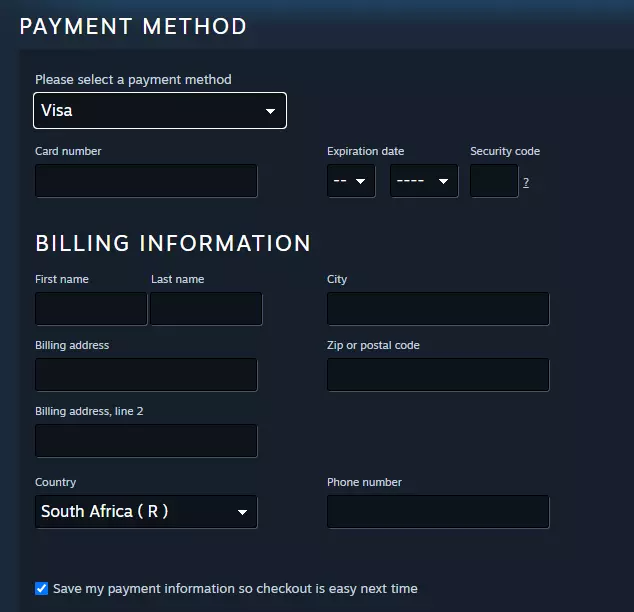
Steam mirrors the data your bank or payment processor expects, which means the fields are pretty standard:
- Street address – include the apartment or suite number if applicable.
- City – spell it exactly as it appears on your billing statement.
- State/Province/Region – some countries use provinces instead of states.
- Postal code – double‑check the numbers; a single digit off can block the transaction.
- Country – this must match the country on the payment method.
One nuance many gamers overlook: the “country” field isn’t just a dropdown for convenience—it’s used to verify the address against the card’s issuing bank. Changing it without updating your card details can trigger a fraud alert.
Tips for International Users
If you live outside the United States, you might see the term “Region” instead of “State.” In most cases you can simply enter the local equivalent, like “Ontario” for Canada or “Bavaria” for Germany. When the address includes characters not supported by the standard Latin alphabet (e.g., accents or diacritics), Steam generally accepts them, but if you run into an error, try removing the special characters and using the basic spelling.
Common Mistakes and How to Fix Them
Even a minor typo can stop a purchase dead in its tracks. Here are the most frequent hiccups and quick fixes.
- Mismatched country – If your card is issued in the UK but you set the address to “United States,” the bank will reject the charge. Align the country with the card’s issuing location.
- Incorrect postal code format – Some regions use hyphens (e.g., “12345-6789” in the US). Use the exact format shown on your statement.
- Out‑of‑date card details – Expired cards still appear in the list. Remove them and add the new card with its fresh billing address.
- Using a shared family address – If multiple people share a household address but have separate cards, make sure the name on the card matches the name you entered in the billing section.
When a transaction fails, Steam usually shows an error message pointing to the problem. Take a screenshot, compare it with your bank statement, and correct the offending field.
Changing the Billing Address After a Purchase
Suppose you bought a game while traveling and later moved back home. You might wonder if you need to retroactively edit the address. The short answer: no, the address you entered is only used for the authorization step. Once the purchase is complete, the game belongs to your Steam library regardless of where you lived at that moment.
However, if you plan to make future purchases with the same card, updating the address is wise. Follow the steps in the “Where the Billing Address Lives” section, replace the old details, and hit Save. The change takes effect immediately for the next checkout.
Using Third‑Party Wallets and Their Impact on Billing Info
Steam also accepts prepaid cards, cryptocurrency wallets, and regional gift codes. In those cases, the billing address field is often optional or hidden because the payment method doesn’t require verification.
- Prepaid Steam Cards – No address needed; you simply redeem the code.
- PayPal – It pulls the address from your PayPal account, so you’ll want to keep that information accurate.
- Crypto payments – Since they bypass traditional banking, Steam skips the address check entirely.
That said, if you switch from a prepaid card to a credit card later, you’ll need to enter a valid billing address at that point.
When to Contact Steam Support
Most address issues sort themselves out with a quick edit, but sometimes the problem lies deeper.
- Repeated declines despite correct information.
- Stacked error messages that reference “security verification.”
- Changes to your account after a security lock.
If you’ve tried the fixes above and still can’t complete a purchase, head to the Steam Support site. Choose “Purchases” → “I’m having trouble with a payment,” and provide the last four digits of your card, the exact error code, and a screenshot of the address page. Steam’s response time varies, but most users get a reply within 24–48 hours.
Best Practices for a Smooth Steam Shopping Experience
To keep your wallet happy and your game library growing, consider these habits:
- Regularly review the payment methods stored in your account; delete anything you no longer use.
- Keep your billing address consistent with the one on file at your bank.
- When traveling, add a temporary address rather than disabling the existing one; you can always revert later.
- Enable two‑factor authentication on your Steam account to avoid unnecessary fraud blocks that sometimes manifest as address errors.
By staying organized and double‑checking those few fields, you’ll spend less time troubleshooting and more time enjoying the latest releases.