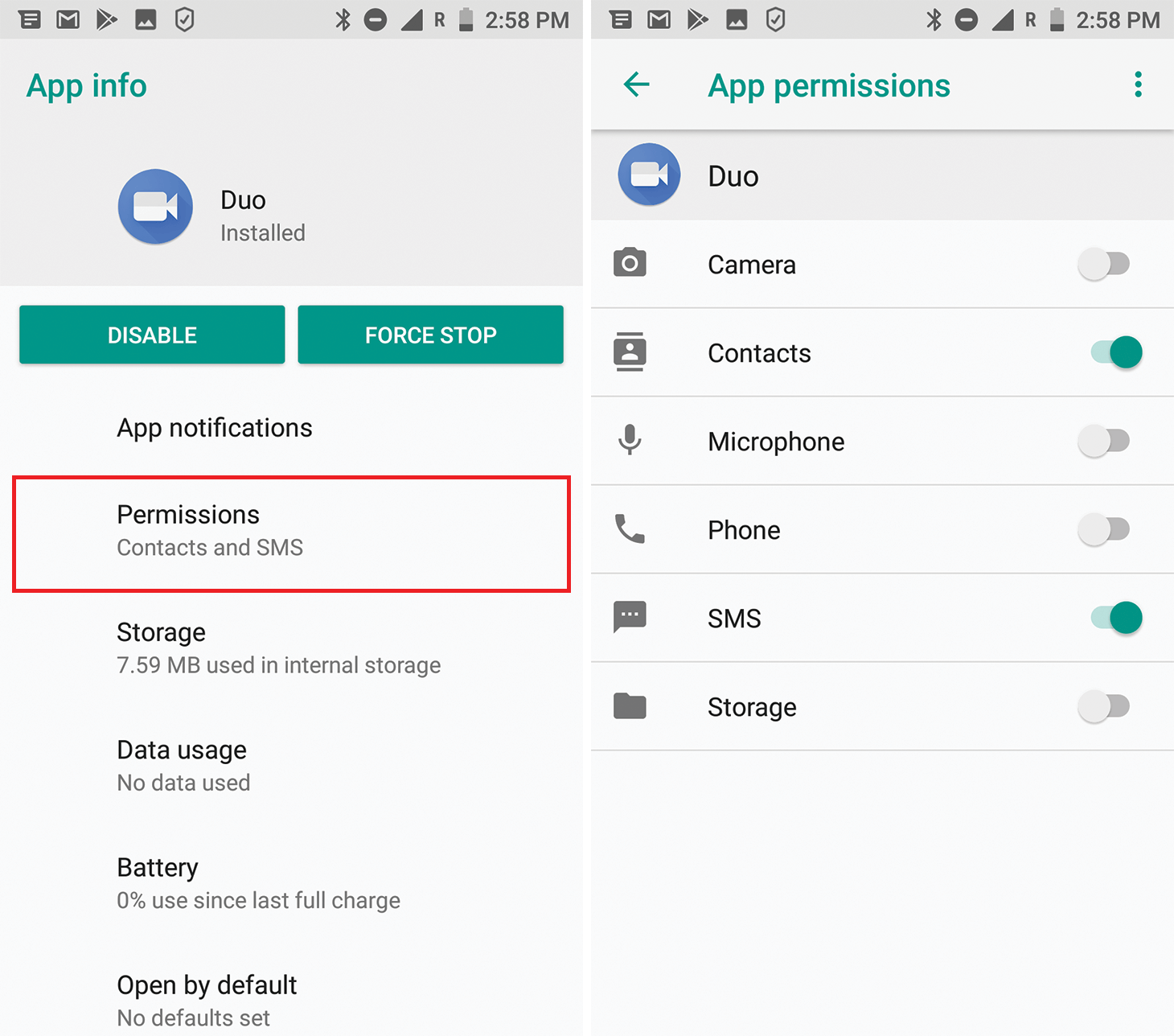
How to Master Android Storage Permissions: A Simple Guide
Ever opened an app only to be stopped by a permission dialog that seemed to appear out of nowhere? You’re not alone. Storage permissions sit at the crossroads of user privacy and app functionality, and getting them right can feel like walking a tightrope. This guide cuts through the jargon, walks you through the different permission models, and shares a few practical tips you can apply today.
Why Storage Permissions Matter
At its core, a storage permission is Android’s way of saying, “I’ll let you read or write files, but only if the user approves.” Without it, your app can’t save photos, cache data, or import documents from the device. On the flip side, asking for too much access can scare users away, especially in a world where data‑privacy headlines dominate the news.
Balancing these concerns means understanding two things:
- What the OS expects: Since Android 6.0 (Marshmallow), permissions are granted at runtime, not at install time.
- What users expect: A clear, contextual prompt is more likely to get a “Allow” than a generic request.
Types of Storage Access in Android
Android’s storage model has evolved. Below is a quick snapshot of the main categories you’ll encounter.
1. Legacy External Storage (READ_EXTERNAL_STORAGE / WRITE_EXTERNAL_STORAGE)
These are the classic permissions that let an app read or write anywhere on the primary shared storage. They’re still supported, but Google encourages you to move away from them.
2. Scoped Storage (Android 10+)
Introduced to tighten control over files, scoped storage isolates an app’s private directory from the rest of the device. You’ll use MANAGE_EXTERNAL_STORAGE only for very specific, high‑impact use cases (like file managers).
3. Media Store API
For apps that just need to add photos, videos, or audio, the Media Store offers a more granular approach. It requires the READ_MEDIA_IMAGES, READ_MEDIA_VIDEO, or READ_MEDIA_AUDIO permissions introduced in Android 13.
Requesting Permissions at Runtime
Getting the grant is a two‑step dance: declare the permission in AndroidManifest.xml, then ask the user while the app runs.
<manifest ...><uses-permission android:name="android.permission.READ_EXTERNAL_STORAGE"/>
</manifest>
When it’s time to request, follow this pattern:
if (ContextCompat.checkSelfPermission(this,Manifest.permission.READ_EXTERNAL_STORAGE)
!= PackageManager.PERMISSION_GRANTED) {
ActivityCompat.requestPermissions(this,
new String[]{Manifest.permission.READ_EXTERNAL_STORAGE},
REQUEST_READ_STORAGE);
}
Don’t forget to handle the callback:
@Overridepublic void onRequestPermissionsResult(int requestCode,
@NonNull String[] permissions,
@NonNull int[] grantResults) {
if (requestCode == REQUEST_READ_STORAGE) {
if (grantResults.length > 0
&& grantResults[0] == PackageManager.PERMISSION_GRANTED) {
// Permission granted – proceed
} else {
// Explain why you need it or disable related features
}
}
}
Best Practices & Common Pitfalls
Even if the code compiles, the user experience can still stumble. Here are some do’s and don’ts.
- Do request the permission right before the feature needs it, not on app launch.
- Don’t bundle multiple unrelated permissions in a single dialog; it feels like a black‑mail tactic.
- Do provide a brief rationale if the user denies the request the first time.
- Don’t repeatedly nag after a permanent denial – respect the decision and offer an alternate flow.
Another subtle issue: on Android 11+, even if you have READ_EXTERNAL_STORAGE, you still can’t access arbitrary files outside your app‑specific directory without invoking the Storage Access Framework (SAF). Ignoring this can lead to confusing “File not found” errors that frustrate both developers and end‑users.
Handling Scoped Storage
Scoped storage may feel like a constraint, but it actually simplifies a lot of edge cases. Here’s a quick checklist for migrating legacy code.
- Use
getExternalFilesDir(): This returns a directory that your app can read/write without extra permissions. - Leverage
MediaStorefor shared media: Insert a new image viaContentResolverand let the system manage its path. - Fall back to SAF for arbitrary document access: Launch an intent with
Intent.ACTION_OPEN_DOCUMENTand let the user pick a file.
When you truly need “all‑files” access (think a full‑featured file explorer), request MANAGE_EXTERNAL_STORAGE. Be prepared: Google Play now scrutinizes apps that request this permission and may reject them without a strong justification.
Testing Permissions in Development
It’s easy to assume a permission works because you tested on your own device where you already granted it. To avoid that blind spot:
- Use adb shell pm revoke to programmatically remove a permission and see how your app reacts.
- Enable the “Don’t keep activities” option in Developer Options – it forces the app to recreate its UI after a permission change.
- Run automated UI tests with
UiAutomatororEspresso, simulating both grant and denial flows.
Real‑World Example: Saving a Photo to the Gallery
Let’s put theory into practice. Suppose you have a camera app that wants to store a captured picture in the user’s gallery.
private void saveImage(byte[] data) {if (ContextCompat.checkSelfPermission(this,
Manifest.permission.WRITE_EXTERNAL_STORAGE)
!= PackageManager.PERMISSION_GRANTED) {
requestWritePermission(); // see above pattern
return;
}
ContentValues values = new ContentValues();
values.put(MediaStore.Images.Media.DISPLAY_NAME, "photo_" + System.currentTimeMillis() + ".jpg");
values.put(MediaStore.Images.Media.MIME_TYPE, "image/jpeg");
Uri uri = getContentResolver().insert(MediaStore.Images.Media.EXTERNAL_CONTENT_URI, values);
try (OutputStream out = getContentResolver().openOutputStream(uri)) {
out.write(data);
} catch (IOException e) {
Log.e("SaveImage", "Failed to write", e);
}
}
Notice the use of MediaStore instead of writing directly to a path. This respects scoped storage and works on Android 10+ without extra permissions.
Wrapping Up the Essentials
Storage permissions are no longer a binary “yes or no” checkbox; they’re a nuanced conversation between your app, the OS, and the user. By declaring only the permissions you truly need, requesting them at the right moment, and embracing scoped storage, you’ll build apps that feel trustworthy and stay compliant with Google’s ever‑tightening policies. Keep testing, stay aware of platform updates, and remember: a well‑timed permission prompt can be the difference between a user staying engaged or abandoning the install.