How to Navigate iOS Enterprise Certificates: A Quick Guide
Ever tried to push a custom app to your team’s iPhones without going through the App Store? That’s where iOS enterprise certificates step in. They let you sign and distribute internal apps silently, but the whole process can feel a bit like deciphering a secret code. Below is a straightforward walk‑through that demystifies the key steps, common pitfalls, and best practices.
What Exactly Is an iOS Enterprise Certificate?
In plain terms, an iOS enterprise certificate is a digital credential issued by Apple to businesses enrolled in the Apple Developer Enterprise Program (ADEP). Unlike the standard developer certificate, which lets you publish apps on the public App Store, an enterprise certificate lets you:
- Sign internal apps for direct installation on any device under your control.
- Bypass the App Store’s review process entirely.
- Maintain control over who can download the app through your own distribution channels.
Because the certificate grants a lot of power, Apple scrutinises applicants heavily and can revoke the certificate if it detects misuse.
Getting Started: Eligibility and Enrollment
Before you even see the certificate appear in your portal, you need to qualify for the enterprise program. Apple’s criteria are intentionally strict:
- Legal entity: You must be a registered company, not a sole proprietor or hobbyist.
- Employee count: Generally, the program is meant for organizations with 100 or more employees, though smaller firms have succeeded.
- Internal use only: The apps you sign must stay within your organization—no public distribution.
Once you confirm eligibility, the enrollment process is a matter of filling out a form, providing D‑U‑N‑S verification, and paying the annual $299 fee. After Apple approves you, you’ll receive access to the enterprise portal where the certificate lives.
Creating and Downloading the Certificate
With program access, follow these steps to generate the actual certificate:
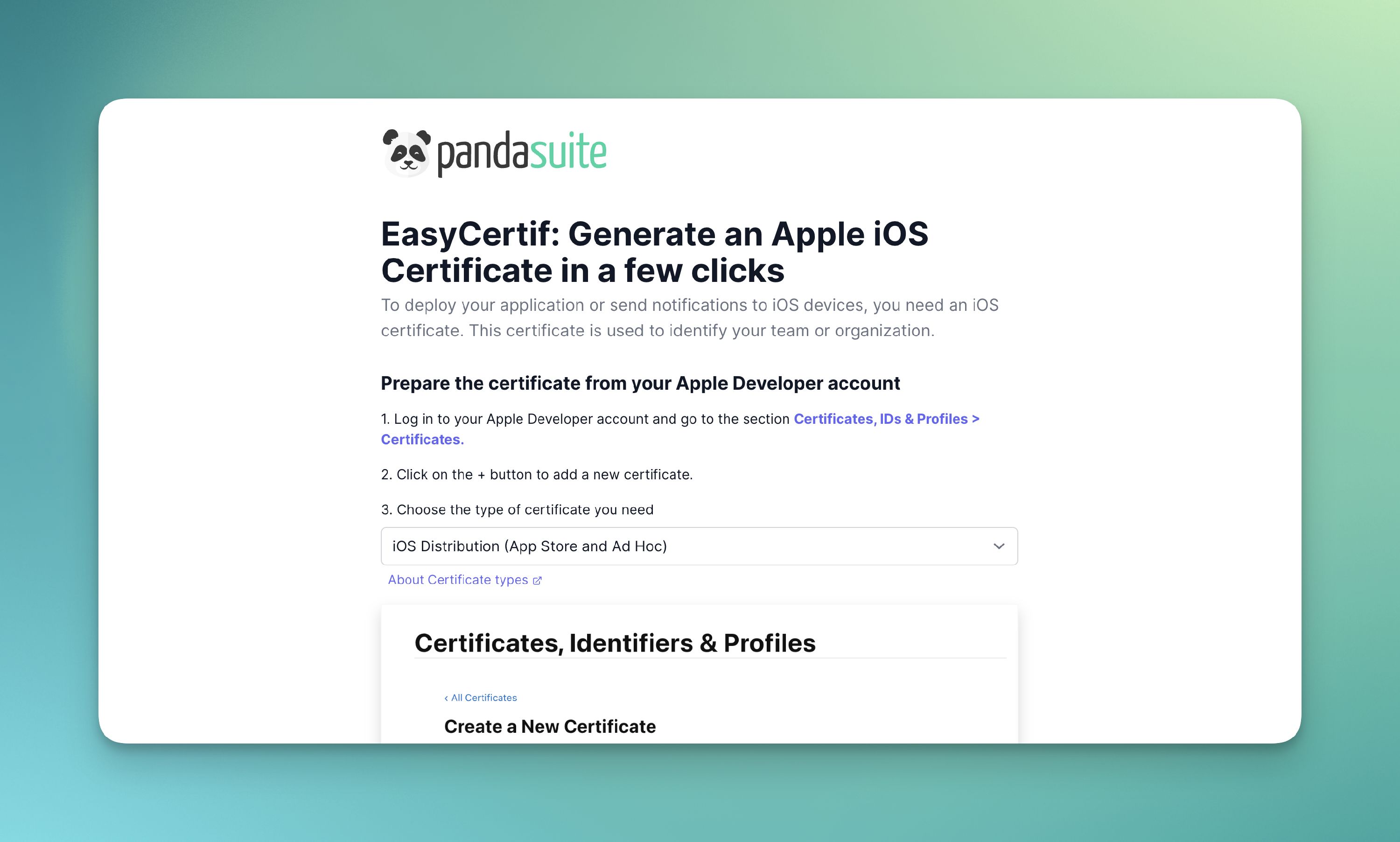
- Log into Apple Developer and navigate to Certificates, IDs & Profiles.
- Select + Create a Certificate and choose “Apple Distribution (Enterprise).”
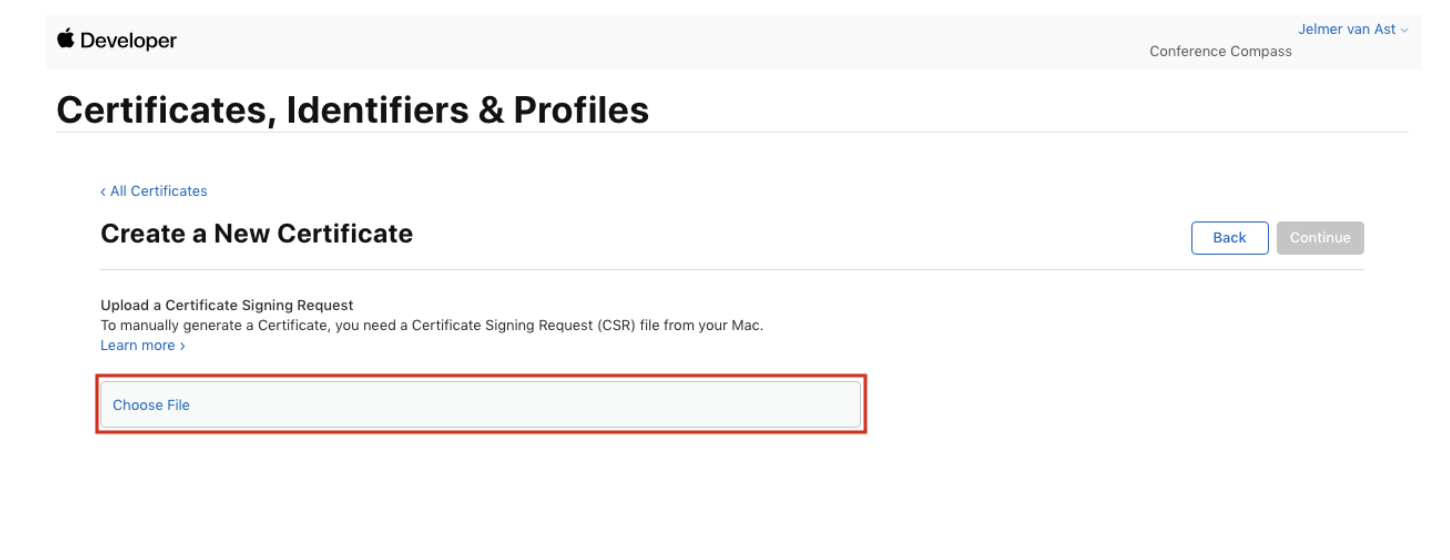
- On your Mac, open Keychain Access and generate a Certificate Signing Request (CSR). Save the private key—losing it means you’ll have to start over.
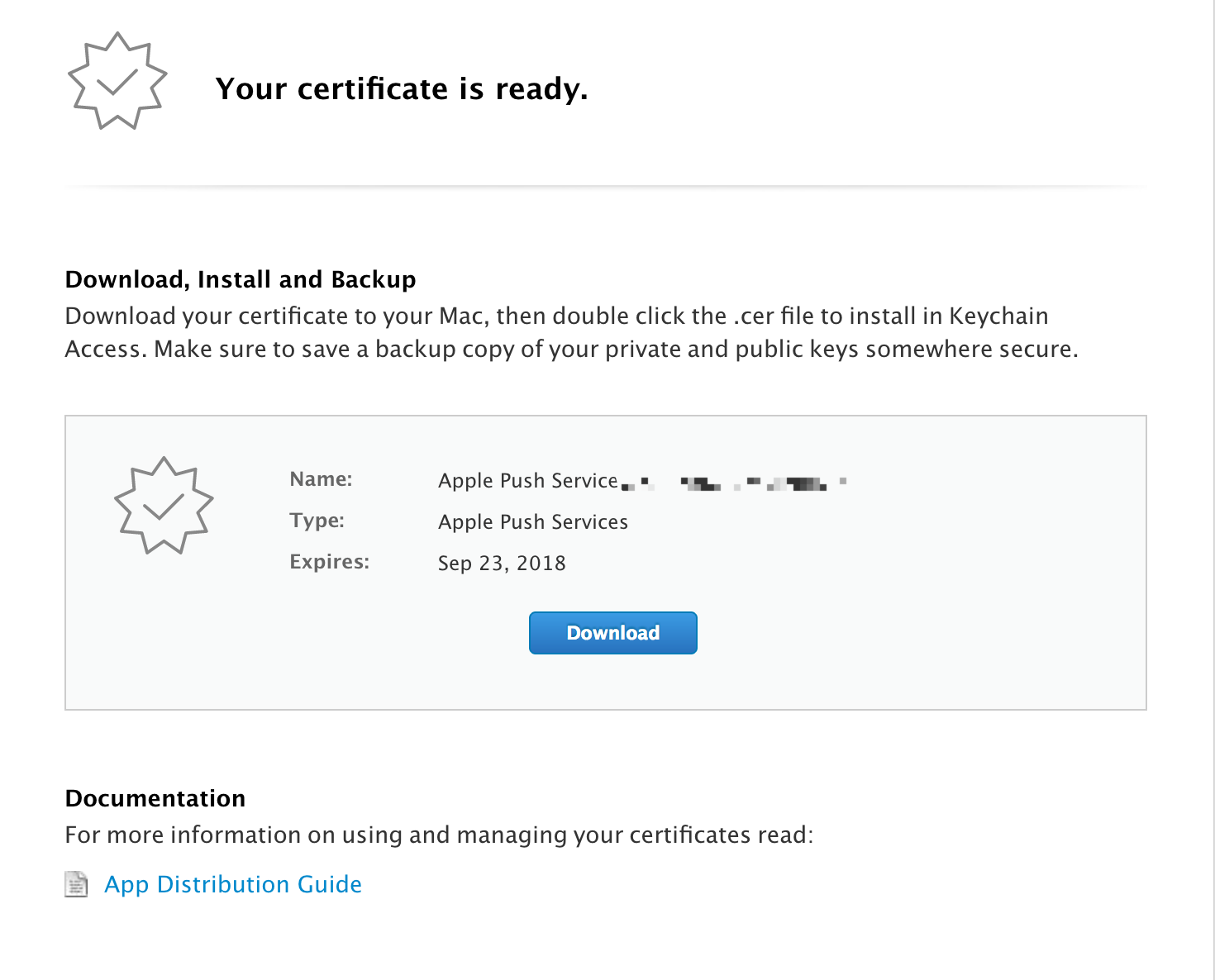
- Upload the CSR, let Apple validate it, and then download the resulting
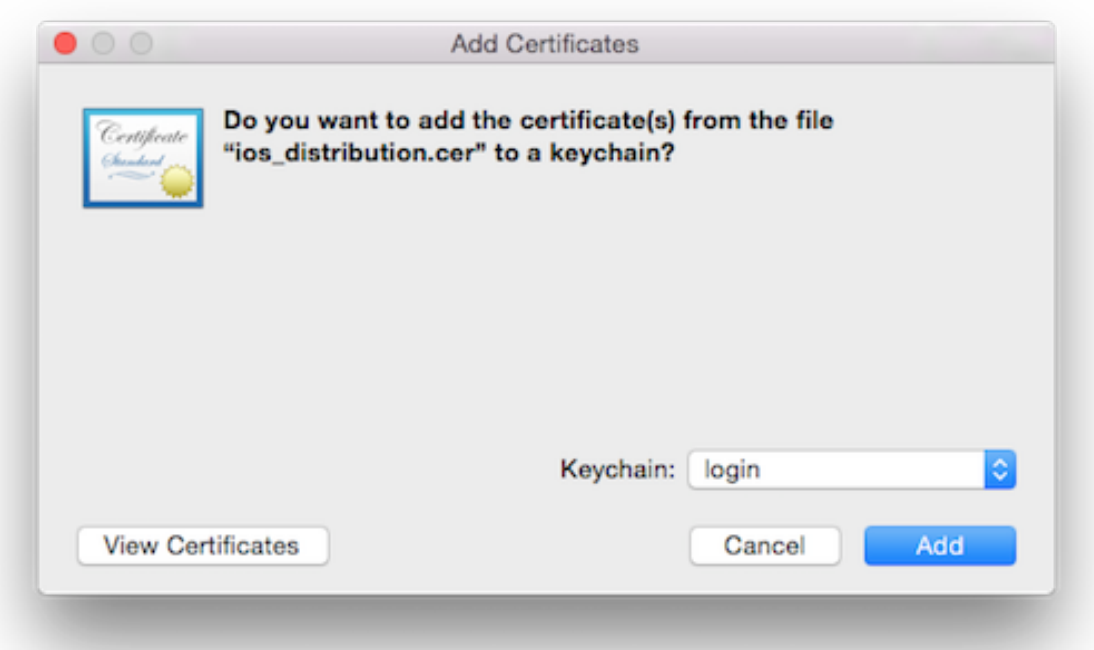
.cerfile. - Double‑click the file to add it to your keychain, pairing it with the private key you created earlier.
If the pairing fails, double‑check that you used the same Apple ID for the CSR and the developer portal. It’s a common snag that trips up newcomers.
Signing an App for Internal Distribution
Now the fun part: actually signing an .ipa file. You can do this in Xcode, or use command‑line tools if you prefer automation.
Using Xcode
- Open your project, go to Signing & Capabilities, and select your enterprise team.
- Make sure the “Provisioning Profile” dropdown shows an “iOS Distribution (Enterprise)” profile.
- Archive the build (Product → Archive) and export it for “Ad Hoc” or “Enterprise” distribution.
Command‑Line Approach
For CI/CD pipelines, fastlane or xcpretty combined with codesign does the heavy lifting. A minimal example:
xcodebuild -scheme MyApp -archivePath ./build/MyApp.xcarchive archivexcodebuild -exportArchive -archivePath ./build/MyApp.xcarchive \
-exportOptionsPlist ExportOptions.plist -exportPath ./output
The ExportOptions.plist file should specify method as enterprise. Missing that line is a frequent source of “cannot find provisioning profile” errors.
Distributing the Signed App
Because the app isn’t in the App Store, you need a reliable way to get it onto devices. Typical options include:
- Mobile Device Management (MDM): Centralized control, push notifications for updates, and the ability to revoke access remotely.
- HTTPS download link: Host the .ipa on a secure server, then use a manifest file (.plist) for over‑the‑air installation via a simple link.
- Internal App Store: Some companies build a lightweight web portal that lists all approved internal apps.
Regardless of the method, remember that the device must trust your enterprise certificate. By default, iOS prompts the user to “Trust” the certificate the first time they open the app. After that, updates install silently.
Staying Compliant: Common Mistakes to Avoid
Apple keeps a close eye on enterprise usage. Here are the red flags you definitely want to steer clear of:
- Public distribution: Posting the app on a public website or sharing the link on social media violates the agreement and can trigger revocation.
- Expired certificates: Apple usually sends a reminder 30 days before expiration, but don’t rely on it. An expired cert suddenly blocks all internal apps.
- Mixing certificates: Using a standard developer certificate for an internal app can cause code‑signing conflicts and unexpected crashes.
If Apple revokes your certificate, all apps signed with it stop launching immediately. That’s why many enterprises keep a backup certificate (generated before the previous one expires) and rotate them regularly.
Best Practices for Long‑Term Management
Think of your enterprise certificate as a living document that needs routine care:
- Document the process: Keep a step‑by‑step guide in your internal wiki. New hires will thank you.
- Automate renewal: Set up a calendar reminder and, if possible, script the generation of a new CSR and profile.
- Limit access: Only a handful of trusted engineers should have rights to download or generate the certificate.
- Monitor usage: Use your MDM’s reporting tools to track which devices have the app installed and when they last refreshed.
When Things Go Wrong: Troubleshooting Tips
Even with careful planning, issues pop up. Here’s a quick cheat sheet for the most common hiccups:
- “Untrusted Enterprise Developer” error: Open Settings → General → Device Management, select your organization, and tap “Trust.”
- App crashes on launch: Verify that the provisioning profile matches the bundle identifier exactly. Mismatched IDs cause silent failures.
- Certificate not found in Keychain: Re‑import the .cer file and confirm the private key is still present. If the key disappeared, you’ll need to request a new certificate.
Wrapping Up the Essentials
iOS enterprise certificates empower companies to ship custom tools fast, but they also carry responsibility. By following the enrollment steps, handling the certificate with care, and staying on top of renewals, you can keep your internal apps humming without surprising roadblocks. If you treat the certificate as a shared asset rather than a one‑off hack, the whole distribution pipeline becomes a lot smoother—and your team gets the apps they need, exactly when they need them.