How to Play Football Manager Touch on Android: Complete Guide
Ever wondered why the Football Manager Touch experience feels so different when you’re on a phone? It’s not just a smaller screen – the whole workflow reshapes around touch controls, quick decisions, and the occasional tap‑and‑hold. This guide walks you through everything you need to set up, manage, and win, without drowning in jargon.
Setting Up the Game on Your Device
First things first: make sure your Android meets the minimum requirements. You’ll need at least Android 7.0, 2 GB of RAM, and a decent amount of free storage (around 1 GB) for saved games and updates.
- Download the app from Google Play.
- Allow the game to install updates automatically – the developers push balance tweaks regularly.
- Enable “Battery Optimization” off for Football Manager Touch to avoid unexpected pauses.
After installation, launch the game and you’ll be greeted by the familiar introductory screen. Tap “New Game” to start fresh, or “Load” if you already have a save.
Understanding the Interface
The UI is intentionally stripped down for mobile. Here are the core panels you’ll juggle:
- Dashboard: Overview of club finances, squad morale, and upcoming fixtures.
- Team Sheet: Your starting line‑up, substitutions, and player roles.
- Tactics: Choose formations, assign player instructions, and set match style.
- Transfers: Search, negotiate, and finalize deals without needing a keyboard.
Swipe left or right to switch between tabs. A quick tap on a player’s portrait opens a detailed profile with stats, contracts, and recent performances.
Building a Competitive Squad
When you’re starting out, resist the urge to splurge on big‑name stars. The game rewards scouting and developing talent.
- Activate the Youth Academy from the Club menu.
- Set scouting assignments based on preferred positions and regions – South America and Eastern Europe yield hidden gems.
- Keep an eye on player potential (the “P” rating) and growth curves; a modest £500k signing can become a star in three seasons.
Don’t forget to balance your wage bill. A club with a modest budget can still punch above its weight if you manage contracts wisely.
Smart Transfer Strategies
Negotiation on Android uses simple sliders for fee, wage, and contract length. A tip: when you’re close to a deal, tap the “Counter‑Offer” button instead of dragging the sliders – it often triggers a better response from AI managers.
- Target players with expiring contracts; they’re cheaper and more willing to move.
- Use “Free Transfer” options for players released from other clubs – a gold mine for midfield depth.
- Monitor the “Club Reputation” factor; higher reputation expands your pool of interested players.
Setting Up Tactics for Mobile Play
Tactics can be overwhelming, but on Android you only need a few key adjustments to see results.
- Pick a formation that matches your squad’s strengths – 4‑2‑3‑1 works well for balanced teams.
- Assign “Attacking” or “Defensive” mindsets using the toggle at the bottom of the tactics screen.
- Use the “Pressing Intensity” slider sparingly; high pressing drains stamina quickly on mobile simulations.
After setting up, hit the “Save” button and you’ll see a quick preview of expected player roles. Trust the preview – it flags any mismatched positions before the match day.
Matchday: What to Expect
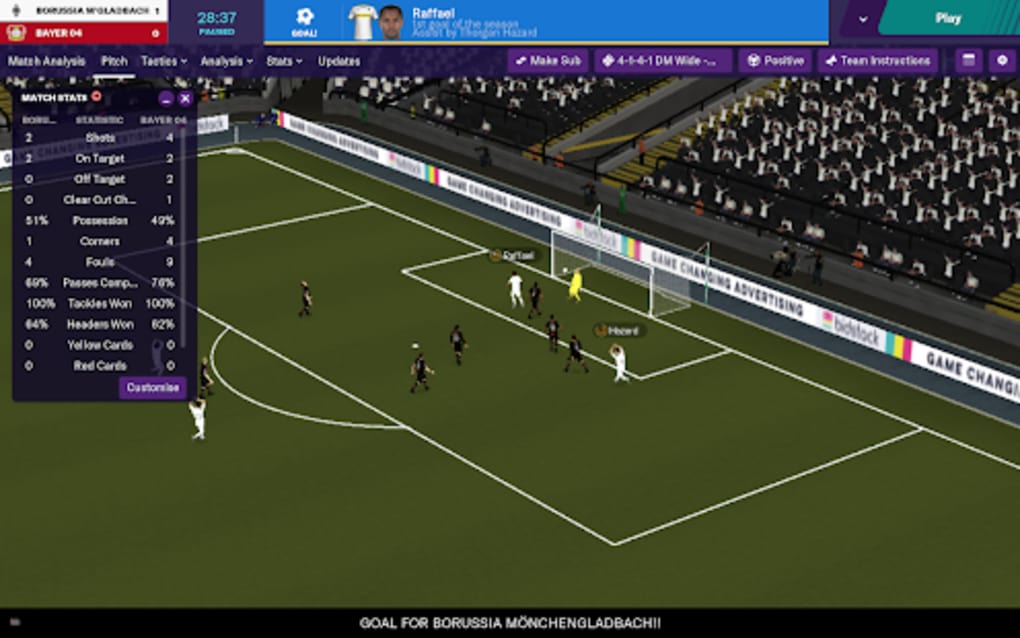
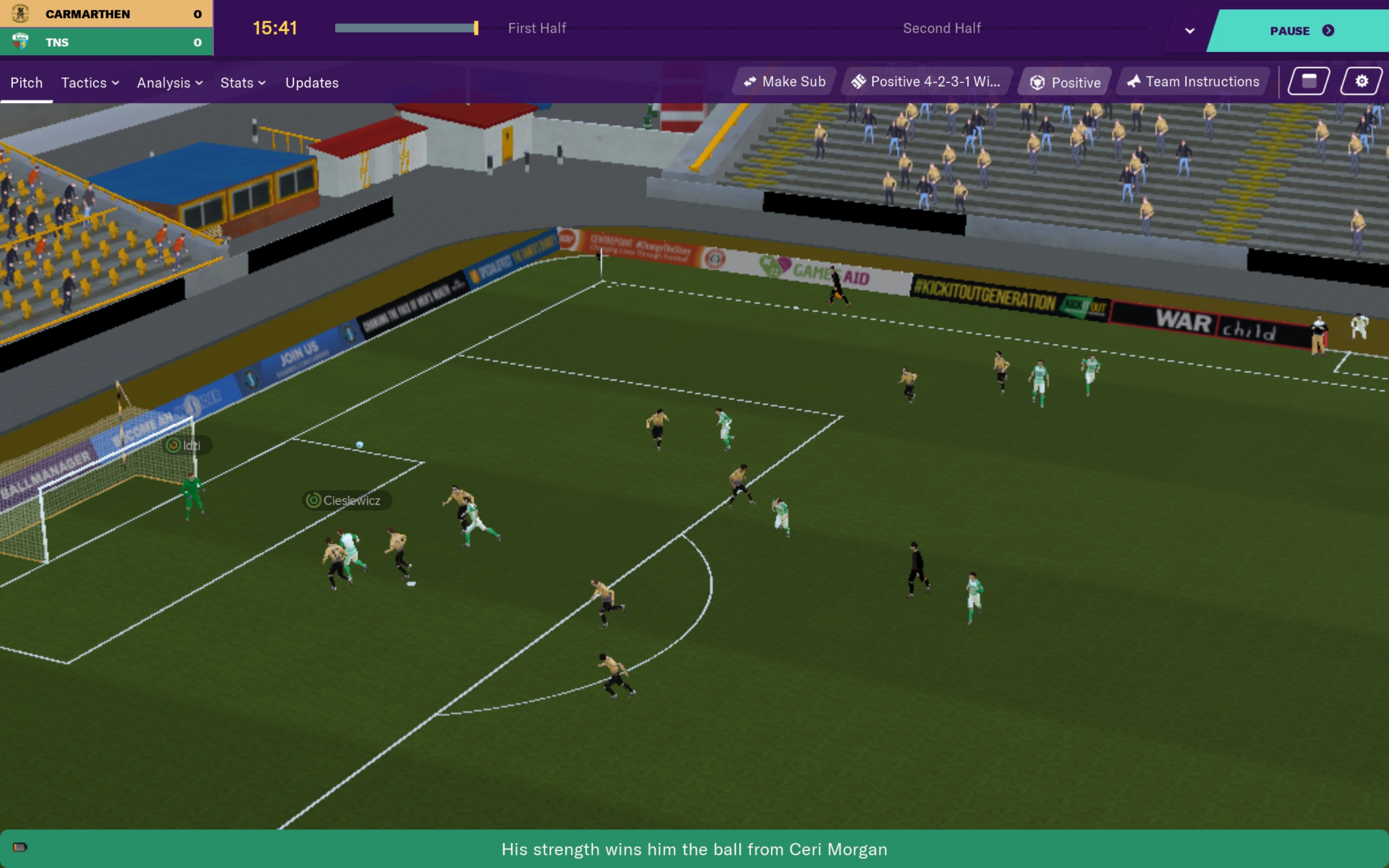
When a fixture starts, you’ll be taken to a simplified match view. The game runs in real‑time, but you can speed up or pause at any moment.
- Tap the “Pause” button to adjust tactics on the fly.
- Swipe up on the scoreboard to view player heatmaps and assess performance.
- Use the “Substitutions” icon to bring fresh legs into the game – remember the three‑sub limit.
At the final whistle, a concise report highlights key moments, such as missed chances or defensive lapses. Use these insights for your next training session.
Training and Player Development
Training menus have been condensed for touch screens. You’ll find three main tabs: Physical, Technical, and Mental.
- Allocate extra sessions to younger players with high potential.
- Set “Focused Training” for specific skills – e.g., “Finishing” for strikers.
- Monitor fatigue levels; over‑training can lead to injuries that are harder to manage on the go.
Remember, regular updates to the game may introduce new training drills – keep an eye on the “News” tab for announcements.
Tips for a Smoother Mobile Experience
- Use a stylus: It offers more precision when dragging sliders, especially in transfer negotiations.
- Enable “Landscape Mode”: The UI expands, giving you a clearer view of the dashboard and tactics.
- Schedule regular saves: The game auto‑saves, but a manual save before a big match prevents loss of progress.
- Limit background apps: Freeing up RAM reduces lag during intense matches.
Common Pitfalls and How to Avoid Them
Even seasoned managers stumble on Android. Here are a few pitfalls and quick fixes:
- Over‑relying on big signings: It blows your budget and may lead to wage crises. Instead, blend youth with a few experienced heads.
- Ignoring player morale: A disgruntled squad underperforms. Use the “Team Talks” feature to boost morale after a loss.
- Neglecting the scouting network: Without proper scouting, you miss out on hidden talent. Set a weekly scouting report reminder.
- Setting too aggressive pressing: It exhausts players fast, especially in compact mobile simulations. Adjust the intensity based on opponent strength.
With these guidelines, you’ll navigate the quirks of Football Manager Touch on Android and build a club that climbs the leagues, one tap at a time.