How to Set Up credentials.json for Google Drive Access
Why the credentials.json File Matters
When you start working with Google Drive programmatically—whether through a Python script, a Node.js app, or a third‑party tool—you quickly discover that the API won’t let you just walk in the door. Google uses OAuth 2.0, and the credentials.json file is your ticket. It tells Google which project you’re representing, what permissions you need, and where to send the authentication response.
Without a properly configured file, your code will hit “access denied” errors before doing anything useful. In short, getting the JSON right saves you hours of debugging later.
Step‑by‑Step: Creating the credentials.json File
The process is straightforward, but a few details can trip beginners up.
1. Open Google Cloud Console
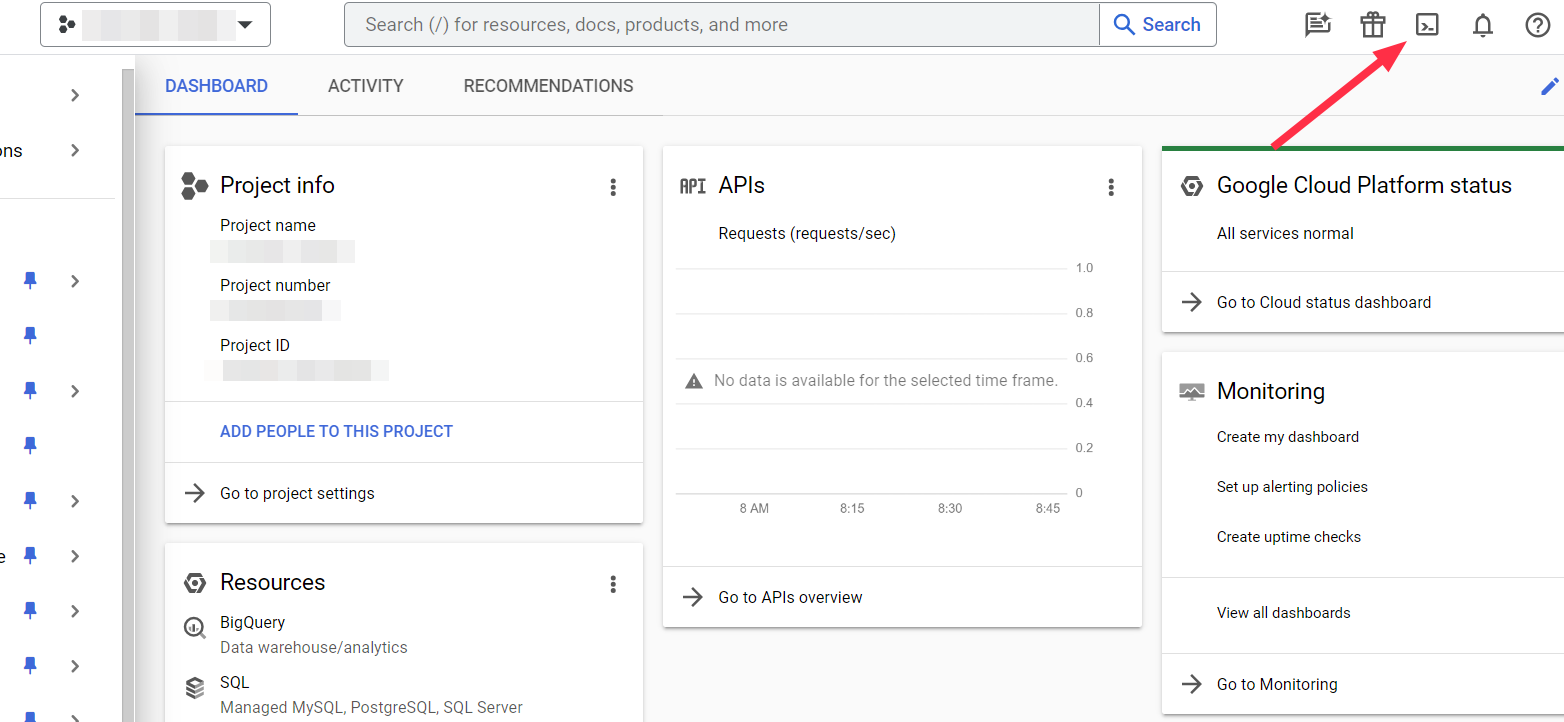
- Navigate to https://console.cloud.google.com/.
- If you don’t have a project yet, click “New Project,” give it a name, and hit “Create.”
2. Enable the Drive API
- In the left‑hand menu choose “APIs & Services > Library.”
- Search “Google Drive API” and click “Enable.”
3. Create OAuth consent screen
Even for a simple script, Google requires a consent screen. Choose “External” if you plan to share the app outside your organization, otherwise “Internal.” Fill in the app name, user support email, and any optional fields you care about.
4. Generate OAuth credentials
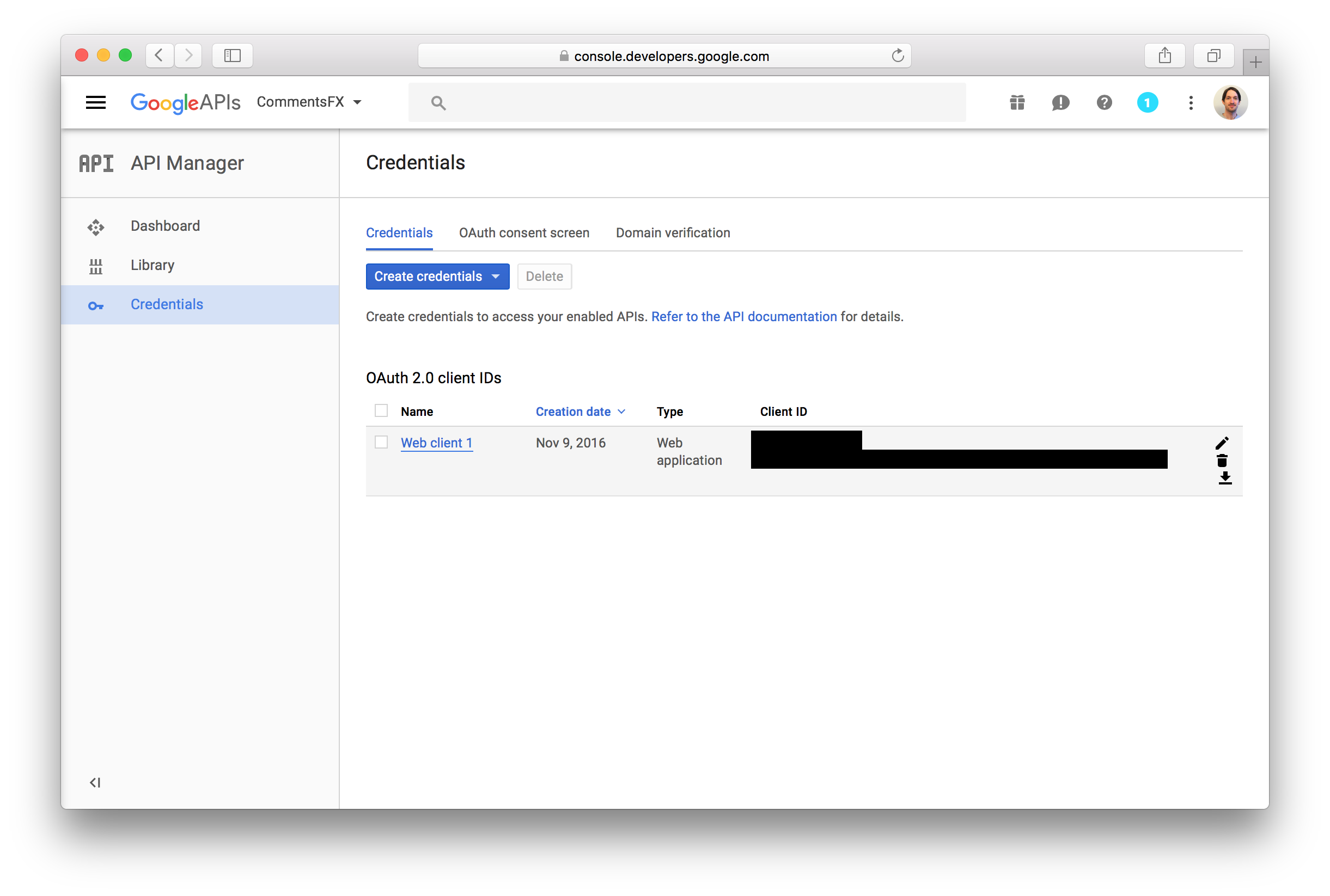
- Go to “APIs & Services > Credentials.”
- Click “Create Credentials” > “OAuth client ID.”
- Select “Desktop app” (or “Web application” if your code runs on a server).
- Give it a recognizable name.
- Press “Create.” Google will show a client ID and client secret.
5. Download the JSON
Right after creation, a “Download JSON” button appears. Click it and save the file as credentials.json in your project folder. This file contains three key sections:
- client_id: identifies your app to Google.
- client_secret: proves the app’s authenticity.
- redirect_uris: where Google sends the auth code (for desktop apps it’s usually
urn:ietf:wg:oauth:2.0:oob).
Typical Pitfalls and How to Avoid Them
Even with the file in place, a few common snafus can still appear.
- Wrong scope string – If you only need to read files, use
https://www.googleapis.com/auth/drive.readonly. Asking for full access (drive) will prompt users with a longer permission dialog. - Misplaced file – Your script looks for
credentials.jsonrelative to the working directory. Run the script from the folder containing the file, or provide an absolute path. - Expired refresh token – When the token expires, the library automatically refreshes it, but only if the JSON includes the
refresh_token. Keep the original token file safe.
Using the File in Common Languages
Python (google‑api‑python‑client)
Here’s the minimal snippet you’ll see in most tutorials:
from google.oauth2 import service_accountfrom googleapiclient.discovery import build
SCOPES = ['https://www.googleapis.com/auth/drive.file']
creds = service_account.Credentials.from_service_account_file(
'credentials.json', scopes=SCOPES)
service = build('drive', 'v3', credentials=creds)
Note the service_account_file call—if you’re using a regular OAuth client instead of a service account, replace it with InstalledAppFlow.from_client_secrets_file.
Node.js (googleapis)
const {google} = require('googleapis');const path = require('path');
const auth = new google.auth.GoogleAuth({
keyFile: path.join(__dirname, 'credentials.json'),
scopes: ['https://www.googleapis.com/auth/drive']
});
const drive = google.drive({version: 'v3', auth});
Java (Google API Client)
Java tends to be a bit more verbose, but the idea is the same: load the JSON, request a token, then build the Drive service.
Best Practices for Secure Handling
Credentials are the keys to your data, so treat them with care.
- Never commit
credentials.jsonto a public repository. - Use environment‑specific files (e.g.,
credentials.dev.json,credentials.prod.json) and load the appropriate one at runtime. - Consider employing Secret Manager services (Google Secret Manager, AWS Secrets Manager) for production deployments.
Testing Your Setup
A quick way to verify everything works is to list the first ten files in your Drive. If you see a JSON array of file metadata, you’re good to go.
# Python exampleresults = service.files().list(pageSize=10, fields="files(id, name)").execute()
for file in results.get('files', []):
print(f'{file.get("name")} ({file.get("id")})')
If an error pops up, double‑check the scopes, the location of the JSON, and whether the OAuth consent screen has been published (for external apps).
When to Switch to a Service Account
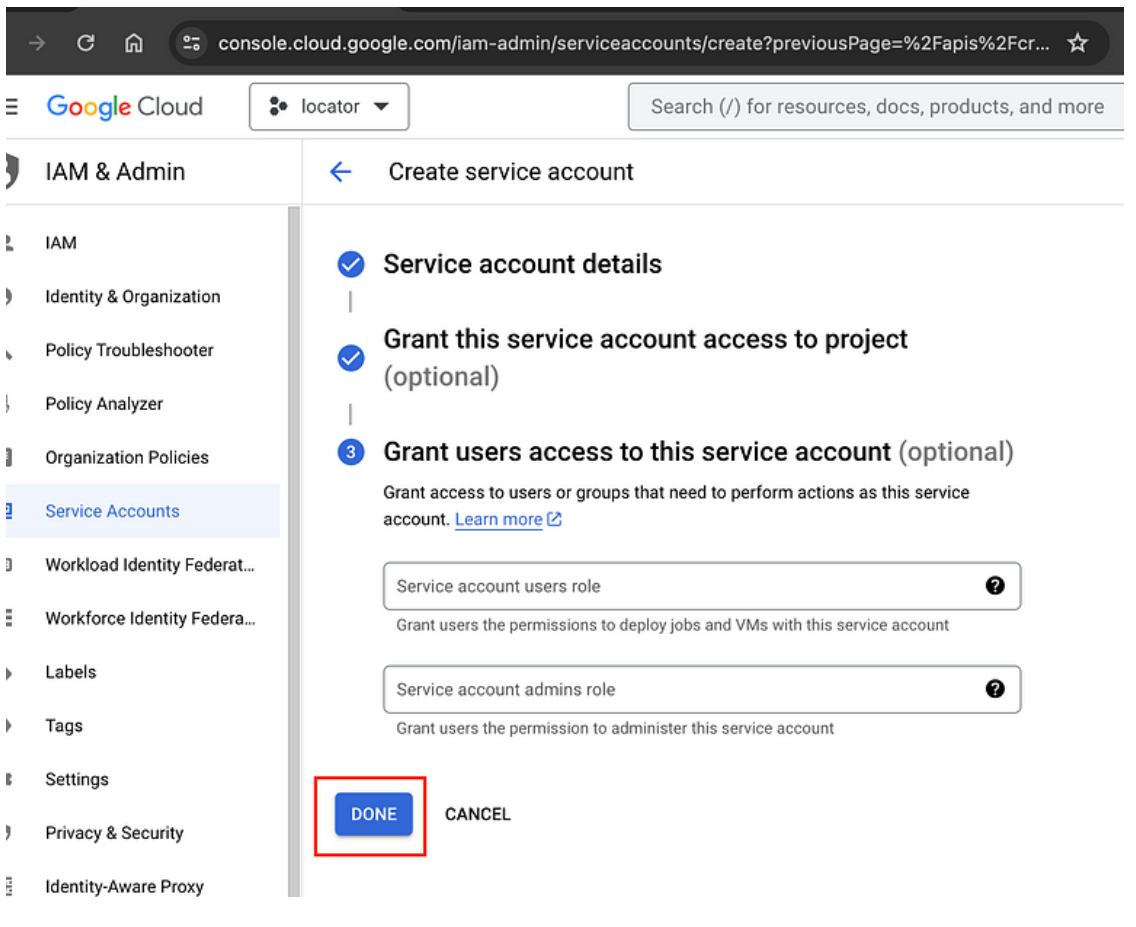
For server‑to‑server interactions—think automated backups or batch processing—a service account often makes more sense. It eliminates the need for interactive user consent, because the account itself is the principal. The steps to create a service‑account JSON are similar, just choose “Service account” in the credentials wizard.
Wrapping Up
Setting up credentials.json might feel like the most tedious part of Google Drive integration, but once it’s in place the rest of the workflow flows smoothly. Keep the file safe, match your scopes to the actual needs of your app, and you’ll spend less time chasing authentication errors and more time building the features that matter.