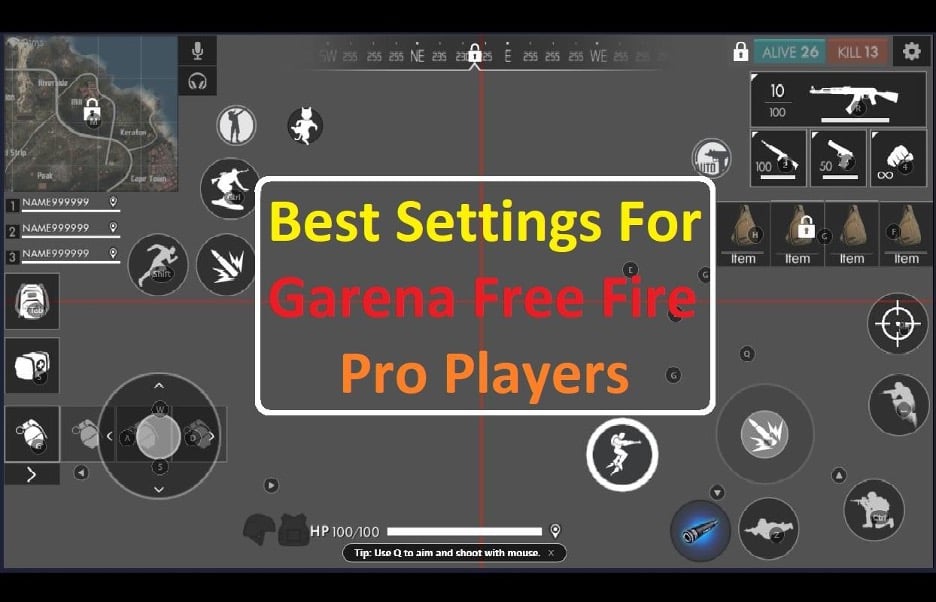
How to Set Up Pro Settings to Dominate Free Fire in 2022
Want to give your Free Fire gameplay that extra edge? Many players swear by a handful of tweaking tricks that turn a casual shooter into a battlefield commander. Below you’ll find the most effective configuration tweaks, why they matter, and a quick checklist to get you battle‑ready in minutes.
Why Settings Matter More Than You Think
Even the most skilled sharpshooter can be held back by a laggy frame rate or an awkward control layout. The right settings improve:
- Reaction time – smoother visuals mean you spot enemies sooner.
- Precision – customized sensitivity lets you land headshots with less effort.
- Stamina management – lowering graphical overload reduces heat and battery drain, keeping you in the fight longer.
It’s not magic; it’s about aligning the game’s engine with your personal play style.
Core Graphic Settings for 2022
Graphics don’t just affect looks; they dictate how much information your device can process each frame. Here’s the sweet spot for most mid‑range smartphones:
Resolution & Frame Rate
Set Resolution to 720p – it cuts pixel load while keeping details clear enough for spotting opponents. Pair that with FPS set to “High (60 FPS)”. If your phone struggles, drop to “Medium (30 FPS)” and keep an eye on battery usage.
Graphics Quality
- Graphics: Low – eliminates unnecessary particle effects.
- Shadows: Off – shadows often hide enemies.
- Anti‑Aliasing: Off – saves processing power without major visual loss.
- Post‑Processing: Off – removes bloom and motion blur that can blur a distant gunfire flash.
Advanced Options
If your device supports it, enable Performance Mode in the settings menu. This forces the game to prioritize speed over visual fidelity, which is exactly what a pro needs.
Control Layout Tweaks
The default control scheme feels “just okay” for most players, but pro‑level performance often hinges on a few adjustments.
Button Placement
- Move the Jump/Climb button closer to the thumb’s natural rest – usually the lower‑right corner.
- Shift the Fire/Attack button slightly upward so you don’t accidentally pull the slide while aiming.
Sensitivity Settings
Instead of using the generic “Medium” preset, dial in these custom values (feel free to nudge them a few points up or down based on personal feel):
- General Sensitivity: 85‑90
- Aim Sensitivity: 78‑82
- Scope Sensitivity: 45‑50
- Gyro Sensitivity: 70‑75 (if you use gyro aiming)
A quick tip: enable “Toggle Aim” if you prefer tapping rather than holding the aim button.
Audio Settings That Give You an Edge
Sound is often the first clue that an enemy is nearby. Optimize it like you would any visual setting.
- Music Volume: 0% – removes distraction.
- Sound Effects: 100% – amplifies footsteps and gunfire.
- Voice Chat: 30‑40% – enough to hear teammates without clutter.
- Activate 3D Audio if your device supports it; it helps pinpoint direction.
Network Optimizations
A smooth connection can be the difference between a win and a loss. Here’s a quick checklist:
- Connect to a 4G/5G network with at least 15 Mbps download speed.
- Disable background apps that might hog bandwidth (social media, cloud sync, etc.).
- Turn on “Low Data Mode” in the Free Fire app – it reduces packet loss.
- If you play on Wi‑Fi, place the router within a clear line of sight and avoid crowded channels.
Device‑Specific Tips
Even with perfect in‑game settings, hardware matters. Below are the most common tweaks for Android and iOS.
Android
- Enable Developer Options → “Force GPU Rendering”.
- Set Battery Saver to off while gaming.
- Use a gaming‑focused launcher that disables notifications.
iOS
- Switch to “Low Power Mode” off during play – it bumps CPU performance.
- Turn on “Reduce Motion” in Accessibility to cut down visual lag.
- Keep the device in “Performance” mode via Settings → Battery → Low Power Mode toggle.
Quick Pre‑Match Checklist
Before you jump into a match, run through this short list. It takes less than a minute but can save you from a costly mistake.
- Resolution = 720p, FPS = 60 Hz.
- All graphics options set to Low/Off.
- Sensitivity values adjusted to personal comfort.
- Music muted, SFX at max, 3D Audio on.
- Network connection stable, background apps closed.
Testing and Fine‑Tuning
Don’t expect perfection on the first try. Spend a couple of matches in the training ground and note:
- If you’re missing shots because aim feels too sluggish – raise Aim Sensitivity by 2‑3 points.
- If you’re constantly sliding or overshooting – lower General Sensitivity slightly.
- If enemies sound distant – double‑check your 3D Audio setting and headphone placement.
Iterate slowly; even a single point can change how natural the controls feel.
Final Thoughts
Mastering Free Fire isn’t just about raw reflexes; it’s about crafting an environment where your reflexes can shine. By dialing in graphics, controls, audio, and network settings, you give yourself a tangible advantage without cheating or shortcuts. Try the setup today, tweak as needed, and watch your win rate climb.