How to Share a WhatsApp Group Invite Link
Whether you are organizing a neighborhood watch, a family reunion, or a casual gaming squad, getting everyone into the same chat can sometimes feel like herding cats. You don’t want to bounce between contacts adding people one by one, especially if some of those friends aren't even in your phone’s address book. That’s where the group invite link comes in. It is a simple, deep-link technology that WhatsApp uses to let anyone join your specific conversation with a single tap, provided they have WhatsApp installed.
However, many users stumble when trying to find this feature, or worse, they accidentally share a link to the wrong screen. The process is slightly different depending on whether you are using an iPhone (iOS) or an Android device, and the steps for web browsers differ again. Below, we break down exactly how to generate, share, and manage these links so your group chat stays organized and secure.
Generating the Link on Mobile Devices
The most common method involves using the WhatsApp app on your smartphone. The interface differs slightly between operating systems, so it is helpful to know which path to take.
For Android Users
If you are rocking an Android phone, the process is straightforward but buried just enough that you might miss it on a first try. Open the specific group chat you wish to share. Tap on the group name at the very top of the screen. This opens the group info panel. Scroll down past the admin list and participants until you see a section labeled Invite via link.
Tap that option. A new screen appears showing a unique URL that usually begins with `chat.whatsapp.com`. From here, you have three immediate options:
- Copy Link: This saves the URL to your clipboard, allowing you to paste it into emails, text messages, or other apps.
- Share Link: This opens your phone’s system sharing menu, letting you send the link directly via SMS, Instagram, Facebook, or any other installed application.
- QR Code: Perfect for face-to-face interactions. You can show this code to someone so they can scan it with their WhatsApp camera to join instantly.
For iPhone (iOS) Users
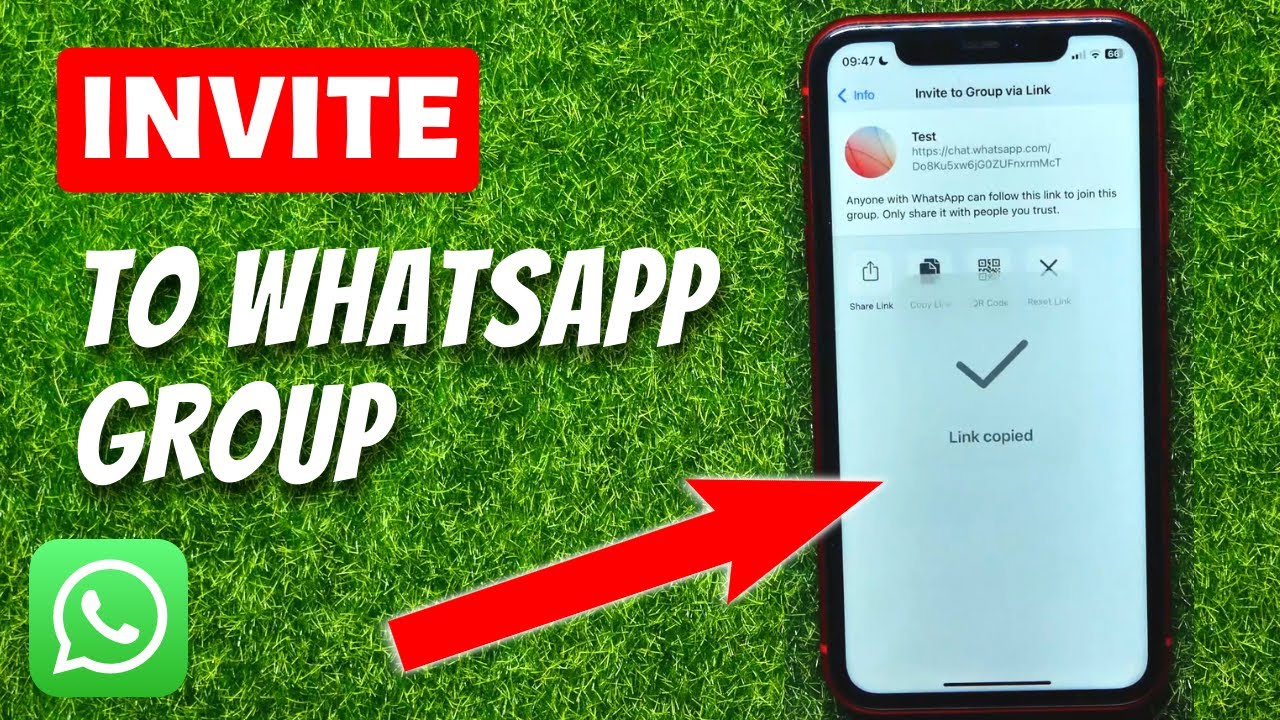
iOS users follow a nearly identical logic, just with slightly different tap targets. Open the group chat and tap the group name or the icon at the top right (often an 'i' in a circle). This brings up the group settings. Scroll down to the Invite via Link section.
Tap Invite via Link. You will see the same options as Android: copy, share, or scan the QR code. On iOS, the "Share" button typically launches the native iOS Share Sheet, giving you access to AirDrop, Messages, and copied apps seamlessly.
Using WhatsApp Web on Desktop
Many of us manage our chats from a computer during the workday. Interestingly, WhatsApp Web has limited functionality compared to the mobile app. Historically, you could not generate invite links from the web interface at all. However, recent updates have started rolling out this feature to more users, though availability can vary.
To check if you have this capability, open the group in WhatsApp Web. Click on the three vertical dots in the top right corner of the chat window. Select Invite to group via link. If this option appears, you can copy the link directly. If it is missing, you will need to use your mobile phone to generate the link and then send it to yourself (using the "Send to Self" feature) to retrieve it on your desktop.
Security: Why You Should Revoke Links
Here is the thing people often overlook: a group invite link does not expire by default. If you share a link in a public forum, a Twitter bio, or a careless group chat, anyone who finds that URL can join your private conversation. WhatsApp does not ask for permission when someone uses an invite link to enter.
To prevent unwanted guests, you should actively manage your invite permissions. In Android and iOS, under the Invite via link section, you will see an option called Revoke Link.
Clicking Revoke Link instantly invalidates the current URL. Any attempt to use the old link will result in an error message stating the link is no longer valid. WhatsApp will automatically generate a new, unique link for you to share with only the people you currently intend to invite. This is crucial for maintaining privacy, especially in large groups where "link hopping" can lead to a flood of strangers.
Who Can Actually Send These Links?
Only group admins have the authority to generate and share invite links. Regular participants cannot create these links. This is a deliberate design choice to maintain group integrity. If you are not an admin, you will not see the "Invite via link" option in the group settings.
If you need to invite someone and you are not an admin, you have two choices: use the "Add Participant" feature (which requires the person to be in your contacts) or ask an admin to share the invite link with you privately so you can forward it to your friend.
Frequently Asked Questions
Can I see who joined via the invite link?
When someone joins via a link, the group chat will typically display a system message like "New member via link." You can usually tap this message or check the participant list to see the timestamp of when they joined, though WhatsApp does not provide a detailed audit log of which specific link was used if you have multiple active ones (which you generally don't).
Does the link expire if I don't use it?
No, the link does not have a time limit. It remains valid indefinitely until an admin manually revokes it or leaves the group. If you do not revoke it after a few months, that link is still potentially active on the internet wherever you shared it.
What happens if I share the link to someone who is already in the group?
Nothing happens. If a current member clicks their own group’s invite link, WhatsApp will simply say they are already a member. It won’t kick them out or reset their status.