IOS 17 Update Why Did My Network Disappear?
It’s a scenario that strikes fear into the heart of every iPhone user. You eagerly tap “Install” to upgrade to iOS 17, watch the progress bar race to completion, and then freeze as you hold your breath for the final reboot. The apple logo vanishes. The lock screen appears. Smooth, clean, and utterly silent.
Your Wi-Fi network is gone. Your mobile data shows “Loading…” or a dreaded “No Service.” For a moment, panic sets in. Did the update brick my connection? Is my carrier down? While this issue is relatively rare, it is frustrating enough that it warrants a proper troubleshooting guide before you call Apple Support or your carrier.
The Reality Behind Disappearing Networks
First, let’s take a deep breath. In the vast majority of cases, your network hasn’t actually disappeared. It has hidden itself. iOS 17 introduces a significant overhaul to how the system manages network configurations, privacy protections, and cellular intelligence. During the transition, the operating system often resets certain cached network preferences or temporarily disables connections to verify security protocols.
This isn’t a bug in the traditional sense, but rather a cleanup process. Think of it like sweeping under the rug. When the update restarts the networking services, it clears out old cookies, cached DNS records, and potentially outdated ISP authentication tokens. If your router or carrier wasn’t expecting this reset, they might not “see” your phone immediately.
While most users experience a seamless transition, a subset of devices encounters persistent connectivity issues post-update. These aren’t always software glitches; they are often configuration mismatches between your new OS and your existing network infrastructure.
Common Scenarios After Upgrading to iOS 17
Before diving into fixes, it helps to identify exactly what you’re seeing. The term “network disappeared” can mean several different things. Pinpointing your specific symptom will save you from jumping through unnecessary hoops.
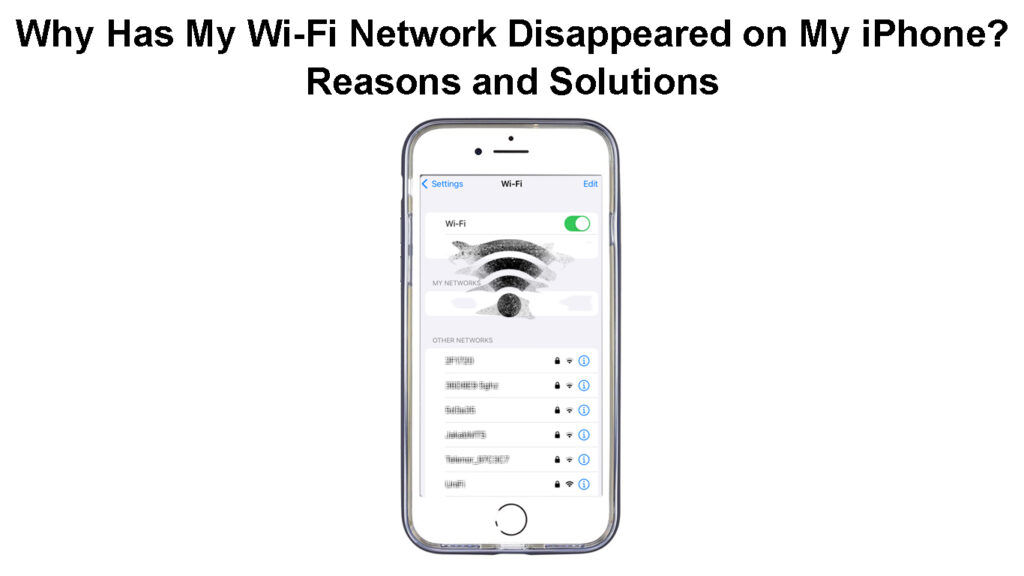
- Wi-Fi Icon is Missing or Grayed Out: You can’t toggle Wi-Fi on at all, or the switch turns blue but no networks appear.
- “No Internet” Despite Full Bars: Wi-Fi is connected, but webpages won’t load. This is often a DNS or IP address conflict.
- Cellular Data Vanishes: You have signal bars, but LTE/5G data drops out entirely, leaving only voice capabilities.
- Random Disconnects: The connection works for a minute, then drops repeatedly.
If you are facing a total lack of connectivity, the hardware is still working, but the software handshake failing. Here are the most effective ways to resolve these issues, ordered from the simplest to the most advanced.
The “Have You Tried Turning It Off and On Again” Protocol
I know, it’s cliché, but in the context of iOS 17, Airplane Mode is your best friend. Toggling Airplane Mode on for a full 30 seconds forces the phone to power down all radio antennas—Wi-Fi, Bluetooth, and Cellular. When you turn it off, the OS initializes the connection stacks from a cold state.
If that doesn’t work, perform a full reboot. Hold the side button and volume buttons, slide to power off, and wait ten seconds before booting back up. This clears temporary memory caches that might be holding onto corrupted network data from the previous iOS version.
Forget the Network and Re-Pair
Sometimes, the network settings stored in your phone become corrupted during the update. If you are stuck in that “Connected, No Internet” limbo, go to Settings > Wi-Fi, tap the “i” icon next to your network, and select Forget This Network.
This sounds drastic, but it simply deletes the saved password and configuration for that specific router. When you reconnect, your iPhone will download fresh configuration terms from the router, which helps resolve IP conflicts. Do the same for cellular if you suspect carrier issues, though this is riskier as it may restart your data plan cycle depending on your provider.
Reset Network Settings: The Nuclear Option
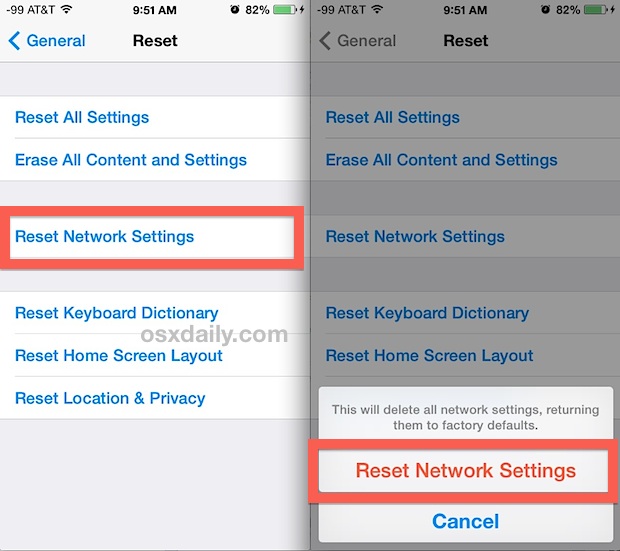
If you’ve rebooted, toggled airplane mode, and forgotten networks, the next step is the most reliable fix for iOS 17 connectivity bugs. This action erases all saved Wi-Fi passwords, Bluetooth pairings, and cellular network settings. It does not delete your photos, apps, or contacts.
To do this, navigate to Settings > General > Transfer or Reset iPhone > Reset > Reset Network Settings. Your phone will restart. Afterward, you will need to re-enter Wi-Fi passwords and reconnect headphones. However, this wipes the slate clean and often resolves the “missing network” glitch with surprising frequency.
Check for Carrier Settings Updates
Carriers frequently release backend profile updates to support new iOS versions. If your phone missed one during the main update, your connection will feel broken. Go to Settings > General > About. If a carrier update is available, a prompt will appear within 15 seconds. If it doesn’t appear, wait a few moments and check available Wi-Fi networks again. Sometimes the update triggers in the background.
When to Worry About Hardware
If you have tried a factory reset (backed up first) and still have no connectivity, the issue may no longer be software. Though rare, iOS 17 updates can sometimes expose underlying hardware degradation, particularly with faulty antennas or logic board issues that were masked by the more lenient networking stacks of iOS 16.
In this case, you likely need to visit an Apple Authorized Service Provider. But before you do, remember that patience is a virtue in tech support. Wait 24 hours after the update. Sometimes, backend synchronization with your carrier’s tower infrastructure just takes a little longer to catch up with the new operating system.
Quick Recap: What to Do First
- Toggle Airplane Mode on for 30 seconds.
- Restart the device completely.
- Forget the Wi-Fi network and reconnect.
- Reset Network Settings if the problem persists.