PS5 Remote Play on Different Networks: The Ultimate Guide
Ever tried to launch a multiplayer showdown while the Wi‑Fi drops, or crammed a session onto a train’s hotspot? Remote Play promises you can keep gaming wherever you are, but the reality of hopping between home broadband, 4G, and public Wi‑Fi can feel like a wild ride. This guide pulls apart the technical quirks and hands you practical steps to keep the PlayStation experience fluid, no matter which network you connect to.
Understanding Remote Play Basics
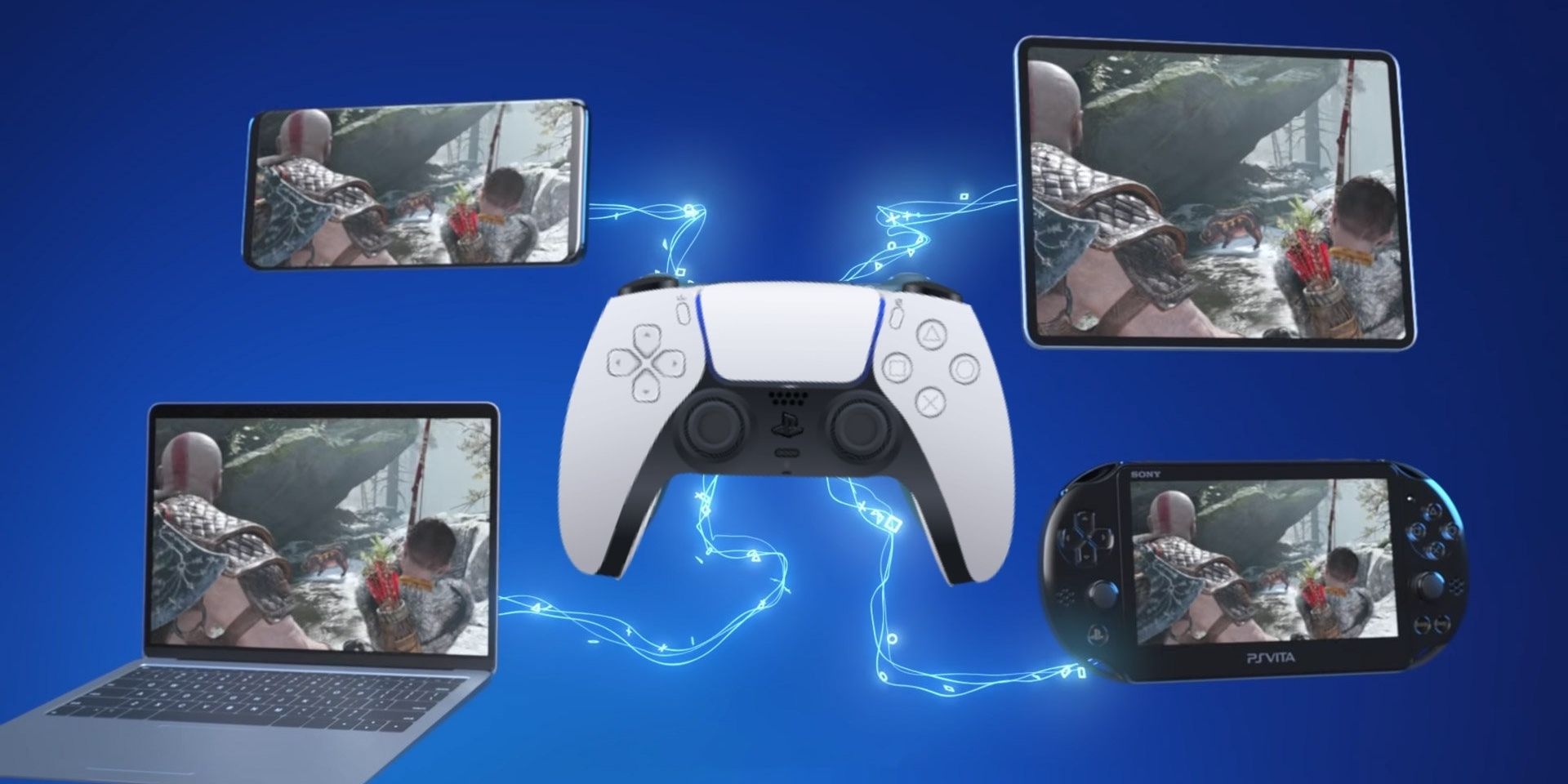
Remote Play streams the video and audio from your PS5 to a secondary device—phone, tablet, PC, or even another console. The console does the heavy lifting, encoding the gameplay into a stream that travels over the internet, while your device decodes and displays it.
A few core factors dictate how smooth that stream feels:
- Bandwidth: The raw amount of data that can move per second.
- Latency (ping): The time it takes for a signal to travel to the PS5 and back.
- Stability: How consistently the connection delivers the promised speed.
If any of these dip, you’ll notice stutter, delayed inputs, or occasional drop‑outs. Knowing what each term means helps you diagnose problems before they ruin a boss fight.
Why Different Networks Matter
Home fiber connections often provide 100 Mbps+ with sub‑20 ms latency, the sweet spot for Remote Play. Mobile 5G can rival that speed, but signal strength fluctuates as you move. Public Wi‑Fi in cafés or airports, meanwhile, tends to share bandwidth among dozens, leading to spikes in latency.
Because Remote Play adapts on the fly, the experience varies dramatically. A game that runs flawlessly on a stable LAN may lag noticeably on a congested café hotspot. Understanding the characteristics of each network type lets you pre‑emptively tweak settings rather than reacting after the fact.
Typical Speed & Latency Ranges
- Fiber / Cable: 100‑300 Mbps, 10‑30 ms.
- 5G Mobile: 50‑200 Mbps, 30‑80 ms (subject to coverage).
- 4G LTE: 15‑50 Mbps, 50‑120 ms.
- Public Wi‑Fi: 5‑30 Mbps, 60‑200 ms.
Preparing Your PS5 for Any Connection
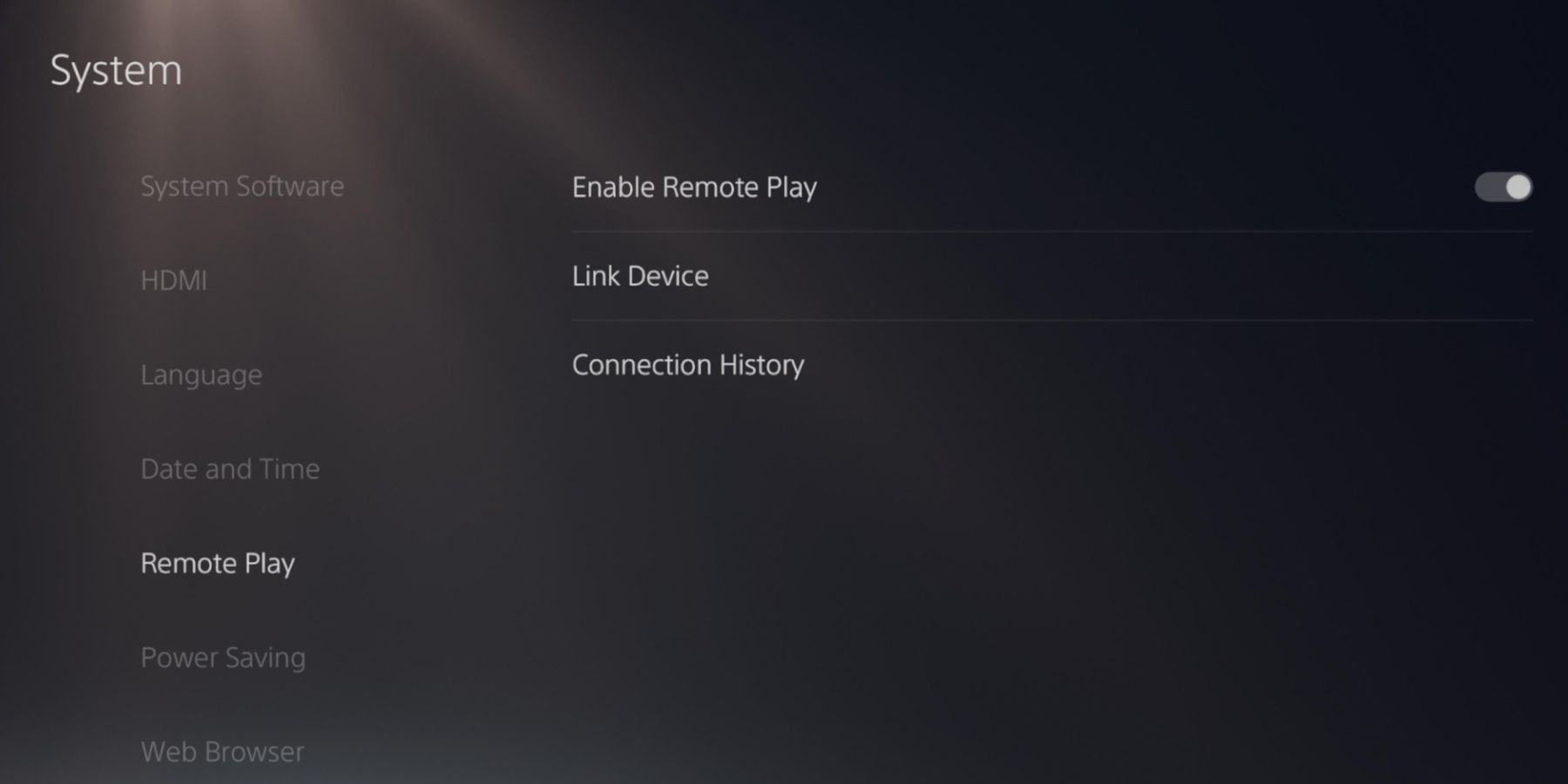
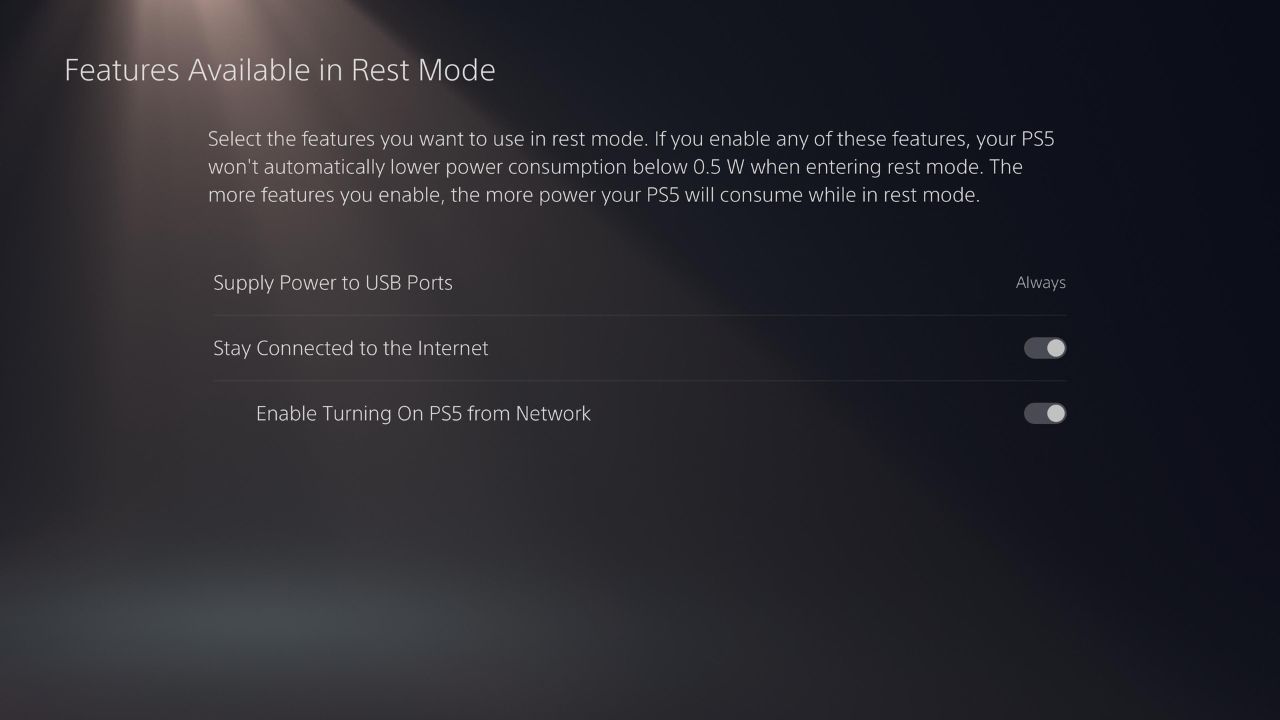
Before you even think about the network, make sure the console itself is ready. Small adjustments in the PS5 settings can shave off precious milliseconds.
- Enable Performance Mode for games that support it; this favors frame rate over visual fidelity, easing the load on the stream.
- Turn off automatic updates and background downloads while you plan to Remote Play.
- Assign a static IP address to the PS5 in your router’s DHCP table; this reduces the chance of NAT‑type changes mid‑session.
- Open the required ports (TCP 9295, UDP 9296, 9297) or enable UPnP to let the console negotiate the best path.
These tweaks cost nothing but can be the difference between a buttery smooth stream and an occasional freeze.
Optimizing Settings for Mobile Data
When you’re relying on 4G or 5G, data caps and signal swings become part of the equation. The Remote Play app offers a few levers you can pull:
- Resolution: Drop from 1080p to 720p; this halves the bandwidth requirement.
- Frame Rate: Switch to 30 fps if 60 fps feels unstable.
- Bitrate: Some third‑party clients let you manually set the bitrate—aim for 5‑8 Mbps on 4G, 10‑15 Mbps on robust 5G.
Remember to keep your device plugged in or have a high‑capacity battery; heavy streaming drains power quickly.
Tips for Seamless Play on Public Wi‑Fi
Public networks are notorious for jitter, but a few habits can smooth things out:
- Choose a spot near the router or access point; distance is the biggest latency driver.
- Avoid simultaneous video calls or large downloads on the same network.
- If the venue offers both 2.4 GHz and 5 GHz bands, pick the 5 GHz band for less interference.
- Consider a portable travel router that can create a dedicated Wi‑Fi network for your device alone.
Even with these steps, expect occasional hiccups; the key is to minimize their frequency, not to eliminate them entirely.
Troubleshooting Common Issues
Even the best‑prepared setup can hit snags. Below is a quick reference for the most frequent hiccups and practical fixes.
Connection Drops After a Few Minutes
- Check your router’s idle timeout settings; some default to 5‑10 minutes.
- Restart both PS5 and the client device to flush stale sessions.
- Disable VPNs or proxy services that might be interrupting the stream.
High Latency, Input Lag
- Run a speed test on the client device; if ping exceeds 100 ms, look for nearby interference.
- Switch the Remote Play app to “Low Latency Mode” if available.
- Close other apps that might be hogging Wi‑Fi bandwidth (e.g., cloud backups).
Pixelated or Low‑Quality Image
- Increase the remote bitrate in settings, provided your network can sustain it.
- Temporarily disable HDR or other post‑processing effects on the PS5.
- Make sure the client device’s display scaling isn’t set to “Zoom” or “Stretch”.
Most glitches boil down to one simple factor—insufficient bandwidth or abrupt latency spikes. By isolating the variable, you can often resolve the issue without a full system reboot.
Ultimately, Remote Play shines when you treat it like a mobile extension of your console, not a separate platform. With the console primed, the network understood, and a few strategic setting tweaks, you’ll be able to jump from couch to cafe, train, or beach without missing a beat. Happy gaming!