Top Parallel Apps for Android 2024: Clone Multiple Accounts
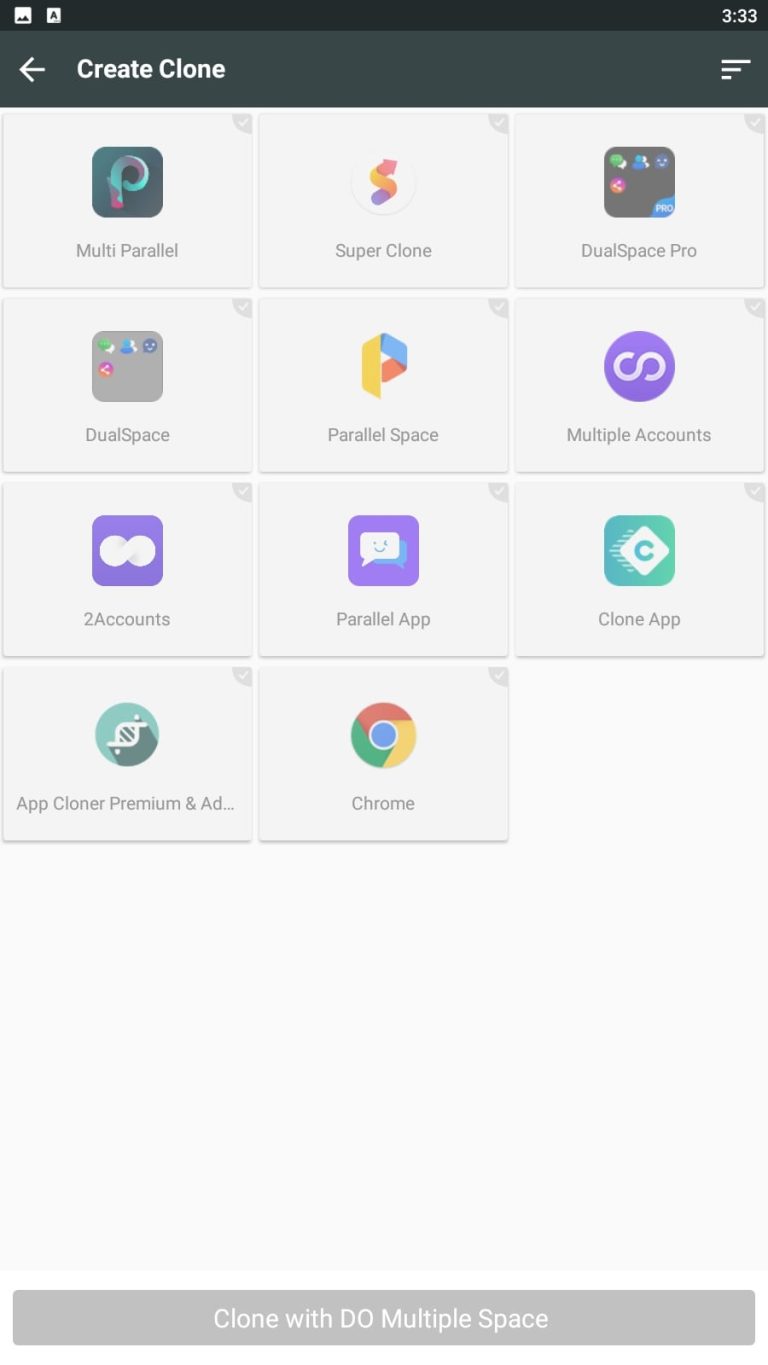
Ever wanted to keep two WhatsApp numbers or run a work profile alongside your personal apps without buying a second device? Android’s flexibility makes that possible, but you need the right tool. Below we dive into the most reliable parallel‑app solutions for 2024, weighing their quirks, performance, and the kind of multitasking they enable.
Why Use Parallel Apps?
Running duplicate instances lets you separate identities, test apps, or simply bypass the “single‑login” limitation many services enforce. It’s not just about social media; developers often need sandboxed environments, and power users love to keep personal and professional accounts apart.
Parallel Space: The Veteran with a Fresh Face
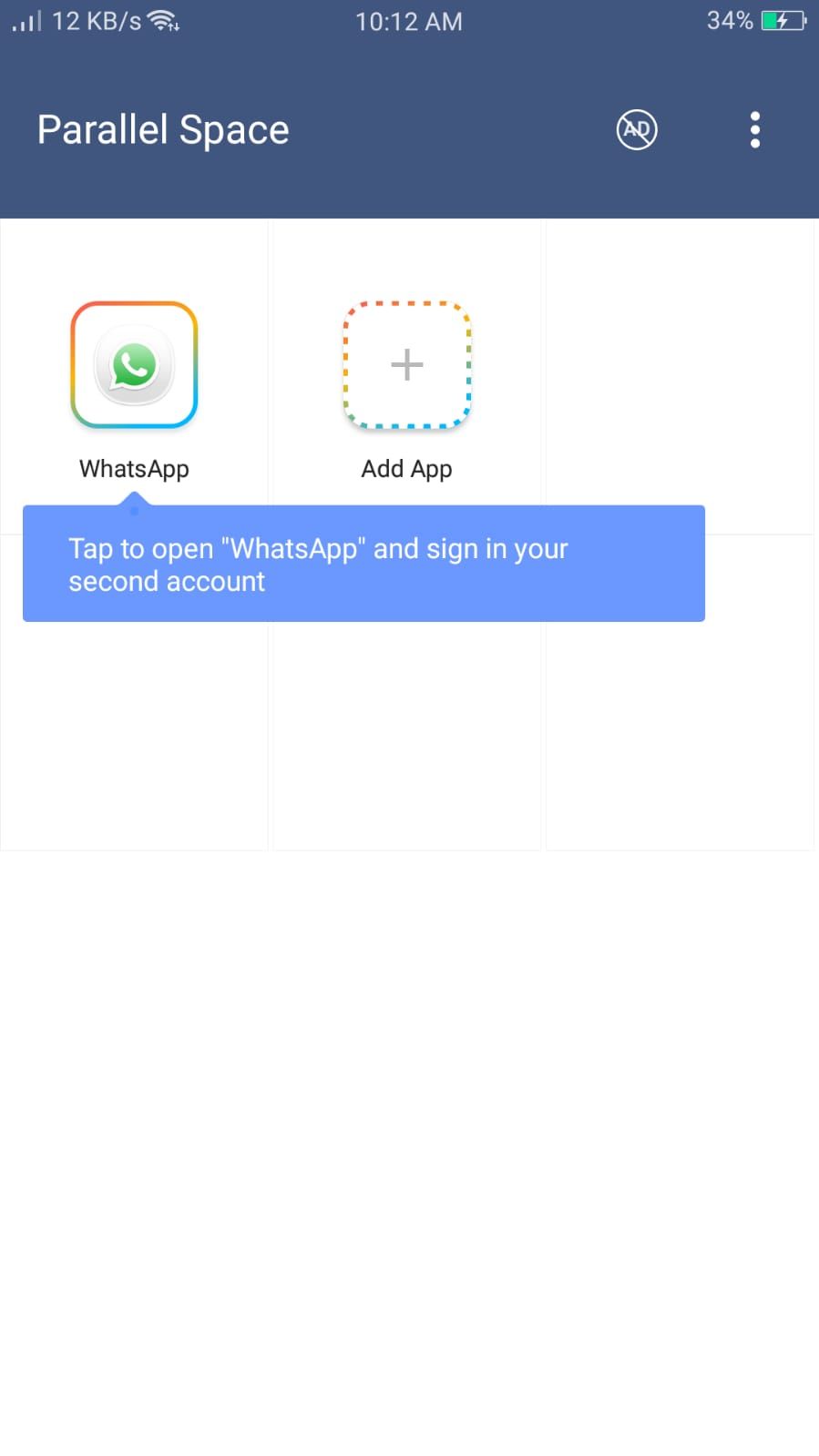
Parallel Space has been around for a while, and its 2024 update finally feels less clunky. It creates a virtual container where you can clone most apps, from games to messaging clients.
- Pros: Broad app compatibility, easy one‑tap cloning, and a clean UI after the recent revamp.
- Cons: Some heavy games experience minor lag; occasional notifications get delayed.
One neat feature is the App Lock that lets you protect cloned apps with a fingerprint or PIN, a safeguard for those who keep work emails on the same device.
Dual Apps (Built‑In by Some OEMs)
Manufacturers like Xiaomi, Oppo, and Realme ship a native “Dual Apps” option in the settings. No extra download, no permissions wizard—just a toggle.
It works flawlessly for most social apps, but it falls short when you try to clone system‑level services like Google Maps. Still, for quick setups—think two Instagram accounts—it’s unbeatable in speed.
2Accounts: Light‑Weight Yet Powerful
If you’re after a minimalist experience, 2Accounts is worth a look. The app’s footprint is under 5 MB, and it focuses on privacy: cloned apps run in isolated sandboxes, limiting data bleed between accounts.
- Highlights: No ads, optional root support for deeper integration, and a simple “switch” button.
- Drawbacks: Limited to a handful of apps per clone; gaming titles often refuse to run.
Its “Quick Switch” panel floats on the screen, letting you flip between primary and secondary accounts with a single tap—a real time‑saver for busy users.
Multi‑Account: The Power‑User’s Choice
For those who need more than two instances, Multi‑Account steps in. It supports up to five clones per app and provides a “profile manager” that remembers settings for each clone.
Advanced users appreciate the Root‑Only mode, which unlocks hidden APIs for better performance. However, the app does request extensive permissions, so weigh the benefits against the trust factor.
App Cloner: A Fresh Contender
App Cloner entered the scene with a promise to let you customize cloned apps—change icons, rename packages, and even modify permissions. This granular control appeals to developers testing multiple configurations.
The trade‑off is a learning curve; you’ll spend a few minutes per app tweaking settings. Once set, the clones behave just like the originals, with independent login states.
How to Choose the Right Tool
Consider these factors before settling on a parallel solution:
- Device Resources: Heavy clones can drain battery; lighter apps like 2Accounts are kinder to low‑end phones.
- Security Needs: If you handle sensitive data, look for built‑in app locks or sandbox isolation.
- App Compatibility: Some games or banking apps detect virtualization and block access—test a single clone first.
- Number of Accounts: One or two profiles work fine with built‑in Dual Apps; more require Multi‑Account or App Cloner.
Quick Setup Guide (Using Parallel Space)
1. Download Parallel Space from the Play Store.
2. Open the app and tap the “+” icon to add the app you want to clone.
3. Accept the permissions – it needs overlay and storage access.
4. Once the clone appears, tap it to log in with your second account.
5. For extra security, enable the built‑in App Lock from Settings.
That’s it. You can now swipe between the original and the clone just like any other home‑screen shortcut.
Potential Pitfalls and Work‑arounds
Even the best parallel apps hit snags occasionally. Here are a few you might encounter:
- Notification Overlap: Some clones share notification channels, causing duplicate alerts. Adjust the notification settings per clone to keep things tidy.
- Background Restrictions: Android’s battery optimizations may kill cloned apps. Add the parallel app to the “Unrestricted” list in Settings → Battery.
- Login Limits: Services like Facebook may flag rapid switching as suspicious. Space out logins or use different devices if you hit a wall.
Future Outlook: What 2025 Might Bring
Developers are already experimenting with AI‑driven sandboxing, which could make clones lighter and more secure. Expect tighter integration with Android’s native multi‑user system, reducing the need for third‑party wrappers. For now, the tools listed above remain the most practical way to juggle multiple accounts on a single handset.