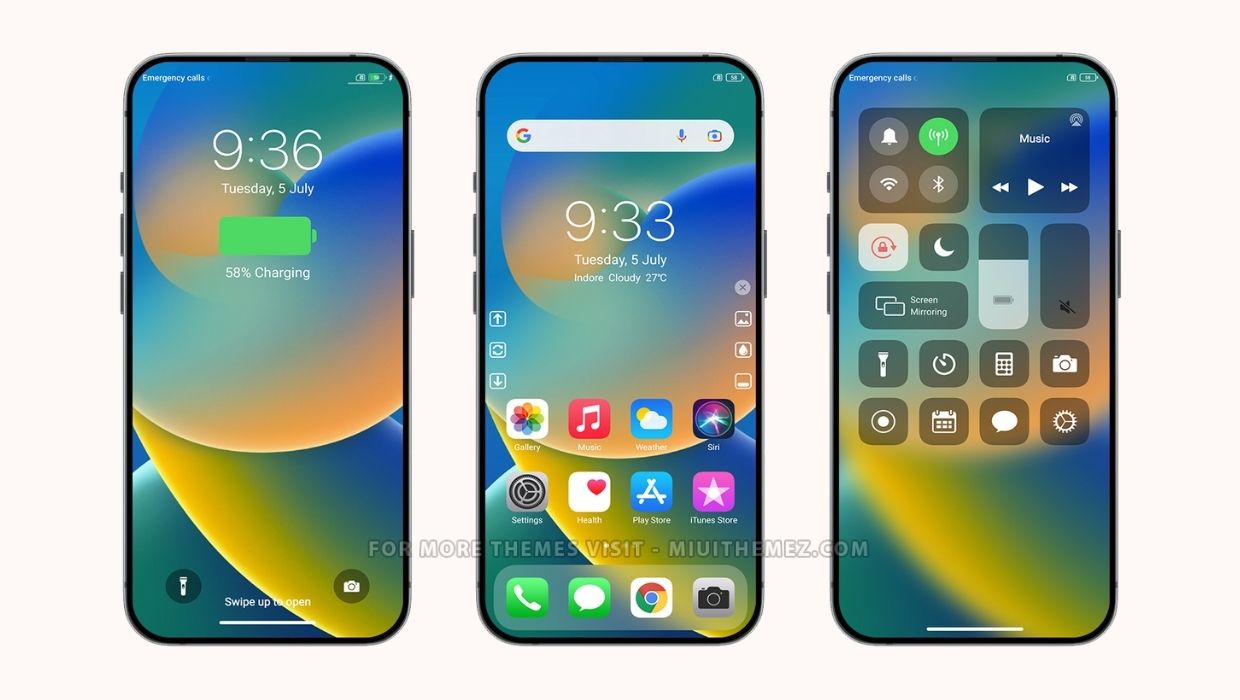
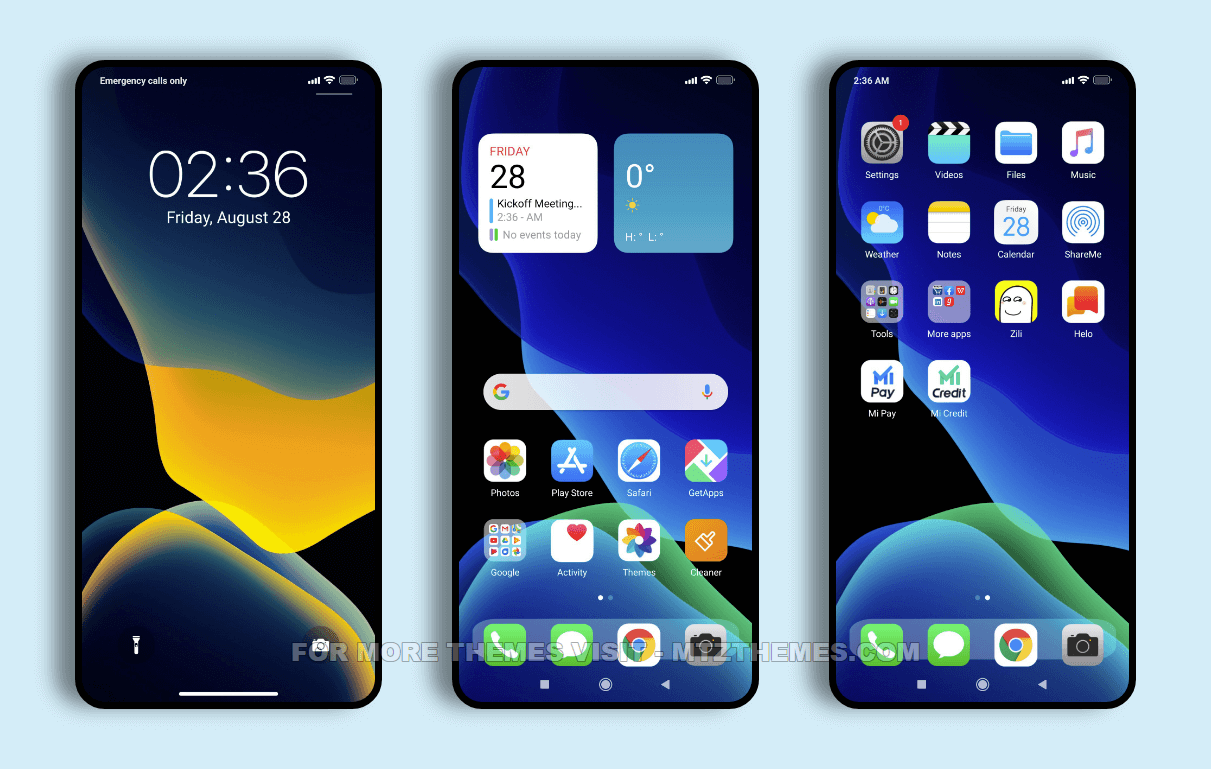
Turn Your Xiaomi Into a Sleek Liquid‑Glass iOS 16 Theme
Ever caught a glimpse of the glossy, almost‑translucent UI that iOS 16 flaunts and wondered how to bring that vibe to a Xiaomi device? You’re not alone. The “Liquid Glass” aesthetic has become something of a visual shorthand for modern minimalism—soft gradients, subtle frosted overlays, and that ever‑present sense that the screen itself is a piece of art. Luckily, the Android ecosystem is flexible enough to let you mimic the look without rooting or tinkering with the firmware.
What “Liquid Glass” Actually Means
The term isn’t a brand‑new design language from Apple; it’s a community‑coined nickname for the set of visual tweaks iOS 16 introduced—mostly the new lock‑screen, the blurred notification shade, and the rounded‑corner widgets. The key ingredients are:
- Frosted‑glass blur (a subtle, semi‑transparent overlay)
- Rounded, slightly elevated elements that appear to float
- Muted pastel accents that change with the wallpaper
When you translate those ingredients to Android, the result looks surprisingly authentic, especially on Xiaomi phones that already support a fair degree of UI customization out of the box.
Why Xiaomi Is a Good Canvas
MIUI, Xiaomi’s skin, gives you built‑in theme support, a robust icon pack manager, and the ability to tweak animation scales. Most importantly, the “Wallpaper & style” settings let you apply a custom theme that changes fonts, colors, and system icons in one go. This modularity means you can import an iOS‑inspired package and then fine‑tune the blur effect with a third‑party launcher.
Step‑by‑Step: Installing the Liquid Glass Theme
1. Gather the required files
Head to a trusted theme marketplace—Xiaomi’s own Theme Store, or reputable sites like Google Play and GitHub. Look for “iOS 16 Liquid Glass” or similar keywords. You’ll typically download two items:
- A
.mtztheme file for MIUI - A launcher that supports blur, such as Lawnchair or Nova Launcher
2. Install the MIUI theme
Open Settings → Wallpaper & style → My themes, tap the “+” icon, and select the .mtz file you saved. The system will unpack the package and show a preview. Accept the changes, then let MIUI apply the new icons, fonts, and color accents. If you notice any mismatched icons, a quick “Reset to defaults” and re‑apply often fixes the glitch.
3. Set up the blur‑enabled launcher
After installing your chosen launcher, make it the default home app. Open the launcher’s settings and look for “Blur radius” or “Transparency.” Slide the bar until the background looks like a frosted pane of glass—usually a value between 30 and 45 works well on a 1080p display. Some launchers also let you sync the blur intensity with the wallpaper, mirroring iOS’s dynamic vibe.
4. Choose a matching wallpaper
The Liquid Glass effect shines when the wallpaper itself is subtle. Light pastel gradients, soft clouds, or muted abstract art let the system UI stand out without clashing. Xiaomi’s “Live Wallpapers” section even offers a few that change hue based on time of day, adding a layer of sophistication.
5. Tweak the notification shade
MIUI’s “Control center” can be adjusted under Settings → Notification shade & lock screen. Turn on “Blur background” and set the transparency to about 70 %. This replicates the iOS 16 lock‑screen’s hazy overlay, making incoming alerts feel like they’re floating atop a glass pane.
Optional Extras for a Fully Polished Look
Once the core theme is in place, these small additions can push the experience closer to native iOS.
- Icon packs: Search for “iOS‑style icons” on the Play Store. Applying a consistent pack ensures every app badge matches the rounded aesthetic.
- Widget adjustments: Use KWGT or UCCW to create custom widgets with rounded corners and semi‑transparent backgrounds.
- System animations: In Developer Options, increase “Animator duration scale” slightly (e.g., 1.0x) to give a smoother transition between screens, reminiscent of Apple’s fluid motions.
Potential Pitfalls and How to Avoid Them
Every customization journey has its hiccups. Here are a few common ones and quick fixes:
- Blur lag: On lower‑end Xiaomi models, heavy blur can tax the GPU. Lower the blur radius or switch to a lighter launcher.
- Icon misalignment: Some MIUI themes don’t fully support the newest icon mask shape. Re‑apply the theme after a system reboot, or manually adjust the icon size in the launcher settings.
- Battery drain: Live wallpapers combined with blur can nibble at the battery. If you notice a noticeable dip, opt for a static wallpaper with the same color palette.
Is the Effort Worth It?
In short, yes—if you love the sleek, airy feel of iOS 16 and want that aesthetic without swapping phones. Xiaomi’s hardware delivers the display quality needed to showcase the frosted effect, and the software flexibility lets you achieve it without voiding warranties. The result is a device that looks modern, feels cohesive, and still behaves like a typical Android phone (with all the customization freedoms you’d expect).
Keeping the Theme Fresh
Apple rolls out subtle UI tweaks each iOS iteration. To keep your Xiaomi looking current, simply check the Theme Store for updates to the “Liquid Glass” pack or explore new iOS‑inspired collections after each iOS release. Because the core components—blur, rounded corners, pastel accents—remain constant, you’ll rarely need a complete overhaul.
So, grab that .mtz file, tweak the blur, and let your Xiaomi sip from the same visual glass as the latest iPhone. The transformation is surprisingly straightforward, and the payoff is a phone that feels both familiar and refreshingly new.