What CPU‑Z Is and Why You’ll Want It
If you’ve ever stared at a cryptic string of numbers on your screen while trying to figure out why a game stutters, you’ve probably wished there was a simple way to see exactly what’s inside your computer. That’s where CPU‑Z steps in. It’s a free, lightweight utility that pulls together the specs of your processor, memory, and motherboard into an easy‑to‑read dashboard.
Getting to Know CPU‑Z
Created by the French company CPUID, CPU‑Z is essentially a digital “teardown” of your PC. It doesn’t change anything; it merely reads the data that your hardware reports and presents it in a format that both tech‑savvy users and curious newcomers can digest.
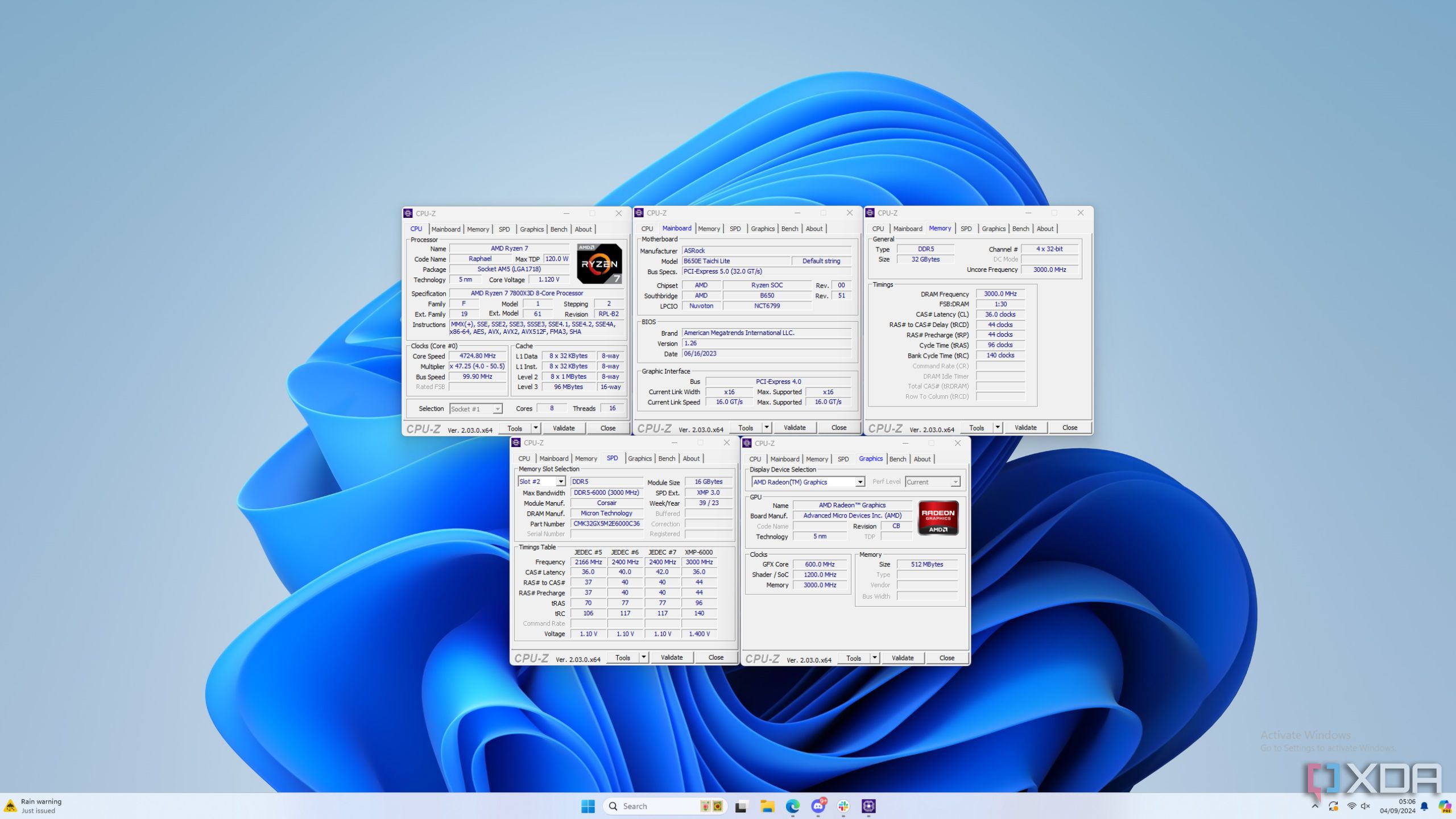
- Processor details – model name, core count, clock speeds (base and boost), cache sizes, and supported instruction sets.
- Memory snapshot – type (DDR4, DDR5, etc.), capacity, frequency, and timings.
- Motherboard info – chipset, BIOS version, and even the VIN (vendor ID) that can help pinpoint compatibility issues.
Because it reads directly from the hardware, the numbers you see are as close to the “raw truth” as you can get without opening the case.
Why You Might Need It
There are a few scenarios where CPU‑Z becomes more than a novelty:
1. Diagnosing performance hiccups
When a game drops frames, the first question is often “Is the CPU throttling?” CPU‑Z shows real‑time clock speeds, so you can see if the processor is stuck at a lower frequency because of heat, power limits, or power‑saving settings.
2. Verifying upgrades
Suppose you just installed a new RAM kit. CPU‑Z instantly confirms whether the system recognizes the full capacity, the correct speed, and the timing profile you expected. No need to reboot into BIOS just to check.
3. Building a system on a budget
Browsing second‑hand listings? A quick screenshot of CPU‑Z can serve as proof that the advertised CPU model, clock rates, and cache match the seller’s claims. It’s a handy “receipt” for hardware swaps.
4. Compatibility hunting
Planning to overclock? CPU‑Z shows the exact stepping and revision of your processor, which can affect how well it responds to higher voltages. Likewise, the motherboard section reveals the BIOS version—crucial if a newer BIOS adds support for a CPU you’re considering.
How to Use CPU‑Z Effectively
Downloading and running CPU‑Z is straightforward:
- Visit the official CPUID website and grab the latest stable release. Both a portable zip and an installer are offered.
- Run the executable (no admin rights needed for the basic view). The main window loads in a few seconds.
- Navigate the three tabs—CPU, Memory, and Mainboard—to explore each category.
If you need more granular data, click the “Caches” or “SPD” sub‑tabs under Memory. For real‑time monitoring, the “Bench” tab includes a simple stress test that can reveal stability problems before you embark on a full overclock.
Common Questions About CPU‑Z
Is it safe?
Yes. CPU‑Z only reads information; it never writes to the hardware. The stress test should be used with caution, but even that runs within safe temperature limits if you keep an eye on the readings.
Will it work on laptops?
Absolutely. While the utility displays the same categories, laptop CPUs often have lower boost ceilings due to thermal constraints. CPU‑Z can help you confirm whether the processor is hitting those limits.
Do I need to update it often?
New processor releases and BIOS updates sometimes introduce fresh identifiers that older versions of CPU‑Z can’t parse. Checking the CPUID site for the latest version once a year is a good habit.
Beyond the Basics: Advanced Features
For power users, the “Tools” menu offers a few hidden gems:
- SPD Dump – extracts the raw Serial Presence Detect data from each memory module, useful for troubleshooting incompatibilities.
- Export Report – creates a text file with all the read‑outs, perfect for attaching to forum posts when seeking help.
- Hardware Monitor – a lightweight real‑time graph of temperature, voltage, and clock speeds, comparable to more heavyweight programs like HWMonitor.
While not as feature‑rich as dedicated monitoring suites, these tools give you enough depth to understand why a component might be misbehaving without drowning in data.
When CPU‑Z Might Not Be Enough
There are edge cases where you’ll want to supplement CPU‑Z with other utilities. For instance, GPU diagnostics require tools like GPU‑Z or MSI Afterburner. Likewise, detailed power‑draw analysis is the domain of software such as HWiNFO. Think of CPU‑Z as the starting point—a solid foundation before you branch out to more specialized measurements.
Bottom Line
Whether you’re a gamer chasing every frame, a DIY builder double‑checking a second‑hand purchase, or just a curious user who wants to know what’s under the hood, CPU‑Z delivers the essential specs without fuss. Its free price tag, minimal system impact, and clear layout make it a go‑to utility that many seasoned tech enthusiasts keep installed for life.