How To Master Your iPhone’s Black And White Camera Mode
Why Black And White Changes Everything
There is a reason why black and white photography has endured for over a century. Stripping away color forces you to look at the world differently. You stop seeing a red car or a green tree. Instead, you notice the curve of a wire, the texture of peeling paint, or the way light hits a face. It’s less about what an object is and more about what it feels like.
When you grab your iPhone, the default urge is to capture the color. But activating the black and white filter—or editing afterwards in monochrome—shifts the focus to lighting, contrast, and composition. It turns a snapshot into a study of form.
Using The Live Photos Trick For Instant B&W
The easiest way to shoot in black and white on an iPhone without downloading third-party apps involves the Live Photo feature. This method gives you instant feedback through the viewfinder, helping you compose the shot in real-time.
Here is how to set it up:
- Open the Camera app.
- Tap the Live Photo icon (the three concentric circles) at the top to enable it.
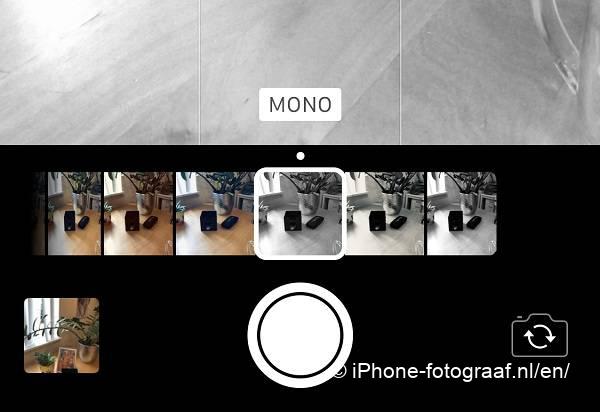
- Swipe up on the screen or tap the Live Photos icon again to reveal the editing options that appear below the shutter button.
- Select the Black & White filter.
Now, your screen will show the scene in grayscale. The camera is still technically recording a colored video clip, but what you see through the lens is monochrome. This allows you to adjust your angle and wait for the right lighting conditions before snapping the photo. When you tap the shutter, the photo saves as a standard black and white image. However, the original color data is still attached as a backup.
Editing For Impact: Adjustments That Matter
Shooting in black and white is only the first step. The magic happens in the editing phase. Whether you used the Live Photo trick or edited a standard color photo, the built-in Photos app offers powerful tools. But most people stop at the "Black & White" filter. That doesn’t touch the underlying tonal values effectively.
To truly unlock the power of the black and white camera, you need to dive into the "Edit" menu and select the filter. Once selected, slide the intensity bar all the way off. This removes the generic filter look and gives you access to the individual color channels.
This is where the real control lies. In a black and white image, different colors convert to different shades of gray. Red might appear very dark, while blue might look light. By adjusting the sliders for specific colors:
- Deepen shadows: Lower the blue or green sliders to make skies or foliage darker, creating more contrast against lighter subjects.
- Brighten skin tones: If you are shooting a portrait, raising the pink or orange sliders can make skin tones pop, ensuring the subject separates from the background.
- Control contrast: Adjusting the yellow slider can drastically change how concrete or skin tones appear, often balancing the mid-tones of the image.
Don’t be afraid to push these sliders to the extremes. A high-contrast black and white image often feels more dramatic and timeless than a flat, gray one.
Compositional Tips For Monochrome
Without color to guide the eye, your composition needs to be stronger. Here are a few practical tips that help when shooting in black and white.
Look for leading lines. Roads, fences, and architecture become much more prominent when color is removed. A simple diagonal line can lead the viewer’s eye straight to the subject.
Focus on texture. Close-up shots benefit greatly from monochrome. The grain of wood, the roughness of stone, or the smoothness of water becomes the star of the image. Use side lighting to accentuate these textures.
Embrace negative space. Black and white images can feel claustrophobic if they are too cluttered. Give your subject room to breathe. A vast, empty sky or a plain wall can create a sense of isolation or peace that color often distracts from.
Common Mistakes To Avoid
One of the biggest errors photographers make is converting every photo to black and white. Not every image benefits from it. If a photo relies on color to tell the story—like a vibrant sunset or a colorful market scene—removing the color might kill the mood.
Another mistake is ignoring the histogram. Overexposed highlights will turn into pure white blobs, losing all detail. Underexposed shadows become flat black areas. Check your histogram on the iPhone camera settings to ensure you are capturing detail in both the light and dark areas of the scene.
Finally, don’t neglect the environment. Reflections, shadows, and ambient light play a bigger role in black and white photography. A harsh midday sun might wash out a color photo, but it can create stark, dramatic shadows that look incredible in monochrome. Embrace the harsh light rather than fighting it.
Frequently Asked Questions
Does the iPhone save the original color photo after converting to B&W?
If you use the Live Photos trick mentioned above, the final saved image is black and white, but the original color data is preserved in the background. You can always revert it later in the Photos app by tapping "Edit" and choosing the original color variation. If you edit a standard photo using the filters, the original is also kept safe.
Can I use third-party apps for better black and white editing?
Yes. Apps like VSCO, Lightroom Mobile, or RNI Films offer more advanced controls for developing black and white images. They often provide superior grain controls and more precise color channel adjustments than the native Photos app.
Why do my black and white photos look flat?
Flat images usually lack contrast. Try increasing the "Contrast" slider in the Photos app. Additionally, check if you are using the filter intensity. Setting the intensity to 100% can sometimes result in a washed-out look. Disabling the filter and manually adjusting the color channels often yields more dynamic results.