How to Quickly Find Your iPhone’s Serial Number and Color
Whether you’re buying a used device, checking warranty status, or just satisfying curiosity, knowing the exact serial number and color of your iPhone is surprisingly handy. The good news? You don’t need a tech‑savvy wizard or a third‑party app—Apple builds the info right into the phone, and it’s also accessible online.
Why Those Two Details Matter
Serial numbers act like a fingerprint for every iPhone. They reveal manufacturing date, region, and even whether the device is eligible for AppleCare. Color, on the other hand, is often the tie‑breaker when you’re comparing listings or confirming a model’s authenticity. Together, they give you a clear picture of what you actually own.
Finding the Serial Number Directly on the Device
There are three common places to glance at the serial number without digging through menus:
- Back of the iPhone – On older models (iPhone 6s and earlier), the serial is etched in tiny print near the bottom.
- SIM‑card tray – For newer phones, pop out the tray; the number is printed on the side.
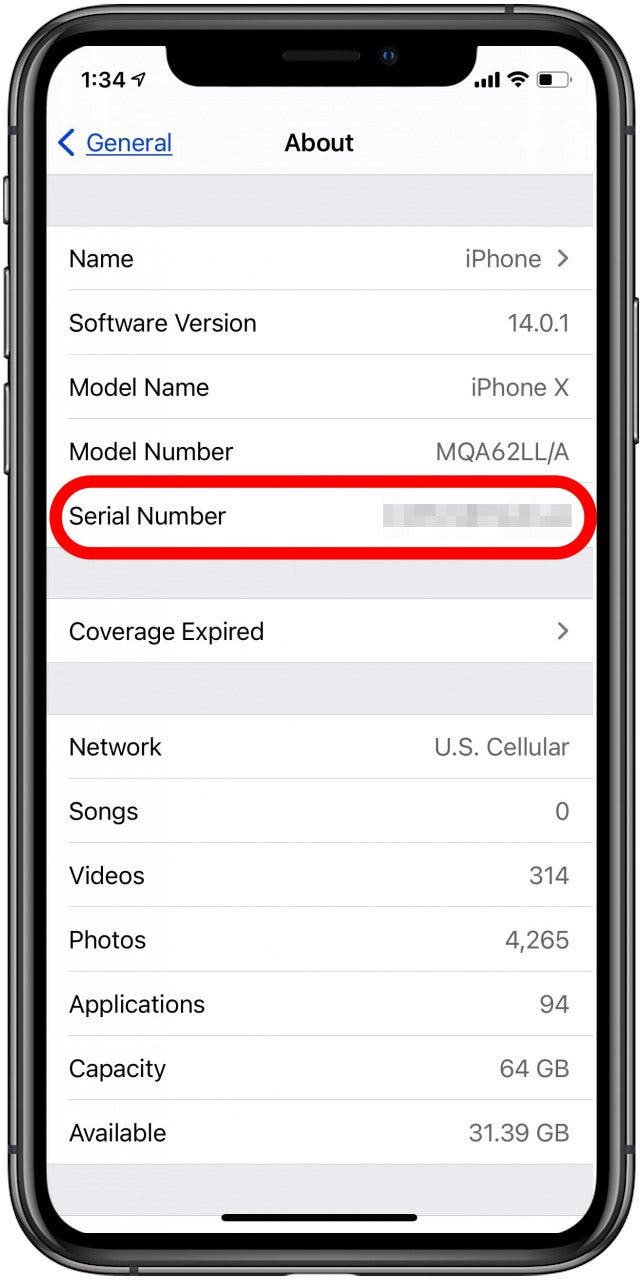
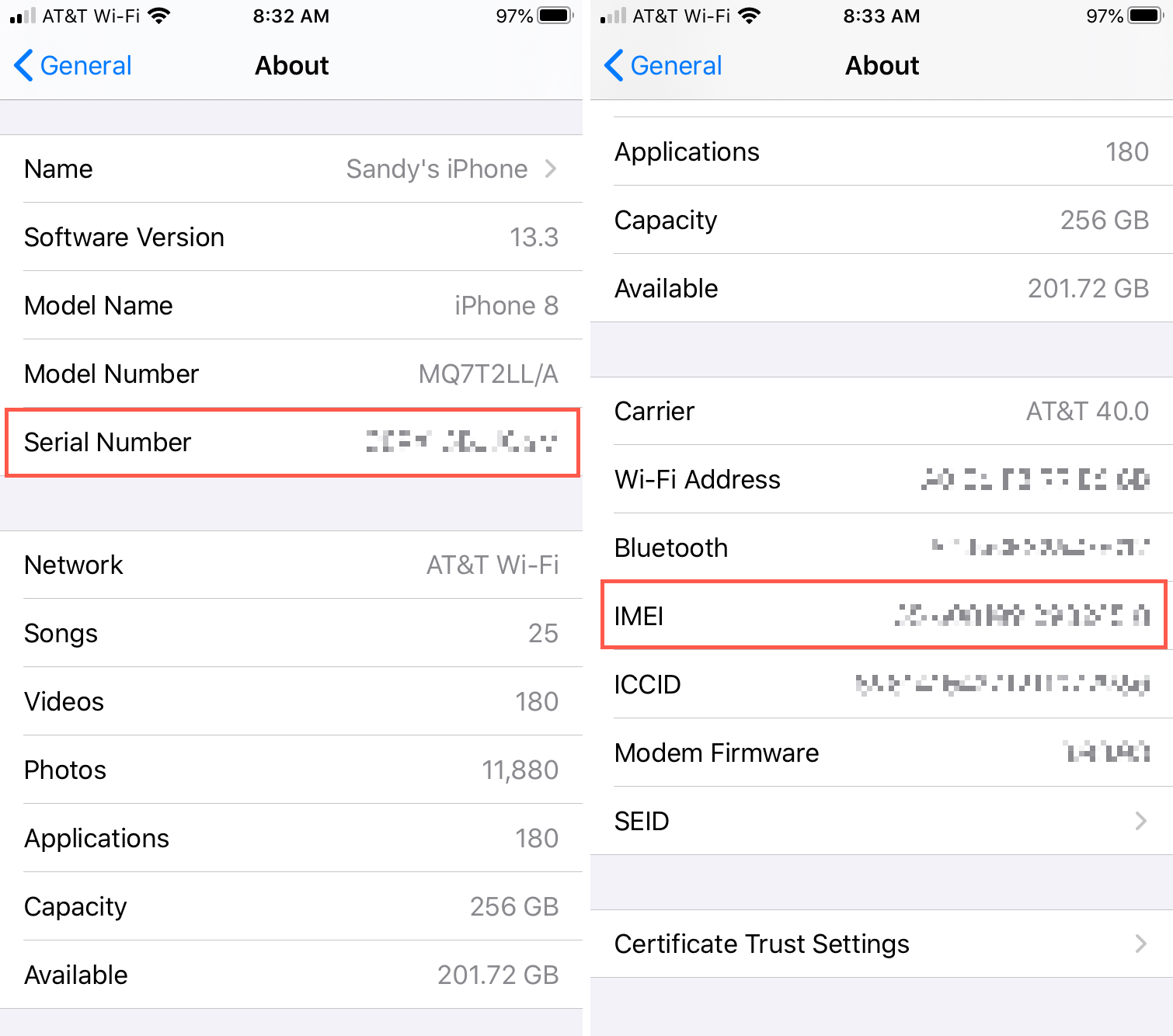
- Settings app – Go to Settings > General > About. The serial appears at the top of the list.
Quick tip
If you’re in a hurry, tap the serial number in the About screen. It copies to the clipboard instantly, ready for a paste into Apple’s support page.
Identifying Your iPhone’s Color
Apple’s color naming can be a little poetic—“Midnight,” “Pacific Blue,” “Product(RED).” Here’s how to confirm it without guesswork:
- Physical inspection – Compare the device’s hue to Apple’s official color palette (pictures are on Apple’s website). Good for a quick visual match.
- Model number lookup – The model number (e.g., A2342) appears next to the serial in the About section. Plug it into Apple’s tech specs page and the color will be listed.
- Original packaging – If you kept the box, the color name is printed on the side label, right next to the barcode.
Using Apple’s Online Tools
Apple provides a straightforward web portal that cross‑references serial numbers with model details, including color.
- Visit checkcoverage.apple.com.
- Enter the serial number you copied earlier.
- Complete the CAPTCHA and click “Continue.”
- The next page displays warranty info, model name, and the exact color.
The same site also tells you if the device is still covered by AppleCare or eligible for a battery service—extra peace of mind at no cost.
What to Do If the Serial Doesn’t Match
Sometimes a device might have a mismatched serial (for example, after a screen replacement). In those cases:
- Contact the seller or Apple Support for clarification.
- Check the IMEI number (Settings > General > About or on the SIM tray). Apple’s database cross‑references IMEI with serial, helping spot discrepancies.
- Consider a third‑party verification service, but be wary of fees and privacy policies.
Common Pitfalls and How to Avoid Them
Mixing up model and serial numbers. The model (A####) tells you the hardware version, while the serial is unique to your unit. Double‑check you’re copying the right string.
Over‑relying on screenshots. A blurry photo of the back can make the serial unreadable. Use the copy‑to‑clipboard method in Settings for accuracy.
Ignoring regional variations. Some colors are released only in certain markets. If you bought a phone abroad, the official name might differ slightly (e.g., “Gold” vs. “Yellow Gold”).
Bonus: Quick Checklist Before You Sell or Trade In
- Copy the serial number and keep it in a secure note.
- Verify the color via the model number on Apple’s site.
- Erase all content (Settings > General > Reset > Erase All Content and Settings).
- Take a clear photo of the back and the box (if you have it) for the buyer.
Having those details at your fingertips streamlines the whole process, whether you’re a reseller, a tech‑enthusiast, or just a careful owner. A few taps, a quick web check, and you’re in the know—no mystery left behind.