How to Revive Your Old iPad with New Games
There's no need to throw away your old iPad just because it's not as sleek as the latest models. With a few simple steps, you can breathe new life into your trusty device and download new games to enjoy. In this article, we'll guide you through the process of downloading games on an old iPad, so you can keep on playing without breaking the bank.
The first thing to consider is the age and model of your iPad. If you're using an iPad 2 or earlier, you might not be able to download the latest games due to compatibility issues. However, there are still plenty of great games available that can run smoothly on older devices. For newer models, such as the iPad 3 or later, you should be able to download a wide range of games from the App Store.
Checking Compatibility and Updating Your iPad
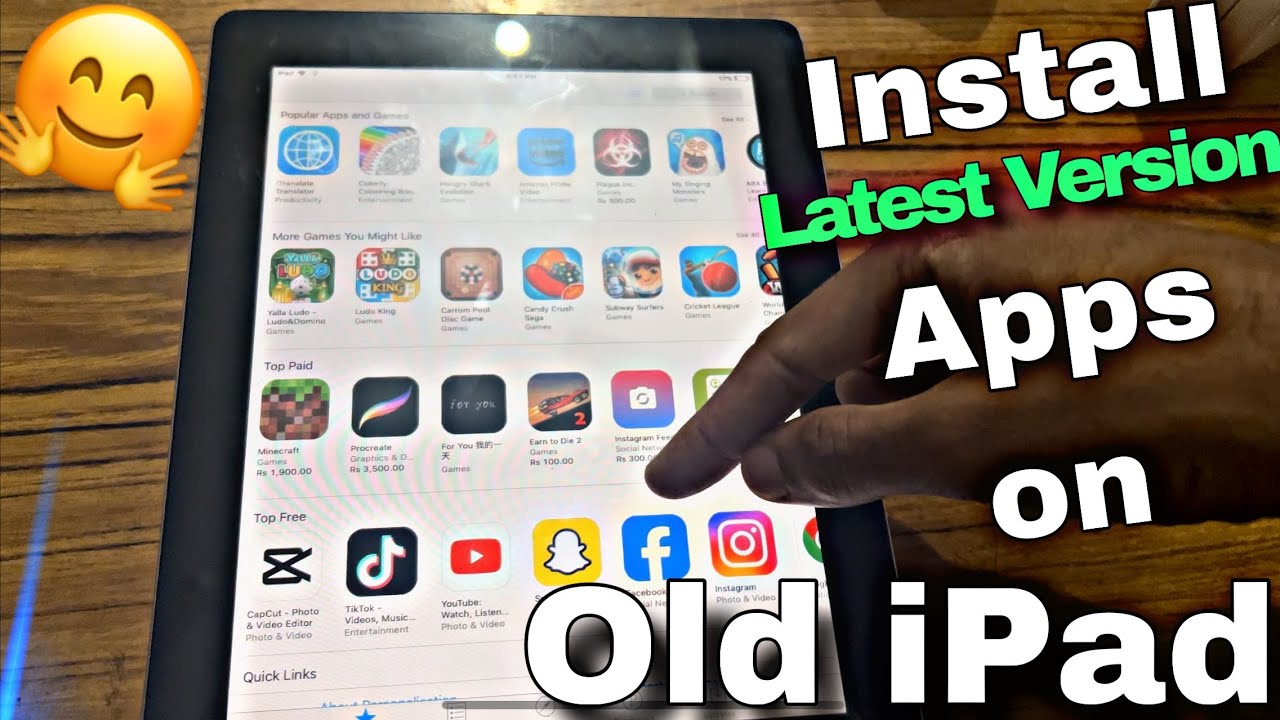
Before you start downloading games, it's essential to check the compatibility of your iPad. To do this, go to the App Store and search for the game you want to download. If the game is compatible with your device, you'll see a "Get" or "Download" button. If it's not compatible, you'll see a message stating that the game requires a newer version of iOS.
To update your iPad, go to the Settings app, then tap on "General" and "Software Update." If an update is available, follow the prompts to download and install it. This will ensure that your iPad is running the latest version of iOS, which may improve compatibility with newer games.
Downloading Games from the App Store
Once you've checked compatibility and updated your iPad, you can start downloading games from the App Store. Here's a step-by-step guide:
- Open the App Store on your iPad.
- Tap on the "Games" tab at the bottom of the screen.
- Browse through the various categories, such as "Action," "Adventure," or "Puzzle."
- Find a game you like and tap on it to view its details.
- Tap the "Get" or "Download" button to start the download process.
- Wait for the game to download and install. This may take a few minutes, depending on the size of the game and your internet connection.
Managing Storage Space on Your iPad
Older iPads often have limited storage space, which can be a problem when downloading new games. To manage your storage space effectively, follow these tips:
Regularly delete games and apps that you no longer use. Go to the Settings app, then tap on "General" and "Storage & iCloud Usage." From here, you can see which apps are taking up the most space and delete them if necessary.
Consider deleting large files, such as movies or TV shows, to free up space on your iPad. You can also transfer files to your computer or an external hard drive to free up space.
Tips for Playing Games on an Old iPad
While older iPads may not be as powerful as newer models, there are still plenty of great games available that can run smoothly on these devices. Here are some tips for playing games on an old iPad:
Choose games that are optimized for older devices. These games are designed to run smoothly on lower-spec hardware, so you'll get a better gaming experience.
Adjust the graphics settings to improve performance. Many games allow you to adjust the graphics quality, which can help improve frame rates and reduce lag.
Close other apps while playing games to free up memory and improve performance. This will help ensure that your game runs smoothly and doesn't crash or freeze.
In conclusion, downloading games on an old iPad is a great way to breathe new life into your device and enjoy some exciting gaming experiences. By following the steps outlined in this article, you can find compatible games, manage your storage space, and optimize your gaming experience. So why not give it a try and see what amazing games you can discover on your old iPad?