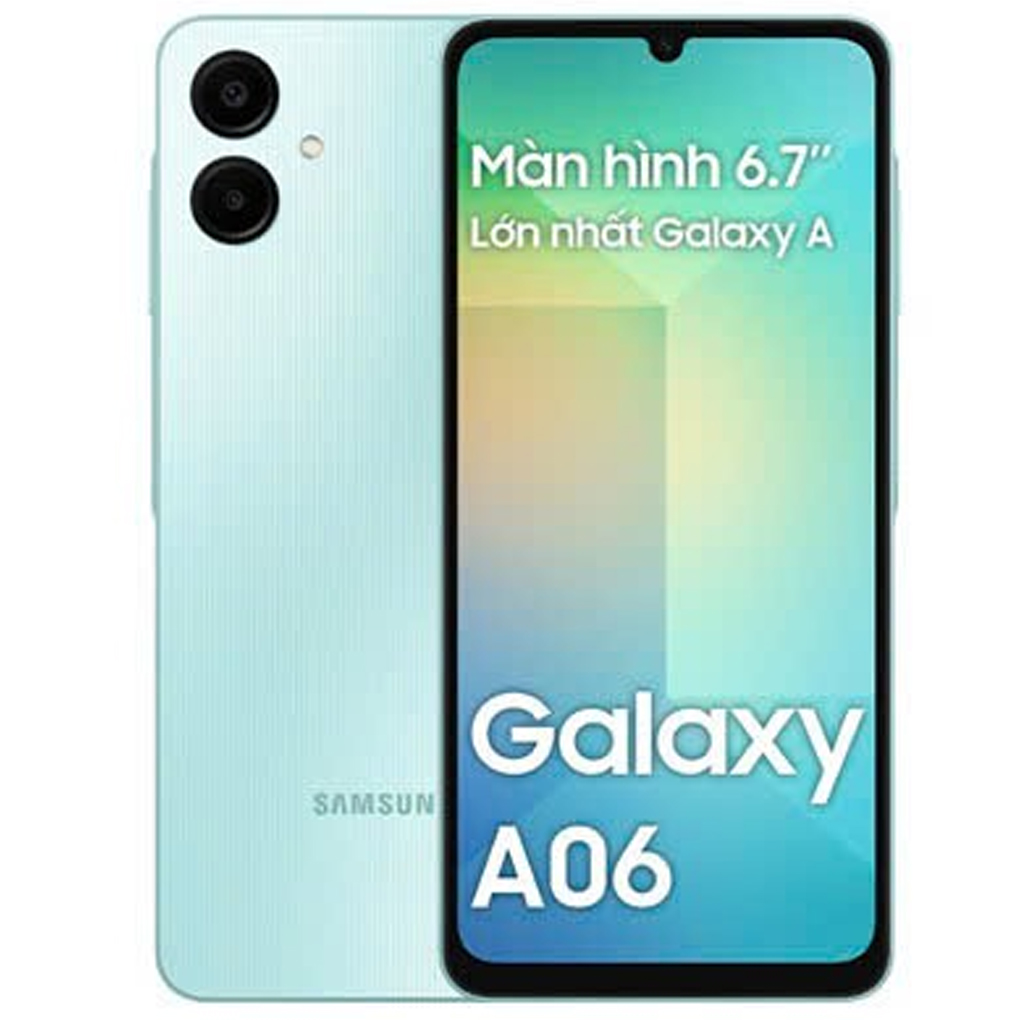
How to Unlock Samsung Galaxy A06: Password Reset Guide
Locked out of your Galaxy A06? It happens—whether you’ve forgotten a PIN, a pattern, or a Google password after a recent update. The good news is you don’t need to toss the phone or call a mysterious “unlock service.” Below is a straightforward, hands‑on walkthrough of the most reliable ways to regain access, from built‑in Samsung tools to the classic recovery‑mode trick.
1. Try Samsung’s Built‑In “Find My Mobile” Feature
If you’ve already registered the device with a Samsung account, Find My Mobile can remotely wipe the lock screen without erasing your personal data.
What you’ll need
- A computer or another smartphone with internet access
- Your Samsung account credentials (email + password)
- The Galaxy A06 must be turned on and connected to Wi‑Fi or mobile data
Step‑by‑step
- Open a browser and go to findmymobile.samsung.com.
- Sign in with the same Samsung account that’s linked to the locked phone.
- Locate your Galaxy A06 in the device list and click “Unlock.”
- A confirmation dialog appears—accept it. The phone will automatically remove the password, pattern, or PIN.
- When the screen lights up, set a new, memorable lock method.
If the phone doesn’t show up, it likely isn’t connected to the internet or the Samsung account wasn’t activated. In that case, move on to the next method.
2. Reset via Android Recovery Mode
When all else fails, the hardware‑level recovery menu is your fallback. It’s a bit more invasive because it typically wipes everything, but it’s guaranteed to get you back inside.
Precautions before you start
- Make sure you have a recent backup (Samsung Cloud, Google Drive, or a PC).
- Charge the phone to at least 50 % to avoid an accidental shutdown mid‑process.
- Know your Google account email/password—after the factory reset, you’ll need it for the initial setup.
How to access recovery mode
- Power off the Galaxy A06 completely.
- Press and hold the Volume Up and Power buttons simultaneously.
- Release the buttons as soon as the Samsung logo appears; the recovery menu should appear shortly after.
- Navigate using the volume keys and select “Wipe data/factory reset” with the Power button.
- Confirm the selection, wait for the process to finish, then choose “Reboot system now.”
After the reboot, the device behaves like it’s fresh out of the box. Follow the on‑screen prompts, sign in with your Google or Samsung account, and restore your backed‑up data.
3. Use Samsung Smart Switch on a PC
Smart Switch isn’t just for transferring files; it also offers a “Reset” option that can bypass a lock screen when the device is recognized.
Step‑by‑step
- Download and install Smart Switch on your Windows or macOS computer.
- Connect the Galaxy A06 via USB. If the phone asks for permission to trust the computer, you won’t see the prompt because it’s locked—skip to the next step.
- In Smart Switch, click the three‑dot menu, then select “More” → “Emergency software recovery.”
- Follow the on‑screen instructions; the software will download a firmware package and flash it, effectively resetting the device.
- When the phone restarts, you’ll be greeted by the initial setup wizard.
The benefit of Smart Switch is that it retains the original firmware version, reducing the risk of compatibility glitches that sometimes occur after a manual flash.
4. When to Seek Professional Help
If the phone is still under warranty, or if you suspect hardware damage (e.g., a bent power button making it impossible to enter recovery mode), heading to a Samsung Service Center is wise. Technicians can perform a secure unlock without data loss in many cases, especially when proof of ownership is provided.
Things to bring
- Original receipt or proof of purchase
- Valid ID matching the account holder’s name
- Any Samsung account credentials you remember
5. Tips to Avoid Future Lockouts
- Enable Biometric authentication (fingerprint or facial recognition) as a backup to PINs.
- Write down your passwords in a secure password manager rather than on paper.
- Periodically check that Find My Mobile is still active and that the device appears in the dashboard.
- Set up Google’s “Find My Device” as a secondary safety net; it can locate, ring, or erase the phone remotely.
Getting locked out is frustrating, but with the steps above you can usually solve the problem on your own. Whether you prefer the remote elegance of Samsung’s own service or the brute‑force reliability of recovery mode, you now have a clear roadmap to unlock your Galaxy A06 without panic.